Do Not Disturb vs Sleep Mode on iPhone: Which One Should You Actually Use?
MTMei-Lin Tsuji
|
⏱ 26 min read
|
Updated June 1, 2025
Fact-checked by the SnapMessages editorial team
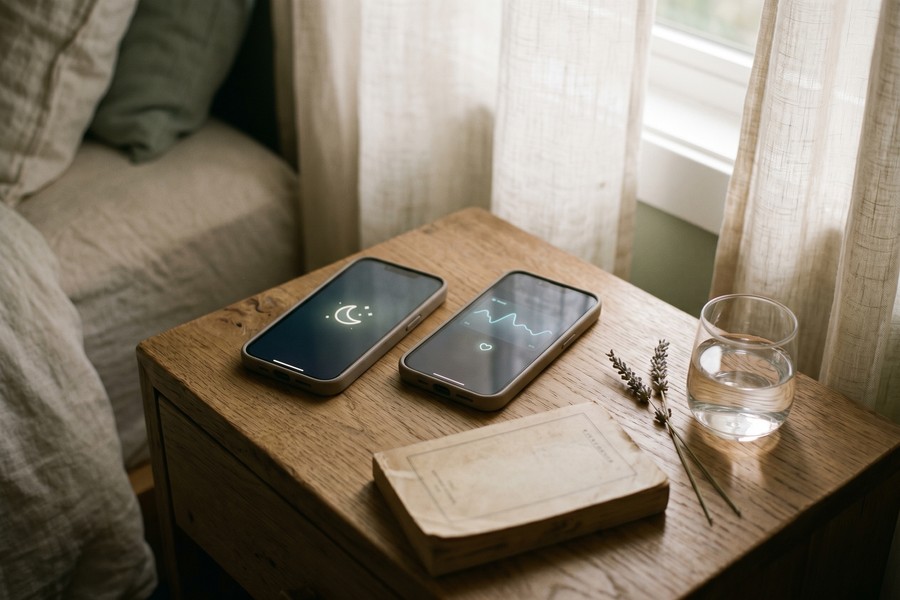
Apple’s own data, embedded in the iPhone’s Focus system, draws a hard architectural line between two modes most users treat as interchangeable: Do Not Disturb silences your phone on command, while Sleep Focus (commonly called Sleep Mode) operates as a behavioral system tied directly to the Health app’s bedtime schedule. The question of do not disturb vs sleep mode is not simply about which setting is quieter. It is about whether your phone is passively muting alerts or actively participating in your sleep health. Most iPhone users have never been told that difference exists.
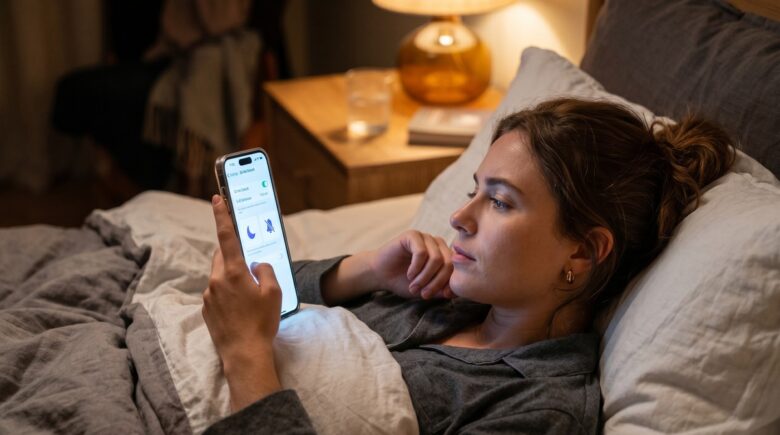
Phone use at night has become genuinely pervasive. According to a May 2025 YouGov survey of 1,129 U.S. adults, 73% of Americans sleep with their phone either on the bed next to them or on a nightstand within arm’s reach. The same survey found that 43% of Americans always or often use their phone to browse the internet and apps within 10 minutes of falling asleep. A separate 2025 American Academy of Sleep Medicine survey found that 50% of U.S. adults report using a screen in bed every single day, and 38% say bedtime doomscrolling makes their sleep measurably worse. With iPhone holding 58.13% of the U.S. smartphone market in 2025, the choice between these two settings is directly relevant to the majority of Americans who sleep next to their phones every night.
By the time you finish reading this guide, you will know exactly what each mode does at a system level, why Sleep Focus holds architectural priority over Do Not Disturb, where Sleep Focus genuinely fails (and it does fail), and which setting is the right choice for your actual lifestyle. This is not a feature overview. It is a decision framework built on how these modes work in practice.
Key Takeaways
73% of Americans sleep with their phone on the bed or nightstand, making nighttime notification settings a direct sleep-health variable, not a convenience preference.
Sleep Focus has documented system-level priority over Do Not Disturb: when both are scheduled to run at the same time, Sleep Focus controls phone behavior and DND is subordinate.
Do Not Disturb generates zero data in the Apple Health app. Sleep Focus, paired with Apple Watch, logs REM, Core, and Deep sleep stages plus respiratory rate and heart rate correlated to your sleep window.
Wind Down, exclusive to Sleep Focus, can activate up to 3 hours before your scheduled bedtime, making it the only native iPhone feature that intervenes in the pre-sleep phone-use window where melatonin suppression risk is highest.
A documented iOS behavior, confirmed across Apple Community threads, means a manually activated Do Not Disturb left on from daytime use can silently block Sleep Focus from activating at its scheduled bedtime.
As of watchOS 9 and later, Apple Watch can track sleep stages independently of Sleep Focus being active, which means sleep data collection does not strictly require Sleep Mode to be on.
Why Your Phone Settings Actually Affect How Well You Sleep
Most people understand, at a surface level, that using a phone before bed is not ideal. Fewer understand the specific mechanism by which a notification at 11:47 PM does damage even if they never consciously wake up to read it. Light from a screen, auditory alerts, and vibrations can pull the brain out of deep or REM sleep without crossing the threshold of full wakefulness. The sleeper does not remember the interruption. The sleep tracker does.
The problem is compounded by what researchers call the “implementation gap,” the gap between intending to go to sleep and actually doing it. Phones kept within arm’s reach are not passively present. They are active temptations. The American Academy of Sleep Medicine’s 2025 Sleep Prioritization Survey found that 38% of U.S. adults say viewing news and current events on their phone before bed makes their sleep slightly or significantly worse, yet the behavior continues. The phone’s proximity and the absence of any friction is part of why.
The Micro-Interruption Problem Most People Underestimate
People frequently assume their phone is “already on silent” and that this is sufficient. It rarely is. A phone set to silent but not to Do Not Disturb still vibrates for incoming messages. The screen still lights up. If an Apple Watch is on the wrist, haptic alerts still pulse. Each of these events is a micro-interruption with the potential to fragment sleep architecture, even if the sleeper never reaches full consciousness.
The distinction matters most during the first two to three hours of sleep, when slow-wave (deep) sleep is most concentrated. Fragmentation during this window has an outsized effect on next-day cognitive performance, mood regulation, and metabolic recovery. A properly configured sleep-focused phone setting is not a luxury feature. For the 89% of iPhone users who, according to a 2025 Amerisleep survey, spend time on their phones after getting into bed, it is a direct health intervention.
By the Numbers
89% of iPhone users report spending time on their phones after getting into bed, compared to 82% of Android users, according to a 2025 Amerisleep survey of over 1,000 U.S. adults.
Why the Setting You Choose Reflects Your Sleep Strategy
Choosing between Do Not Disturb and Sleep Focus is not a technical decision. It is a behavioral one. Do Not Disturb asks you to remember to enable it each night. Sleep Focus removes that decision entirely by tying activation to a Health app schedule. For users who already have disciplined bedtime routines, DND is more than sufficient. For users whose routines are inconsistent, Sleep Focus does the work that willpower often cannot.
That framing only holds if Sleep Focus actually works as advertised. As this article covers in detail, it sometimes does not.
Do Not Disturb vs Sleep Mode: What Each One Actually Does
At a technical level, the two modes share DNA but diverge sharply in scope, priority, and system integration. Understanding the architecture is the only way to make a genuinely informed choice.
Do Not Disturb: A Targeted Silence Toggle
Do Not Disturb is one of several Focus modes available on iPhone running iOS 15 and later. You can activate it manually from Control Center with a single tap, or schedule it to run at specific times. When active, it silences calls, alerts, and notifications. You can configure exceptions: specific contacts whose calls or messages come through, or apps whose alerts are permitted. The “Allow Repeated Calls” option lets a second call from the same number within three minutes ring through, a useful emergency bypass.
That is the full scope of what it does. Do Not Disturb has no awareness of when you go to sleep. It does not interact with the Health app. It generates no sleep data, creates no Wind Down period, and does not dim your Lock Screen in any specialized way. According to Apple’s official Focus setup guide, Do Not Disturb “can be quickly activated from Control Center to silence all notifications,” a description that captures exactly how limited it is as a sleep tool.
Sleep Focus: A Behavioral System, Not a Mute Button
Apple’s Sleep Focus (referred to in the interface simply as “Sleep”) is a superset. When you set it up, you configure a recurring bedtime and wake-up schedule inside the Health app. The mode activates automatically at your scheduled bedtime, silences notifications, dims the Lock Screen to a minimal interface, and optionally triggers a Wind Down period before you even intend to sleep. It also integrates directly with Apple Watch sleep tracking, logging sleep stages, heart rate, and respiratory rate across the sleep window.
Per Apple’s iPhone User Guide, Sleep Focus “helps reduce distractions before and during bedtime” by filtering notifications and calls and signaling to others that you are not available. Its schedule is driven by the sleep schedule set in the Health app, which distinguishes it structurally from the manually triggered Do Not Disturb Focus.
Did You Know?
Sleep Focus has documented system-level priority over Do Not Disturb. If both are scheduled to run simultaneously, Sleep Focus wins and controls the phone’s behavior. Do Not Disturb does not override Sleep Mode; it is subordinate to it.
A Side-by-Side Comparison
Feature
Do Not Disturb
Sleep Focus (Sleep Mode)
Activation
Manual or scheduled
Automatic via Health app sleep schedule
Silences notifications
Yes
Yes
Custom Lock Screen
No
Yes (dedicated Sleep Lock Screen)
Wind Down period
No
Yes (15 min to 3 hours before bedtime)
Health app integration
None
Full (sleep schedule, sleep goal, data logging)
Apple Watch sleep tracking
Not connected
Synced with watchOS sleep tracking
Sleep stage data
None
REM, Core, Deep, Awake (with Apple Watch)
System priority over DND
N/A
Higher priority when both are scheduled
Setup location
Settings → Focus → Do Not Disturb
Health app → Sleep, then Settings → Focus → Sleep
Wind Down: The Feature That Changes Pre-Sleep Behavior
Wind Down is the most underappreciated feature in Apple’s sleep toolkit, and almost no mainstream article gives it serious attention. It is also the feature that most directly addresses the part of the night where poor phone habits do the most damage: the 30 to 90 minutes before a person intends to sleep.
What Wind Down Actually Does
When you configure your Sleep Focus schedule, you can set a Wind Down period anywhere from 15 minutes to 3 hours before your scheduled bedtime. During Wind Down, Sleep Focus activates early. The Lock Screen shifts to its minimal Sleep interface. Notifications are silenced. The phone, in effect, starts behaving like it is bedtime before bedtime has officially arrived.
This pre-sleep buffer is configurable inside the Health app under Full Schedule & Options, not in the Focus settings menu. That single navigation detail is why most users never find it. According to Apple’s Health app sleep-schedule guide, users can set a Wind Down period and configure Sleep Focus to allow interruptions from specific people, customize the Lock Screen, and set a sleep goal, all features absent from standard Do Not Disturb.
The Sleep Hygiene Connection
The behavioral logic behind Wind Down maps directly onto what sleep researchers have documented about blue light and melatonin suppression. Screen exposure in the hour before bed delays the onset of melatonin production, which pushes sleep onset later and compresses the total sleep window. A Wind Down buffer set to 60 or 90 minutes creates a phone-enforced analog to the “screen curfew” that sleep clinicians have recommended for decades.
Do Not Disturb does not address this phase of the night at all. Even with DND scheduled to activate at 11:00 PM, a person lying in bed scrolling at 10:45 PM is still exposed to the same blue light and stimulation. Wind Down is the only native iPhone tool that intervenes before the declared bedtime, which is precisely when the intervention matters most.
Pro Tip
Set your Wind Down period to at least 30 minutes. Then add two or three “allowed” shortcuts on the Wind Down Lock Screen for calm, low-stimulation activities like a meditation app or a journaling app. This makes the Wind Down screen a positive anchor rather than just a locked door. If you are building a mindfulness habit alongside better sleep, pairing this with one of the best meditation apps for beginners gives the Wind Down period genuine purpose.
Sleep Tracking: Where Do Not Disturb Falls Short
This is the clearest functional divide between the two modes, and it is not a close comparison. Do Not Disturb generates absolutely no data in the Apple Health app. It silences the phone and nothing else. If your goal is to understand your sleep, DND is a dead end.
What Sleep Focus Logs
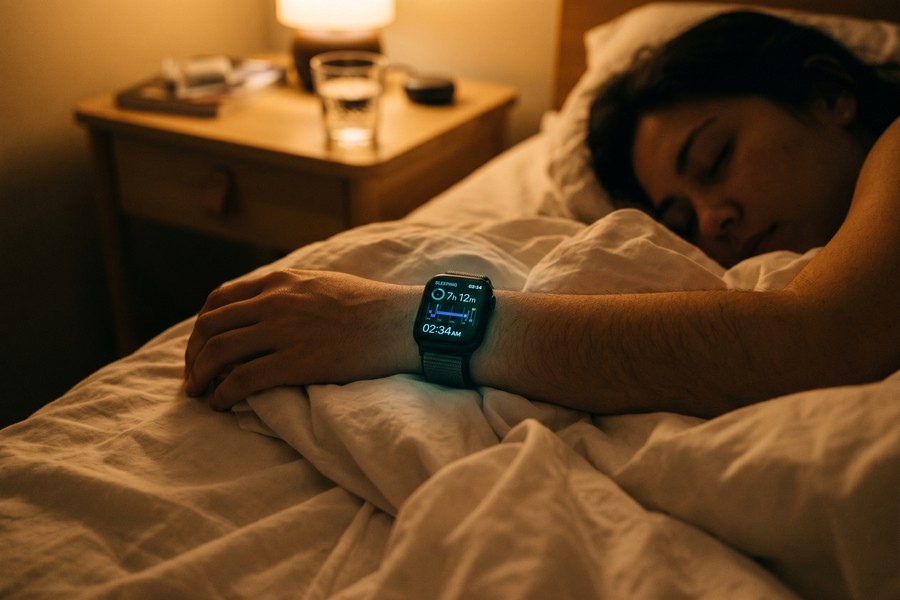
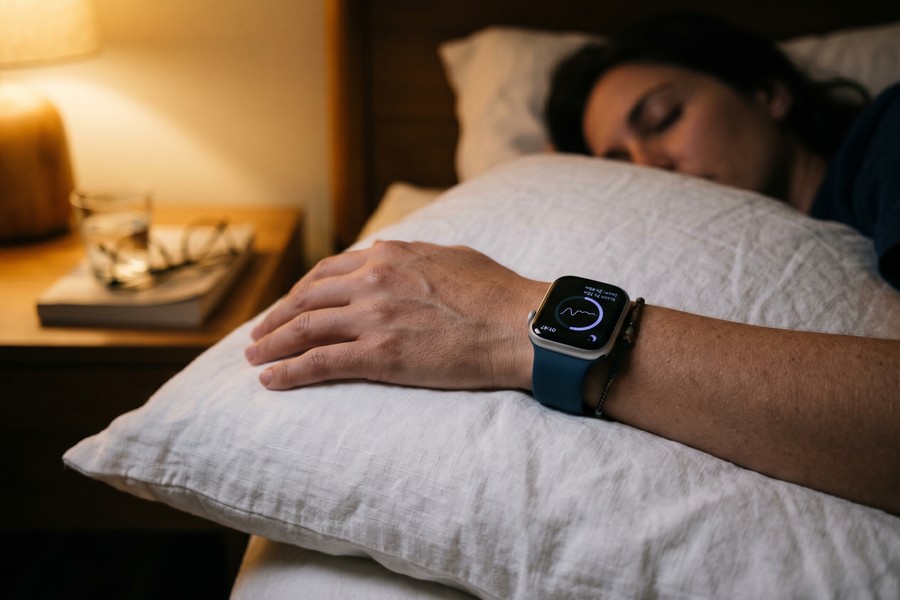
Used in conjunction with Apple Watch, Sleep Focus logs the full picture: total time in bed, total time asleep, and a breakdown by sleep stage (Awake, REM, Core, and Deep). It also correlates heart rate and respiratory rate to the sleep window, giving you a physiological record of each night. According to Apple’s support documentation on sleep tracking with Apple Watch, enabling Sleep Focus at the scheduled bedtime reduces distractions and allows the Health app to assign a sleep analysis based on duration, bedtime consistency, and interruptions.
The longitudinal view is where sleep data becomes genuinely actionable. The Health app displays sleep history by day, week, month, or six months. Over two to four weeks of consistent Sleep Focus use with Apple Watch, patterns emerge that a single well-rested night would never reveal: chronic short sleep on weeknights, poor deep-sleep ratios after late-night eating, or fragmented REM sleep correlated to specific evenings. These are the kinds of observations that change behavior because they make invisible patterns visible.
By the Numbers
43% of Americans always or often use their phone to browse the internet and apps within 10 minutes of falling asleep, according to a May 2025 YouGov survey of 1,129 U.S. adults. For these users, a passive silence toggle cannot address what is a behavioral pattern.
The Honest Caveat About Apple Watch and Sleep Focus
Here is a nuance that most articles miss entirely: as of watchOS 9 and later, Apple Watch can track sleep stages independently of Sleep Focus being active on the iPhone. The watch uses accelerometer and heart rate data to detect sleep, regardless of which Focus mode the phone is running. So if you wear your Apple Watch to bed but do not use Sleep Focus, you will still get sleep stage data in the Health app.
This fact undermines the argument that “you must use Sleep Focus to get sleep data,” which is the main claim used to push every user toward Sleep Mode. The more accurate statement is that using Sleep Focus ensures the tracked sleep window aligns precisely with your intended schedule, and that the Wind Down and bedtime reminder features remain available. If your sole goal is sleep stage logging, watchOS 9+ makes Sleep Focus optional for that specific purpose.
Known Failure Modes: When Sleep Focus Does Not Stay Quiet
Sleep Focus is not a reliable silence system for every user, and the mainstream tech press has been consistently reluctant to say so. There are documented, real-world failure modes that affect a meaningful subset of iPhone users, particularly those who also wear Apple Watch.
Apple Watch Notification Bleed-Through
One of the most widely reported Sleep Focus problems involves Apple Watch notifications bypassing the Focus filter entirely. Apple’s own “Time to Stand” alert from the Fitness app, along with notifications from major messaging apps like WhatsApp and Telegram, has been documented in numerous Apple Community threads as breaking through Sleep Focus due to imperfect syncing between iPhone Focus settings and watchOS.
The fix requires adding both the Watch app and the Fitness app to the Sleep Focus silence list separately, in Settings → Focus → Sleep → Apps. Adding one without the other is insufficient. This workaround is buried in Apple Community discussions and absent from every mainstream guide on Sleep Focus setup. Users who have been woken up by a 2:00 AM “Time to Stand” reminder despite having Sleep Focus active are not imagining things. The sync gap is real.
Watch Out
If you leave Do Not Disturb manually activated from earlier in the day and forget to turn it off, it can block Sleep Focus from activating at its scheduled bedtime. This is a documented iOS behavior: a manually active Focus mode can conflict with a scheduled Focus mode’s automatic activation. The result is that you believe Sleep Focus is running when it is not, and your sleep data for that night may be missing or incomplete.
The DND Conflict Trap
This failure mode is particularly tricky because it is silent. If you enable Do Not Disturb manually at 3:00 PM for a meeting and forget to disable it, Sleep Focus may not activate automatically at its scheduled 10:30 PM start time. The phone remains silenced by DND, which feels identical from the outside, but the Sleep Focus behavioral system (Wind Down, custom Lock Screen, Health app data logging) is not running. You think you are protected by Sleep Focus. You are not.
The practical fix is to always turn off Do Not Disturb explicitly before your Sleep Focus bedtime, or to use DND with a scheduled end time rather than leaving it on manually. If you find yourself in this failure mode repeatedly, this is a legitimate reason to prefer a well-configured DND schedule over Sleep Focus, at least until Apple improves the priority conflict handling.
When Do Not Disturb Is the Better Choice
Despite Sleep Focus’s broader feature set, Do Not Disturb has one clear advantage: predictability. Its behavior is simple and consistent. When it is on, it silences the phone. There is no Health app dependency, no watchOS sync requirement, and no Wind Down configuration to get wrong. For users who need granular control over exactly which apps and contacts can break through, DND’s exception handling is actually more intuitive to configure than Sleep Focus’s layered permission system.
Failure Mode
Affects DND
Affects Sleep Focus
Workaround
Manual DND blocks Sleep Focus auto-activation
No
Yes
Always disable DND before Sleep Focus bedtime
Watch “Time to Stand” breaks through
Not applicable
Yes
Add Fitness app AND Watch app to Sleep Focus silence list
Third-party app notifications bypass Focus
Rarely
Sometimes
Manually audit allowed apps list in Focus settings
Health app sync fails (no sleep data recorded)
Not applicable
Occasional
Open Health app manually after waking to trigger sync
Which One Should You Use? A Decision Framework by Lifestyle
There is no universal correct answer, and any article that tells you otherwise is oversimplifying. The right choice depends on your sleep schedule, your hardware, your need for reliable silence, and whether you actually want your phone to build a habit for you.
Choose Do Not Disturb If
Do Not Disturb is the better option if you have an irregular sleep schedule that changes significantly from night to night, making a fixed Health app schedule more hindrance than help. It is also the right choice if you do not wear an Apple Watch to bed, since the main advantage of Sleep Focus over DND is the sleep tracking it enables with the watch. If you need guaranteed quiet without the risk of the Apple Watch bleed-through problem or the DND conflict trap, DND’s simpler behavior is more dependable.
Parents monitoring a baby camera app, on-call healthcare workers, or caregivers who genuinely need specific alert types to come through at night should also lean toward Do Not Disturb. Sleep Focus’s silencing is aggressive, and configuring exceptions within it requires navigating a multi-layer permission system. With DND, you can allow a single app or a single contact with far less effort, and the exception actually sticks. The CDC’s NIOSH sleep-environment training for nurses specifically advises adjusting the “do not disturb” feature to allow emergency calls from selected contacts while shutting off non-essential alerts, a configuration that maps cleanly onto DND’s exception model.
Choose Sleep Focus If
For users who want a consistent bedtime enforced by the phone rather than by personal discipline, Sleep Focus is the stronger tool. The automation removes the nightly decision to enable quiet hours, which is exactly where most people’s intentions fall apart. Wearing an Apple Watch to bed and wanting longitudinal sleep stage data gives Sleep Focus a second clear purpose: it ties the tracking to your intended schedule, which DND cannot do.
It is also the right choice if you struggle with the pre-sleep scrolling habit. Wind Down is the only native tool that intervenes before bedtime, not at it. For someone who knows they should put the phone down at 10:00 PM but routinely finds themselves still on it at 11:30 PM, a Wind Down period starting at 9:45 PM creates friction that DND simply cannot.
Did You Know?
The behavioral principle behind Sleep Focus’s automation is well-established in behavior change research: removing the nightly decision to enable quiet hours closes the “implementation gap” between intending to act and actually acting. For users with inconsistent nighttime routines, this system-level nudge is more effective than relying on manual discipline alone.
Your Situation
Recommended Mode
Key Reason
Irregular sleep schedule
Do Not Disturb
Fixed Health app schedule does not fit variable bedtimes
No Apple Watch
Do Not Disturb
Main Sleep Focus advantage (sleep tracking) is unavailable
On-call or caregiver needs
Do Not Disturb
Simpler, more reliable exception configuration
Consistent sleep schedule, want data
Sleep Focus
Ties phone behavior to Health app goals and logs stages
Pre-sleep scrolling habit
Sleep Focus
Wind Down intervenes before bedtime, not just at it
Inconsistent about enabling quiet hours
Sleep Focus
Removes the nightly decision through automation
Setting Up Each Option for Maximum Sleep Quality
Knowing which mode to choose is half the battle. Setting it up correctly is where most users leave value on the table.
Configuring Sleep Focus Step by Step
Sleep Focus setup runs through two separate apps, which is counterintuitive and is why many users get it wrong. Start in the Health app, not in Settings. Open Health, tap Browse, select Sleep, then tap Full Schedule & Options. Here you set your bedtime, wake time, Wind Down buffer (start with 30 minutes and adjust based on experience), and your sleep goal. Enable “Use Schedule for Sleep Focus” within this menu. Once you have done this, go to Settings → Focus → Sleep to configure which apps and contacts are allowed to send notifications during Sleep Focus, and to set up the dedicated Sleep Lock Screen.
For Apple Watch users, there are specific tweaks that most guides skip. Enable “Show Time” in Sleep Focus options so a wrist tap shows the clock without fully disabling Focus. Enable Charging Reminders so a dead battery does not silently kill overnight tracking. Critically, add both the Fitness app and the Watch app to the Sleep Focus silence list in Settings → Focus → Sleep → Apps. Without this step, the Apple Watch bleed-through problem described earlier will affect you.
Configuring Do Not Disturb Step by Step
DND setup is simpler. Go to Settings → Focus → Do Not Disturb → Add Schedule, set your desired time window, configure allowed contacts (use the “Allow Repeated Calls” toggle for emergency bypass), and select which apps can break through. If you are using DND as a sleep tool, set it to end automatically at your intended wake time so you do not carry it into the morning.
The single most important configuration detail for DND users: never leave it on manually without a set end time. A manually activated DND that runs into your Sleep Focus window is the most common source of the conflict trap described above. Scheduled DND with a defined start and end time is always safer than manual activation for users who also have Sleep Focus configured. If you are interested in building a broader automation habit on iPhone, the guide on automating repetitive tasks with iPhone Shortcuts shows how to take this a step further.
Watch Out
If your Sleep Focus Lock Screen still shows a flood of notification previews after setup, check Settings → Focus → Sleep → Lock Screen and confirm that “Show on Lock Screen” is set to show only your allowed contacts and apps. A misconfigured Lock Screen notification setting means Sleep Focus is active but still surfacing previews visually, which defeats a significant part of its purpose.
Apple Watch-Specific Tweaks Worth Doing
If you track your sleep with Apple Watch, one additional setting is worth enabling: in the Apple Watch app on your iPhone, go to My Watch → Sleep, and confirm that “Track Sleep with Apple Watch” is toggled on. Also verify that Charging Reminders are enabled so the watch reminds you to charge before bed, preventing a dead battery from creating a night with no sleep data. These small steps take about two minutes and eliminate most of the common Sleep Focus data-logging failures.
Reading Your Sleep Data and Acting on It
Configuring Sleep Focus is not the goal. The goal is using the data it generates to make changes that actually improve sleep quality over time. Most users look at their sleep stage chart once or twice and then stop checking.
What the Health App Shows After One to Two Weeks
After one to two weeks of consistent Sleep Focus use with Apple Watch, the Health app builds a picture worth examining. You can see your average time asleep vs. your time in bed (sleep efficiency), your breakdown of REM, Core, and Deep sleep as percentages of total sleep time, your heart rate during sleep, and your respiratory rate. You can view these by day, week, month, or six months using the selector at the top of the Sleep dashboard.
The sleep goal slider in the Health app turns orange if your scheduled sleep window does not meet your stated goal. Most users treat this as an aesthetic detail. It is a behavioral nudge: if you have told the Health app you want eight hours of sleep but your scheduled bedtime and wake time only allow six and a half hours, the orange indicator is the app telling you the math does not work.
Turning Data Into Action
The wellness payoff from using Sleep Focus over Do Not Disturb is not in the features themselves. It is in what consistent, longitudinal sleep data allows you to see. A single well-rested night tells you nothing. Four weeks of nightly data lets you ask whether your deep sleep percentage is lower on nights when you used your phone past your Wind Down start time, whether your average sleep duration is systematically shorter on weeknights than weekends (a pattern called social jet lag), and whether your respiratory rate shows any nights worth discussing with a doctor.
Do Not Disturb gives you silence. Sleep Focus gives you silence plus a record. For users who are serious about sleep as a health variable, not just a nightly inconvenience, that record is where the value actually lives. If you are building a broader personal health routine around data from your phone, the best journaling apps for daily reflection and the best water tracking apps pair well with the sleep data Sleep Focus generates, giving you a more complete daily wellness picture.
Did You Know?
The Health app’s sleep history view allows you to filter by “Time Asleep” versus “Time in Bed,” which are not the same number. Time in Bed includes the periods when you were awake after lying down. A large gap between the two is a signal worth paying attention to, and it is data that Do Not Disturb alone can never surface.
Real-World Example: Switching From DND to Sleep Focus for Consistent Bedtime
Consider an illustrative example: a 34-year-old software developer who works from home and has used scheduled Do Not Disturb from 11:00 PM to 7:00 AM for two years. She sleeps with her iPhone on the nightstand and wears an Apple Watch. She reports feeling rested about three nights out of five, with no clear explanation for why the other two nights feel worse.
After switching to Sleep Focus with a 30-minute Wind Down period starting at 10:30 PM, she finds two things within the first two weeks. First, the Health app reveals that her deep sleep percentage is consistently lower on nights when her Heart Rate before bed is elevated, which correlates to evenings when she checks work messages after 9:00 PM. Second, the Wind Down Lock Screen, which she customizes to show only her meditation app shortcut, creates a physical and visual prompt that she picks up the phone less often in the 30-minute window before bed.
After 30 days of Sleep Focus use, she compares the data: average time asleep increases from approximately 6 hours 20 minutes per night to 6 hours 55 minutes, a 35-minute improvement she attributes to the Wind Down period reducing pre-sleep scrolling rather than to any change in bedtime. Her deep sleep percentage, previously averaging around 12% of total sleep, rises to approximately 17% by week four. Neither of these changes would have been detectable under scheduled DND, which silenced the phone but left her behavioral pre-sleep pattern unchanged.
The tradeoff: during the first week, she experiences two nights where the Apple Watch “Time to Stand” alert fires at 1:00 AM, waking her. The fix (adding both the Fitness app and the Watch app to Sleep Focus’s silence list) resolves this, but the troubleshooting takes about 45 minutes spread across two separate settings menus. She notes that anyone not comfortable with iOS settings navigation might give up on Sleep Focus before finding the solution.
Your Action Plan
Decide which mode fits your lifestyle before touching any settings
Use the decision framework in this article. If you have an irregular sleep schedule, do not wear an Apple Watch, or need reliable per-app or per-contact exceptions (caregiver, on-call worker), start with Do Not Disturb. If you want automation, Wind Down, and sleep stage tracking, go to Sleep Focus. Getting this right before setup saves significant configuration time.
If using Sleep Focus: configure it in the Health app first, not Settings
Open the Health app, go to Browse → Sleep → Full Schedule & Options. Set your bedtime, wake time, Wind Down buffer (at least 30 minutes to start), and sleep goal. Enable “Use Schedule for Sleep Focus” here. Only after this is complete should you go to Settings → Focus → Sleep to configure your allowed apps and contacts.
Add the Fitness app and Watch app to your Sleep Focus silence list
Go to Settings → Focus → Sleep → Apps and add both the Fitness app and the Watch app explicitly to the list of silenced apps. This is the fix for the Apple Watch “Time to Stand” notification bleed-through problem. Skipping this step is the single most common reason Sleep Focus users experience unexpected nighttime alerts.
If using Do Not Disturb: always schedule it with a defined end time
Go to Settings → Focus → Do Not Disturb → Add Schedule. Set a start time and a specific end time aligned to your intended wake time. Never rely on manually activated DND without an end time if you also have Sleep Focus configured. A manually active DND left running into Sleep Focus’s scheduled window can prevent Sleep Focus from activating, with no error or notification to warn you.
Configure your allowed contacts for emergency bypass
In whichever mode you use, go to the People settings within that Focus mode and add the specific contacts whose calls should come through. Enable “Allow Repeated Calls” so that a second call from any number within three minutes rings through. This gives you emergency access without leaving the phone open to routine notifications.
Check your sleep data after 14 days, not after 2 days
A single night of sleep data is meaningless for pattern recognition. After two full weeks of Sleep Focus use with Apple Watch, open the Health app’s Sleep dashboard and switch the view to “Last 14 Days.” Look at your average time asleep, your sleep efficiency (time asleep vs. time in bed), and your deep sleep and REM percentages. These numbers are your baseline for any further adjustments.
Use the orange sleep goal indicator as an actual behavioral signal
If your sleep schedule turns orange in the Health app, your scheduled sleep window is shorter than your stated sleep goal. Adjust either your goal to be realistic or your bedtime to be earlier. Ignoring the orange indicator while leaving an aspirational 8-hour goal in place produces sleep data that consistently shows a gap you are not addressing.
Pair your phone’s sleep settings with one deliberate pre-sleep behavior change
No phone setting compensates for a habit of checking messages, email, or news in bed. During your Wind Down period (or your DND window), designate one low-stimulation activity as your transition routine: reading a physical book, light stretching, or using a beginner-friendly meditation app. The phone setting creates the friction; the replacement behavior fills the gap that scrolling used to occupy.
Frequently Asked Questions
Does Sleep Focus automatically turn on, or do I have to enable it every night?
Once you set up a sleep schedule in the Health app and enable “Use Schedule for Sleep Focus,” it activates automatically at your scheduled bedtime every night, including weekdays and weekends if you configure it that way. You can also configure separate weekend and weekday schedules if your sleep times vary. The automation is the core advantage over Do Not Disturb for users with consistent routines.
Can I use both Do Not Disturb and Sleep Focus at the same time?
Technically yes, but practically there is no benefit. Sleep Focus has documented system-level priority over Do Not Disturb when both are scheduled to run simultaneously. Sleep Focus controls phone behavior in that window. Running both creates the risk of the conflict trap described in this article: a manually active DND from earlier in the day can interfere with Sleep Focus’s scheduled activation. For most users, picking one and configuring it properly is the better approach.
Does Do Not Disturb show up in my Apple Health sleep data?
No. Do Not Disturb has zero integration with the Apple Health app. It silences the phone and generates no sleep data of any kind. If you want sleep stage data, respiratory rate, heart rate correlated to sleep, or any longitudinal sleep history in the Health app, you need Sleep Focus active and an Apple Watch worn to bed.
Can people still reach me in an emergency when Sleep Focus is on?
Yes, with proper configuration. In Settings → Focus → Sleep → People, you can designate specific contacts whose calls come through even during Sleep Focus. Enabling “Allow Repeated Calls” means any caller who calls twice within three minutes will get through regardless of whether they are on your allowed list. These exception settings also exist in Do Not Disturb, with a slightly simpler configuration interface.
Why do I keep getting Apple Watch notifications even when Sleep Focus is on?
This is the Apple Watch bleed-through problem documented in Apple Community threads. Apple’s own Fitness app (which generates “Time to Stand” alerts) and third-party apps often bypass Sleep Focus due to imperfect syncing between iPhone Focus settings and watchOS. The fix: go to Settings → Focus → Sleep → Apps and explicitly add both the Watch app and the Fitness app to the silenced apps list. One without the other is insufficient.
Does Apple Watch track sleep stages even without Sleep Focus being on?
Yes. As of watchOS 9 and later, Apple Watch tracks sleep stages (REM, Core, Deep, Awake) using accelerometer and heart rate data regardless of which Focus mode is active on the iPhone. Sleep Focus ensures the tracked window aligns with your intended schedule and enables Wind Down and bedtime reminders, but it is no longer a strict requirement for collecting sleep stage data if you wear an Apple Watch.
What is Wind Down and where do I find it?
Wind Down is a Sleep Focus feature that activates the sleep environment (silenced notifications, minimal Lock Screen) anywhere from 15 minutes to 3 hours before your scheduled bedtime. You configure it in the Health app under Browse → Sleep → Full Schedule & Options, not in the Focus settings menu. This navigation detail is why many users never find it. Wind Down is the only native iPhone feature that intervenes in the pre-sleep phone-use window rather than just at the declared bedtime.
Is Sleep Focus worth setting up if I do not have an Apple Watch?
It depends on what you want from it. Without an Apple Watch, Sleep Focus still automates your bedtime routine, enables Wind Down, and provides a minimal Lock Screen that reduces the temptation to check your phone. It does not generate sleep stage data without the watch. If your primary goal is behavioral automation and a pre-sleep friction barrier, Sleep Focus has value even without the watch. If sleep stage tracking is your main goal, the watch is necessary.
Can I stop push notifications from waking me up without using either DND or Sleep Focus?
You can turn off individual app notifications entirely via Settings → Notifications, which prevents those apps from sending any alerts at any time. This is a more permanent solution than Focus modes but lacks the scheduling flexibility. Understanding how push notifications work on your phone at a technical level helps you make more precise decisions about which apps truly need notification access at all, rather than relying solely on a blanket silence mode.
Does Sleep Focus affect my iPhone’s battery life?
Sleep Focus itself has a negligible effect on battery consumption since it primarily suppresses notifications rather than adding active processes. Apple Watch sleep tracking does consume some battery on the watch, which is why Apple recommends ensuring the watch is at least 30% charged before bed and using Charging Reminders. The phone itself in Sleep Focus uses slightly less battery than in an active notification state, making it a mild positive for overnight charge retention. If battery life during the day is a concern, the guide on making your iPhone battery last all day covers the settings that have a much larger impact.
Mei-Lin Tsuji is a higher education finance consultant and former university financial aid advisor with 12 years of experience guiding students and families through the complexities of education funding. She holds a master’s degree in higher education administration and has helped thousands of students identify scholarships, grants, and smart loan strategies. Mei-Lin is passionate about making education investment accessible to first-generation college students.
RCS supports media, read receipts, and 100 MB file sharing — SMS tops out at 160 characters. Here's how they compare and which one actually fits your needs.
Signal stores virtually zero metadata and encrypts every message by default — WhatsApp and Telegram can't say the same. Here's how all three compare on privacy.
Apple's Shortcuts app connects to 300+ actions and runs hands-free with Personal Automation—here's how to stop ignoring it and actually cut your daily busywork.