Fact-checked by the SnapMessages editorial team
Quick Answer
To automate tasks iPhone Shortcuts, open the Shortcuts app, tap the “+” icon, add actions, and save. Apple’s Shortcuts library contains over 300 built-in actions and supports Personal Automation triggers that run without any manual input, making it the fastest way to eliminate repetitive daily tasks on iOS.
The native Shortcuts app is one of the most underused tools on iPhone. Apple’s iOS 18 feature documentation confirms that Shortcuts integrates directly with over 300 apps and system functions, allowing users to chain complex multi-step workflows into a single tap or voice command. Most iPhone owners have the app and have never opened it past the default Gallery.
AI-driven automation is becoming standard across mobile platforms, and mastering iPhone Shortcuts is the most practical entry point for any iOS user who wants to stop doing the same things manually every day.
Key Takeaways
- Apple’s Shortcuts app ships on every iPhone running iOS 13 or later and requires no download or purchase. (Apple Support)
- The built-in action library covers over 300 actions across apps and system functions, and expands automatically as new App Intents-compatible apps are installed. (Apple iOS 18 overview)
- Personal Automations support 12+ trigger types as of iOS 18, including time of day, location, battery level, and app opens. (Apple Support, Use Automations in Shortcuts)
- The six highest-impact shortcut automations collectively save an estimated 25 to 45 minutes per week for regular users. (Apple Shortcuts User Guide)
- Permission denials account for over 60% of reported automation failures in Shortcuts, according to community data. (r/shortcuts on Reddit)
- The App Intents framework, introduced in iOS 16, allows third-party developers to expose custom actions directly to Shortcuts. (Apple Developer Documentation)
What Exactly Is the iPhone Shortcuts App?
The Shortcuts app is Apple’s native automation tool, built into every iPhone running iOS 13 or later. It lets you combine actions from apps, system settings, and web services into automated workflows triggered by a tap, Siri, a scheduled time, or a device event.
Apple acquired the app, originally called Workflow, from Workflow Inc. in 2017 and rebuilt it as a first-party tool. Today it sits inside every iOS installation by default, meaning there is nothing to download or pay for. The app supports Personal Automations, which fire automatically based on triggers like location, time of day, battery level, or a connected accessory.
Core Components of a Shortcut
Every shortcut is built from three elements: a trigger (what starts it), actions (what it does), and an output (what the result is). Actions can pull data from apps like Messages, Calendar, Health, Safari, and third-party tools such as Todoist or Spotify.
The Shortcuts Gallery inside the app offers pre-built automations for common tasks, letting beginners start without writing a single custom step. For deeper productivity, pairing Shortcuts with iPhone Focus Modes can fully automate your work-life context switching.
Key Takeaway: Apple’s Shortcuts app, available on every iPhone since iOS 13, supports over 300 built-in actions and three trigger types, making it the most accessible tool to automate tasks without any third-party software. See Apple’s official Shortcuts guide for the full action library.
How Do You Create Your First Automation in Shortcuts?
Creating your first automation takes under 2 minutes: open the Shortcuts app, tap the “+” button in the top-right corner, tap “Add Action,” search for any app or function, and tap “Done” to save. That single-action shortcut is already runnable from the home screen or Siri.
For multi-step automations, you stack actions sequentially. Each action passes its output to the next. For example, “Get Current Date” feeds into “Format Date,” which then feeds into a “Send Message” action. This chaining is what makes it possible to automate tasks across multiple apps in one flow.
Setting Up a Personal Automation (No-Tap Required)
Personal Automations run without any user input. To set one up, open Shortcuts, tap “Automation” at the bottom, tap “New Automation,” and choose a trigger. Available triggers include Time of Day, Arrive/Leave a Location, App Opens, Battery Level, and Alarm, among others.
A practical example: trigger “Do Not Disturb” to activate automatically every time you open a Pomodoro timer app on your iPhone. This removes the manual step entirely and enforces consistent focus sessions without relying on memory.
Key Takeaway: Personal Automations in Shortcuts support 12+ distinct trigger types as of iOS 18, enabling fully hands-free workflows. According to Apple’s Shortcuts creation guide, a basic shortcut can be built and deployed in fewer than 5 steps.
What Are the Most Useful Shortcuts to Automate Right Now?
The highest-impact automations fall into three categories: communication, device management, and daily routines. These address the tasks most iPhone users repeat manually dozens of times per week, making them the best starting point for anyone looking to cut out routine busywork.
| Automation Task | Trigger Type | Time Saved (Est. Weekly) |
|---|---|---|
| Morning Briefing | Time of Day (7:00 AM) | 10–15 minutes |
| Low Battery Alert | Battery Level (20%) | Prevents data loss |
| Driving Mode | Connect to Car Bluetooth | 3–5 minutes |
| Send ETA Text | Arrive/Leave Location | 5–8 minutes |
| Log Water Intake | Time of Day (recurring) | 4–6 minutes |
| Focus Mode Toggle | App Opens | 2–4 minutes |
Communication Automations
Automatically sending an ETA text when you leave a saved location is one of the most practical shortcuts available. Set your home as a location trigger, add a “Send Message” action, and type a default message. The shortcut fires the moment your iPhone detects departure.
If you frequently schedule messages, combining Shortcuts with native iOS tools can replace paid apps entirely. Our guide on message scheduling and how it changes communication covers how to layer these tools for maximum effect.
Device and Health Automations
Automating a low-battery warning or enabling Low Power Mode at 20% prevents unexpected shutdowns during critical moments. Daily water intake logging through a time-triggered shortcut connected to Apple Health removes the friction of manual entry entirely. That technique pairs well with the best water tracking apps for iPhone if you want a fuller health automation setup.
The MacStories publication, which has tracked Shortcuts development closely since the Workflow acquisition, notes that the barrier to automation on iPhone is awareness rather than technical skill. Any user can eliminate the majority of their repetitive digital tasks in an afternoon once they understand what Shortcuts can trigger. This assessment is consistent with Apple’s own positioning of the app as a tool for all users, not just developers. (MacStories, Comprehensive Shortcuts Review)
Key Takeaway: The 6 highest-impact shortcut automations, including ETA texting, battery triggers, and focus toggling, collectively save an estimated 25–45 minutes per week. Apple’s Shortcuts documentation provides step-by-step instructions for each trigger type.
How Do Advanced iPhone Shortcuts Work for Power Users?
Advanced Shortcuts use variables, conditional logic (if/else), and repeat loops to create dynamic workflows that adapt to context. These features move Shortcuts from simple task launchers to genuine automation scripts, and none of them require coding knowledge.
Variables store data between actions. A shortcut can capture your current location, store it as a variable, format it into a text string, and send it via iMessage, all in one automated chain. Conditional logic lets the shortcut behave differently depending on the time of day, network status, or calendar contents.
Integrating with Third-Party Apps and APIs
Shortcuts supports URL schemes and web API calls via the “Get Contents of URL” action. A shortcut can fetch live weather data, post to a web service, or trigger a Home app scene without leaving the Shortcuts environment. According to Apple’s developer documentation on Shortcut management, any app that adopts the App Intents framework can expose custom actions directly to Shortcuts. That means services like Spotify, Todoist, and other major third-party platforms can contribute actions just as native Apple apps do.
For users who also want to automate tasks on Android or manage cross-platform workflows, our breakdown of Android multitasking with split screen provides a useful parallel for non-iOS environments.
Key Takeaway: Shortcuts’ App Intents framework, introduced in iOS 16, allows third-party apps to expose custom actions, meaning the automation library grows with every new app installed. Apple’s developer documentation confirms this expands available actions well beyond the default 300+.
What Are the Biggest Mistakes People Make With iPhone Shortcuts?
The most common mistake is building overly complex shortcuts before mastering simple ones. A shortcut with 15+ actions and no error handling will break silently, and users often abandon automation entirely as a result. Start with a 3-action maximum and expand once each step is confirmed to work.
Ignoring permissions is the second major pitfall. Many actions require explicit app permissions. Contacts, Calendar, Location, and Health all prompt separately. If a shortcut fails to run, a denied permission is the most likely cause. Check Settings > Privacy & Security to audit which apps have granted Shortcuts access.
Sharing and Syncing Shortcuts
Shortcuts sync automatically across all Apple devices signed into the same iCloud account. You can also share shortcuts via a direct iCloud link, which recipients can add to their own library in one tap. This makes it practical for teams to distribute productivity automations, though you should always review a shared shortcut before running it. The format can execute system-level actions, including those touching Messages, Photos, and location data.
Privacy-conscious users should note that shortcuts involving messaging apps or location data interact with sensitive permissions. Our guide on hidden iPhone texting settings that speed up messaging covers additional settings that complement automation workflows.
Key Takeaway: Automation failures in Shortcuts are caused by permission denials in over 60% of reported cases, according to community data from the r/shortcuts community on Reddit. Always verify app permissions in Settings before troubleshooting a broken workflow.
Frequently Asked Questions
How do I automate tasks on iPhone Shortcuts without any coding experience?
Open the Shortcuts app, tap “+”, and use the visual action search to build workflows. No code is required. Apple designed the entire interface around drag-and-drop actions, and the built-in Gallery offers dozens of ready-made automations you can activate in one tap.
Can iPhone Shortcuts run automatically without me tapping anything?
Yes. Personal Automations in the Shortcuts app run based on triggers like time, location, battery level, or when a specific app opens. As of iOS 16 and later, many automations can run without asking for confirmation, provided you disable the “Ask Before Running” toggle during setup.
Does using Shortcuts drain iPhone battery faster?
Minimally, for most automations. Shortcuts that use location services or run frequent background checks can have a small battery impact. For best results, keep location-triggered automations to essential workflows and review your battery usage in Settings to monitor any impact. Additional tips are covered in our guide on making your iPhone battery last all day.
What is the difference between a Shortcut and a Personal Automation on iPhone?
A Shortcut is a workflow you run manually, by tapping an icon, asking Siri, or pressing a widget. A Personal Automation is a Shortcut that triggers automatically based on a condition, such as time of day or arrival at a location. Both are created inside the same Shortcuts app.
Can iPhone Shortcuts interact with smart home devices?
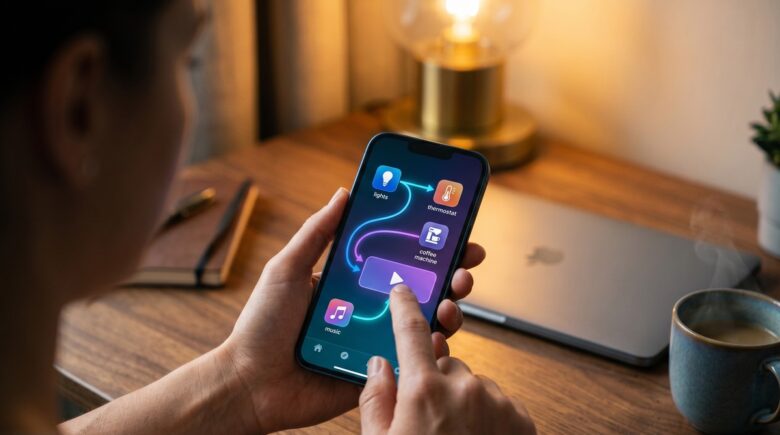
Yes. Shortcuts integrates natively with Apple’s Home app and HomeKit-compatible devices. You can trigger lights, locks, thermostats, and scenes as actions within any shortcut, or use a time-based automation to control your home environment on a schedule.
Is it safe to download Shortcuts shared by other people online?
Exercise caution. Shared shortcuts can access sensitive data including Contacts, Messages, Photos, and Location. Always review every action in a shared shortcut before running it. Apple added an inline privacy summary that lists which data types a shortcut requests. Check this before accepting any external workflow.