Fact-checked by the SnapMessages editorial team
Quick Answer
Remote workers can reduce desk-related pain by choosing the right movement app for their needs, fixing the physical workstation first, and building a sustainable micro-break habit. Just 5 minutes of corrective movement per hour is enough to counteract most sedentary effects, and remote workers who sit an average of 7.8 hours per day stand to benefit more from these tools than office-based counterparts.
Movement apps for desk pain have moved from novelty to necessity for a specific reason: remote workers sit longer, move less, and often do it in chairs and at tables that were never designed for an eight-hour workday. The right combination of movement apps for desk pain, ergonomic adjustments, and intentional micro-breaks can meaningfully reduce neck, shoulder, and lower-back discomfort, without a gym membership or a standing-desk budget. A 2025 study published in the Journal of Occupational and Environmental Medicine found that remote computer workers with poor workstation setups had more than twice the odds of developing new neck or upper-back pain compared to office-only workers (OR 2.02).
That number matters because it frames the problem correctly: the risk is not just about posture or willpower, but about environment and habit. According to a 2025 research report on remote work hazards and injuries, 61% of remote employees report that their pain has worsened since transitioning away from the office. Apps alone cannot fix a broken setup, but they are a proven starting point when used intelligently.
This guide is for full-time and hybrid remote workers experiencing chronic or recurring desk-related pain. By the end, you will know which app category matches your situation, how to configure notifications so you actually keep using the tool, and when the pain has gone beyond what any app can address.
Key Takeaways
- Remote workers sit an average of 7.8 hours per day, nearly an hour more than office-based counterparts, losing the informal movement triggers that naturally broke up sedentary time.
- 61% of remote employees report worsening pain since transitioning to remote work, according to 2025 research on remote work hazards.
- Remote computer workers with poor home workstation setups face an odds ratio of 2.02 for developing new neck or upper-back pain, per a 2025 peer-reviewed study of 1,064 computer workers.
- 5 minutes of corrective movement per hour is sufficient to counteract most sedentary effects, making the minimum viable intervention genuinely low-effort.
- OSHA’s guidance on neutral body positioning confirms that working in neutral posture reduces stress on muscles, tendons, and the skeletal system and lowers the risk of developing a musculoskeletal disorder (MSD).
- Alert fatigue is a documented failure mode for consumer health apps: over-notification leads to dismissal and deletion, making notification design as important as tracking accuracy when choosing a posture app.
In This Guide
Step 1: Why Remote Workers Hurt More Than Office Workers
Remote workers are not just sitting more, they have lost the structural triggers that used to force movement into their day. Walking to a meeting room, stopping at a colleague’s desk: none of these exist at home. The result is a daily sedentary load concentrated entirely in whatever chair happens to be available, and the human body was not built to handle it.
The Structural Problem Behind the Pain
Remote computer workers sit an average of 7.8 hours per day, compared to roughly 6.9 hours for office-based workers. That gap compounds across weeks and months. The 2025 Journal of Occupational and Environmental Medicine study surveyed 1,064 computer workers between September 2023 and April 2024 and found that longer remote-working hours combined with poor workstation setups produced an odds ratio of 2.02 for developing new neck or upper-back pain (95% CI 1.08–3.76). A worker in that category is statistically twice as likely to develop new pain than an office-only counterpart.
The “makeshift setup” problem drives a large share of this risk. Dining chairs, couches, and kitchen tables create forward head posture, rounded shoulders, and a strained lumbar spine, not because the worker is careless, but because those surfaces were built for eating and relaxing, not eight-hour computing sessions. According to NIOSH’s ergonomics program, work-related musculoskeletal disorders (WMSDs) account for a significant share of all occupational injuries, and reducing environmental risk factors is the primary prevention lever. OSHA reinforces this through its Computer Workstations eTool, which identifies screen height, lumbar support, and keyboard placement as the three physical variables most consistently linked to musculoskeletal disorder risk.
What to Watch Out For
Physical posture is only part of the picture. Peer-reviewed research identifies psychosocial factors, chronic work stress, social isolation, blurred work-home boundaries, as independent contributors to pain severity. This is a dimension most desk-pain guides ignore entirely. Pain can persist or worsen even when ergonomics improve, because stress elevates muscle tension and reduces pain tolerance. Addressing the physical workstation without acknowledging this context explains why some workers try every posture fix available and still feel worse by Friday.
61% of remote employees report worsening pain since transitioning to remote work, according to 2025 research on remote work hazards and injuries. That figure spans neck, back, shoulder, and wrist complaints, not a single pain site.

Step 2: What Movement and Posture Apps Actually Do
Not all posture and movement apps work the same way, and conflating them is the most common reason people download the wrong tool, fail to see results, and quit. There are three distinct categories, and choosing between them requires understanding what each one can and cannot detect.
The Three App Categories
The first category is reminder and timer apps. Tools like Stretchly (free, open-source) operate on a simple principle: they interrupt your screen at set intervals with a prompt to stand, stretch, or look away. Stretchly has no camera access and no motion sensor. It cannot detect whether you are sitting well or badly. It is a timer with stretch suggestions, nothing more. This distinction matters enormously, and most app roundups miss it entirely. If you download Stretchly expecting posture correction, you will be disappointed for the wrong reasons.
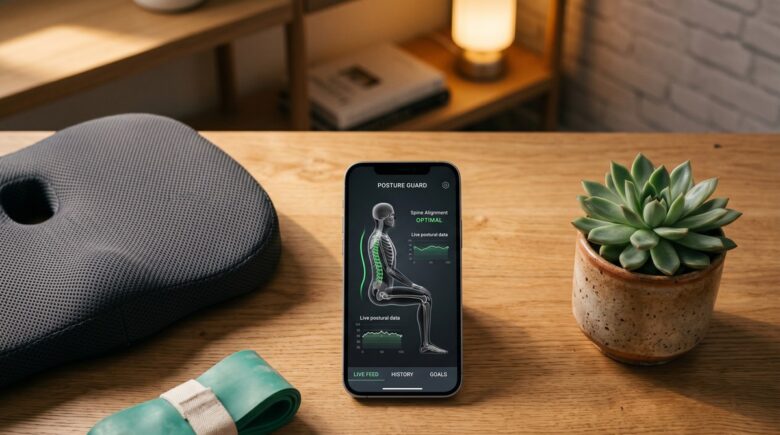
The second category is AI webcam tracking apps. Tools like SitSense (a free Chrome extension with local processing), SitApp (webcam-based, paid tier), and Zen Posture (Windows and macOS) use computer-vision models to track clinical metrics in real time: forward head angle, neck tilt, shoulder slope, and trunk alignment. Webcam-based AI using frameworks like MediaPipe, developed by Google, achieves landmark detection accuracy within 2–5 centimeters of clinical motion-capture systems, accurate enough to be clinically useful for desk-posture correction.
The third category is wearable sensor apps. Devices like the Upright GO 2, made by Upright Technologies, attach to the upper back and detect the angle of spinal tilt, vibrating when it exceeds a set threshold. The critical limitation: the Upright GO 2 captures a single back-tilt angle and is entirely blind to forward head position and shoulder alignment, the two pain sites most commonly reported by remote workers. For desk use, a webcam-based AI tracker delivers more clinically relevant data at lower cost. The wearable earns its place during walking meetings or away-from-desk movement, where a webcam is not an option.
What to Watch Out For
AI webcam apps raise a legitimate privacy question that most competitor articles ignore. Some tools process video locally on your device; others upload footage to cloud servers for analysis. SitSense explicitly uses local processing, which matters for remote workers on corporate devices or in regulated industries. Before installing any webcam-based tool, verify in the app’s privacy policy whether video data leaves your machine. If the policy is vague, treat it as cloud-processed.
Webcam AI posture tools that use MediaPipe’s pose-estimation framework process video entirely on-device, meaning no image data is transmitted to external servers. This is a meaningful distinction for anyone using a company-issued laptop under corporate IT policies.
Step 3: Choosing the Right App for Your Setup in 2026
The best movement app for desk pain is the one that matches your specific workstation, device, and tolerance for interruption, not the one with the most features. The comparison below maps the main tools to real use scenarios.
| App | Tracking Method | Metrics Tracked | Cost | Best For | Privacy Model |
|---|---|---|---|---|---|
| SitSense | AI Webcam (Chrome) | 7 posture metrics | Free | Desk workers, corporate laptops (local processing) | Local, on-device |
| Zen Posture | AI Webcam (Win/Mac) | 5–6 posture metrics | Free / Paid tier | macOS and Windows users wanting app-level integration | Local, on-device |
| SitApp | AI Webcam | 4–5 posture metrics | $4.99/mo | Users wanting posture scoring dashboards | Partially cloud |
| Upright GO 2 | Wearable sensor | 1 (back tilt only) | $79.95 device | Standing/walking; not primary desk tracker | Cloud (app synced) |
| DeskBreak | Timer + workflow integration | 0 (reminder only) | Free / $3.99/mo | Teams using Slack or Microsoft Teams | Cloud (calendar sync) |
| Stretchly | Timer only | 0 (reminder only) | Free, open-source | Privacy-first users; no camera setup | Fully local |
A quick cost comparison: if desk pain results in one physiotherapy session per month at an average cost of $80–$120 per visit, a paid app at $4.99 per month represents less than 5% of that monthly spend. The tools are not expensive. The discipline to use them consistently is where the real cost sits.
For remote workers already managing a cluttered notification stack from Slack, email, and task tools, DeskBreak‘s direct integration with those platforms is worth considering. It converts an existing calendar block into a movement cue rather than layering a new alert channel. If you are already using productivity systems effectively, check out the best Pomodoro timer apps for deep focus, several of these pair well with break-reminder tools to build movement into your existing workflow structure.
Start with SitSense (free, local processing) for two weeks before investing in a wearable or paid subscription. Most people discover their primary postural problem within the first three days of real-time feedback, and can then decide whether they need more sophisticated tracking or whether a simple reminder timer is sufficient.
Step 4: How to Avoid the Notification Fatigue Trap
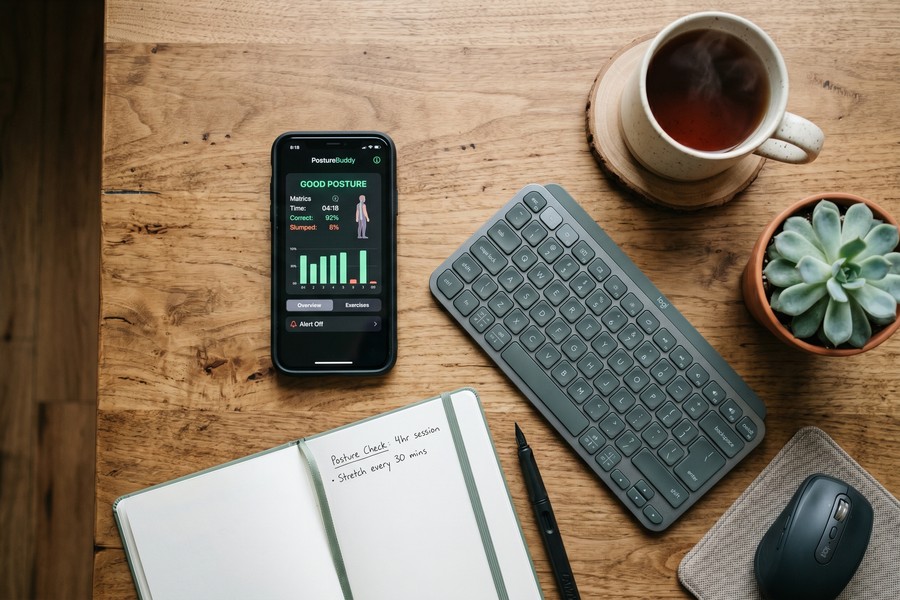
Alert fatigue kills posture apps faster than any technical limitation. Remote workers already field hundreds of notifications daily from Slack, email, and project management tools. Adding one more alert layer, especially one that fires during deep-focus work, produces a predictable outcome: dismissal, then disabling, then deletion.
The solution is configuration, not willpower. Start with tracking sessions of 15–20 minutes per day, not all-day monitoring. This gives you real feedback without triggering the fatigue response. Sync break reminders to existing calendar blocks rather than creating new interruptions: a reminder set five minutes before a scheduled meeting fires at a natural transition point rather than mid-task. Most apps in the webcam and wearable categories allow you to set custom alert frequencies and quiet hours. Use them. An app that fires every eight minutes while you are writing a report will be uninstalled by Thursday.
The paradox of wellness-app overload is real and underappreciated. Remote workers managing their health digitally often already run hydration trackers, meditation apps, and sleep monitors alongside their posture tools. A consolidated approach helps if you are stacking multiple wellness apps. Read about how water tracking apps and beginner meditation apps can be layered with movement reminders without creating cognitive overload. The right posture app reduces friction; it does not add to it.
If an app’s default notification settings feel aggressive on day one, they will feel intolerable by day five. Adjust frequency before your first full workday of use, not after frustration sets in. Most users who report that “posture apps don’t work” never customized their alert settings.
Step 5: Building a Movement Habit That Actually Sticks
The research-backed movement dose is modest: 5 minutes of corrective movement per hour counteracts most sedentary effects, and scheduled breaks outperform relying on memory by a measurable margin. This is the minimum viable intervention, and it works precisely because the bar is low enough to clear on a difficult day.
Micro-Breaks vs. Dedicated Exercise
Micro-breaks (stand, stretch, reset posture) every 30–45 minutes address the acute problem of sustained static loading on spinal structures. The American Physical Therapy Association (APTA) recommends frequent short micro-breaks, including getting out of the chair and moving for even 30 seconds, to prevent desk-related musculoskeletal pain. Micro-breaks address the immediate load; targeted strengthening addresses the underlying capacity. They are not interchangeable, and treating one as a substitute for the other is a common mistake.
Worksite International, Inc., an ergonomics consulting firm whose work spans corporate and clinical settings, frames the posture philosophy this way: no single position, not even textbook-perfect ergonomic alignment, should be held indefinitely. Movement itself is the corrective. OSHA’s Computer Workstations eTool reinforces this, providing a full interactive checklist covering neutral body posture and component placement specifically to reduce musculoskeletal disorder risk for desk workers.
Layering Movement Onto Existing Productivity Frameworks
The most durable implementation ties movement cues to something that already exists in the workday rather than inventing a new behavior from scratch. The Pomodoro technique, 25-minute focus blocks followed by 5-minute breaks, maps almost perfectly onto the recommended micro-break frequency. Using a break-reminder app to trigger movement at the end of each Pomodoro interval means the habit is attached to an existing trigger, not to willpower. MIT’s EHS remote-work guidance recommends leaving the desk to walk every work session and applying the 20-20-20 technique for screen breaks, both of which integrate cleanly into a Pomodoro structure without additional cognitive load.
One honest limitation: this approach works best for workers with predictable schedule structures. If your workday is largely reactive, back-to-back calls, client demands arriving without warning, rigid Pomodoro blocks may not be practical. In that case, a passive AI webcam tracker running during scheduled desk blocks, combined with posture checks at natural transition points like before lunch or between calls, is a more realistic architecture than an enforced timer.
Remote workers who are self-employed may be able to deduct ergonomic tools, including posture devices and app subscriptions, as a business expense. Employees can also request ergonomic equipment as a reasonable workplace accommodation under applicable employment law. Either route turns a health expense into a financially recoverable one.

Frequently Asked Questions
Can a movement app actually fix my neck and back pain, or do I need to see a physio?
Movement apps address habitual postural discomfort and build better movement habits, but they are not diagnostic or therapeutic devices and cannot fix structural or musculoskeletal injuries. If your pain is persistent for more than two to three weeks, sharp, or radiating into your arms or legs, see a physiotherapist or physician. Apps are most effective as prevention tools or for early-stage, posture-driven discomfort, not as treatment for established injury.
What is the difference between a posture tracker and a break-reminder app?
A posture tracker uses a camera or wearable sensor to detect your actual body position in real time, alerting you when specific alignment thresholds are breached. A break-reminder app like Stretchly fires alerts on a timer regardless of how you are sitting, it has no ability to detect whether your posture is good or bad. Buying a reminder app and expecting posture correction is the most common source of disappointment in this category.
Are AI webcam posture apps safe to use on a work laptop?
It depends on the specific app’s data architecture. Apps that process video locally on-device (such as SitSense) never transmit footage to external servers, making them safe for corporate devices in most IT policy frameworks. Apps with cloud-processing components present a greater risk on corporate hardware. Check the app’s privacy policy before installing on a work-issued device, and confirm with your IT department if uncertain.
How often should I take breaks from sitting to reduce desk pain?
Five minutes of corrective movement per hour is the evidence-supported minimum, and scheduled breaks are measurably more effective than relying on memory. The American Physical Therapy Association recommends micro-breaks every 30 to 45 minutes, including standing or walking for as little as 30 seconds, to prevent musculoskeletal strain. More frequent, shorter breaks outperform infrequent, longer ones for reducing cumulative spinal load.
Is the Upright GO 2 worth buying for desk pain, or should I use a free app instead?
For desk use specifically, a free AI webcam tracker like SitSense delivers more clinically relevant data than the Upright GO 2, because the wearable only detects back tilt while the webcam tracks neck angle, shoulder slope, and forward head position, the primary pain sites for most remote workers. The Upright GO 2 earns its cost for people who spend significant time away from their desk, on calls while walking, or in environments where a webcam is not practical. At $79.95 for the device, the value case is weaker for purely desk-bound work.
Why do I keep quitting posture apps after a few weeks?
Alert fatigue is the primary culprit. When a posture app fires notifications at the default high-frequency setting into a workday already saturated with Slack pings and email alerts, the brain rapidly classifies it as noise and begins dismissing, then disabling, the alerts. Starting with short daily tracking sessions (15–20 minutes), syncing reminders to natural work transitions, and customizing alert frequency to your real rhythm dramatically improves retention. The app’s notification design matters as much as its tracking accuracy.
Do I need to fix my desk setup before using a posture app, or can I start with the app first?
Start with the app first, it will identify your most common postural problems quickly, which then tells you exactly which physical adjustments matter most. OSHA’s guidance on neutral body positioning confirms that working in awkward postures creates structural forces no amount of app feedback can override. Screen height, lumbar support, and keyboard placement all create consistent muscular strain; an app can alert you to the symptom, but a properly adjusted workstation removes the cause. Run both tracks in parallel: use the app to identify patterns while making low-cost ergonomic improvements to the physical setup.
Sources
- Journal of Occupational and Environmental Medicine (via PubMed Central), Remote Work and Neck/Upper Back Pain Risk, 2025
- John Foy & Associates Research, Remote Work Hazards and Injuries Report, 2025
- U.S. Occupational Safety and Health Administration, Computer Workstations eTool
- U.S. Occupational Safety and Health Administration, Neutral Body Positioning for Computer Workstations
- CDC / National Institute for Occupational Safety and Health (NIOSH), Ergonomics Program Overview
- American Physical Therapy Association (APTA) Private Practice Section, Work Ergonomics and Posture
- MIT Environment, Health & Safety, Ergonomic Guidance for Remote Workers
- Worksite International, Inc., Pandemic Postures (Alison Heller-Ono, PT)






