Quick Answer: The biggest speed gains come from three built-in tools: Text Replacement (Settings > General > Keyboard > Text Replacement) for expanding short codes into full phrases, QuickPath swipe typing (on by default since iOS 13) for faster word entry, and on-device Dictation (improved since iOS 16) for hands-free messages. Turning off the “.” double-space shortcut and tuning Auto-Correction sensitivity remove most of the friction that slows down everyday typing.
Updated August 2026
Clumsy thumbs aren’t usually the problem. The real culprit is a set of default settings nobody bothered to tune for how they actually type. Autocorrect swaps out a word mid-sentence. The “.” shortcut fires when you didn’t want it to. Predictive text takes up space above the keyboard for people who never even glance at it.
iOS actually has dozens of small fixes for exactly these annoyances. Almost nobody digs far enough into the menus to find them. Americans send more than 2 trillion text messages a year, according to Statista’s 2025 global messaging report. At that volume, even a tiny settings tweak pays off fast once you’re typing all week long. Below is a rundown of the keyboard, dictation, and notification settings worth flipping today, plus a few that are better left alone.
Key Takeaways
- Text replacement shortcuts can reduce repetitive typing by saving full phrases to 2-3 character triggers.
- Turning off “.” shortcut alone can prevent dozens of unwanted sentence breaks per day.
- QuickPath swiping (available since iOS 13) can double your typing speed without a third-party keyboard.
- Disabling predictive text temporarily can actually speed up experienced typists who don’t rely on suggestions.
Text Replacement Shortcuts: Your Best-Kept Secret
Nobody talks about text replacement enough, and that’s a shame, because it’s one of the most underused corners of iPhone texting settings. Apple’s official instructions for text replacements describe the feature plainly: it swaps a short trigger for a longer phrase automatically. Type the shortcut, and the full phrase lands on the screen without you lifting a finger past those few letters.
Head to Settings > General > Keyboard > Text Replacement and tap the plus icon. Type “omw,” then set the phrase to “On my way! Be there in 5 minutes.” From that point on, typing “omw” pulls up the whole sentence instantly.
Practical Shortcut Ideas to Set Up Right Now
Look at what you type over and over. Greetings, quick replies, work emails. Those are the good candidates.
- Type “ty”, expands to “Thank you so much!”
- Type “addr”, expands to your home address
- Type “mtg”, expands to “Can we schedule a meeting?”
- Type “brb”, expands to “Be right back, one second!”
Set these up once on your iPhone and iCloud carries them over to your iPad and Mac automatically. No extra setup required on the other devices.
There’s a small data-saving bonus here too. Typing “omw” instead of the full 21-character phrase trims a bit of bandwidth every time you send it. Add that up over a year and it comes out to roughly 0.1% of a 100GB mobile plan, enough to help someone on a $60/month capped plan dodge a $10 overage charge.
It’s not a fit for everyone, though. Writers drafting fresh material, or anyone collaborating on ideas in real time, won’t get much mileage out of it. The system is rigid on purpose. If the phrase you need doesn’t come out exactly the same way twice, the shortcut can interrupt your flow instead of helping it.
Fix Your Autocorrect and Keyboard iPhone Texting Settings
Autocorrect means well. Its track record is another story. Getting the right keyboard settings dialed in puts you back in the driver’s seat without switching everything off wholesale.
Open Settings > General > Keyboard and you’ll find a stack of toggles waiting. Apple’s guide to Auto-Correction and predictive text pitches both features as speed and accuracy tools, but the factory defaults don’t fit every typing style. Here’s what each one is actually doing, and which ones are worth a second look.
Toggles Worth Adjusting
Auto-Correction fixes typos as you go. Great for most people. If you type a lot of slang or industry jargon, though, it’ll fight you at every turn. Switch it off if it’s causing more headaches than it’s solving.
Predictive text puts word suggestions above the keyboard. Some people can’t type without it. Others find it distracting. Try killing it for a week and see what happens. Plenty of people type faster once their eyes stop darting up to check suggestions.
“.” Shortcut drops in a period on a double space-bar tap. Good idea, bad execution, since it goes off at the wrong moment more often than not. Fast typists especially benefit from disabling it, since it cuts down on stray punctuation landing mid-word.
Enable QuickPath Swipe Typing for Faster Input
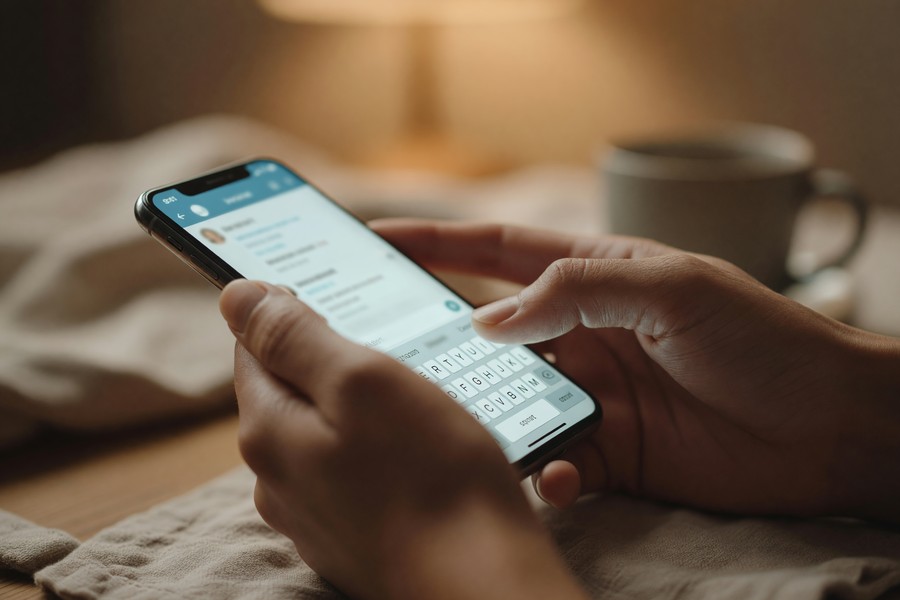
QuickPath is Apple’s version of swipe-to-type. Instead of tapping letters one by one, you drag your finger across the keyboard in one motion, and it guesses the word from the shape of your swipe.
Every iPhone on iOS 13 or newer has this turned on already. If it somehow got switched off, go to Settings > General > Keyboard and flip on Slide to Type. Give it a couple of days. Most people get comfortable within 48 hours and rarely go back to tapping full-time after that.
| Keyboard Feature | Introduced In | Default State |
|---|---|---|
| Text Replacement | iOS 5 | Off (manual setup required) |
| Predictive Text | iOS 8 | On |
| QuickPath (Slide to Type) | iOS 13 | On |
| One-Handed Keyboard | iOS 11 | Off |
| On-Device Dictation | iOS 16 | On (requires Siri & Dictation enabled) |
It’s not perfect for everyone. QuickPath handles single-language typing in English (and a handful of other supported languages) well, but accuracy drops off for anyone jumping between two keyboards in the same conversation. Bilingual typists often end up on Gboard or SwiftKey instead, since those predict better across languages, even though ditching Apple’s keyboard means losing iCloud text replacement sync.
Slide to Delete: The Hidden Companion Trick
One more thing while you’re swiping: slide left on the delete key and it erases whole words instead of one letter at a time. Pair it with QuickPath and corrections happen almost as fast as the typos do.
It’s a tiny move buried among iPhone texting settings, but it shaves real seconds off each message. Multiply that across a day of texting and it adds up quickly.
One-Handed Keyboard Mode for Smaller Hands
Modern iPhone screens stretch the keyboard corner to corner, which makes one-handed typing genuinely awkward. Apple’s one-handed keyboard mode exists specifically to fix that.
Press and hold the globe or emoji icon in the bottom-left corner, then pick the left or right layout. The keyboard shrinks and slides toward whichever thumb you’re using. Doesn’t sound like much until you’re gripping a pole on a crowded train and trying to answer a text.
You can lock in a preference permanently through Settings > General > Keyboard > One Handed Keyboard. Pick your side once and it sticks.
Use Siri and Dictation to Text Without Typing
Dictation converts speech to text inside any messaging app, Messages, WhatsApp, Gmail, all of it. Tap the microphone on the keyboard and talk normally. Say “comma,” “period,” or “question mark” out loud when you need punctuation.
Since iOS 16, most dictation processing happens right on the device, which means quicker turnaround and less data leaving your phone. Apple’s official support page on dictation confirms you can now dictate and type in the same message, switching back and forth without restarting.
Setting Up Siri for Hands-Free Message Sending
You can hand the whole thing off to Siri. Say “Hey Siri, text Mom that I’ll be home by 7,” and Siri drafts it, reads it back, and waits for your go-ahead before sending.
Turn this on under Settings > Siri & Search. Flip on “Allow Siri When Locked” if you want it usable without unlocking the phone first. One caveat: this also gives anyone nearby voice access to your messages, so it’s worth checking CISA’s guidance on voice assistant privacy if that concerns you.

iPhone Texting Settings for Smarter Notifications
Speed isn’t the whole game. Replying at the right time matters just as much, and that’s where Focus mode earns its keep: it decides which notifications actually reach you, so your train of thought stays intact instead of getting derailed every few minutes.
Open Settings > Focus and pick or build a profile, Work, Personal, whatever fits. Under “Allowed Notifications,” add the specific contacts who should still break through. Everyone else waits until you check manually.
Notification Previews and Lock Screen Quick Reply
You don’t even have to open the Messages app to answer a text. Swipe left on the notification when it lands on your lock screen, tap Reply, type your answer, and send it, no full unlock needed.
To keep previews showing up on the lock screen, go to Settings > Notifications > Messages > Show Previews and set it to “Always.” Sharing your phone or working somewhere public? “When Unlocked” is the safer call. FTC advice on protecting personal information is worth a look if this concerns you, and if you’ve ever fired off a reply too fast, it helps to know how to unsend a message on iPhone before the damage is done.
Bonus iPhone Texting Settings You Didn’t Know Existed
A handful of smaller settings round out the list. None take more than a minute to change, and each one smooths something out.
- Smart Punctuation: Found in Settings > General > Keyboard. Automatically converts straight quotes to curly quotes and double hyphens to em dashes. Turn it off if you copy text between apps and find formatting breaks.
- Check Spelling: Underlines potential misspellings in red. Tap the underlined word to see suggestions. Keep this on; it catches what autocorrect misses.
- Character Count: Buried in Settings > Messages, this shows how many characters you’ve typed per SMS. Handy if you’re sending standard texts and want to avoid multi-part messages.
- Send as SMS: When iMessage fails, your iPhone can automatically fall back to SMS. Keep this on to avoid failed messages to Android users. You might also want to read about NIST’s overview of RCS messaging to understand what’s happening behind the scenes.
None of these will single-handedly fix a genuinely slow typing habit. That’s fine, because that’s not really the point. Small annoyances pile up over months of daily use, and clearing them out one setting at a time changes how the phone feels in your hand, especially once Text Replacement, QuickPath, and a trimmed-down notification list are all pulling in the same direction instead of against each other.
Related reading: How federal agencies support remote team productivity.
Frequently Asked Questions
How do I stop my iPhone from autocorrecting words I type correctly?
Add the word to your personal dictionary using Text Replacement. Create a shortcut where both the phrase and the shortcut are the same word; for example, set “Lol” as both the phrase and the shortcut. The iPhone learns not to change it. Alternatively, go to Settings > General > Keyboard and disable Auto-Correction entirely.
Where are the iPhone texting settings located?
Most keyboard-related iPhone texting settings live in Settings > General > Keyboard. Message-specific settings, like read receipts, SMS fallback, and iMessage activation, are in Settings > Messages. Notification settings for Messages are under Settings > Notifications > Messages.
Does swipe typing work with third-party keyboards on iPhone?
Yes. Many third-party keyboards like Gboard and SwiftKey include their own swipe-typing engines. However, Apple’s built-in QuickPath feature only works with the default Apple keyboard. If you switch keyboards, you lose access to some native iPhone texting settings like text replacement syncing via iCloud.
Can I use dictation in any app, or only in iMessage?
Dictation works in any app that uses the standard iOS keyboard, including iMessage, WhatsApp, Gmail, and Notes. Tap the microphone icon on the keyboard to start. It isn’t limited to messaging apps at all. Since iOS 16, Apple has improved on-device processing, making dictation faster and more accurate across the board.
Is it safe to leave message previews visible on my lock screen?
It depends on your situation. Showing full previews is convenient but exposes message content to anyone who picks up your phone. Setting previews to “When Unlocked” is a solid middle ground. For sensitive conversations, consider using a messaging app with extra privacy features. You can explore EFF’s guide to digital privacy if you need stronger protection. Also be aware that scam texts can appear in previews; learn what to watch for by reading about Australian Cyber Security Centre guidance on smishing.
Do Text Replacement shortcuts sync to my iPad and Mac?
Yes, as long as you’re signed into the same Apple ID with iCloud syncing enabled for Keyboard on each device. Shortcuts set up on iPhone carry over to iPad and Mac automatically, so you don’t have to re-enter them anywhere else.
Why does swipe typing sometimes stop working inside certain apps?
QuickPath only works with the standard Apple keyboard, so apps that load a custom in-app keyboard, such as some banking or gaming apps, can temporarily block swipe typing and other Apple keyboard settings until you return to a standard text field.
Does disabling Auto-Correction also turn off Auto-Capitalization?
No, these are separate toggles. Turning off Auto-Correction stops the iPhone from replacing misspelled or unusual words, but Auto-Capitalization, spell check underlines, and other keyboard behaviors keep working independently unless you disable them too.
Is there a way to add a word to my iPhone’s dictionary permanently?
There’s no dedicated dictionary menu, but Text Replacement works as a practical workaround. Set the shortcut and the phrase to the same word, and the iPhone stops flagging or autocorrecting it going forward.
How accurate is on-device dictation compared to cloud-based options?
Since iOS 16, Apple processes most dictation locally on the device, which improves speed and privacy. According to Apple’s official documentation on on-device dictation, this approach reduces latency and keeps sensitive data from leaving your device, making it more secure than cloud-based alternatives.
Can I customize the pronunciation of words in dictation?
Yes. When dictating, say the word slowly and clearly. The iPhone learns common mispronunciations over time. For rare or technical terms, add them to your Text Replacement list with the correct spelling to ensure consistent recognition.
Sources
- Statista, Global Mobile Messaging Statistics (2025)
- Apple Support, Keyboard Settings on iPhone
- Apple Support, Use Focus Modes on iPhone
- Apple Support, Send and Receive Messages on iPhone
- Apple Support, Use Text Replacements on iPhone
- Apple Support, Use Auto-Correction and Predictive Text on iPhone
- Apple Support, Use Dictation on Your iPhone
- Australian Cyber Security Centre, Smishing Guidance