Fact-checked by the SnapMessages editorial team
Quick Answer
The most common two-factor authentication mistakes include relying on SMS codes, keeping all factors on one device, skipping backup codes, and approving push requests you never initiated. Fixing these takes under 30 minutes total. Switch to an authenticator app, enable per-app biometric locks, store backup codes in two separate locations, and audit trusted devices every quarter.
Two-factor authentication mistakes are far more common than most people realize, and the consequences are getting more serious. According to Microsoft’s 2024 security research, more than 99.9% of compromised accounts did not have MFA enabled at all, which tells you something important: the biggest protection gap is still basic enablement. But among people who have turned on 2FA, a second set of problems quietly undermines the protection they think they have.
The stakes are particularly high right now for anyone who manages health and wellness accounts. The 2024 Change Healthcare breach exposed medical and billing data for an estimated 192.7 million Americans, meaning the credential sets attackers need to attempt patient portal takeovers are already circulating on dark-web markets. Patient portals, telehealth platforms, fitness trackers, and insurance apps hold biometric measurements, prescription histories, and financial data in the same place. That combination makes them high-value targets in ways a generic email account simply is not.
This guide is written for anyone who has already enabled 2FA on at least some accounts and wants to know whether they set it up correctly. By the end, you will know which 2FA method to use for which account, where your current setup is likely broken, and how to run a five-minute audit that closes the most common gaps.
Key Takeaways
- More than 99.9% of compromised accounts had no MFA enabled, according to Microsoft’s 2024 data, making any 2FA a major improvement, but not all methods are equal.
- In 21% of Cisco Talos incident response engagements in Q1 2024, the root cause was improper MFA implementation rather than no MFA at all.
- 61% of organizations have a root user or account owner without MFA enabled, according to Orca Security’s 2024 State of Cloud Security Report.
- The Cybersecurity and Infrastructure Security Agency (CISA) identifies FIDO/WebAuthn as the only widely available phishing-resistant authentication standard available to consumers today.
- Only 5% of fraudulent MFA push attempts were accepted by users, but acceptances typically occurred after just one to five push requests, per Cisco Duo’s dataset of 15,000 attacks from June 2023 to May 2024.
- FIDO2 hardware security keys start at approximately $20 and, once enrolled, provide a login experience that is faster than waiting for an SMS code, making the friction argument primarily a one-time setup cost.
In This Guide
- Step 1: Is SMS 2FA Actually Safe, or Are You Using the Weakest Option?
- Step 2: What Happens When All Your Factors Live on One Phone?
- Step 3: Why Skipping Backup Codes Can Lock You Out of Your Own Accounts
- Step 4: What Is Push Bombing and How Do You Recognize a Fake 2FA Request?
- Step 5: How Often Should You Audit Your Trusted Devices and Active Sessions?
- Step 6: Which 2FA Method Should You Use for Which Account?
- Step 7: Your Five-Minute 2FA Health Check You Can Do Today
- Frequently Asked Questions
Step 1: Is SMS 2FA Actually Safe, or Are You Using the Weakest Option?
SMS-based 2FA is better than no 2FA, but it is the weakest option available, and treating it as a permanent solution is one of the most widespread two-factor authentication mistakes people make. Text message codes can be intercepted through SIM-swap fraud, SS7 network vulnerabilities, and carrier social engineering, none of which require any access to your device.
How to Do This
Switch from SMS to a TOTP authenticator app like Google Authenticator, Aegis (Android), or Raivo (iOS). These apps generate a six-digit code locally on your device every 30 seconds. Because the code never travels over a carrier network, it cannot be intercepted by a SIM swap. Setup typically takes five minutes per account: go to the security settings of each service, choose “authenticator app” instead of SMS, scan the QR code, and verify one code to confirm the switch. The National Institute of Standards and Technology (NIST) advises prioritizing authenticator apps over SMS codes, noting they are often easier and faster than the SMS method many users currently rely on.
What to Watch Out For
One specific risk that almost no one discusses: phone numbers tied to rarely-used SIM cards can be recycled by carriers and assigned to new subscribers after roughly two to three years of inactivity. If you used an old number as your account recovery phone, a stranger might now have SMS-based reset access to every account tied to it. Check your recovery numbers and remove any that belong to inactive SIMs.
The NIST standards team has acknowledged that SMS 2FA is widely used and that any MFA is better than none, while still recommending that organizations move toward stronger alternatives as they become available. That framing matters: treat SMS as a temporary floor, not a finished solution.
If switching away from SMS immediately is not possible for every account, prioritize your patient portal, health insurance login, and banking accounts first, since those store the most sensitive data. Platforms like Chase and SoFi both support TOTP authenticator apps as an alternative to SMS codes. Experian’s account security settings also offer authenticator app enrollment, which is worth enabling given how much identity data that platform holds. Everything else can follow.
NIST’s official SP 800-63B guidelines explicitly prohibit email and VoIP numbers as out-of-band authentication channels, stating these methods do not prove possession of a specific device and shall not be used for out-of-band authentication. If your account only offers email-based 2FA codes, you are not meaningfully more protected than with a strong password alone.
Step 2: What Happens When All Your Factors Live on One Phone?
When your password manager, authenticator app, SMS inbox, and recovery email all live on the same unlocked smartphone, a single stolen or compromised device collapses every layer of protection at once. This is the single-device problem, and it is surprisingly easy to fix without buying new hardware.
How to Do This
Enable per-app biometric locks on your authenticator app and messaging app. On iPhone, you can require Face ID to open specific apps even when the phone itself is already unlocked, using the Screen Time app lock feature or the app’s own built-in lock setting. On Android, this is available through the device’s app lock settings or within apps like Aegis Authenticator, which has a native vault lock. This takes under two minutes to configure and means that someone who picks up your unlocked phone cannot silently open your authenticator or intercept an SMS code.
For accounts where the stakes are highest, patient portals, insurance apps, banking, also consider enrolling a second device (a tablet or a spare phone) as a registered authenticator. That way, losing your primary phone does not mean losing access to everything simultaneously. Our guide on building a personal digital security routine covers how to structure layered protections like this across your devices.
What to Watch Out For
There is a subtler trap that many security-adjacent articles implicitly endorse without realizing the problem: storing TOTP secrets inside the same password manager as the passwords they protect. Services like Bitwarden offer a built-in authenticator feature, and it is genuinely convenient. But if your password manager is compromised, an attacker gets both your password and your 2FA code simultaneously. That is functionally single-factor security dressed up as two-factor. Keep your TOTP app separate from your password manager. It is a trade-off worth making.
Set up per-app biometric locking on your authenticator app before you do anything else in this guide. It is free, takes about 90 seconds, and immediately closes the “stolen unlocked phone” attack vector, no account changes required.
Step 3: Why Skipping Backup Codes Can Lock You Out of Your Own Accounts
Backup codes are one-time-use recovery keys that platforms generate when you first set up 2FA. Skipping them during setup is one of the most common two-factor authentication mistakes, and the consequences typically surface at the worst possible time: when you are trying to log into a health portal before a medical appointment and your phone is broken, lost, or wiped.
How to Do This
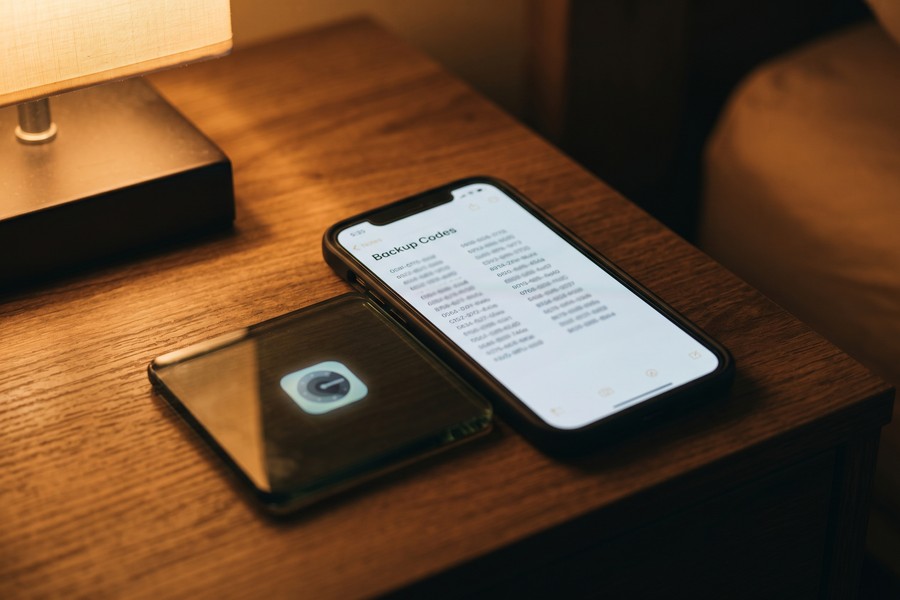
When a platform offers backup codes during 2FA setup, download or write them down immediately. Each code is typically an eight-to-ten digit string that works once as a substitute for your second factor. Store them in at least two separate locations: one digital (a password manager that is separate from your TOTP app) and one physical (a printed sheet kept offline). Services like Google, Apple, and most healthcare platforms generate these during setup; if you skipped the screen, visit the security settings and regenerate them now.
If you have already changed phones and realize you never saved backup codes, contact the platform’s support team immediately. Many health portals have account recovery processes, but some require identity verification that can take days. Doing this proactively takes five minutes; doing it in a lockout situation takes significantly longer.
What to Watch Out For
The second-order mistake is storing backup codes on the same device you use for 2FA. If that device is stolen or compromised, the attacker now has both your authenticator and your recovery fallback. The correct mental model: backup codes are an emergency key. You would not keep your house’s spare key taped to the front door.
Phone numbers assigned to inactive SIM cards can be recycled by mobile carriers and reassigned to entirely new subscribers after roughly two to three years of inactivity. If that number is listed as your account recovery phone, the new owner of that number could potentially use it to reset your password via SMS, gaining access without ever knowing your credentials.
Step 4: What Is Push Bombing and How Do You Recognize a Fake 2FA Request?
Push bombing (also called MFA fatigue) is an attack where someone who already has your password sends repeated authentication approval requests to your phone until you tap “Approve” out of frustration or habit. You do not need to be technically sophisticated to fall for it; you just need to be busy, distracted, or annoyed enough to make it stop.
How to Do This
The behavioral rule is simple and non-negotiable: never approve a 2FA push notification you did not personally initiate by logging in. If your phone buzzes with an authentication request you did not start, that is evidence someone else has your password and is trying to get in right now. Do not approve it. Do not dismiss it and move on. Change your password immediately and check your account’s active sessions for unauthorized logins.
According to Cisco Duo’s dataset of 15,000 push-based attacks analyzed between June 2023 and May 2024, only 5% of fraudulent push attempts were accepted by users, but those acceptances almost always happened after just one to five requests. That is a remarkably tight window, which means the attack does not require volume to succeed against an individual; it just requires catching someone at the right moment. You can read more about the broader social tactics attackers use in our article on how hackers exploit social engineering.
What to Watch Out For
The wellness angle here is real, not rhetorical. Cognitive overload and decision fatigue are exactly what attackers engineer with push bombing. Most US smartphone users receive dozens of push notifications daily, which conditions the brain to clear them quickly. Attackers know this. The fix is not to be more vigilant in a vague way; it is to adopt a specific rule: no self-initiated login means no approval, full stop.
In 21% of Cisco Talos incident response engagements in Q1 2024, the root cause was improper MFA implementation, not the absence of MFA. Setting up 2FA incorrectly is nearly as dangerous as skipping it, according to Cisco Talos research.
Push bombing was the mechanism behind several high-profile breaches, including attacks on Uber and Cisco. Those were enterprise targets, but the tactic works identically against personal accounts. If you use Microsoft Authenticator or Duo, check whether number matching is enabled. This feature requires you to type a number shown on the login screen into the app before approving, which makes rubber-stamping impossible.
| 2FA Method | Phishing Resistant? | SIM-Swap Proof? | Works Offline? | Approximate Setup Time | Cost |
|---|---|---|---|---|---|
| FIDO2 Hardware Key (YubiKey) | Yes | Yes | Yes | 10–15 minutes per account | From $20 |
| TOTP Authenticator App (Aegis, Google Authenticator) | Partial (no carrier risk) | Yes | Yes | 5 minutes per account | Free |
| Push Notification (Duo, Microsoft Authenticator) | No (without number matching) | Yes | No | 2–3 minutes per account | Free |
| SMS / Text Code | No | No | No | 1–2 minutes per account | Free |
| Email OTP | No | No | No | 1 minute per account | Free |
| Passkey (FIDO2, device-based) | Yes | Yes | Yes (on enrolled device) | 2–3 minutes per account | Free |
Step 5: How Often Should You Audit Your Trusted Devices and Active Sessions?
Every time you check “remember this device” or “trust this computer,” you are creating a standing waiver of your second factor for that device. A session that was trusted on a public library computer, a former employer’s laptop, or a phone you sold two years ago is a door that was never closed.
How to Do This
Set a quarterly reminder, tied to something you already do, like a seasonal check-up or an insurance renewal, to review trusted devices and active sessions for every account that holds sensitive data. On Google accounts, go to Security and then Your Devices. On Apple accounts, visit your Apple ID page and review all signed-in devices. Most major health platforms and insurance portals have a similar Active Sessions panel in their security settings.
Remove any device you do not recognize or no longer own. If a session shows a location or device that does not match your recent activity, treat it as a compromised account: change your password, revoke all sessions, and re-enable 2FA from scratch. This entire review takes under five minutes per platform once you know where to look.
Financial accounts deserve the same attention. Banks like Chase, and personal finance platforms like SoFi, both maintain trusted device registries in their security settings. Credit monitoring services, including those run by Experian, TransUnion, and Equifax, hold enough personal data to cause serious damage if an old trusted device session is ever exploited. The Federal Deposit Insurance Corporation (FDIC) and the Federal Reserve have both issued guidance encouraging consumers to treat digital banking security reviews as a routine habit, not a one-time setup task.
What to Watch Out For
There is no notification when a trusted device is used. Unlike a new login, which sometimes triggers an email alert, a trusted device typically logs in silently. The quiet nature of this bypass is precisely what makes accumulating trusted devices risky. Each one is not a convenience feature so much as a gap in your second factor’s coverage.

Shared or public computers sometimes store session tokens that persist even after you “sign out.” If you ever approved a push notification or entered a 2FA code on a device you do not own, revoke that device’s trust from your account security settings as soon as possible, a browser sign-out alone may not be sufficient.
Step 6: Which 2FA Method Should You Use for Which Account?
Not every account needs the same level of protection, and using a hardware key on your gym check-in app while relying on SMS for your patient portal is exactly backwards. Match the strength of your second factor to the sensitivity of the data behind the login.
How to Do This
Use this practical hierarchy. For your highest-sensitivity accounts, patient portals, health insurance logins, primary email, banking, and any account that can reset another account, use a FIDO2 hardware key like a YubiKey or Google Titan Key. These are phishing-proof by design: the key verifies the site’s domain cryptographically, so even a perfect replica of your health portal’s login page cannot steal your credential. CISA specifically recommends physical security keys like YubiKey as the strongest available consumer-grade option.
That hierarchy extends to financial accounts. If you bank with Chase or hold investment accounts elsewhere, check whether FIDO2 key enrollment is supported. For credit-monitoring platforms like Experian, where your FICO Score, full Social Security number, and address history are stored in one place, using anything weaker than a TOTP app is an unnecessary risk. The Consumer Financial Protection Bureau (CFPB) has published guidance noting that account takeover is among the most common types of financial fraud reported by consumers, and the credential data needed to attempt those takeovers is widely available following recent large-scale breaches.
For everything else, social media, fitness trackers, productivity apps, a TOTP authenticator app is the right choice. It is free, works offline, and is immune to SIM-swap fraud. Save SMS as an absolute last resort for platforms that offer nothing better, and plan to revisit those accounts periodically as more platforms add authenticator app support. If passkeys are available on a platform, they are worth using; the UK’s National Cyber Security Centre (NCSC) now recommends passkeys as the default authentication option for consumers where available. You can learn more about this shift in our guide on why passkeys are replacing passwords across apps.
What to Watch Out For
The honest limitation here: authenticator apps require you to transfer your accounts before switching phones, or you will be locked out. Before upgrading your phone, export or migrate your TOTP accounts using the app’s built-in transfer feature (Google Authenticator has a QR-based export; Aegis has an encrypted backup). Hardware keys can be lost, so always register at least two keys per account if the platform allows it, and store the backup somewhere safe. Recovery planning is not a one-time checkbox; it needs to be revisited whenever your devices change.
If you are considering a hardware key and want a full breakdown before buying, our article on whether a hardware security key is right for your accounts covers the practical trade-offs in detail.
When setting up a hardware key, register it on a desktop browser first, then verify it works on your phone’s browser. Some platforms handle mobile hardware key authentication differently, and you want to confirm the full workflow before you rely on it as your primary second factor.
Step 7: Your Five-Minute 2FA Health Check You Can Do Today
A well-designed 2FA setup that was configured two years ago and never reviewed is not as strong as it was on day one. Devices change, phone numbers get recycled, trusted devices accumulate, and backup codes go missing. A short quarterly review keeps the protection current without requiring any deep technical knowledge.
How to Do This
Work through this checklist for every account that holds health, financial, or personally identifying information:
- Identify every relevant account. Include your patient portal, health insurance login, fitness tracker app, telehealth platform, pharmacy account, primary email, and any financial accounts. These are the targets attackers prioritize because of the 2024 Change Healthcare breach; the credential exposure from that single incident alone means many of these login combinations are available for purchase on dark web markets right now.
- Confirm 2FA is enabled. Log into each account, go to Security Settings, and verify that two-factor or multi-factor authentication is turned on. A surprising number of platforms turn MFA off silently after certain account changes.
- Verify the method being used. Check whether the current method is SMS, authenticator app, push notification, or hardware key. Upgrade anything still running on SMS or email OTP.
- Locate or regenerate backup codes. If you cannot find your backup codes for any account, regenerate them now and store them in two locations. The existing codes will be invalidated when you regenerate, so update both storage locations immediately.
- Review trusted devices and active sessions. Remove anything unfamiliar, outdated, or no longer in your possession.
- Confirm your recovery phone number is an active SIM. If you have changed numbers in the past two to three years, update the recovery number. If you are unsure whether the number on file belongs to an active SIM, log into your carrier account to verify.
Security habits, like health habits, deliver their benefit through consistency rather than intensity. A five-minute audit done every three months is worth considerably more than a perfect setup reviewed once and forgotten.
Consider anchoring the review to an existing calendar habit. The same week you check your credit report through Experian or review your debt-to-income ratio before a loan application, add the 2FA audit to the same session. If your FICO Score affects your financial life, so does the security posture of the accounts that hold your financial data. The two reviews take roughly the same amount of time and protect similar things. If you want to build this into a broader digital security practice, our guide on building a personal digital security routine shows how to make these checks automatic rather than effortful.
What to Watch Out For
Do not treat this audit as a one-and-done task. The threat environment changes: platforms get breached, carriers recycle numbers, and new phishing techniques emerge. Building the review into an existing calendar habit ensures it actually happens.

Frequently Asked Questions
Is SMS two-factor authentication safe enough for my health insurance login?
SMS is better than no 2FA, but it is not the safest option for a health insurance account, which stores medical records, billing data, and personal identifiers. SIM-swap fraud and SS7 interception can redirect your text messages without physical access to your phone. Switch to an authenticator app or a hardware key for this account specifically; the Cybersecurity and Infrastructure Security Agency warns that SMS, push notifications, and OTPs are all vulnerable to phishing and carrier-based attacks.
What should I do if I get a 2FA push notification I did not request?
Deny the request immediately and change your password right away, because an unsolicited push notification means someone already has your password and is actively trying to log in. Do not ignore it and move on. After changing your password, check your account’s active sessions for any unauthorized logins and revoke any sessions you do not recognize. If the requests keep coming after you deny the first, your password may still be in the attacker’s hands, so prioritize the password change before anything else.
Where should I store 2FA backup codes safely?
Store backup codes in at least two physically separate locations: one digital (a password manager that is distinct from your TOTP authenticator app) and one offline (a printed sheet stored securely). Do not store them on the same device you use for 2FA authentication, because that collapses two factors into one. Avoid storing them in the same password manager that holds the passwords for those accounts, since a single compromise would then expose both your password and your recovery access.
Can someone hack my 2FA even if I use an authenticator app?
Yes, though it is significantly harder than attacking SMS-based 2FA. The main attack vectors against TOTP authenticator apps are real-time phishing (where a fake login page forwards your code to the real site within the 30-second window), push bombing on apps that use push notifications instead of codes, and malware on the device itself. Hardware keys using FIDO2/WebAuthn are the only method that defeats real-time phishing entirely, because the key verifies the site’s domain before signing the authentication request. For most accounts, a TOTP app provides strong protection if you also maintain a separate, locked, and regularly audited device.
How do I set up two-factor authentication on a patient portal or health app?
Log into the platform, navigate to Security Settings or Account Settings, and look for a section labeled Two-Factor Authentication, Multi-Factor Authentication, or Login Verification. Select Authenticator App if the option is available, then scan the QR code using an app like Google Authenticator or Aegis. Confirm the setup by entering the first code the app generates, then immediately download or write down your backup codes. If the platform only offers SMS, enable it anyway as a temporary measure while checking periodically whether they have added stronger options.
Should I use the built-in authenticator in my password manager like Bitwarden?
This is convenient, but it comes with a real trade-off: if your password manager is compromised, an attacker gets your password and your 2FA code at the same time, which collapses two-factor protection into effectively single-factor access. For low-stakes accounts, the convenience may be acceptable. For high-sensitivity accounts like email, banking, and healthcare, keep your TOTP app separate from your password manager. The NIST SP 800-63B guidelines require each factor to operate independently to maintain the security benefit of multi-factor authentication.
What is the difference between two-factor authentication and multi-factor authentication?
Two-factor authentication (2FA) is a specific case of multi-factor authentication (MFA) that uses exactly two factors: typically something you know (password) and something you have (a code from your phone) or something you are (biometrics). MFA is the broader term and can include three or more factors. For most personal accounts, 2FA is sufficient and is what most consumer platforms offer. The terms are often used interchangeably in everyday security guidance, though technically MFA is the superset.
Do I really need a hardware security key, or is an authenticator app enough?
An authenticator app is sufficient for most accounts and is a major improvement over SMS. A hardware key is worth the approximately $20 investment for your highest-sensitivity accounts: primary email, patient portals, banking, and any account that can be used to reset other accounts. Hardware keys are the only consumer-grade method that is completely phishing-proof, because they cryptographically verify the site’s domain before signing in, making fake login pages entirely ineffective. For everyday accounts, fitness apps, streaming services, social platforms, a TOTP app is the right balance of security and convenience.
How does SIM-swap fraud actually work, and how worried should I be?
In a SIM-swap attack, a fraudster contacts your mobile carrier, impersonates you using personal information gathered from data breaches or social media, and convinces the carrier to transfer your number to a SIM card they control. From that point, all SMS codes and voice calls meant for you arrive at the attacker’s phone. Your personal risk level is directly tied to how much of your identifying information is already public or exposed; if you have been part of a major breach like the 2024 Change Healthcare incident, that risk is elevated. Switching to a TOTP app removes this attack vector entirely, since codes are generated locally and never touch the carrier network. You can learn more about related identity theft tactics in our article on how cybercriminals use fake QR codes to steal information.
Sources
- Microsoft, Security Requirements at Your Organization (2024)
- Cisco Talos Intelligence Blog, How Are Attackers Trying to Bypass MFA? (2024)
- CISA, Implementing Phishing-Resistant MFA Fact Sheet
- CISA, Require Multi-Factor Authentication (Small and Medium Businesses)
- NIST, Multi-Factor Authentication Guidance for Small Businesses
- NIST, SP 800-63B Digital Identity Guidelines FAQ
- UK National Cyber Security Centre, Setting Up 2-Step Verification (2SV)
- Orca Security, 2024 State of Cloud Security Report
- JumpCloud, Multi-Factor Authentication Statistics (citing KnowBe4 survey data)
- CyberSaint, NIST MFA Standards






