Fact-checked by the SnapMessages editorial team
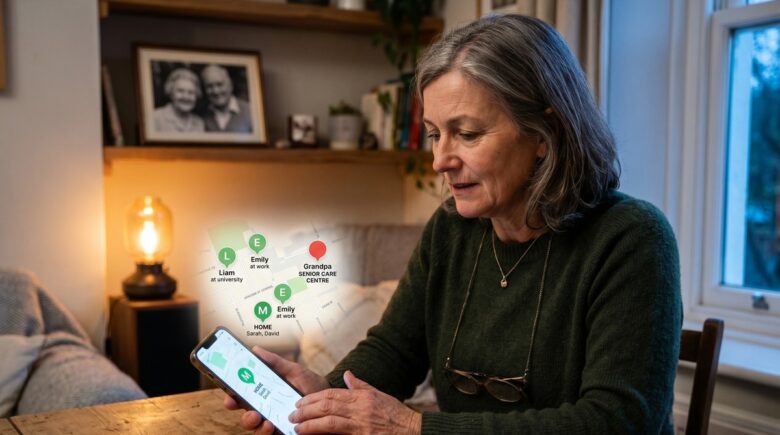
In 2023–2024, 38.2 million Americans provided unpaid eldercare, and 79% of them were caring for someone they did not live with. That statistic has a face: it is the adult child refreshing a location app at 9 p.m. because their 74-year-old mother had a cardiology appointment at 3 p.m. and still has not texted back. The question of which app to trust with that responsibility has no single right answer, but the debate over Life360 vs Google Family Sharing is far more nuanced than most comparison articles acknowledge, particularly when the person being tracked is an elderly parent rather than a teenager.
The senior population in the U.S. reached 61.2 million people in 2024, representing 18.0% of the total population. Meanwhile, 47% of eldercare providers were caring for a parent specifically, making parent-care the most common eldercare relationship in the country. Both Life360 and Google’s family tools were built with younger users in mind, which means every caregiver who downloads one of these apps is adapting a product designed for a different problem. The mismatch has real consequences: missed alerts, privacy risks, strained family dynamics, and phones that die by 2 p.m.
This guide works through both platforms with elderly care as the specific context. By the end, you will know which app fits which caregiving situation, how to have the setup conversation with your parent without it feeling like surveillance, and what the functional differences actually mean on a day when it matters most.
Key Takeaways
- 79% of eldercare providers in 2023–2024 cared for someone in a different household, making remote location-monitoring a practical necessity for millions of families.
- Life360’s free tier covers basic real-time location, but geofence Place Alerts and No-Show Alerts require a paid plan running $15–$25/month (Gold or Platinum).
- Independent battery tests measured Life360 consuming 12–15% of battery per 24-hour period, versus its stated ~10%; on an older smartphone with a degraded battery, this can mean the phone dies mid-afternoon.
- Google Family Link is designed for supervised child accounts and strips the supervised person of full Google account autonomy; it is structurally inappropriate for use with a competent adult parent.
- In 2024, Google migrated Timeline location history to on-device-only storage, eliminating a remote caregiver’s ability to review their parent’s location history from their own device.
- Life360 previously confirmed selling precise location data of approximately 33 million users to data brokers; it now offers opt-out controls, but this history is material when the person being tracked is a vulnerable adult.
In This Guide
- Why Remote Caregivers Need More Than Just a Map Pin
- What Life360 Actually Offers Caregivers
- What Google Family Sharing Actually Offers Caregivers
- The Four Variables That Actually Decide This
- Battery Drain as an Elder-Care Problem
- The Consent and Dignity Conversation Nobody Mentions
- Head-to-Head for the Elderly Care Use Case
- The Verdict: Which One to Choose and When
- Data Privacy Side by Side
- Setting It Up So It Actually Keeps Working
Why Remote Caregivers Need More Than Just a Map Pin
Most people who search for location-sharing advice for elderly parents have already tried the obvious solution: sharing location through iMessage, Google Maps, or a carrier family plan. Those tools answer one question: where is this person right now? They do not answer the question that actually keeps caregivers awake, which is: did something go wrong, and would I know if it did?
The difference between a navigation app and a caregiving tool is the difference between passive data and active alerts. If your father drove to his dialysis clinic and never arrived, a standard Google Maps location share tells you his last known position. It does not ping you when he was supposed to arrive and did not. That gap, between a map pin and a notification, is where remote caregiving stress accumulates into something exhausting.
What Elderly Care Actually Requires from a Tracking App
Tracking an elderly parent involves a different priority set than tracking a teenager. The primary concerns are medical appointments, fall or crash events, wandering risk in cases of early cognitive decline, battery life on an older device, and the parent’s own comfort with the technology. None of the popular “family tracking” comparisons address this audience directly; most benchmark features against parenting scenarios, which skews their conclusions.
A caregiver for an elderly parent needs reliable passive alerts when a parent reaches or fails to reach a destination, some form of emergency contact functionality, and ideally two-way location visibility so the arrangement feels mutual rather than monitored. The app also needs to run reliably on whatever device the parent already owns, which is often a mid-range Android or an older iPhone, not a flagship model.
According to the Bureau of Labor Statistics’ 2023–2024 American Time Use Survey, 38.2 million Americans provided unpaid eldercare, with 47% specifically caring for a parent. The overwhelming majority were doing so from a different household.
What Life360 Actually Offers Caregivers
Life360 markets itself as a family safety platform, and for eldercare purposes, several of its features are genuinely useful in ways that go beyond the marketing copy. The most relevant are Place Alerts (geofence notifications when a family member arrives at or leaves a named location), No-Show Alerts (a notification if someone fails to arrive at a scheduled destination within a set time window), battery monitoring (caregivers can see a parent’s phone battery percentage in real time), and SOS with 24/7 emergency dispatch on paid tiers.
No-Show Alerts deserve particular attention. If your mother has a standing appointment at her nephrologist every Tuesday at 10 a.m., you can set a No-Show Alert so that if she has not checked into the clinic by 10:30, you receive a push notification. No equivalent feature exists anywhere in Google’s free tools. For a caregiver managing multiple appointment schedules remotely, this is a functionally distinct advantage.
Understanding the Cost Ladder
The free tier of Life360 provides real-time location, basic crash detection, and two days of location history for up to two places. That is enough for straightforward, occasional check-ins. But the features most relevant to eldercare sit behind the paywall. Life360 Gold, at roughly $15/month, unlocks unlimited Place Alerts, No-Show Alerts, full driving reports, and expanded location history. Life360 Platinum, at roughly $25/month, adds 24/7 emergency dispatch tied to SOS events and crash detection, roadside assistance, and identity theft protection.
| Life360 Tier | Monthly Cost | Key Features for Elderly Care |
|---|---|---|
| Free | $0 | Real-time location, crash detection, 2-day history, 2 Places |
| Gold | ~$15/month | Unlimited Place Alerts, No-Show Alerts, driving reports, extended history |
| Platinum | ~$25/month | Everything in Gold plus 24/7 emergency dispatch, roadside assistance |
For a caregiver whose parent drives alone and has cardiovascular or mobility concerns, $15–$25 per month maps onto a concrete emergency-response capability. That context matters when comparing Life360 to a free tool. The cost comparison only looks unambiguous if you ignore what the money actually buys.
The Data Privacy History You Should Know
Life360 has faced documented privacy concerns that any caregiver should understand before enrolling a vulnerable adult. The company previously confirmed selling precise location data of approximately 33 million users to third-party data brokers. Related lawsuits followed. Life360 now offers opt-out controls for data sharing, but the option to opt out also implies there is something to opt out of. The FTC has warned that family and health tracking apps not covered by HIPAA are still subject to the FTC Act and the Health Breach Notification Rule, meaning unauthorized disclosure of location data, including sharing with advertisers, may constitute a breach requiring notification. This is worth reading before you hand your parent’s precise daily movements to a third-party platform.
It is also worth knowing that Life360 is a publicly traded company on the Nasdaq (ticker: LIF), which means revenue sources, including data monetization, are disclosed in its SEC filings. Caregivers who want to understand the company’s current data-sharing practices before enrolling a vulnerable adult can review those disclosures directly rather than relying solely on in-app privacy notices.
What Google Family Sharing Actually Offers Caregivers
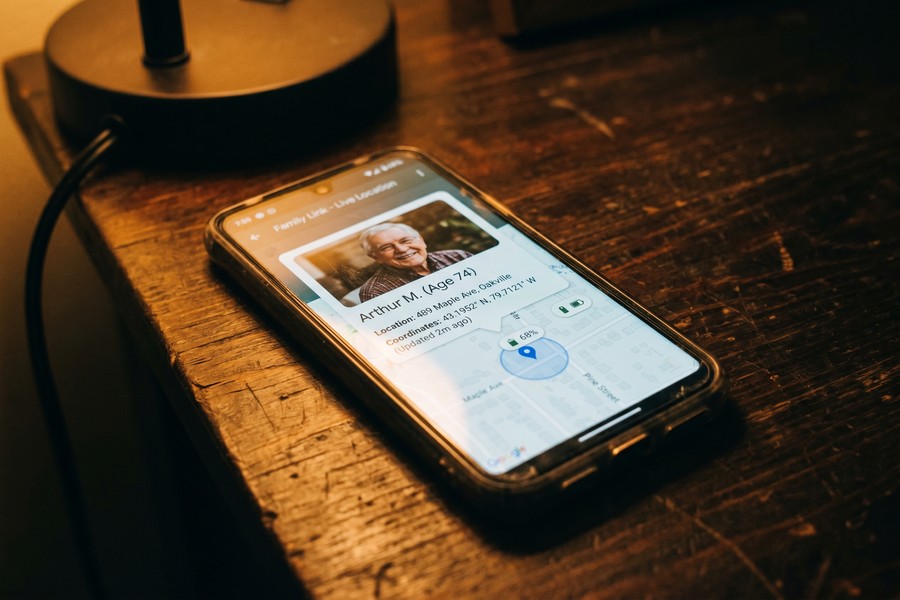
One of the most persistent problems in Life360 vs Google Family Sharing comparisons is that most articles treat “Google Family Sharing” as a single coherent product. It is not. Google has three overlapping tools that often get conflated, and understanding the distinction is essential before you can evaluate which one, if any, fits your caregiving situation.
Three Google Tools, Very Different Purposes
Google Family Link is a supervision and content-control app designed for managed child accounts. It allows a “parent” account to approve app downloads, monitor screen time, and set content filters on a “child” account. It is explicitly built around the legal and technical framework for managing a minor’s Google account.
Google Maps location sharing is a free, real-time feature within Google Maps that allows any two consenting adults to share their location with each other indefinitely. It works cross-platform (iOS and Android), requires no extra app beyond Google Maps, and costs nothing. It is genuinely useful for low-complexity caregiving situations.
Google Family Group (sometimes called Google One Family) is a feature for sharing Google One storage, YouTube Premium, and app purchases across a household. It has nothing to do with location monitoring. Caregivers should set this aside entirely.
Google Family Link is designed for supervised child accounts, not adults. If you apply it to a cognitively capable elderly parent, you are creating a “supervised” account that restricts their ability to manage their own Google settings, approve their own app installations, and control their own account preferences. That is not a minor UX inconvenience; it actively limits your parent’s digital autonomy.
The 2024 Google Timeline Change That Changes Everything
In 2024, Google migrated its Timeline feature (previously known as Google Maps location history) from cloud storage to on-device-only storage. Before this change, a caregiver could in principle review their parent’s recent location history from their own device. After the migration, location history lives only on the parent’s phone and is not accessible remotely. For a remote caregiver trying to reconstruct whether a parent made it to a pharmacy or took an unfamiliar route, this is a concrete functional regression. No competitor article in the top search results appears to have addressed this, but it directly eliminates a capability many families may have been relying on.
The result is that Google Maps location sharing in late 2024 offers real-time location only, with no alert system and no accessible history. It is a lighter tool than it was a year ago, and caregivers who switched away from Life360 expecting parity on history features will find the trade-off more lopsided now.
The Four Variables That Actually Decide This
Most people arrive at this comparison already leaning toward one app, usually based on which platform they personally use. The device your parent already owns should actually be the first variable you evaluate, not the last.
Device Compatibility First
Google Maps location sharing works on both iOS and Android, requires no account management beyond a standard Google account, and is genuinely cross-platform. Life360 also works on both platforms. Google Family Link, however, only supports Android devices in its full supervision mode. If your parent uses an iPhone, Family Link is not a real option. That eliminates the entire Family Link discussion for a significant portion of elderly users, since iPhone ownership among Americans over 65 has risen steadily.
Device age matters too. A Samsung Galaxy A-series phone from 2021 or a budget Motorola running Android 11 may have specific battery optimization settings that interfere with Life360’s background location polling. Apple’s iOS handles background processes more uniformly, which makes Life360 somewhat more predictable on older iPhones than on older Android devices from manufacturers like Xiaomi or Oppo, both known for aggressive background process killing.
Passive Alerts vs. Active Checking
This is the variable most comparisons skip. If you are the type of caregiver who will check the app proactively, morning coffee, before bed, after an appointment you know is scheduled, then Google Maps location sharing is completely adequate and free. If you need the app to come to you when something is wrong, because your life does not allow you to check manually every few hours, then Life360’s alert system is not a premium add-on; it is the core feature.
Be honest with yourself about which category you fall into. Most remote caregivers who work full-time are in the second category, even if they think they are in the first.
47% of eldercare providers in 2023–2024 were caring for a parent, per the BLS American Time Use Survey. Parent care is the single most common eldercare relationship in the United States, and most of those caregivers are doing it from a different address.
Tech Comfort and App Persistence
A third-party app like Life360 needs to run continuously in the background on your parent’s phone. On Android, this means navigating battery optimization settings, background process permissions, and, for some manufacturers like Xiaomi or Samsung with aggressive battery management, specific whitelisting steps. An elderly parent who is not comfortable with their phone settings may inadvertently restrict the app’s background access after a software update, and the location dot will simply disappear without explanation.
Google Maps location sharing uses system-level location services, which are harder to accidentally disable. For a parent who is not technically engaged with their phone, this lighter footprint is a practical advantage, not just a theoretical one.
Battery Drain as an Elder-Care Problem
Battery drain gets mentioned in virtually every Life360 review, but always in passing. The specific context of an elderly parent on an older smartphone makes it a more serious issue than those reviews suggest. Life360 self-reports approximately 10% battery consumption per 24-hour period. Independent tests on an iPhone 15 and a Google Pixel 8 measured the actual figure at 12–15% per day under normal conditions, with location updates running at the standard frequency.
Now apply that to a three-year-old mid-range Android with a battery that has degraded to 70–80% of its original capacity. If the phone starts the day at 100%, it could realistically hit 0% by 2 or 3 p.m. with Life360 running. That is the precise outcome the caregiver was trying to prevent: an unreachable parent in the late afternoon, with no location data available. The safety app, in this scenario, creates a new vulnerability rather than reducing one.
Before committing to Life360 for an elderly parent, check the battery health on their device. On iPhone, go to Settings → Battery → Battery Health. On Android, most manufacturers include a battery health indicator under Settings → Battery or Device Care. If capacity is below 80%, either replace the battery first or lean toward Google Maps’ lighter location sharing instead.
Google Maps location sharing relies on the device’s existing location services rather than a separate background process, which makes it meaningfully lighter on battery. For caregivers whose primary safety concern is the phone simply staying on through the day, this asymmetry matters more than any feature comparison chart.
The Consent and Dignity Conversation Nobody Mentions
The most technically capable tracking setup fails immediately if the person being tracked finds it distasteful and uninstalls the app. Setting up location sharing with an elderly parent is not a technical task; it is a relational one, and the conversation that precedes the installation determines whether the arrangement lasts three weeks or three years.
Laurie Orlov, aging-in-place technology analyst at Aging and Health Technology Watch, has consistently emphasized in her published research that people being monitored must agree to being monitored, and that unless cognitive impairment removes that capacity, opting in must be the person’s own choice. That framing is worth sitting with. Consent is not a formality to get through before installing the app. It is the precondition for the whole arrangement working. A parent who feels monitored rather than supported will resist the technology, and for good reason.
How to Frame the Conversation
Research consistently shows that seniors are more receptive to location sharing when they understand three things: the arrangement is mutual (they can see the caregiver’s location too), it is reversible at any time, and it was their idea as much as anyone’s. Start by showing the parent what the app looks like on your phone, your location, your commute, your battery. Make the sharing feel like connection rather than oversight.
The features to lead with are the SOS button and two-way location, not geofences and No-Show Alerts. The latter features can come later, once trust in the app is established. Bringing up No-Show Alerts in the first conversation tends to put the parent on the defensive, because it implies they might miss an appointment and not tell anyone.
The Family Link Problem Is Bigger Than UX
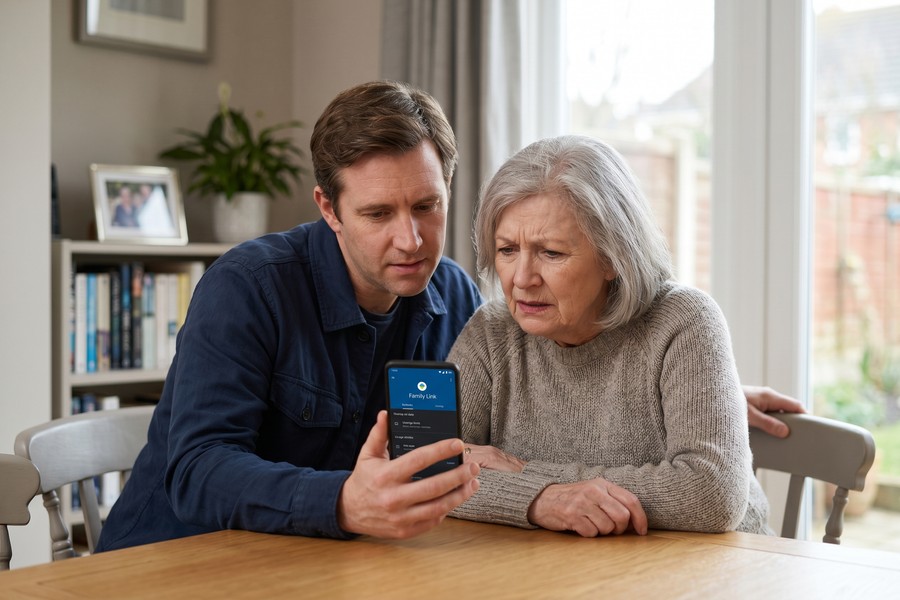
Applying Google Family Link to a cognitively capable elderly parent is ethically fraught in a way that goes beyond awkward interface design. The supervised account model prevents the parent from fully managing their own Google account: they cannot independently approve app installs, they may receive parental control notifications, and certain account settings are controlled by the “manager” account. That manager is you, their adult child. The power dynamic that inverts is not subtle. For a parent who values independence, discovering that their Google account is being managed like a child’s is likely to end the caregiving tech arrangement entirely, and fairly.
The Alzheimer’s Foundation of America has noted publicly that technology can serve a meaningful role in remote caregiving, particularly for families dealing with dementia, where the caregiver and the person living with cognitive decline do not share a home. The critical qualifier is cognitive decline: for a parent with diagnosed dementia or severe impairment, supervised account models may have practical justification after consultation with a healthcare team. For a cognitively sharp 72-year-old who simply lives alone, they do not.
Head-to-Head for the Elderly Care Use Case
Running these two platforms against specific caregiving scenarios, rather than generic feature checklists, reveals where each one genuinely earns its place.
| Caregiving Scenario | Life360 | Google Maps Sharing |
|---|---|---|
| Mom missed dialysis appointment | No-Show Alert notifies you automatically | You must check manually; no alert |
| Dad’s phone is almost dead | Battery % visible in app dashboard | No battery monitoring |
| Check she got home once a day | Works, but costs $0–$15/month | Sufficient and free |
| Parent drives alone, fall/crash risk | Crash detection + 24/7 dispatch on Platinum | No crash detection, no dispatch |
| Parent on older Android, degraded battery | 12–15% drain/day may cause early shutoff | System-level, lighter battery use |
| Third-party data privacy concern | History of selling location data to brokers | No third-party data sales reported |
Google Maps location sharing wins clearly in the low-complexity scenarios: a cognitively sharp parent, a single adult child checking in casually, no driving safety concerns, a newer device. For that caregiver, adding a paid Life360 subscription is adding cost and a third-party data risk without meaningful additional safety value.
Life360 wins clearly in the higher-complexity scenarios: a parent with early memory concerns, multiple scheduled medical appointments, solo driving, or a family with multiple adult siblings who all need visibility. The No-Show Alert alone can justify the subscription in those situations.
The FTC’s Mobile Health Apps Interactive Tool notes that even apps outside HIPAA’s scope must not mislead users about data collection or sharing practices. Before installing any tracking app on a family member’s phone, reviewing the app’s privacy policy for data-broker language is a practical step, not a paranoid one.
For caregivers thinking about broader device security on their parent’s phone, it is also worth reviewing how to build a personal digital security routine that covers location permissions, app access, and account hygiene, especially relevant when a vulnerable adult’s device is involved.
The Verdict: Which One to Choose and When
A clear recommendation is possible here, because the two tools serve genuinely different needs rather than the same need at different price points.
Choose Life360 Gold If:
- Your parent has early signs of cognitive decline, including missed appointments or getting disoriented in familiar areas.
- They drive alone and have cardiovascular disease, vision issues, or other conditions that raise crash or medical emergency risk.
- You need the app to alert you passively rather than relying on manual checks throughout the day.
- Multiple adult siblings are splitting caregiving duties and all need simultaneous visibility.
- Your parent lives in a rural or suburban area with slower emergency response times, where the 24/7 dispatch feature on Platinum has genuine value.
Choose Google Maps Location Sharing If:
- Your parent is cognitively sharp and lives independently without medical safety concerns beyond normal aging.
- You only need occasional confirmation that they got home or are where they said they would be.
- Their phone is newer and battery life is not a concern.
- Data privacy is a priority and you are not comfortable with a third-party data broker history.
- Your parent is resistant to installing unfamiliar apps and Google Maps is already on their phone.
There is an honest concession worth making here. Neither Life360 nor Google Maps location sharing is purpose-built for elderly care. Both are adaptations of tools designed for different audiences. AARP’s guidance on GPS tracking and medical alert technologies notes that when safety needs escalate beyond location-checking on a smartphone, dedicated medical alert devices (personal emergency response systems, GPS wearables) are often the more appropriate solution. A smartphone-based app depends on the phone being charged, within range, and in the parent’s possession. A wearable with fall detection does not have those dependencies.
61.2 million Americans were aged 65 or older in 2024, representing 18.0% of the total U.S. population, according to the U.S. Census Bureau’s Vintage 2024 Population Estimates. The demand for remote caregiving technology will only grow as that share increases.
Data Privacy Side by Side
The privacy asymmetry between Life360 and Google Maps location sharing is material and underreported. Life360’s documented history of selling precise location data to third-party data brokers is not an allegation; the company confirmed it. The company has since introduced opt-out controls and adjusted its data-sharing practices, but opt-out availability implies that sharing is the default unless changed. Any caregiver who has not explicitly navigated to Life360’s privacy settings and disabled data sharing should assume the default is on.
The regulatory backdrop matters here. The FTC has taken enforcement action against companies that misrepresent location data practices under the FTC Act, and its Health Breach Notification Rule applies to a broad range of health and personal tracking apps outside HIPAA’s scope. Separately, the Consumer Financial Protection Bureau (CFPB) has flagged data broker ecosystems as a systemic consumer harm, noting that precise location data sold by apps can be combined with financial and identity data, including Experian or Equifax credit records, to create detailed profiles of vulnerable individuals. For a caregiver who is also managing a parent’s finances, the intersection of location data and identity exposure is worth treating seriously.
Google Maps location sharing is not without data considerations. Google collects substantial data across its ecosystem, including through its advertising and search infrastructure, but it does not sell precise location data to third-party brokers as part of its business model, and system-level location services are broadly considered lower-risk than third-party app tracking. If you are already concerned about app-based data risks on your parent’s device, the broader issue of what spyware on a phone looks like and how to remove it is worth understanding before adding any third-party app to an elderly parent’s device.
Setting It Up So It Actually Keeps Working
The most common failure mode for both apps with elderly users is not a bug; it is an OS update that quietly reverts location permissions to “Ask every time” or “While using the app only.” Your parent may not notice. You will, when the location dot disappears and you cannot explain why.
The Setup Checklist
For Life360: after installation, confirm Background App Refresh is enabled (iPhone: Settings → Life360 → toggle on), location permission is set to “Always” not “While Using,” and battery optimization is disabled for the app (Android: Settings → Apps → Life360 → Battery → Unrestricted). On manufacturers with aggressive battery management, specifically Samsung, Xiaomi, and Oppo, check the manufacturer’s specific “App Power Management” setting and add Life360 to the exceptions list. Test at least one geofence alert before relying on it; drive or walk to the location yourself to confirm the notification fires within a reasonable radius.
For Google Maps location sharing: open Google Maps on your parent’s device, tap their profile photo, go to “Location sharing,” and confirm the share is set to “Until you turn this off” rather than a time-limited window. Have them do the same on their device so the arrangement is mutual. Confirm they can see your location pin in their Maps app before you leave. Make a habit of a brief monthly check-in to verify the share is still active, since Google occasionally prompts users to confirm continued sharing.
Both apps benefit from a practical secondary layer: asking your parent to keep their phone on a charging pad or cable during predictable rest periods (mid-morning, after lunch) so the battery never drops below 40% during active hours. For caregivers who also want to automate device maintenance, iPhone Shortcuts can automate recurring reminders to charge, including a location-share check notification, without requiring any action from your parent.
When the Location Dot Disappears
Have a protocol agreed with your parent in advance. If their location dot disappears, your first call should be to their phone directly; second call to a neighbor or building manager if they do not pick up; third call is escalation. Do not start with escalation. Most location dot disappearances are an Android update that reset a permission, a phone that died, or a Wi-Fi-only moment in a building basement. Having the protocol written down means you do not have to improvise in the moment when anxiety is highest.
Real-World Example: A Remote Caregiver Choosing Between Life360 and Google Maps
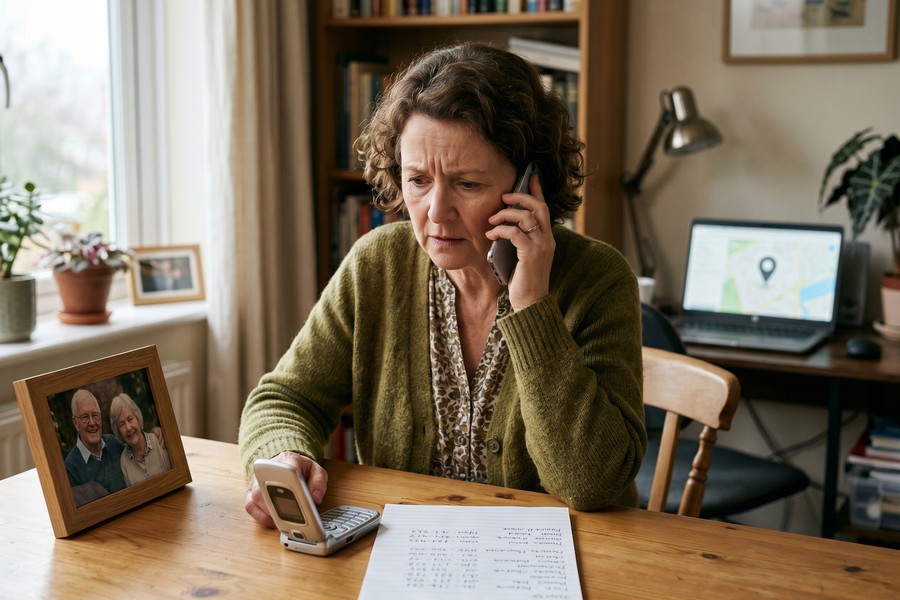
Consider an illustrative example: a 43-year-old woman living in Chicago whose 77-year-old father lives alone in suburban Indianapolis. Her father had a mild ischemic event 18 months ago, drives himself to three recurring medical appointments each month, and owns a Samsung Galaxy A32 he bought in 2021. She works full-time in a hybrid role and cannot check her phone consistently during the day. She is one of two adult children, and her brother in Phoenix also wants visibility.
She starts with Google Maps location sharing, which costs nothing and takes ten minutes to set up. For two months, it works. Then her father has an appointment at his cardiologist on a Thursday. She checks Google Maps at 4 p.m. and sees he is home. She does not know that he arrived 45 minutes late, having taken a wrong turn, and had a brief moment of confusion at the freeway exit, something he did not mention on their evening call. The system showed a map pin; it did not flag a 45-minute deviation from expected arrival.
She switches to Life360 Gold at $15/month. She sets a No-Show Alert for each recurring medical appointment with a 30-minute arrival window. She adds a Place Alert for the cardiologist, the dialysis center, and the pharmacy. She enables battery monitoring. In the first month, the battery alert fires twice on a Wednesday afternoon, flagging her father’s phone at 12% at 2 p.m. She calls him; he is home, phone nearly dead, about to take a nap. She arranges for a wireless charging pad next to his armchair. The No-Show Alert fires once, three weeks later, when he arrived 40 minutes late to a pulmonology follow-up. She reaches him; he had stopped at a gas station and lost track of time. Minor incident, but she knew within 30 minutes rather than finding out on the weekend.
The arithmetic here: $15/month times 12 months is $180/year for Life360 Gold, versus $0 for Google Maps. The difference bought her two confirmed safety interventions in the first month of active use, passive alerts she did not have to remember to generate, and her brother’s access to the same circle, all without a second subscription. Whether $180/year is worth it depends entirely on your caregiving situation, but for a parent with a medical history, a solo driving habit, and a 3-year-old mid-range phone with a degraded battery, the math favors the paid tool.
Your Action Plan
-
Assess your parent’s device and battery health first
Check battery health on your parent’s phone before choosing an app. On iPhone, go to Settings → Battery → Battery Health and Charging. On Android, check Settings → Battery → Battery Usage or Device Care. If capacity is below 80%, Life360’s 12–15% daily drain may cause the phone to die mid-afternoon, which defeats the safety purpose. Either replace the battery or lean toward Google Maps location sharing, which is lighter on battery.
-
Identify your actual monitoring need: passive alerts or active checking
Be specific about how you will use the app on a typical Tuesday. If you can check manually in the morning and evening, Google Maps is sufficient and free. If you need the app to come to you when something is wrong, Life360’s No-Show Alerts and Place Alerts are not optional features; they are the whole point. Matching the tool to your real behavior avoids paying for features you will not use or defaulting to a free tool that leaves gaps.
-
Have the consent conversation before you touch the phone
Sit down with your parent, show them the app on your device first, and make the arrangement explicitly mutual. Share your own location in the same setup session. Frame the conversation around safety and connection, not monitoring. If your parent is resistant, do not install the app remotely without their knowledge; that approach breaks trust and is often the reason setups fail within weeks. The AARP’s remote monitoring guidance recommends starting these conversations before a crisis occurs, not after one.
-
Choose the right Google tool if you go the Google route
Use Google Maps location sharing for an adult parent, not Google Family Link. Family Link is a supervised child account system that restricts the parent’s Google account autonomy; it is not appropriate for a cognitively capable adult. Google Maps location sharing is free, cross-platform, and does not require any account restructuring. Set the share to “Until you turn this off” rather than a time-limited session.
-
Set correct background permissions immediately after installation
For Life360, set location permission to “Always” (not “While Using”), enable Background App Refresh on iPhone, and disable battery optimization on Android. For Samsung or other manufacturers with aggressive battery management, find the app power management exception list and add Life360 explicitly. For Google Maps, confirm the location share is active on both devices and that both parties can see each other’s live pin.
-
Test every alert before relying on it
Create at least one Place Alert and trigger it yourself (or have a family member do it) before your parent’s next real appointment. Drive or walk to the geofenced location and confirm the notification fires within 5 minutes and within a reasonable geographic radius. Geofence accuracy varies by device, and a geofence that fires half a mile late is not useful for confirming a clinic arrival. If Life360’s free tier is what you are testing, confirm which alerts require a paid plan before assuming they are active.
-
Opt out of Life360’s data sharing if you use the paid tier
If you choose Life360, navigate to the privacy settings and explicitly opt out of data sharing with third parties. Given the company’s documented history of selling precise location data to data brokers, leaving data sharing as the default is not a neutral choice when the person being tracked is a vulnerable adult. The FTC’s mobile health apps guidance reinforces that apps outside HIPAA’s scope must still comply with the FTC Act; knowing your rights as a consumer matters here.
-
Establish a “missing dot” protocol in advance
Before you rely on the app, agree with your parent on what happens if their location disappears. Write down the steps: first, call the phone directly; second, contact a nearby neighbor or building manager if there is no answer after two calls with a 10-minute gap; third, escalate as needed. Make sure this protocol is shared with any siblings or co-caregivers who have access to the same circle. Most location dot disappearances have mundane explanations, but having the protocol removes the need to improvise when anxiety is running high.
Frequently Asked Questions
Is Life360 free to use for tracking an elderly parent?
The free tier provides real-time location, basic crash detection, and up to two days of location history for up to two saved places. For occasional check-ins, that may be enough. The features most valuable in eldercare, No-Show Alerts, unlimited Place Alerts (geofences), battery monitoring, and 24/7 emergency dispatch, require Life360 Gold (~$15/month) or Platinum (~$25/month).
Can I use Google Family Link to monitor my elderly parent?
Technically possible, but strongly inadvisable for a cognitively capable adult. Google Family Link is built around a supervised child account model that limits the managed person’s ability to control their own Google account: they cannot independently approve app installs, and certain account settings are managed by the “parent” account holder. For a cognitively sharp elderly parent, this arrangement inverts a power dynamic in a way that tends to produce significant resistance once they discover what it entails. For a parent with dementia or severe cognitive impairment, a consultation with their healthcare team about appropriate technology oversight is the more appropriate path than a child supervision app.
What is the difference between Google Maps location sharing and Google Family Sharing?
Google Maps location sharing is a free real-time feature within the Google Maps app that lets any two people share their live location mutually. Google Family Group (sometimes called Google Family Sharing) is about sharing Google One storage, app purchases, and subscriptions across a household. They are separate features with no functional overlap. For eldercare location monitoring, Google Maps location sharing is the relevant tool.
How much battery does Life360 drain on an elderly parent’s older phone?
Life360 states approximately 10% battery consumption per 24 hours. Independent tests on a Google Pixel 8 and iPhone 15 measured 12–15% per day. On a phone with a battery that has degraded to 70–80% of its original capacity, common in a 2–3 year-old mid-range Android, that drain can mean the phone hits 0% by early afternoon. Check battery health before installation; if it is below 80%, Google Maps location sharing’s lighter system-level tracking is the more practical choice for keeping the phone on through the day.
Does Life360 sell my parent’s location data?
Life360 previously confirmed selling precise location data of approximately 33 million users to third-party data brokers, and related lawsuits followed. The company has since introduced opt-out controls and adjusted its data-sharing practices. However, opt-out being available implies that sharing is the default unless changed. After installing Life360, navigate explicitly to the privacy settings and turn off third-party data sharing. This is especially important when the person being tracked is a vulnerable adult.
Does Google Maps location sharing work if my parent has an iPhone and I have Android?
Yes. Google Maps location sharing is cross-platform. Both parties need the Google Maps app installed and a Google account signed in. Location sharing works in both directions regardless of whether one person uses iPhone and the other uses Android. This is one area where Google Maps has a clear practical edge over Google Family Link, which has significant limitations outside the Android ecosystem.
What happens when my parent’s location dot disappears in Life360 or Google Maps?
The most common reasons are: the phone battery died, the location permission was reverted to “While Using” after an OS update, or the phone lost internet connectivity. Start by calling the phone directly. If there is no answer within 10 minutes, contact a nearby neighbor, building manager, or the parent’s nearest in-person contact. Reserve escalation (wellness check requests, emergency services) for when multiple contact attempts have failed and the disappearance is not explained by a known situation. Establishing this protocol before it is needed prevents panic-driven decisions.
Is there a better option than either Life360 or Google Maps for high-risk elderly care situations?
For parents with significant fall risk, advanced cognitive decline, or serious cardiovascular conditions, dedicated medical alert systems and GPS wearables are often more appropriate than smartphone-based apps. These devices do not depend on the parent having their phone charged and in their possession, and many include fall detection with automatic emergency dispatch. AARP’s medical alert systems guide covers the current range of options. Life360 and Google Maps are reasonable starting points for lower-risk situations but should not be treated as substitutes for purpose-built emergency response technology when safety needs are serious.
How do I set up Google Maps location sharing with my elderly parent?
Open Google Maps on your parent’s phone, tap their profile photo in the top right, select “Location sharing,” then tap “Share location.” Choose “Until you turn this off” for the duration, and select your contact. Do the same on your own phone so the sharing is mutual. Confirm that both of you can see each other’s live location pin in the Maps app before ending the setup session. Make a habit of verifying the share is still active monthly, as Google occasionally prompts users to confirm or renew sharing after inactivity.
Can other siblings access my parent’s location through Life360 without setting up multiple accounts?
Yes. Life360 is built around a “circle” model where multiple family members can all see each other’s location simultaneously within the same group. A single Life360 plan covers the whole circle; you do not need separate subscriptions for each sibling. This is a practical advantage for families with multiple adult children sharing caregiving responsibility, since all parties can receive the same No-Show Alerts and Place Alert notifications simultaneously rather than one sibling acting as an information relay for others.
Sources
- U.S. Bureau of Labor Statistics, Unpaid Eldercare in the United States, 2023–2024 Summary
- U.S. Census Bureau, Vintage 2024 Population Estimates: Older Adults
- AARP, How Technology Helps Remote Caregivers Monitor Elderly Loved Ones
- AARP, Medical Alert Systems and GPS Tracking Options for Caregivers
- AARP, Technology for Dementia Caregivers
- AARP, Top Caregiving Apps for Older Adults and Family Caregivers
- Federal Trade Commission, Complying with the FTC’s Health Breach Notification Rule
- Federal Trade Commission, Mobile Health Apps Interactive Tool
- SnapMessages, How to Build a Personal Digital Security Routine That Actually Sticks
- SnapMessages, What Is Spyware and How to Remove It From Your Phone
- SnapMessages, How to Automate Repetitive Tasks on iPhone Using Shortcuts






