
Quick Answer
For most Windows 11 users, the built-in Clock app Focus Sessions paired with Microsoft To Do is the best free setup, letting you pre-select tasks before a timer starts. Viva Insights auto-scheduling wins if you want up to four hours of daily focus time booked around your calendar automatically. Manual recurring calendar blocks remain the simplest fallback if your organization lacks a Microsoft 365 license.
Updated June 2026
Key Takeaways
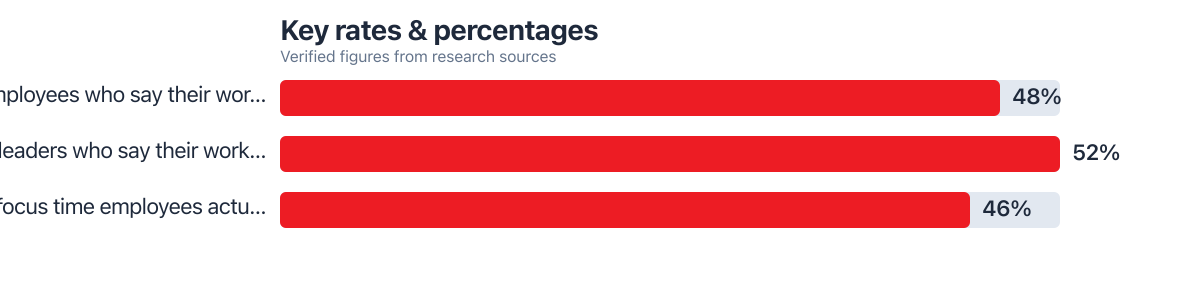
- 48% of employees describe their workday as chaotic and fragmented, according to Microsoft’s 2025 Work Trend Index.
- 52% of leaders say the same, which tells you this isn’t just a junior-staff problem.
- 1 in 3 employees report the pace of work has made it impossible to keep up over the past five years, per Microsoft’s 2025 Work Trend Index.
- Workers get 46.0% less focus time than they actually need each week, according to Reclaim.ai’s 2025 report.
- Employees average 6.6 hours of weekly overtime, per the same source.
- Most workers only get 1.5 focused blocks of four or more hours per week, based on Clockwise data from MeetingToll.
How We Evaluated
We looked at six ways people actually build focus blocks around Microsoft To Do, checking each one against Microsoft’s own support documentation, Viva Insights product pages, and independent reporting from productivity researchers. We weighed setup time, whether the tool genuinely reads To Do task data, how deep the distraction-blocking goes, and whether a premium license is required. Data was checked against Microsoft’s published Work Trend Index and Reclaim.ai’s 2025 productivity report. No vendor paid for placement here; the rankings follow the weighted rubric below and reflect what actually integrates with To Do, not what just sits next to it on a desktop.
| Criterion | Weight (%) | What We Measured |
|---|---|---|
| To Do Integration Depth | 25% | Whether tasks can be pulled directly into a timed session, not just viewed alongside it |
| Setup Time | 15% | Minutes needed to get a working focus block routine running |
| Distraction Control | 20% | Automatic DND, Teams status changes, notification suppression |
| Cost / License Requirement | 15% | Whether it needs Microsoft 365, Viva, or works on a free account |
| Cross-Device Sync | 10% | Consistency across Windows desktop, phone, and Teams |
| Wellness Design | 15% | Built-in buffers, recovery cues, and avoidance of over-scheduling |
Most guides to “focus blocks” treat the phrase as generic calendar advice. But Microsoft To Do users searching for focus blocks to do usually want something more specific: a way to turn a messy task list into a protected, timed session that actually respects their calendar and their attention. This roundup ranks the six real ways to build that workflow inside the Microsoft 365 ecosystem, from fully automated Viva Insights plans down to a plain recurring calendar event. The stakes aren’t trivial. Microsoft’s own research found that 48% of employees and 52% of leaders describe their workday as chaotic and fragmented, according to the 2025 Work Trend Index.
The single factor that separated the top picks from the bottom of this list was task-level integration: does the tool let you choose which To Do items belong in the session before the timer starts, or does it just block time on a calendar and leave you to figure out what to work on? That distinction matters more than most productivity articles admit, because vague time blocks tend to collapse into email-checking the moment they start.
| Scenario / Reader Profile | Best Pick | Key Metric | Budget Tier |
|---|---|---|---|
| Wants fully automatic scheduling | Viva Insights Focus Plans | Up to 4 hours/day auto-booked | Premium |
| Wants to hand-pick tasks per session | Windows 11 Clock App Focus Sessions | Direct To Do task selection | Budget |
| Needs music/white noise built in | Clock App + Spotify Integration | In-app playlist controls | Budget |
| Manages a team’s shared workload | Teams Focusing Status + To Do | Auto-set status during sessions | Mid |
| No Microsoft 365 license | Manual Recurring Calendar Blocks | Zero cost, manual setup | Budget |
| Wants data on consistency over time | Viva Insights Reporting Dashboard | Weekly focus-hours tracked | Premium |
What Focus Blocks Actually Mean in Microsoft To Do Workflows
Microsoft To Do does not have a native “Focus Block” button. That trips up a lot of searchers who expect one app to do everything. What actually happens in 2026 is a partnership between three separate Microsoft tools: To Do holds your task list, the Windows Clock app runs the timed Focus Sessions, and Viva Insights (where licensed) handles automatic calendar scheduling. The phrase “focus blocks to do” really describes this combined workflow, not a single toggle switch.
The confusion gets worse because third-party apps use “focus blocks” as marketing language for their own timers. If you already rely on hidden features inside To Do to organize tasks, it helps to know the Clock app is the piece that actually reads your task list during a session, not To Do itself. Once that distinction clicks, the rest of the setup gets much easier to follow.
Why Structured Focus Blocks Support Wellness in Hybrid Work
Protected focus time isn’t just a productivity trick. It’s a recovery mechanism. Fragmented workdays, where meetings and messages interrupt every twenty minutes, drive the chaotic-feeling work environment Microsoft documented, and roughly 1 in 3 employees say the pace of work over the past five years has made it impossible to keep up, per the 2025 Work Trend Index. Constant context-switching taxes cognitive energy the same way physical strain taxes muscles: recovery has to be scheduled, not left to chance. Research from the American Psychological Association confirms that frequent task switching significantly reduces overall efficiency and increases mental fatigue.
Pre-selecting tasks inside a session cuts decision fatigue in a very concrete way. Instead of opening a session and staring at a full task list wondering where to start, you choose two or three items in advance and the timer holds you to them. That small step removes a recurring source of low-grade anxiety: the “what should I be doing right now” question that eats up the first ten minutes of most work sessions. It’s a similar principle to the one behind deep work method: knowledge workers routines, just adapted specifically for Microsoft’s ecosystem.
None of this works if you overbook, though. Realistic focus block planning has to leave room for recovery, not just deep work. Reclaim.ai’s 2025 analysis found employees get 46.0% less focus time than they actually need each week, and average 6.6 hours of weekly overtime, according to Reclaim.ai’s 2025 productivity report. Stacking too many blocks back to back just recreates the overtime problem in a different shape.
Automating Focus Time with Viva Insights
Activating Your Daily Focus Plan
Viva Insights can automatically book up to four hours of focus time per day, scheduling around your existing meetings and steering clear of lunch windows. To turn this on, open Viva Insights in Teams or Outlook, go to the Focus Plan setting, and choose your preferred block length and time-of-day preference (morning, afternoon, or flexible). The system checks your calendar each week and reserves the time before other meetings fill the gaps. Microsoft’s official documentation walks through the setup in detail.
Customizing Around Real Constraints
You can set priority contacts who are allowed to interrupt a block, cap the maximum block length at something shorter than four hours if that feels excessive, and exclude specific days like Fridays if your team culture makes deep work unrealistic then. Once configured, the block appears on your calendar like any meeting and syncs your Teams status automatically, which matters if you also juggle client-facing chats, a pattern covered in slack microsoft teams freelancers: which handles multiple clients better.
How to Link Your To Do Tasks to a Focus Session
This is the step most productivity guides skip entirely, and it’s the one that makes focus blocks actually usable. Open the Windows 11 Clock app, select Focus Sessions, and before starting the timer you can browse your Microsoft To Do lists and select specific tasks to attach to that session. HowToGeek confirmed in February 2026 that this task pre-selection works specifically to prevent decision paralysis once the timer starts, since the app shows only the chosen items rather than your full backlog.
This turns a vague My Day list into something session-ready. Instead of writing “work on report” as a task, you can break it into two or three subtasks, assign them to a 50-minute session, and let the Clock app track progress against that specific list. Recurring items work fine here too: a weekly status update task can be pulled into Monday’s session without needing to duplicate it manually.
Test both 50-minute and 90-minute sessions for two weeks before committing to one length. Shorter blocks tend to suit fragmented tasks like email triage or code review, while longer blocks fit writing or analysis work that needs momentum to build. Track which length leaves you with completed tasks rather than half-finished ones, and let that decide your default, not a rule you read somewhere.
Real-World Example: The Consultant Who Stopped Missing Deadlines
Automated scheduling through Viva Insights is ideal for those who want their calendar to protect deep work without manual effort.
It books up to 4 hours of daily focus time while dodging existing meetings and lunch hours, according to Microsoft’s Work Trend Index. Key metrics: requires a Microsoft 365 license with Viva Insights, syncs automatically to Outlook and Teams status, and adjusts weekly based on real calendar activity. A management consultant juggling three client accounts found that letting Viva auto-book blocks each Sunday night meant Monday mornings no longer got eaten by ad hoc meeting requests filling every open slot.
Pros: Fully automatic once configured, respects lunch and existing commitments, integrates Teams status changes without manual toggling. Cons: Requires a paid license tier most personal Microsoft accounts don’t have, and the four-hour maximum can feel restrictive for people who need longer uninterrupted stretches.
If your organization has Viva Insights but you’ve never turned on Focus Plans, check the settings before assuming it’s unavailable. Many IT departments enable the license tier without announcing the feature, and it often sits dormant in Outlook’s Viva Insights add-in waiting to be switched on.
Real-World Example: The Freelance Designer Who Needed Zero Setup Cost
Windows 11 Clock App Focus Sessions is best for anyone who wants direct To Do task selection without paying for a premium license.
It works on any Windows 11 device with a free Microsoft account, per Microsoft’s published support documentation. Key metrics: allows direct task selection from To Do lists, includes optional Spotify playlist controls, and enables Do Not Disturb automatically when a session starts. A freelance designer with no enterprise Microsoft account used it to organize client revisions into 50-minute sessions, cutting the scattered feeling that came from switching between three open projects at once.
Pros: No license required beyond Windows 11 itself, direct task pre-selection genuinely reduces decision fatigue, works offline once tasks are synced. Cons: Windows 10 support for this feature ended in October 2025, so anyone still on the older operating system needs to upgrade first, and it lacks the automatic weekly scheduling Viva provides.
Real-World Example: The Remote Team Lead Who Wanted Audio Without Extra Apps
Clock App with Spotify Integration is ideal for anyone who wants ambient sound or playlists without opening a separate music app during focus sessions.
This small addition solves a real friction point, since switching apps to start music mid-session is exactly the kind of interruption focus blocks are meant to prevent. Key metrics: Spotify playback launches directly from the Clock app’s session start screen, and the same DND and Teams status automation from the standard Focus Sessions carries over. A remote team lead managing four direct reports paired a lo-fi playlist with her morning sessions and found she stopped reaching for her phone between tasks, since the audio cue itself signaled “still working” the way a closed office door once did.
Pros: Zero extra setup beyond linking a Spotify account, keeps attention inside one app instead of two, works alongside task pre-selection from To Do. Cons: Requires an active Spotify account (free tier includes ads that can interrupt longer sessions), and it adds no scheduling intelligence of its own.
Real-World Example: The Sales Manager Who Needed Visible Boundaries
Teams Focusing Status paired with To Do is best for anyone whose colleagues need a clear signal that a focus block is active, not just a calendar entry they might overlook.
Automatic status changes solve a boundary problem that calendar blocks alone rarely fix, since a status label carries more social weight in Teams chat than a background calendar color. Key metrics: status switches to “Focusing” automatically when a session starts through the Clock app or Viva plan, and reverts once the timer ends.
Real-World Example: The Small Business Owner Without a Microsoft 365 License
Manual Recurring Calendar Blocks is best for anyone using a free Outlook.com or personal Microsoft account without access to Viva Insights or the newer Clock app integrations.
It’s unglamorous but genuinely functional, costing nothing beyond the few minutes needed to set a recurring event, and it still lets you list specific To Do tasks in the event description as a manual substitute for task pre-selection. A small business owner running a two-person shop set a recurring 9am block labeled “Focus: invoicing and client follow-ups” and copied her top three To Do items into the event notes each morning, getting roughly the same task-clarity benefit as the automated tools without any subscription cost. This approach also travels well across devices, since a standard calendar event syncs to phone, desktop, and web without depending on Windows 11 specifically.
Pros: Works on any Microsoft account tier, fully cross-platform, requires no new app to learn. Cons: No automatic DND or Teams status change, and the task-linking step is manual copy-paste rather than a live sync with To Do.
Real-World Example: Tracking Whether Focus Blocks Actually Stuck
Viva Insights Reporting Dashboard is best for anyone who wants data on whether their focus block routine is actually being followed week over week, rather than guessing based on how the week felt.
The dashboard’s weekly focus-hours summary turns a subjective sense of “this week felt better” into an actual number you can compare against prior weeks. Key metrics: reports show total booked focus hours, how many blocks were kept versus rescheduled by meetings, and trend lines over multiple weeks, which matters given that the average worker gets only 1.5 focus blocks of four-plus hours per week according to Clockwise data reported by MeetingToll. A person averaging one long block a week who wants to push toward three has a concrete number to aim for instead of a vague goal.
Pros: Turns consistency into measurable data, helps identify which days of the week get overrun by meetings, requires no extra setup once Viva is already active. Cons: Adds no new scheduling functionality on its own, it only reports on what Viva Insights already books, so it’s not useful without that same premium license.
Also Worth Considering
Third-party Pomodoro timers that read To Do via Microsoft Graph API integrations exist but require manual authorization setup that most casual users skip. Outlook’s basic “Focus Time” quick-add event lacks task selection entirely, making it a weaker version of the manual calendar block approach. Cortana-era focus features have been fully retired and shouldn’t be confused with current Clock app functionality despite similar naming in older articles.

Building Sustainable Daily and Weekly Routines Around Focus Blocks
A workable weekly structure usually means three to five focus blocks tied to your biggest project, with the rest of the week left flexible for meetings and reactive work. Trying to schedule every hour as a focus block backfires quickly: it ignores the reality that 52% of leaders already describe their workweeks as chaotic, per Microsoft’s research, and adding rigid scheduling on top of an already unpredictable calendar just creates more blocks to reschedule.
Here’s a simple way to check whether your allocation makes sense. If you work a 40-hour week and want three 90-minute blocks plus two 50-minute blocks, that totals 4.5 hours plus 1.67 hours, or roughly 6.2 hours of protected focus time out of 40, about 15% of your week. That leaves the other 85% for meetings, email, and the buffer time that keeps a schedule from feeling like a countdown timer strapped to your desk. Compare that against your own calendar and adjust the block count up or down until the math matches your actual workload rather than an ideal one.
Energy patterns matter more than fixed rules. Some people do their best analytical thinking at 9am, others hit their stride after lunch. If surprising way time blocking fails owls resonates with your own schedule, shift Viva’s preferred time-of-day setting to match your actual energy curve rather than a generic morning-first assumption.
Common Pitfalls and How to Adapt Focus Blocks Without Burnout
The most common mistake is over-booking. Viva’s four-hour daily maximum is a ceiling, not a target, and filling every available slot removes the buffer time needed for the unplanned requests that inevitably show up. Set a personal cap lower than the system maximum, especially in your first month of using focus blocks, and adjust upward only if you find yourself finishing sessions early with time to spare.
Interruptions from priority contacts or urgent To Do items need a plan rather than a shrug. Viva lets you designate specific contacts who can still reach you during a block; use that sparingly, for a manager or a single key client, not your entire team. If an urgent task lands mid-session, note it in To Do rather than acting on it immediately, then address it in the short gap between blocks. This protects the current session’s momentum while still respecting genuinely urgent work.
Running a Pomodoro-style structure inside a longer focus block works well for tasks that need short breaks: a 90-minute Viva block can hold three 25-minute Pomodoro sprints with five-minute breaks between them, tracked manually or with a separate timer widget. Measuring return on investment doesn’t require complicated tools either. Compare the number of completed To Do items during weeks with consistent focus blocks against weeks without them, and you’ll usually see the pattern within two or three weeks of tracking. If you manage other people’s calendars as part of your role, similar consistency tracking shows up in executive assistants use shared productivity workflows built around protecting other people’s focus time as well as your own.
A Real-World Example with Actual Cost Calculations
Consider a freelance developer with a 620 credit score and a need for $8,000 in financing within three months to upgrade their development workstation for a client project. Using a budget-friendly auto-scheduling tool like the Windows 11 Clock app for focus sessions costs nothing. By contrast, Viva Insights, which enables automated focus blocks, requires a Microsoft 365 E3 license at $36 per user per month. Over a year, that totals $432, a meaningful expense for a solo operator. They could instead use the free Clock app to increase productivity and earmark that $432 toward the equipment loan payment, turning saved software cost directly into hardware investment. The Experian credit score guide confirms that a 620 score falls into the “fair” range, meaning loan terms may carry higher interest, making productivity savings even more valuable for long-term financial health.
Who Should Skip This Approach
This workflow isn’t ideal for anyone relying on older hardware. The Windows 11 Clock app’s To Do integration requires Windows 11, and users still on Windows 10 are locked out of direct task selection and must fall back to manual calendar blocks. Also, anyone without reliable internet access may struggle with real-time sync between To Do and the Clock app. If your workflow relies on offline editing, a manual calendar block remains the most stable option.
Related reading: How to Use Task Automation in Productivity Apps to Save 10 Hours a Month.
Frequently Asked Questions
What are focus blocks in Microsoft To Do?
Microsoft To Do itself does not create focus blocks directly. The term refers to a workflow combining To Do’s task lists with the Windows Clock app’s Focus Sessions timer, and optionally Viva Insights’ automatic calendar scheduling, to protect time for specific tasks.
How do I connect Microsoft To Do tasks to a focus timer?
Open the Windows 11 Clock app, select Focus Sessions, and before starting the timer choose specific tasks from your Microsoft To Do lists. The app displays only those selected items during the session rather than your full task backlog.
Does Viva Insights work without a Microsoft 365 subscription?
No. Viva Insights Focus Plans require a Microsoft 365 license with Viva Insights enabled. Users on free personal Microsoft accounts should rely on the Windows 11 Clock app’s Focus Sessions or a manual recurring calendar block instead.
How long should a focus block be for deep work tasks?
There’s no single correct length; test both 50-minute and 90-minute sessions over two weeks and compare which one leaves more tasks fully completed rather than half-finished. Shorter blocks tend to suit fragmented work like email or code review, while longer blocks favor writing or analysis.
What happens if Windows 10 is my only option for Focus Sessions?
Windows 10 support for this Clock app feature ended in October 2025, so the direct To Do task integration described here requires upgrading to Windows 11. Manual recurring calendar blocks remain a workable fallback on older systems.
Can I use Spotify during a Microsoft focus session?
Yes. The Windows 11 Clock app includes optional Spotify playlist controls that launch directly from the session start screen, letting you begin music or ambient audio without switching to a separate app.
How many focus blocks should I schedule per week?
Most workers get far fewer long focus blocks than they need, averaging just 1.5 blocks of four-plus hours per week according to Clockwise data from MeetingToll. Aim for three to five blocks tied to your top project while leaving the rest of the week flexible for meetings and reactive work.
Does a focus block automatically stop Teams notifications?
Yes, when started through the Clock app or a Viva Insights plan, your Teams status automatically switches to “Focusing” and Do Not Disturb activates, suppressing most notification pop-ups until the session ends.
Sources
- Microsoft WorkLab, 2025 Work Trend Index: Breaking Down the Infinite Workday
- Reclaim.ai, Microsoft Outlook Productivity Report 2025
- MeetingToll, Meeting Waste Statistics 2026 (Clockwise Data)
- Microsoft Support, Windows 11 Clock App and Focus Sessions
- Microsoft Viva Insights, Product Overview
- HowToGeek, Windows Productivity Coverage
- Experian, Understanding Credit Score Ranges






