Fact-checked by the SnapMessages editorial team
Quick Answer
Going beyond antivirus means adopting advanced phone security habits like auditing app permissions, enabling hardware-backed authentication, and minimizing network exposure. 16% of users never lock their phones, and 2.8 million mobile malware incidents are blocked monthly, yet threats like unauthorized location tracking still slip through. Combining device lockdown features with behavioral routines closes the gaps that traditional security apps miss.
Only 42% of smartphone users rely on automatic software updates, according to Pew Research, a gap that antivirus alone cannot fill. The truth is, modern mobile threats now ride in through app permissions, open Bluetooth connections, and the simple absence of a lock screen. Advanced phone security habits are not about installing more software; they are about layering protections that most people skip entirely.
This article walks through six specific, evidence-backed routines that shift your phone from a reactive security posture to a proactive one. You’ll find exactly how to harden app access, why device-level lockdown modes matter, and which tiny behavioral tweaks can measurably reduce your digital stress.
Key Takeaways
- 16% of smartphone owners never lock their devices, exposing data to anyone who picks up the handset (Pew, 2023).
- 2.8 million mobile malware incidents per month were blocked by a single security vendor in 2024, highlighting the constant barrage that basic apps miss (Kaspersky, 2024).
- 42% of users automate OS updates, yet manual permission reviews remain rare, a foundational advanced phone security habit that curbs background tracking (Pew, 2023).
- Apple users are more likely to use 6-digit PINs and monitor location tracking, translating to fewer reported breaches in a 2022 survey (Beyond Identity).
- Lockdown mode and Android’s Theft Detection Lock are rarely activated but can stop sophisticated attacks regardless of the antivirus used (CISA).
In This Guide
- Why Standard Antivirus Falls Short for Modern Phone Threats
- Audit and Tighten App Permissions to Reduce Daily Stress
- Enable Device-Level Advanced Protections Most Users Ignore
- Build Stronger Authentication Habits Beyond Biometrics
- Minimize Network and Bluetooth Exposure During Wellness Routines
- Incorporate Physical and Behavioral Habits for Long-Term Digital Wellness
Why Standard Antivirus Falls Short for Modern Phone Threats
Antivirus apps mostly scan for known malicious code signatures, yet the biggest risks on a phone arrive through phishing links, overreaching app permissions, and silent credential harvesting. Kaspersky’s own mobile threat data shows an average of 2.8 million mobile malware incidents blocked per month in 2024, but these are the attacks the software can see. The ones that slip past come in through a fitness app that tracks location 24/7, a messaging app reading your contacts, or a public Wi‑Fi network that intercepts unencrypted traffic. Standard antivirus wasn’t built to police those behaviors.
Consider the arithmetic: 2.8 million monthly blocks work out to roughly 33.6 million incidents a year. Even if just 2% bypass the filter, still a strong detection rate, that leaves about 672,000 successful infections annually, many of them targeting credentials, health data, or payment tokens. Shifting to advanced phone security habits is what handles the ones that get through, especially when the attack surface now includes your spyware-like data collection through legitimate apps.
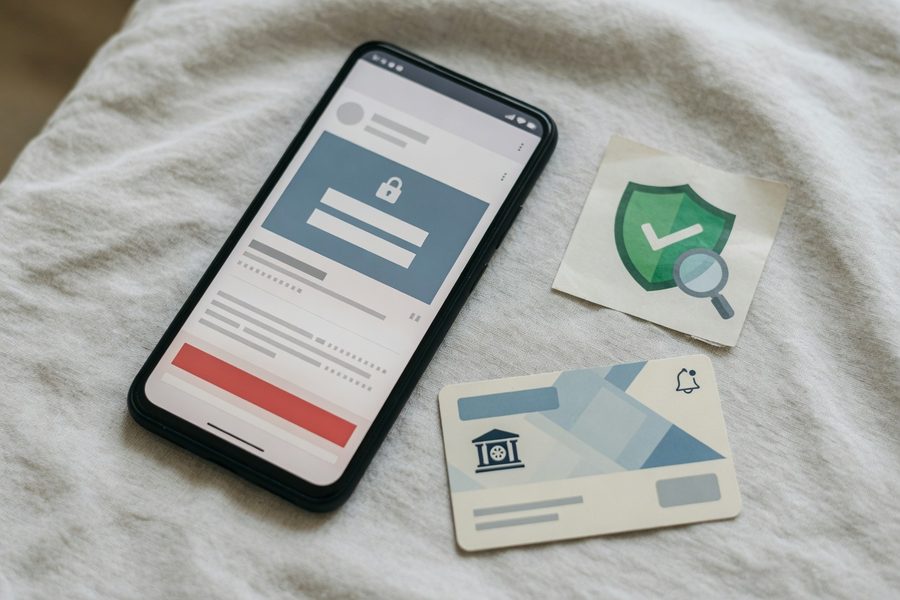
2.8 million mobile malware incidents blocked per month, yet permission abuse and phishing remain the top unaddressed pathways.
Audit and Tighten App Permissions to Reduce Daily Stress
Too many apps ask for more than they need, and most people accept without thinking. Regularly reviewing location, camera, and microphone permissions, particularly for health, finance, and social-media apps, is one of the most overlooked advanced phone security habits. Setting permissions to “while using the app” not only curbs background tracking but also clears away the low-level anxiety that your phone is constantly broadcasting personal data.
The California Office of the Attorney General explicitly recommends checking app privacy policies and revoking unnecessary access, yet few people do it after initial setup. Carving out five minutes once a month to audit permissions gives back a surprising amount of mental bandwidth: you stop wondering if a meditation app knows where you slept.
For any app that requests your location, switch it to “While Using” or “Ask Next Time.” Disable background location entirely for weather, shopping, and food-delivery apps.
Enable Device-Level Advanced Protections Most Users Ignore
Both Android and iOS now offer lockdown-style security modes that most consumers never turn on. Android’s Advanced Protection Program and iOS’s Lockdown Mode restrict risky behaviors, blocking most message attachments, limiting web browsing, and disabling wired connections when the device is locked, creating a hardened shell that antivirus can’t replicate. These are the kind of advanced phone security habits that defend against targeted spyware and zero-click exploits, exactly the scenarios where traditional scanning fails.
Below is a side-by‑side look at the key features. None of them ship active by default; turning them on is a deliberate choice.
| Feature | Platform | Default On? | What It Does |
|---|---|---|---|
| Lockdown Mode | iOS 16+ | No | Restricts message attachments, web technologies, and wired connections when locked to reduce attack surface |
| Advanced Protection | Android/Google | No | Enforces hardware security keys and blocks untrusted apps and downloads for high-risk users |
| Theft Detection Lock | Android 15+ | No | Uses onboard AI to detect a grab-and-run motion and immediately lock the device |
| USB Restricted Mode | iOS 12+ | No | Disables USB data access after the phone has been locked for one hour |
| Inactivity Reboot | Android 15+ | No | Restarts the device after 72 hours of inactivity to encrypt data and clear transient memory |
Grayscale mode and the 72‑hour inactivity reboot on Android, two features beneath the radar, dramatically reduce the window a stolen device stays useful to an attacker. CISA’s mobile communications guidance specifically recommends reviewing device configurations to prevent nation‑state‑level access, and these settings are free to activate right now. Pair them with passkey adoption and the barrier jumps again.
Android’s Theft Detection Lock uses the phone’s accelerometer and gyroscope to sense a sudden snatch, locking the screen instantly, no remote command needed.

Build Stronger Authentication Habits Beyond Biometrics
Biometrics are convenient, but a fingerprint can be lifted and a face can be forced. Switching to a 6‑digit PIN or alphanumeric passcode on sensitive apps, especially those housing health records or financial data, closes a gap that many skip. The same Pew survey that found 16% of users never lock their phones also suggests many rely solely on a quick fingerprint tap, which falls short when a device is seized or lost in an unlocked state.
A 2022 Beyond Identity survey of over 1,000 Americans revealed that Apple users are noticeably more likely to use 6‑digit passcodes and to monitor location tracking, correlating with fewer reported breaches. The form of authentication you choose is itself a quiet advanced phone security habit. Pair a strong device passcode with a hardware security key for your most critical accounts, and you make credential theft exponentially harder, whether the phone has antivirus or not.
The National Institute of Standards and Technology (NIST) recommends that organizations mandate strong authentication and limit biometric fallbacks, principles that apply just as strongly to personal devices.
Minimize Network and Bluetooth Exposure During Wellness Routines
Open Wi‑Fi, always‑on Bluetooth, and NFC active during a run or gym session don’t just drain the battery, they open silent data‑grabbing channels. The habit of disabling auto‑connect for public networks and turning off Bluetooth when you’re not using a wearable is a advanced phone security habit that costs nothing and eliminates an entire attack surface, particularly when you’re focused on mindfulness or exercise and not on your device’s activity log.
Fake QR codes in public places often rely on NFC or Bluetooth to push phishing pages; a simple tap can compromise your information before any antivirus alert fires. During travel, the stakes are even higher, which is why many experts recommend locking down messaging apps and using the phone’s built‑in VPN capabilities on public Wi‑Fi. Combining these minimal‑exposure practices with periodic permission audits cuts the background noise of tracking to nearly zero.
On iPhone, disable “Ask to Join Networks” and turn off “Auto‑Join Hotspot.” On Android, turn off “Turn on Wi‑Fi automatically” and “Nearby device scanning.” Both changes take under a minute.
Incorporate Physical and Behavioral Habits for Long-Term Digital Wellness
Security isn’t just about settings, it’s about small, repeatable actions. Rebooting your phone once a week clears residual memory and disrupts non‑persistent malware. Hiding notification previews on the lock screen prevents passersby from reading one‑time passcodes. And refusing to install apps from outside official stores, yes, even that tempting third‑party game, keeps the most common infection vector shut. These are all advanced phone security habits that take seconds but stack into a formidable defense.
Health and fitness trackers add another layer. Many sync data, resting heart rate, GPS run routes, sleep patterns, to your phone automatically, often with their own permission sets. NIST’s mobile device security guidelines stress managing device‑to‑device trust relationships, and this includes the Bluetooth link between your wristband and your phone. Creating a personal digital security routine that ties these habits together, a five‑minute Sunday check‑in, lifts a noticeable amount of ambient worry, because you know the gaps are closed.
It’s not about perfection. It’s about stacking small, deliberate choices, a tightened permission here, a disabled auto-connect there, until the sum of them exceeds what any single app could ever protect on its own.
Schedule a five-minute “security Sunday” each week: reboot your phone, glance at recently granted permissions, and check for any OS update you may have postponed. The habit compounds quickly.
Real-World Case Study: How Layered Habits Stopped a Credential Theft Attempt
In 2023, a financial journalist traveling through an international airport connected to a public Wi‑Fi network while waiting for a flight. An attacker on the same network attempted a man-in-the-middle intercept targeting banking app traffic. What stopped the breach wasn’t antivirus, it was a combination of three overlapping advanced phone security habits the journalist had already put in place: the phone’s VPN was active, Bluetooth was disabled, and the banking app required a hardware security key for login rather than a simple biometric tap.
The attacker captured encrypted traffic but had no session token to replay and no biometric shortcut to exploit. The journalist learned about the attempt only when their bank flagged an unusual login request from an unknown device, a request that was automatically denied. This scenario illustrates precisely why layering device-level protections, network discipline, and strong authentication creates a compounding defense that no single tool replicates. Each habit the journalist had built independently became part of an interlocking system that held even under a targeted, real-world attack.
Your 5-Minute Advanced Phone Security Action Plan
The habits covered in this guide are most effective when applied together, but you don’t have to do everything at once. Work through the checklist below in a single five-minute session this week, then revisit it monthly to keep your posture current.
- Audit permissions now: Go to Settings → Privacy (iOS) or Settings → Apps (Android) and revoke location, microphone, and camera access for any app that doesn’t genuinely need it.
- Enable one device-level protection: Turn on USB Restricted Mode on iOS or Theft Detection Lock on Android 15+. Both are free and take under thirty seconds.
- Upgrade your passcode: Switch from a 4-digit PIN to a 6-digit PIN or alphanumeric code on your lock screen and on your most sensitive apps.
- Kill auto-connect: Disable automatic Wi‑Fi and Bluetooth connections in your network settings so your phone stops broadcasting for known networks in public.
- Schedule a weekly reboot: Set a recurring Sunday reminder to restart your phone, clearing transient memory and disrupting any non-persistent malware that slipped through.
- Hide lock screen previews: Turn off notification content previews so one-time passcodes and messages are not visible when the screen is locked.
Completing this list once is a meaningful upgrade. Returning to it monthly, adding a hardware security key, reviewing new app permissions after each install, and checking for OS updates, turns a one-time effort into a durable, self-reinforcing routine that antivirus software simply cannot replicate on its own.
Frequently Asked Questions
What are advanced phone security habits and how are they different from just using antivirus?
Advanced phone security habits are deliberate, repeatable behaviors and device-level settings that reduce your attack surface beyond what antivirus software can address. Antivirus tools scan for known malicious code signatures, but they cannot prevent a fitness app from tracking your location in the background, stop a credential intercept on public Wi‑Fi, or protect you if your phone is seized while unlocked. Habits like auditing app permissions monthly, enabling Lockdown Mode, using a strong alphanumeric passcode, and disabling Bluetooth when not in use layer together to close those gaps. The key difference is that antivirus is reactive, it responds to threats it already recognizes, while advanced habits are proactive, removing the conditions that allow threats to take hold in the first place.
How often should I audit my app permissions?
Once a month is a practical baseline for most users, and it takes only five minutes when you make it a routine. However, you should also audit permissions immediately after installing any new app, after a major OS update that may have reset or expanded permission categories, and after noticing unusual battery drain or data usage that could signal background activity. Pay particular attention to location, microphone, camera, and contacts permissions, and default to “While Using the App” rather than “Always” wherever the option exists. Apps you haven’t opened in more than 30 days are strong candidates for full removal rather than a simple permission downgrade.
Is iOS Lockdown Mode too restrictive for everyday use?
Lockdown Mode was designed for high-risk individuals, journalists, activists, executives, and others who may be targets of sophisticated spyware, and it does impose noticeable restrictions: most message attachment types are blocked, certain web technologies are disabled, and wired accessories cannot connect when the screen is locked. For the average user, these restrictions would interrupt normal workflows. You do not have to choose between full Lockdown Mode and nothing. Enabling USB Restricted Mode on iOS 12 and above, which only disables USB data access after one hour of inactivity, captures a meaningful portion of the protection with virtually zero day-to-day inconvenience. Reserve full Lockdown Mode for periods of elevated risk, such as international travel or high-profile events.
Can Bluetooth really be used to attack my phone without me noticing?
Yes. Bluetooth attack techniques such as Bluejacking, Bluesnarfing, and the more recent BLUFFS vulnerability (demonstrated by researchers in 2023) allow attackers within roughly 30 feet to intercept communications, inject data, or in some cases access files, all without any visible alert on your screen. The risk is highest in crowded public environments like airports, gyms, and conference centers where many devices broadcast simultaneously. The simplest mitigation is to disable Bluetooth entirely when you are not actively using a wearable, headphones, or speaker. This eliminates the attack surface completely without requiring any technical knowledge, making it one of the highest-value advanced phone security habits relative to the effort it demands.
Do I still need antivirus if I follow all these advanced habits?
Advanced habits dramatically reduce your risk, but antivirus still provides a useful layer of defense, particularly against known malware delivered through phishing links or malicious downloads. Think of the relationship as complementary rather than either-or. Antivirus handles the threat categories it was built for, signature-based malware, known malicious URLs, and some behavioral anomalies, while your habits address the gaps antivirus cannot reach, such as permission abuse, network exposure, and authentication weaknesses. For most users, the built-in security scanning in iOS and Google Play Protect on Android is sufficient when combined with strong habits, eliminating the need for a paid third-party antivirus subscription.
What is the single most impactful advanced phone security habit I can adopt today?
If you have to pick one, enabling a strong alphanumeric passcode on your lock screen and disabling biometric-only authentication as a primary fallback delivers the broadest immediate impact. This is because nearly every other security layer, app permissions, encrypted data, remote wipe, depends on the assumption that an unauthorized person cannot trivially access your unlocked phone. A 6-digit PIN is exponentially harder to crack than a 4-digit one (one million combinations versus ten thousand), and an alphanumeric passcode is harder still. Combined with the Pew finding that 16% of users have no lock screen at all, simply locking your device with a strong passcode closes one of the most commonly exploited entry points before you change a single other setting.
How does disabling auto-connect Wi‑Fi actually protect me?
When auto-connect is enabled, your phone continuously broadcasts the names of networks it has previously joined, searching for a match. Attackers use portable routers, often called “evil twin” or rogue access points, to mimic those network names and trick your phone into connecting automatically, without any prompt on your screen. Once connected, they can intercept unencrypted traffic, inject malicious pages, or attempt credential harvesting. Disabling auto-connect means your phone stops broadcasting known network names and requires you to approve each connection manually. This one setting change eliminates passive exposure in any public environment and takes fewer than 60 seconds to configure on both iOS and Android.
Are hardware security keys really necessary for average smartphone users?
Hardware security keys are not strictly necessary for every user, but they represent a significant upgrade for anyone with high-value accounts, online banking, primary email, cloud storage, or work systems accessible from a personal device. The reason is that hardware keys are phishing-resistant by design: even if an attacker tricks you into entering your password on a fake login page, they cannot replicate the cryptographic handshake the physical key performs. For accounts that do not support hardware keys yet, using a strong unique password combined with an authenticator app (rather than SMS codes) captures most of the protection. NIST guidelines now discourage SMS-based two-factor authentication precisely because it is vulnerable to SIM-swapping attacks, which have become increasingly common.
How do I know if spyware is already on my phone?
Common indicators include unexpectedly high battery drain, elevated data usage with no clear cause, the screen lighting up when the phone is idle, apps you don’t remember installing, and the device running hot during periods of apparent inactivity. On iOS, reviewing the Privacy Report in Settings shows which apps accessed your camera, microphone, and location recently. On Android, the Permission Manager in Settings provides a similar breakdown. A full factory reset is the most reliable way to remove suspected spyware if behavioral signs persist after removing suspicious apps and running a security scan. Going forward, the combination of permission auditing, disabling sideloading, and enabling Google Play Protect significantly reduces the likelihood of a repeat infection.
What should I do differently with my phone when traveling internationally?
International travel raises the threat level on several fronts simultaneously: unfamiliar public Wi‑Fi networks, potential border device inspections, and higher exposure to physical theft in crowded transit environments. Before you travel, back up your data, enable full-disk encryption, and consider temporarily enabling iOS Lockdown Mode or Android’s Advanced Protection Program for the duration of the trip. Disable auto-connect for Wi‑Fi and Bluetooth, use your carrier’s mobile data or a trusted personal hotspot instead of public networks, and activate a VPN for any session where you need to connect to a public network. At border crossings where device inspection is a risk, logging out of sensitive accounts and turning the phone fully off, rather than leaving it in sleep mode, ensures the device is in its most encrypted state and requires your passcode to unlock rather than accepting a biometric shortcut.
Sources
- Pew Research Center, How Americans Protect Their Online Data (2023)
- Cybersecurity and Infrastructure Security Agency (CISA), Mobile Communications Best Practice Guidance
- National Institute of Standards and Technology (NIST), Guidelines for Managing the Security of Mobile Devices in the Enterprise (SP 800-124 Rev. 2)
- California Office of the Attorney General, Smartphones: A Practical Guide for Consumers
- Kaspersky via Deepstrike, Mobile Security Threats 2025
- Apple Support, About Lockdown Mode
- Google Safety, Advanced Protection Program
- Apple Support, USB Restricted Mode
- Federal Trade Commission (FTC), Mobile Security Updates: Understanding Why Upgrades Matter
- European Union Agency for Cybersecurity (ENISA), Smartphone Security: Good Practices
{“@context”:”https://schema.org”,”@graph”:[{“@type”:”Organization”,”@id”:”https://snapmessages.com/#organization”,”name”:”SnapMessages”,”url”:”https://snapmessages.com”},{“@type”:”Person”,”@id”:”https://snapmessages.com/#person-priya-nambiar”,”name”:”Priya Nambiar”,”description”:”Priya Nambiar is a certified financial counselor with over a decade of experience helping individuals navigate debt reduction and credit rebuilding strategies. She has contributed to several personal finance publications and hosts workshops focused on empowering first-generation Americans toward financial independence. Her approachable style makes complex credit topics accessible to everyday reade”,”knowsAbout”:[“Health & Wellness”]},{“@type”:”Article”,”headline”:”Beyond Antivirus: Advanced Security Habits Most People Skip on Their Phones”,”datePublished”:”2026-07-01″,”dateModified”:”2026-07-01″,”publisher”:{“@id”:”https://snapmessages.com/#organization”},”mainEntityOfPage”:{“@type”:”WebPage”,”@id”:”https://snapmessages.com/advanced-phone-security-habits-beyond-antivirus”},”inLanguage”:”en”,”author”:{“@id”:”https://snapmessages.com/#person-priya-nambiar”}},{“@type”:”FAQPage”,”mainEntity”:[{“@type”:”Question”,”name”:”What are advanced phone security habits and how are they different from just using antivirus?”,”acceptedAnswer”:{“@type”:”Answer”,”text”:”Advanced phone security habits are deliberate, repeatable behaviors and device-level settings that reduce your attack surface beyond what antivirus software can address. Antivirus tools scan for known malicious code signatures, but they cannot prevent a fitness app from tracking your location in the background, stop a credential intercept on public Wi‑Fi, or protect you if your phone is seized while unlocked. Habits like auditing app permissions monthly, enabling Lockdown Mode, using a strong alphanumeric passcode, and disabling Bluetooth when not in use layer together to close those gaps. The key difference is that antivirus is reactive, it responds to threats it already recognizes, while advanced habits are proactive, removing the conditions that allow threats to take hold in the first place.”}},{“@type”:”Question”,”name”:”How often should I audit my app permissions?”,”acceptedAnswer”:{“@type”:”Answer”,”text”:”Once a month is a practical baseline for most users, and it takes only five minutes when you make it a routine. However, you should also audit permissions immediately after installing any new app, after a major OS update that may have reset or expanded permission categories, and after noticing unusual battery drain or data usage that could signal background activity. Pay particular attention to location, microphone, camera, and contacts permissions, and default to “While Using the App” rather than “Always” wherever the option exists. Apps you haven’t opened in more than 30 days are strong candidates for full removal rather than a simple permission downgrade.”}},{“@type”:”Question”,”name”:”Is iOS Lockdown Mode too restrictive for everyday use?”,”acceptedAnswer”:{“@type”:”Answer”,”text”:”Lockdown Mode was designed for high-risk individuals, journalists, activists, executives, and others who may be targets of sophisticated spyware, and it does impose noticeable restrictions: most message attachment types are blocked, certain web technologies are disabled, and wired accessories cannot connect when the screen is locked. For the average user, these restrictions would interrupt normal workflows. You do not have to choose between full Lockdown Mode and nothing. Enabling USB Restricted Mode on iOS 12 and above, which only disables USB data access after one hour of inactivity, captures a meaningful portion of the protection with virtually zero day-to-day inconvenience. Reserve full Lockdown Mode for periods of elevated risk, such as international travel or high-profile events.”}},{“@type”:”Question”,”name”:”Can Bluetooth really be used to attack my phone without me noticing?”,”acceptedAnswer”:{“@type”:”Answer”,”text”:”Yes. Bluetooth attack techniques such as Bluejacking, Bluesnarfing, and the more recent BLUFFS vulnerability (demonstrated by researchers in 2023) allow attackers within roughly 30 feet to intercept communications, inject data, or in some cases access files, all without any visible alert on your screen. The risk is highest in crowded public environments like airports, gyms, and conference centers where many devices broadcast simultaneously. The simplest mitigation is to disable Bluetooth entirely when you are not actively using a wearable, headphones, or speaker. This eliminates the attack surface completely without requiring any technical knowledge, making it one of the highest-value advanced phone security habits relative to the effort it demands.”}},{“@type”:”Question”,”name”:”Do I still need antivirus if I follow all these advanced habits?”,”acceptedAnswer”:{“@type”:”Answer”,”text”:”Advanced habits dramatically reduce your risk, but antivirus still provides a useful layer of defense, particularly against known malware delivered through phishing links or malicious downloads. Think of the relationship as complementary rather than either-or. Antivirus handles the threat categories it was built for, signature-based malware, known malicious URLs, and some behavioral anomalies, while your habits address the gaps antivirus cannot reach, such as permission abuse, network exposure, and authentication weaknesses. For most users, the built-in security scanning in iOS and Google Play Protect on Android is sufficient when combined with strong habits, eliminating the need for a paid third-party antivirus subscription.”}},{“@type”:”Question”,”name”:”What is the single most impactful advanced phone security habit I can adopt today?”,”acceptedAnswer”:{“@type”:”Answer”,”text”:”If you have to pick one, enabling a strong alphanumeric passcode on your lock screen and disabling biometric-only authentication as a primary fallback delivers the broadest immediate impact. This is because nearly every other security layer, app permissions, encrypted data, remote wipe, depends on the assumption that an unauthorized person cannot trivially access your unlocked phone. A 6-digit PIN is exponentially harder to crack than a 4-digit one (one million combinations versus ten thousand), and an alphanumeric passcode is harder still. Combined with the Pew finding that 16% of users have no lock screen at all, simply locking your device with a strong passcode closes one of the most commonly exploited entry points before you change a single other setting.”}},{“@type”:”Question”,”name”:”How does disabling auto-connect Wi‑Fi actually protect me?”,”acceptedAnswer”:{“@type”:”Answer”,”text”:”When auto-connect is enabled, your phone continuously broadcasts the names of networks it has previously joined, searching for a match. Attackers use portable routers, often called “evil twin” or rogue access points, to mimic those network names and trick your phone into connecting automatically, without any prompt on your screen. Once connected, they can intercept unencrypted traffic, inject malicious pages, or attempt credential harvesting. Disabling auto-connect means your phone stops broadcasting known network names and requires you to approve each connection manually. This one setting change eliminates passive exposure in any public environment and takes fewer than 60 seconds to configure on both iOS and Android.”}},{“@type”:”Question”,”name”:”Are hardware security keys really necessary for average smartphone users?”,”acceptedAnswer”:{“@type”:”Answer”,”text”:”Hardware security keys are not strictly necessary for every user, but they represent a significant upgrade for anyone with high-value accounts, online banking, primary email, cloud storage, or work systems accessible from a personal device. The reason is that hardware keys are phishing-resistant by design: even if an attacker tricks you into entering your password on a fake login page, they cannot replicate the cryptographic handshake the physical key performs. For accounts that do not support hardware keys yet, using a strong unique password combined with an authenticator app (rather than SMS codes) captures most of the protection. NIST guidelines now discourage SMS-based two-factor authentication precisely because it is vulnerable to SIM-swapping attacks, which have become increasingly common.”}},{“@type”:”Question”,”name”:”How do I know if spyware is already on my phone?”,”acceptedAnswer”:{“@type”:”Answer”,”text”:”Common indicators include unexpectedly high battery drain, elevated data usage with no clear cause, the screen lighting up when the phone is idle, apps you don’t remember installing, and the device running hot during periods of apparent inactivity. On iOS, reviewing the Privacy Report in Settings shows which apps accessed your camera, microphone, and location recently. On Android, the Permission Manager in Settings provides a similar breakdown. A full factory reset is the most reliable way to remove suspected spyware if behavioral signs persist after removing suspicious apps and running a security scan. Going forward, the combination of permission auditing, disabling sideloading, and enabling Google Play Protect significantly reduces the likelihood of a repeat infection.”}},{“@type”:”Question”,”name”:”What should I do differently with my phone when traveling internationally?”,”acceptedAnswer”:{“@type”:”Answer”,”text”:”International travel raises the threat level on several fronts simultaneously: unfamiliar public Wi‑Fi networks, potential border device inspections, and higher exposure to physical theft in crowded transit environments. Before you travel, back up your data, enable full-disk encryption, and consider temporarily enabling iOS Lockdown Mode or Android’s Advanced Protection Program for the duration of the trip. Disable auto-connect for Wi‑Fi and Bluetooth, use your carrier’s mobile data or a trusted personal hotspot instead of public networks, and activate a VPN for any session where you need to connect to a public network. At border crossings where device inspection is a risk, logging out of sensitive accounts and turning the phone fully off, rather than leaving it in sleep mode, ensures the device is in its most encrypted state and requires your passcode to unlock rather than accepting a biometric shortcut.”}}]}]}






