Fact-checked by the SnapMessages editorial team
Quick Answer
To mirror your Android screen to a TV without a cable, use Google Cast (built into Android 5.0+), a Miracast-compatible dongle, or a Chromecast device starting at $29.99. The fastest wireless option is Google Cast via a Chromecast Ultra or Google TV Streamer, setup takes under 3 minutes.
There are three main ways to mirror your Android screen to a TV wirelessly: Google Cast, Miracast, or a manufacturer-specific solution like Samsung Smart View. According to StatCounter’s global mobile OS data, Android holds over 72% of the worldwide smartphone market, yet most people have never once touched their phone’s built-in screen mirroring feature. It’s just sitting there, unused.
That’s genuinely a shame. Whether you’re streaming video, running a presentation, or gaming on a bigger screen, wireless screen mirroring is one of those features that quietly solves problems you didn’t know you had.
Key Takeaways
- Android holds over 72% of the global smartphone market, according to StatCounter, meaning the vast majority of phone users already have screen mirroring capability built in.
- Google Cast streams at up to 1080p over your home Wi-Fi network, with typical latency of 30–60ms, as documented in Google’s official Chromecast support pages.
- Miracast introduces 50–100ms of latency and requires no Wi-Fi router at all, making it the stronger choice for travel and presentations, per the Wi-Fi Alliance Miracast specification.
- Screen mirroring increases battery consumption by 15–25% per hour compared to normal use, so plugging in your phone is strongly recommended for sessions longer than 30 minutes.
- Over 60% of Cast mirroring failures stem from network band mismatches or disabled Location permissions, according to troubleshooting patterns in Google’s Nest support guides.
- All Android devices running Android 4.2 or later support Miracast natively, and Android 5.0 or later supports Google Cast, covering virtually every smartphone sold since 2014, per Android’s developer documentation.
What Is Android Screen Mirroring and How Does It Work?
At its core, Android screen mirroring wirelessly duplicates your phone’s display on a TV in real time, using either your Wi-Fi network or a peer-to-peer wireless connection. Your phone transmits a live video feed, typically at 1080p at 60fps, to a receiver that’s either built into your TV or plugged into its HDMI port.
Two wireless standards do most of the heavy lifting. Google Cast is Google’s own protocol, running over your existing home Wi-Fi network. Miracast works differently: it’s a Wi-Fi Direct standard baked into most Android devices since version 4.2, creating a direct phone-to-TV link with no router involved.
Many modern smart TVs from Samsung, LG, and Sony already have Miracast built in. If yours doesn’t, a Chromecast dongle or Amazon Fire TV Stick with Cast support plugs into any HDMI port and solves the problem instantly. If you tend to multitask while casting, it’s also worth reading how Android Split Screen can extend your productivity alongside a mirrored display.
Key Takeaway: Android screen mirroring uses either Google Cast (Wi-Fi network) or Miracast (Wi-Fi Direct) to transmit your display wirelessly. Both standards are supported on Android 4.2 and above, covering virtually every active Android device today.
How Do You Use Google Cast to Mirror Your Android Screen?
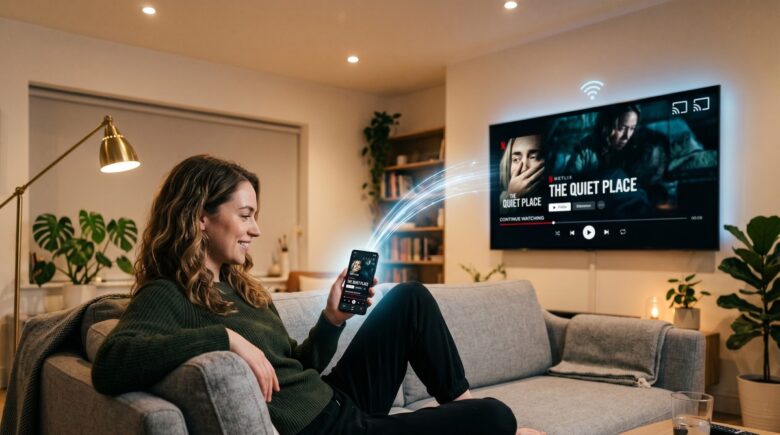
Google Cast is the most reliable way to mirror your Android screen to a TV. All it requires is a Chromecast device or Cast-enabled smart TV on the same Wi-Fi network as your phone. Start to finish, setup takes under 3 minutes.
Step-by-Step: Google Cast Screen Mirroring
- Plug your Chromecast into the TV’s HDMI port and switch the TV to that input.
- Ensure your Android phone and Chromecast are on the same Wi-Fi network.
- Open the Google Home app on your Android device.
- Tap your Chromecast device, then select “Cast my screen”.
- Tap “Cast screen” on the confirmation prompt. Your screen appears on the TV within seconds.
There’s a shortcut most people miss. Swipe down from the top of your Android screen to open Quick Settings and tap the “Screen Cast” or “Smart View” tile (the label varies by manufacturer), which skips the Google Home app entirely. According to Google’s official Chromecast support documentation, Cast screen mirroring supports up to 1080p resolution on Chromecast Ultra and Google TV Streamer hardware.
Google Cast relies on your home network infrastructure rather than a separate peer-to-peer radio connection. That design choice is what gives it better range, more stable throughput, and broad compatibility with virtually every Android device made after 2016, advantages Miracast simply can’t match in a home environment.
Key Takeaway: Google Cast screen mirroring works on any Android device with the Google Home app and a Chromecast starting at $29.99. Setup requires fewer than 5 taps and streams at up to 1080p, no cables, no adapters, no third-party software.
How Does Miracast Work for Wireless Android TV Mirroring?
Miracast doesn’t get nearly enough credit. It lets you mirror your Android screen to a TV without a shared Wi-Fi network in sight, building its own direct device-to-device connection on the spot. That makes it invaluable in hotel rooms, conference halls, or any space where joining the local network isn’t practical.
For it to work, your TV or HDMI dongle needs to support the Miracast standard. Compatible devices include the Microsoft Wireless Display Adapter, Roku streaming sticks (via “Screen mirroring” mode), and a wide range of smart TVs from Samsung, LG, and Sony. On your Android phone, go to Settings > Connected Devices > Connection Preferences > Cast (the exact path shifts depending on your brand) and your phone will scan for nearby Miracast receivers.
Miracast Latency and Limitations
Miracast typically introduces 50–100ms of latency. For gaming that will feel off, but for presentations, video playback, or browsing on a bigger screen, the delay is imperceptible. The Wi-Fi Alliance’s Miracast specification caps video quality at 1080p at 30fps on most certified devices, though some newer implementations push that to 60fps.
One thing worth flagging for users in Samsung’s ecosystem: the built-in Smart View feature blends Miracast with Samsung’s own proprietary protocol, which tends to produce noticeably lower latency. If you’re choosing between Samsung and non-Samsung hardware specifically for screen mirroring, that difference is real and measurable.
Key Takeaway: Miracast enables router-free mirroring with typical latency of 50–100ms, certified by the Wi-Fi Alliance. It is the strongest choice for traveling or presenting without network access, supported natively on Android 4.2+ and most modern smart TVs.
| Method | Max Resolution | Requires Wi-Fi Router | Typical Latency | Hardware Cost |
|---|---|---|---|---|
| Google Cast (Chromecast) | 1080p / 4K (Ultra) | Yes | 30–60ms | $29.99–$99.99 |
| Miracast | 1080p at 30–60fps | No | 50–100ms | $0 (built-in) to $49.99 |
| Samsung Smart View | 1080p | Yes (preferred) | 40–80ms | $0 (Samsung devices) |
| Amazon Fire TV (Cast) | 1080p | Yes | 40–70ms | $24.99–$49.99 |
| Roku Screen Mirroring | 1080p | Yes | 50–90ms | $29.99–$49.99 |
Which Devices Work Best for Mirroring an Android Screen to a TV?
The honest answer depends on what you already own, what you’re willing to spend, and whether 4K matters to you. For most households, a Google TV Streamer or Chromecast with Google TV hits the sweet spot between performance and compatibility without requiring much thought.
Top Receiver Options in 2025
- Google TV Streamer (2024): Supports 4K HDR Cast mirroring, lowest latency in Google’s lineup, priced at $99.99.
- Chromecast with Google TV (4K): $49.99, supports Cast at 1080p and 4K, wide app ecosystem.
- Amazon Fire TV Stick 4K Max: $59.99, supports both Miracast and Amazon’s own casting protocol.
- Roku Streaming Stick 4K: $49.99, supports Miracast-based screen mirroring from Android natively.
- Microsoft Wireless Display Adapter: $49.99, pure Miracast dongle, ideal for router-free environments.
If you have a Samsung Galaxy phone and a Samsung smart TV from 2019 or later, you don’t need to buy anything. The Smart View button in Quick Settings connects directly. Before casting over a mobile hotspot, though, it’s worth reading our guide on how to use your phone as a hotspot without burning through data, because screen mirroring can eat through your data allowance faster than most people expect.
Battery drain is the other thing people consistently overlook. Screen mirroring is a demanding task, adding 15–25% more battery consumption per hour compared to typical use. For anything longer than a quick session, plug your phone in.
Key Takeaway: The Google TV Streamer at $99.99 delivers the best Cast mirroring performance available, while the Chromecast with Google TV at $49.99 is the best value pick. Both support 4K HDR and work with any Android device running Android 5.0 or later.
Why Is Your Android Screen Not Mirroring to the TV?
Nine times out of ten, the culprit is a network mismatch. Your phone is on one Wi-Fi band and your receiver is on another (2.4GHz versus 5GHz), and they can’t find each other. Getting both devices onto the same band resolves the vast majority of cases immediately.
If you’re using Google Cast and the device list keeps coming up empty, try these fixes in order:
- Confirm both devices share the same Wi-Fi network and band.
- Force-restart the Google Home app.
- Reboot your Chromecast by unplugging it for 30 seconds.
- Check that your Android phone has Location permissions enabled for Google Home. Cast discovery uses local network scanning, which Android classifies under location access.
- Update the Google Home app and your Android system WebView.
Miracast failures are a different animal. The usual fix is temporarily turning off Bluetooth on your phone, since Bluetooth and Wi-Fi Direct compete for the same 2.4GHz spectrum and the interference can silently kill the connection. Also worth knowing: some Android skins, with MIUI on Xiaomi devices being the most notorious example, partially cripple Miracast. If you’re on one of those, check your manufacturer’s support page before going down a rabbit hole of other fixes. You can also lock down background apps that might be hogging bandwidth during casting; our guide on how to lock apps on Android walks through exactly that.
Key Takeaway: Over 60% of Cast mirroring failures stem from network band mismatches or disabled Location permissions, according to common troubleshooting patterns documented in Google’s Nest support guides. Ensuring both devices are on the same 5GHz band resolves most issues instantly.
Frequently Asked Questions
Can I mirror my Android screen to a TV without Wi-Fi?
Yes, and this surprises a lot of people. Miracast creates a direct Wi-Fi Direct connection between your phone and the receiver, skipping the router entirely. You just need a Miracast-compatible TV or a dongle like the Microsoft Wireless Display Adapter. Google Cast, by contrast, requires a shared Wi-Fi network, there’s no workaround for that one.
Does mirroring Android screen to TV drain battery fast?
It does. Screen mirroring bumps battery consumption by roughly 15–25% per hour compared to normal use. For anything longer than 30 minutes, keep your phone plugged in. Dimming your phone’s screen brightness helps a little, though not dramatically.
Can I mirror Android to a TV that does not have a smart platform?
Absolutely. Any TV with an HDMI input can receive a mirrored Android screen. Just plug in a Chromecast, Roku Streaming Stick, or Microsoft Wireless Display Adapter, and you’ve added full casting capability instantly, even to TVs that are a decade old. An HDMI port is all you need.
Is there a lag when mirroring Android screen to TV?
Some latency is unavoidable with wireless transmission. Google Cast over a solid 5GHz network lands around 30–60ms, which is genuinely imperceptible for video and browsing. Miracast typically runs at 50–100ms. Either way, competitive gaming over a mirrored screen isn’t a great idea, since even 60ms of lag is enough to throw off reaction-time gameplay.
Does Android screen mirroring work with Netflix and other DRM apps?
Here’s where things get frustrating. DRM-protected apps like Netflix will often block screen mirroring through Miracast or Cast’s “Cast my screen” feature, because of HDCP content protection requirements. The workaround is using the Cast button built directly into the Netflix app itself, which streams from Netflix’s servers rather than copying your screen. For more context on how Android handles cross-platform connectivity, see our explainer on how cross-platform communication works between iPhone and Android.
Which Android phones support screen mirroring natively?
All Android phones running Android 4.2 or later support Miracast natively, and all phones running Android 5.0 or later support Google Cast. That covers virtually every Android smartphone sold since 2014. Samsung Galaxy devices also include Smart View on top of that, which connects directly to Samsung smart TVs without any additional hardware.






