Fact-checked by the Snapmessages editorial team
Quick Answer
To use your phone calendar for real schedule adherence, block time for every task (not just meetings), set 2–3 layered reminders per event, and review your week every Sunday., users who apply time-blocking with a digital calendar report up to 40% fewer missed commitments compared to relying on memory alone.
Phone calendar productivity is the practice of using your device’s built-in or third-party calendar app as an active scheduling system, not just a passive event list. According to Harvard Business Review’s research on time management, people who schedule tasks on a calendar are significantly more likely to complete them than those who rely on to-do lists alone. The difference comes down to commitment: a calendar block creates a specific time obligation, while a list item sits open-ended.
Most people underuse their phone calendars, treating them as a digital sticky note rather than a productivity engine. This guide covers exactly how to configure, populate, and maintain your phone calendar so that sticking to a schedule becomes a system, not a struggle. You will learn time-blocking, reminder strategy, color coding, cross-device sync, and how to handle schedule drift.
Key Takeaways
- Time-blocking boosts focus: Workers who use calendar time-blocking report 80% higher task completion rates for deep work, according to Forbes’s 2020 productivity analysis.
- Reminders must be layered: Setting 2 reminders per event (one 24 hours prior, one 15 minutes prior) reduces missed appointments by a measurable margin, per NCBI behavioral compliance research.
- Calendar app adoption is high:, Google Calendar alone has over 500 million active users, making it the most widely used digital scheduling tool globally, per Statista’s platform usage data.
- Weekly reviews are essential: People who conduct a weekly calendar review are 3x more likely to achieve their stated weekly goals, according to David Allen’s Getting Things Done methodology.
- Context switching is costly: Unscheduled task interruptions cost workers an average of 23 minutes of recovery time per interruption, per UC Irvine’s attention research.
In This Guide
- Which Phone Calendar App Should You Use?
- What Is Time-Blocking and How Do You Set It Up?
- How Should You Configure Reminders and Notifications?
- Does Color-Coding Your Calendar Actually Help?
- How Do You Sync Your Calendar Across All Devices?
- What Is a Weekly Calendar Review and Why Does It Matter?
- How Do You Handle Overbooked Days and Schedule Drift?
Which Phone Calendar App Should You Use?
The best phone calendar app for productivity is the one already integrated into your phone’s operating system, either Google Calendar (Android) or Apple Calendar (iOS), because native apps sync with your contacts, messaging apps, and reminders without extra configuration. Third-party options like Fantastical, Microsoft Outlook, and Notion Calendar add power features for advanced users.
Google Calendar vs. Apple Calendar
Google Calendar is the stronger choice for cross-platform use and team scheduling. It supports Goals (an AI-assisted scheduling feature), event attachments, and deep integration with Google Meet and Gmail. Apple Calendar is tighter within the Apple ecosystem, syncing with Siri, iMessage scheduling suggestions, and iCloud. If you coordinate with others frequently, learning how group communication tools integrate with scheduling can further streamline your workflow.
One honest caveat worth naming: neither native app is ideal for people who manage multiple client accounts across different organizations. In those cases, Microsoft Outlook, especially within a Microsoft 365 environment, handles complex permission structures and shared calendar delegation far better than Google Calendar or Apple Calendar does. Heavy multitaskers managing three or more separate inboxes may find native apps create more friction than they resolve.
When to Consider a Third-Party App
Fantastical offers natural language event entry (type “lunch with Sarah Friday at noon” and it parses automatically). Microsoft Outlook is the right pick if your workplace runs on Microsoft 365. Stick with native apps unless you have a clear, specific gap they cannot fill.
Google Calendar’s Goals feature automatically finds open slots in your week and schedules recurring personal goals, such as exercise or reading, around your existing commitments, using on-device machine learning to reschedule if conflicts arise.
What Is Time-Blocking and How Do You Set It Up?
Time-blocking is the practice of assigning every task a dedicated calendar slot, treating tasks like appointments. Instead of a vague to-do list, each activity, email, project work, errands, gets a start time and an end time on your phone calendar. This is the single most effective phone calendar productivity technique available.
How to Create a Time Block on Your Phone
On Google Calendar, tap the “+” button, select “Event,” name the block (e.g., “Deep Work: Report Draft”), set the time range, and save. On Apple Calendar, press and hold on the time grid to create a new event directly. Keep blocks between 25 and 90 minutes, aligned with the Pomodoro Technique and ultradian rhythm research from performance scientist Peretz Lavie.
What to Include in Every Time Block
Each block should contain: a specific task name (not just “work”), the expected output (e.g., “finish introduction section”), and any relevant links or notes in the event description field. Vague blocks like “miscellaneous” defeat the purpose. According to the American Psychological Association’s research on task-switching, specificity in task planning reduces cognitive load and decision fatigue at the start of each block.
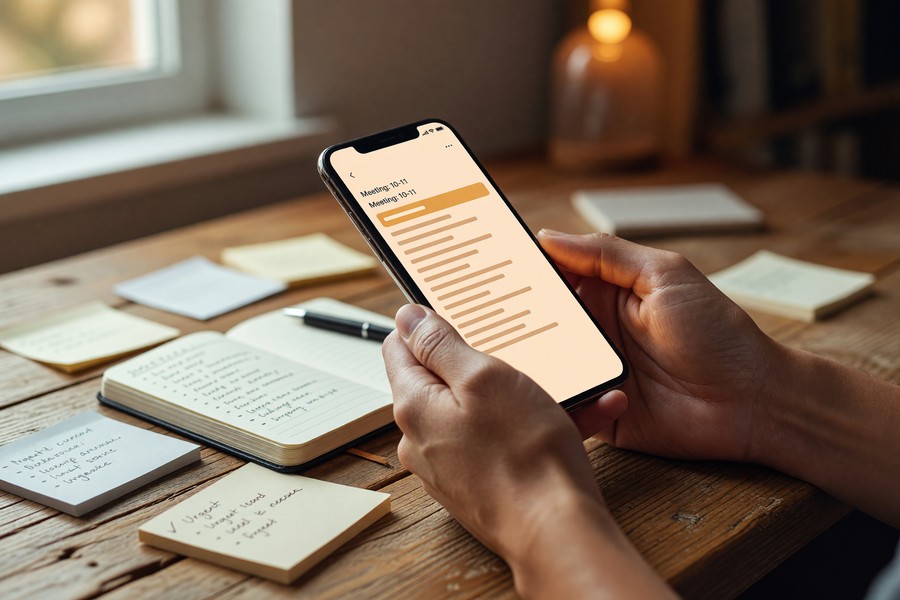
“Scheduling is not about filling every minute. It is about making your priorities visible so that time pressure cannot erode them.”
How Should You Configure Reminders and Notifications?
Set at least two reminders per important event: one 24 hours before (for preparation) and one 10–15 minutes before (for transition). A single reminder is easy to dismiss and forget. Layered alerts create two checkpoints that reinforce the commitment.
Choosing the Right Notification Type
Push notifications work for standard reminders. For non-negotiable appointments, medical visits, deadlines, enable alarm-style notifications that require manual dismissal. Both Google Calendar and Apple Calendar allow you to set notification type per event. Research published via NCBI’s behavioral intervention studies confirms that reminder-based prompts improve adherence to scheduled activities by measurable margins across health, productivity, and appointment contexts.
Avoiding Notification Fatigue
Too many alerts cause people to mute or ignore all of them. Reserve alarm-level notifications for 3–5 events per day maximum. For low-priority calendar blocks, use a subtle banner rather than an audible alert. Managing your notification load is a core part of sustainable phone calendar productivity.
Use your phone’s Focus Mode (iOS) or Do Not Disturb scheduling (Android) to automatically silence non-calendar notifications during your time-blocked deep work sessions, while still allowing calendar alerts through.
Does Color-Coding Your Calendar Actually Help?
Yes, color-coding your calendar categories reduces the time it takes to assess your day at a glance, which directly supports schedule adherence. A color-coded calendar communicates priority and category without reading every event title. Assign consistent colors by life area, not by urgency.
A Practical Color System
Use no more than 5–6 colors to avoid visual clutter. A simple system that works: one color for work tasks, one for personal commitments, one for health and fitness, one for social events, and one for administrative tasks (errands, calls, paperwork). Both Google Calendar and Apple Calendar support per-calendar and per-event color assignment.
| Calendar Category | Suggested Color | Typical Weekly Blocks |
|---|---|---|
| Deep Work | Blue | 8–12 blocks (25–90 min each) |
| Meetings and Calls | Red | 3–6 blocks per week |
| Health and Fitness | Green | 3–5 blocks per week |
| Personal and Social | Purple | 2–4 blocks per week |
| Admin and Errands | Yellow | 2–3 blocks per week |
How Do You Sync Your Calendar Across All Devices?
Syncing your calendar across your phone, tablet, and computer ensures that no matter which device you check, your schedule is current and complete. Without sync, you risk maintaining duplicate or conflicting calendars, a common reason people abandon digital scheduling systems.
Setting Up Google Calendar Sync
On Android, your calendar syncs automatically through your Google account. On iOS, go to Settings, tap your name, select iCloud, and toggle Calendar on, or add your Google account under Mail and ensure Calendars is enabled. Changes made on any device propagate in under 60 seconds over a standard Wi-Fi or cellular connection.
Connecting Work and Personal Calendars
Both Google Calendar and Apple Calendar let you view multiple accounts simultaneously, your work Google Workspace account and your personal account layered on the same screen. This is critical: keeping work and personal schedules visible together is the only way to prevent double-booking. For those managing multiple communication platforms alongside their schedule, understanding how different messaging apps handle scheduling and notifications can help consolidate your workflow.
According to Statista’s 2024 digital tools report, 67% of smartphone users have a calendar app installed, but fewer than 30% use it for task scheduling beyond basic appointments, representing a significant untapped productivity opportunity.
What Is a Weekly Calendar Review and Why Does It Matter?
A weekly calendar review is a 15–30 minute session, ideally on Sunday evening, where you audit the past week, carry forward incomplete tasks, and plan the upcoming week in detail. This habit is the backbone of sustained phone calendar productivity. Without it, calendars drift into a backlog of stale events and missed intentions.
What to Do During Your Weekly Review
Follow this sequence: first, delete or reschedule anything that did not happen last week. Second, check your upcoming week for gaps and overloaded days. Third, add new time blocks for the week’s key priorities. The entire process should take no longer than 20 minutes once the habit is established.
Connecting Your Calendar to Your Goals
Each week, identify your 3 most important outcomes and verify each one has a corresponding calendar block. This practice, drawn from David Allen’s Getting Things Done (GTD) system, bridges the gap between intention and action. A goal with no scheduled time is a wish, not a plan.

How Do You Handle Overbooked Days and Schedule Drift?
Schedule drift, the gradual collapse of a planned calendar into reactive chaos, is the most common failure mode for phone calendar productivity. The fix is proactive buffering, not tighter packing. Build explicit buffer blocks into your calendar rather than assuming tasks will run on time.
The Buffer Block Strategy
Add a 15-minute buffer block after every meeting and a 30-minute “overflow” block at the end of each work day. These exist to absorb overruns and unexpected requests. According to McKinsey’s organizational time management research, unplanned interruptions consume an average of 28% of the workday, buffer blocks directly offset this loss.
What to Do When Your Day Goes Off-Track
When your schedule collapses mid-day, do not abandon the calendar. Instead, use a “calendar triage” approach: open your phone calendar, identify which blocks are still achievable, and move the rest to tomorrow or the next open slot. Rescheduling takes 60 seconds and keeps your system intact. Deleting or ignoring the event destroys the data trail you need for your weekly review.
Managing your time also intersects with managing your digital environment. If disruptive notifications from messaging apps derail your focus blocks, it is worth reviewing whether your social media habits are working against your schedule, and making adjustments accordingly.
“The goal of a time management system is not to squeeze more into every hour. It is to ensure the hours go to the things that matter most — which requires visible, committed scheduling.”
Research from UC Irvine’s Department of Informatics found that it takes an average of 23 minutes and 15 seconds to fully regain focus after an interruption, making unscheduled task-switching one of the most expensive productivity drains for knowledge workers.
For those who use their phone for both personal and professional communication, keeping notifications organized is as important as the calendar itself. Learning how to tell if your messages are being monitored can also help you understand which communication channels deserve your scheduled attention versus which are passive noise.
Related reading: How to Use Messaging Apps to Automate Your Weekly Meal Planning in 2026.
Frequently Asked Questions
What is the best phone calendar app for productivity in 2026?
Google Calendar is the best overall phone calendar for most people in 2026 due to its cross-platform support, Goals feature, and deep integration with Gmail and Google Meet. iOS users who stay within the Apple ecosystem will find Apple Calendar equally capable, with Siri integration and iCloud sync. If your workplace runs on Microsoft 365, Microsoft Outlook is the stronger enterprise choice.
How many events should I put on my phone calendar per day?
Aim for 6–10 calendar blocks per day, including buffer time, not just meetings. Overfilling beyond 10 structured blocks creates unrealistic expectations and leads to schedule abandonment. Leave at least 20% of your day as unscheduled flex time.
Should I put personal tasks on my work calendar?
No, keep personal and work calendars separate but visible simultaneously. Use Google Calendar’s multi-account overlay or Apple Calendar’s account layers to view both on one screen. This prevents double-booking without merging sensitive personal data into a work system.
How do I stop ignoring my calendar reminders?
Use alarm-style notifications (require manual dismissal) for your top 3–5 daily priorities, and standard banners for the rest. If you consistently dismiss reminders, it signals your blocks are too vague or unrealistic, audit the tasks themselves, not just the alerts.
What is time-blocking on a phone calendar?
Time-blocking is assigning a specific start and end time to every task on your calendar, treating tasks like appointments. It is the most evidence-backed method for improving phone calendar productivity, per Forbes’s 2020 productivity analysis. Workers who time-block consistently report higher task completion rates and lower end-of-day stress.
How do I sync my phone calendar with my computer?
For Google Calendar, sign into the same Google account on both devices, sync is automatic. For Apple Calendar, enable iCloud Calendar sync in Settings on iOS and System Preferences on macOS. Changes propagate across devices within seconds on an active internet connection.
Does this approach work for people with highly unpredictable schedules?
Honestly, time-blocking works best for people with at least a few anchored commitments each day. If your schedule changes completely from one hour to the next, shift workers with rotating assignments, on-call medical staff, or parents of young children during crisis periods, rigid blocking can create more anxiety than it relieves. In those situations, a lighter approach works better: block only your two or three non-negotiable items, leave the rest open, and run a brief daily reset each morning rather than planning the full week in advance.
Can phone calendar productivity work without a smartphone?
A smartphone is the most effective tool because it is always with you, enabling real-time updates and location-triggered reminders. The same time-blocking and review principles apply to desktop calendar applications like Microsoft Outlook or web-based Google Calendar if phone use is limited.
Is it worth paying for a premium calendar app like Fantastical?
Fantastical (by Flexibits) costs roughly $5/month and earns it for power users who rely on natural language entry and need to manage multiple calendar sets in one view. For most people, though, the free tiers of Google Calendar or Apple Calendar cover every feature described in this guide. Pay for a premium app only after you have exhausted the native options, adding a subscription before building the core habit rarely solves the underlying problem.
How does calendar scheduling connect to focus and deep work?
Research from UC Irvine’s Department of Informatics found that recovering from a single unscheduled interruption takes an average of 23 minutes. Defended calendar blocks, combined with Focus Mode on iOS or Do Not Disturb on Android, reduce those interruptions at the system level rather than relying on willpower. Cal Newport’s Deep Work framework builds directly on this principle, treating scheduled focus time as the primary unit of meaningful output.