Fact-checked by the Snapmessages editorial team
Quick Answer
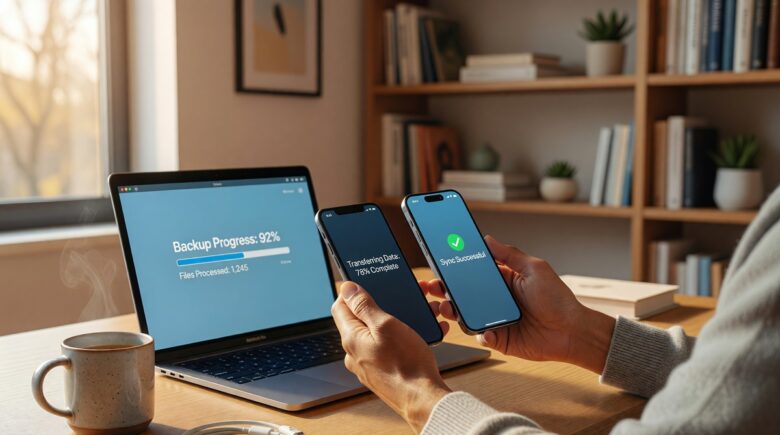
To back up chat history before switching phones, use your messaging app’s built-in cloud backup, WhatsApp backs up to Google Drive or iCloud, while iMessage syncs automatically via iCloud. Most major platforms support full conversation export in under 5 minutes. Always verify your backup completed before resetting your old device.
Updated July 2026
The fastest way to back up chat history is to use the native backup tool built into each messaging app before you factory-reset your current device. According to Statista’s 2024 report on mobile messenger usage, over 2 billion people use WhatsApp alone, making chat data one of the most commonly lost assets during a phone upgrade.
Losing years of conversations, shared photos, and important contact threads doesn’t have to happen if you prepare ahead of time. This guide walks through how to back up chat history on every major platform, WhatsApp, iMessage, Telegram, Signal, and more, so your messages make it through the switch intact.
Key Takeaways
- WhatsApp backs up to Google Drive (Android) or iCloud (iPhone) automatically if enabled, with backups occurring daily, weekly, or monthly based on your settings, as documented by WhatsApp’s official FAQ.
- Apple’s iMessage syncs to iCloud in real time when “Messages in iCloud” is enabled, preserving up to 30 days of messages across all Apple devices, according to Apple Support.
- Telegram stores all messages on its own servers by default, meaning your chat history transfers automatically to any new device when you log in, no manual backup needed, per Telegram’s data storage FAQ.
- Signal does not store messages in the cloud; users must manually transfer data using Signal’s built-in device-transfer feature, which supports transfers in under 10 minutes on a local Wi-Fi connection, as confirmed by Signal’s official support center.
- Google’s Android Backup service backs up SMS and MMS messages to Google One, with storage plans starting at 15 GB free per Google account, as detailed in Google’s Android backup guide.
In This Guide
Why Chat Backup Matters
Once you delete chat history, it’s gone for good, most platforms offer no recovery path after a factory reset. Research from Backblaze’s 3-2-1 backup strategy guide points out that data loss during device migration remains a common risk, particularly for people who skip proactive steps.
Beyond the sentimental value, chat archives often hold information you can’t easily replace: business agreements, medical details, receipts, shared documents. Losing them can create real, practical headaches.
What Types of Data Are at Risk?
Switch phones without backing up and you risk losing text messages, media files (photos, videos, voice notes), group chat histories, and in-app documents. Contacts, app logins, and payment records stored within messaging apps are also vulnerable.
Apps like Signal and WhatsApp also store end-to-end encrypted keys locally. If you want to understand how encryption affects your backup options, our guide on what end-to-end encryption means for your messages lays out the technical trade-offs clearly.
According to Statista’s global mobile data, over 1.5 billion smartphones are sold annually worldwide, meaning hundreds of millions of users face potential chat data loss every year during device upgrades.
How to Back Up WhatsApp Chats
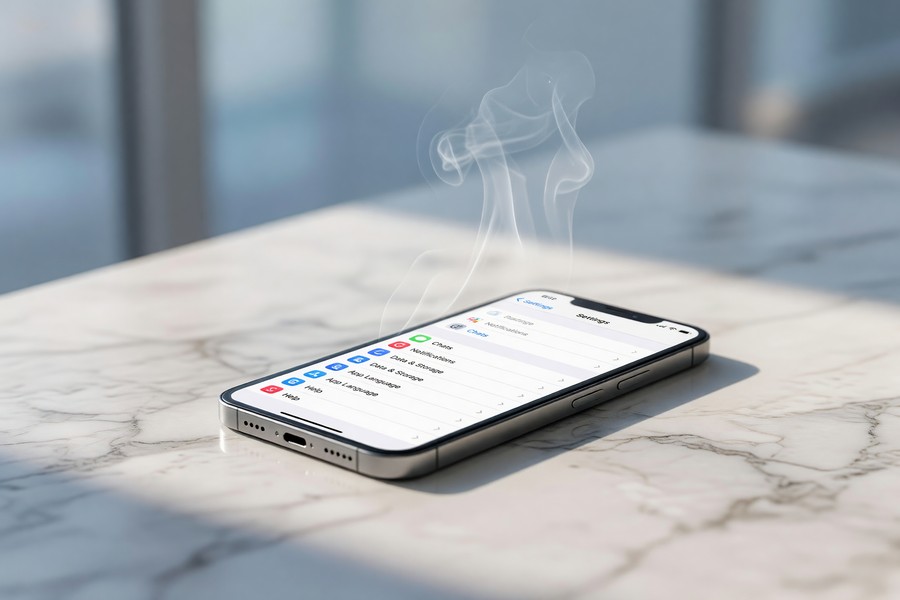
On Android, open WhatsApp, go to Settings > Chats > Chat Backup, and tap “Back Up Now” to save your data to Google Drive. On iPhone, the same path saves to iCloud. This takes anywhere from 30 seconds to 3 minutes depending on how much chat history you have.
Android: WhatsApp to Google Drive
WhatsApp for Android uses Google Drive as its cloud storage partner. You can set backups to run automatically (daily, weekly, or monthly) or trigger them manually. According to the WhatsApp Android backup guide, you’ll need to use the same Google account on your new phone for the restore to work.
Media files (photos, videos) get backed up separately from message data. Make sure both “Include videos” and “Back up over Wi-Fi” are turned on so you don’t rack up mobile data charges.
iPhone: WhatsApp to iCloud
On iPhone, WhatsApp backs up to iCloud Drive. Head to Settings > Chats > Chat Backup and check that your iCloud account has enough free space. Apple gives you 5 GB free with every Apple ID, which often isn’t enough if your chat archive is heavy on media.
When you set up a new iPhone, just install WhatsApp, verify your phone number, and the app will offer to restore from iCloud on its own.
Backing Up iMessage and SMS
The simplest way to back up iMessage is to turn on “Messages in iCloud” under Settings > Apple ID > iCloud on your iPhone. This keeps your entire message thread synced in real time and restores automatically on any new Apple device signed into the same Apple ID.
Using iTunes or Finder for a Full iPhone Backup
For a complete local backup that includes SMS and iMessage, connect your iPhone to a Mac or PC and use Finder (macOS Catalina and later) or iTunes (Windows). Select “Back Up Now” and check “Encrypt local backup” to include message data. According to Apple’s iPhone backup documentation, encrypted local backups are the only type that bundle passwords and health data alongside messages.
This route is faster than a cloud backup on larger devices, and it doesn’t need an internet connection at all. It’s especially handy for anyone tight on iCloud storage.
What About Standard SMS on Android?
Android’s native SMS backup runs through Google One. Check that Google’s backup is active under Settings > System > Backup. Third-party apps like SMS Backup & Restore (available on Google Play) also let you export SMS threads as XML files to local storage or Google Drive.
Always trigger a manual backup the night before your phone switch. Don’t just trust the last scheduled automatic backup. Those can be delayed by low battery, poor Wi-Fi, or storage limits, leaving your most recent conversations unprotected.
Backing Up Telegram and Signal
Telegram needs no manual backup at all, every message lives on Telegram’s own servers and syncs the moment you log in on a new device. Signal works the opposite way: it requires a deliberate device-transfer process because it doesn’t touch cloud storage.
Telegram: No Backup Needed (With One Exception)
Telegram’s cloud-based setup means your chat history is reachable from any device, any time. The one exception is Secret Chats, which live only on the device where they were created and can’t be transferred. Per the Telegram FAQ on data storage, Secret Chat messages get wiped from Telegram’s servers the instant both devices receive them.
If you use Secret Chats regularly, screenshot anything important before switching phones, there’s no automated backup for this chat type.
Signal: Device-to-Device Transfer
Signal’s transfer tool sits under Settings > Chats > Transfer or Restore Account. Both your old and new phones need Signal installed and need to be on the same Wi-Fi network. The process usually wraps up in under 10 minutes for most people, per Signal’s official transfer documentation.
For anyone who puts privacy first, Signal is widely regarded as one of the most secure messaging apps out there. Our review of the best encrypted messaging apps for privacy puts Signal at the top for users who won’t compromise on message security.
Signal has over 40 million monthly active users, according to Business of Apps’ Signal statistics page, all of whom must use the device-transfer method to move messages when upgrading phones.
Switching Between Android and iPhone
Cross-platform transfers are the toughest scenario you’ll run into. WhatsApp is the only major app with an official Android-to-iPhone transfer tool; most others need third-party software or a manual export. Apple’s Move to iOS app handles SMS and contacts but won’t migrate third-party app data.
WhatsApp: Android to iPhone (Official Method)
WhatsApp rolled out its official cross-platform transfer tool back in 2021. To use it, install Move to iOS on your Android device, follow the setup prompts on your new iPhone, and select WhatsApp data when the option comes up. According to WhatsApp’s cross-platform transfer FAQ, both phones need to be on the same Wi-Fi network and your WhatsApp version needs to be fully updated.
The transfer brings over messages, photos, videos, and voice messages, but not call logs or display name changes.
Signal’s device-to-device transfer only works when both phones run the same operating system. Moving from Android to iPhone, or the other way around, means Signal messages can’t be transferred at all. You’ll need to export individual chats as plain text (Settings > Chats > Export Chat) instead, and you’ll lose media and full conversation continuity in the process. If you rely on Signal and you’re switching platforms, plan around this limitation ahead of time.
iPhone to Android: Samsung Smart Switch
Samsung offers Smart Switch, which can migrate WhatsApp data from iPhone to Samsung Galaxy devices. For non-Samsung Android phones, WhatsApp gives you a manual export option instead: Settings > Chats > Export Chat, which saves a thread as a .txt file with optional media attachments. That’s useful for archiving specific conversations, but it won’t restore live in-app functionality on the new device.
Which Backup Method Is Right for Each App?
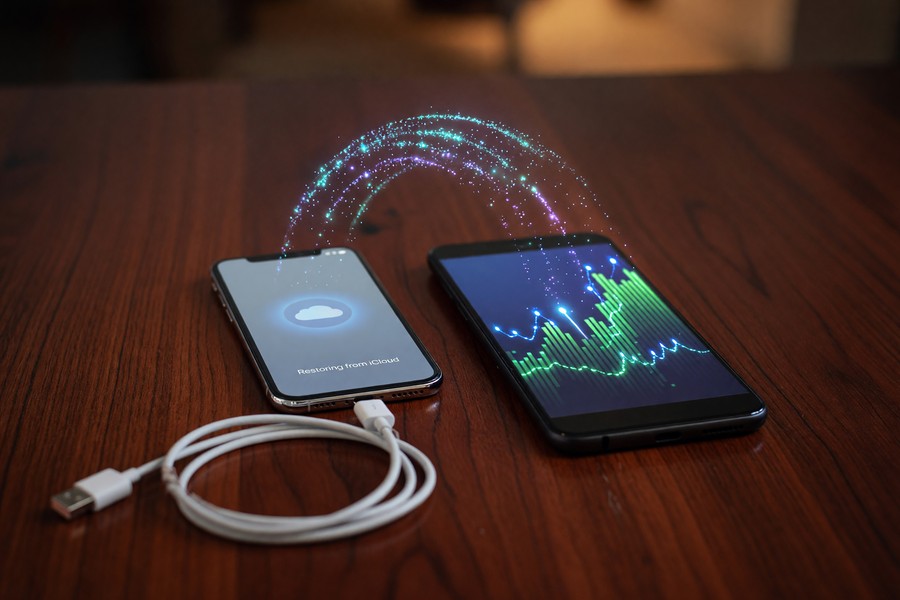
The right backup method comes down to which app you use and which phones you’re switching between. The table below lays out the fastest, most reliable approach for each major platform.
| App | Backup Method | Cloud Storage Used | Cross-Platform Support | Time to Backup |
|---|---|---|---|---|
| WhatsApp (Android) | Google Drive | Google One (15 GB free) | Yes (via Move to iOS) | 1–5 minutes |
| WhatsApp (iPhone) | iCloud Drive | iCloud (5 GB free) | Yes (via Smart Switch) | 1–5 minutes |
| iMessage | iCloud / iTunes / Finder | iCloud (5 GB free) | No (Apple only) | 2–10 minutes |
| Telegram | Automatic (server-side) | Telegram servers (unlimited) | Yes (all platforms) | 0 minutes |
| Signal | Device-to-device transfer | None (local only) | Yes (same OS required) | Under 10 minutes |
| SMS (Android) | Google One backup | Google One (15 GB free) | Partial (Android only) | 2–8 minutes |
| SMS (iPhone) | iCloud / Encrypted local | iCloud (5 GB free) | No (Apple only) | 2–10 minutes |
Common Backup Mistakes to Avoid
The most common mistake is assuming your last automatic backup is recent enough. Automatic backups can fail quietly because of storage limits, expired sessions, or spotty connectivity, leaving a gap of days or even weeks in your chat archive.
Not Verifying the Backup Before Resetting
Always confirm your backup actually completed before wiping your old phone. In WhatsApp, the backup screen shows the date and size of the last successful backup. If that timestamp is more than 24 hours old, run a fresh manual backup right then. iPhone users relying on iCloud should check that iCloud Backup shows “Today” under Settings > Apple ID > iCloud > iCloud Backup.
If you’ve ever needed to recover messages after the fact, our guide on how to recover deleted Snap messages covers retrieval strategies, though prevention through proper backup is always the better approach.
Ignoring Storage Limits
A backup that runs out of cloud storage mid-process ends up incomplete, and it often fails without warning you. Google gives you 15 GB free across Gmail, Google Photos, and Drive. Apple only gives 5 GB free per Apple ID. If you’ve got a large media library, upgrade your storage plan or use a local, computer-based backup before switching phones.
For example, Apple’s 50 GB iCloud+ plan costs $0.99 per month (about $11.88 per year), while Google One’s 100 GB tier runs $1.99 per month ($19.99 per year), according to Apple’s iCloud pricing and Google One plans. If you’re on iPhone and need more than 5 GB for iMessage backups, upgrading to 50 GB costs $0.99/month; on Android, WhatsApp backups don’t count toward your Google Drive quota, so you might not need to pay anything at all. That cost difference adds up if you’re backing up several apps at once.
WhatsApp backups stored on Google Drive do not count against your Google Drive storage quota as of Google’s current policy, making it one of the most cost-effective backup options for heavy messaging users, according to WhatsApp’s Google Drive backup FAQ.
Forgetting Third-Party Messaging Apps
Users who focus only on WhatsApp often forget they’ve got other active messaging threads elsewhere. Apps like Facebook Messenger, Viber, and Discord each have their own backup or export procedures. Messenger stores messages on Meta’s servers and syncs automatically, but local cache (including some media) may not carry over. Check each app’s settings individually before you switch.
If you’re managing messaging across a team or business, our breakdown of the best messaging apps for business teams covers storage and backup considerations for each platform.
CISA warns that cyber threat actors are using spyware to target users of mobile messaging applications through tactics like phishing, malicious QR codes, and zero-click exploits. To reduce risk, always use official app stores, update apps promptly, and avoid suspicious links. See CISA’s full guidance at CISA’s 2025 alert on spyware threats.
Frequently Asked Questions
Can I back up chat history without using cloud storage?
Yes. Both iPhone and Android support local backups via a computer. iPhone users can use Finder or iTunes to create an encrypted local backup that includes iMessage and SMS data. Android users can use third-party apps like SMS Backup & Restore to save chat archives directly to their device or a USB drive.
Will my WhatsApp chats transfer automatically when I get a new phone?
Only if you’ve got cloud backup enabled before switching. WhatsApp doesn’t transfer automatically on its own, your data has to be backed up to Google Drive or iCloud first, then restored during setup on your new device. Skip that step and your chats aren’t recoverable.
How do I back up chat history from iMessage on iPhone?
Turn on “Messages in iCloud” under Settings > Apple ID > iCloud, or run a full iPhone backup using Finder or iTunes with “Encrypt local backup” checked. That encrypted option is required if you want message data included in a computer backup. On your new iPhone, sign in with the same Apple ID to restore everything.
Can I transfer Signal messages to a new phone?
Yes, but only using Signal’s built-in device-transfer tool, which requires both phones on the same Wi-Fi network. Open Settings > Chats > Transfer or Restore Account and follow the prompts. The full transfer usually finishes in under 10 minutes for average users.
What happens to Telegram messages when I get a new phone?
Standard Telegram chats restore automatically once you log in on a new device, no backup step needed. The exception is Secret Chats, which live only on the originating device and can’t be recovered elsewhere. Check whether you use Secret Chats before switching phones.
Does Google back up SMS messages on Android?
Yes. Google’s built-in backup service (enabled under Settings > System > Backup) saves SMS and MMS messages to Google One. The free tier includes 15 GB of combined storage. Sign in to a new Android device with the same Google account, and SMS history can be restored during setup.
How long does it take to back up chat history?
Most backups wrap up in 1 to 10 minutes depending on the app, how big your chat archive is, and your internet speed. WhatsApp typically backs up in under 5 minutes for average users. Signal’s device-to-device transfer takes under 10 minutes over local Wi-Fi. A full encrypted iPhone backup via iTunes or Finder may take 10 to 30 minutes on devices with a lot of storage.
What’s the safest way to transfer messages between Android and iPhone?
For WhatsApp, use the official Move to iOS app on Android and follow the prompts on your new iPhone. For other apps, you may need manual export or third-party tools. Steer clear of unverified apps or services that ask for account access, they can compromise your data.
Why doesn’t Signal use cloud backup?
Signal builds privacy into its design from the ground up. By not storing messages in the cloud, it makes sure no third party, including Signal itself, can get at your data. Transfers happen directly between devices over Wi-Fi, which keeps exposure to a minimum.
How can I protect my messaging app from spyware?
Follow CISA’s best practices: install updates promptly, stick to official app stores, read reviews before installing, and avoid suspicious links or QR codes. Use strong passwords and turn on two-factor authentication wherever it’s available. For extra security, consider a secure messaging app like Signal, recommended by CISA at CISA’s guidance on secure communication.
Is encrypted backup really necessary for messages?
Yes. Without encryption, a local backup stored on a computer or cloud service could be accessible to people who shouldn’t have it. Encrypted backups make sure only you, with the right password, can restore your data. Apple and Google both offer this option, and it’s well worth using if you’re protecting sensitive information.
Can I restore a backup from a different phone?
Only if the backup was created with the same account and app version. A WhatsApp backup on Google Drive, for instance, will only restore to a new Android device using that same Google account. An iCloud backup has to be restored on a device signed into the same Apple ID. Cross-account transfers just don’t work.
Sources
- WhatsApp, How to Back Up Chats to Google Drive (Android)
- Apple Support, Use Messages in iCloud
- Apple Support, Back Up iPhone Using iTunes or Finder
- Signal Support Center, Transfer or Restore Account
- Telegram, FAQ: Where Does My Data Live?
- Statista, Most Popular Global Mobile Messenger Apps (2024)
- Business of Apps, Signal Statistics and User Data (2024)
- WhatsApp, Move Chats from Android to iPhone
- Backblaze, The 3-2-1 Backup Strategy Explained
- CISA, Spyware Allows Cyber Threat Actors to Target Users of Messaging Applications
- CISA, Mobile Communications Best Practices Guidance
- CISA, Privacy and Mobile Device Apps
- CISA, How to Communicate Securely on Your Mobile Device
- CISA, Capacity Enhancement Guide for Federal Agencies: Mobile Device Security






