Fact-checked by the SnapMessages editorial team
Quick Answer
To lock down your home network security after a breach, change your router’s default admin credentials, upgrade to WPA3 encryption, segment your devices into separate networks, enable multi-factor authentication on all accounts, and schedule recurring firmware updates. Most people can complete the critical steps in under two hours, and the full maintenance routine takes 20 minutes per quarter.
Tightening your home network security after a data breach starts with the router, the one device most people set up once and never touch again. According to Broadband Genie’s 2024 survey of 3,045 broadband users, 86% have never changed their router’s factory-set administrator password. That single oversight is often the widest open door in a remote worker’s digital life.
The timing matters. As of mid-2025, the average cost of a data breach in the United States has reached $10.22 million, an all-time record, per IBM’s Cost of a Data Breach Report 2025. For remote workers specifically, the risk is personal and immediate: Bitdefender telemetry cited by Cobalt shows that a typical home network faces 10 cyberattacks every 24 hours. Your home office is not a quiet backwater. It is a live target.
This guide is written for remote workers who have experienced a breach, or come close enough to feel genuinely rattled, and want a clear, ordered path back to feeling secure. By the end, you will have a specific action plan covering the first 48 hours, router hardening, network segmentation, password discipline, and an ongoing maintenance routine that does not require a technical background to keep up.
Key Takeaways
- 86% of broadband users have never changed their router’s factory admin password, according to Broadband Genie’s 2024 router security survey, making default credentials the single most common exploitable weakness on home networks.
- The global average cost of a data breach hit $4.88 million in 2024, a 10% increase over 2023, per IBM’s Cost of a Data Breach Report cited by Varonis, and U.S. figures are more than double that global average in 2025.
- 77.74% of networks have poor segmentation, according to Palo Alto Networks’ 2025 Device Security Threat Report, meaning most home setups give a compromised smart device a direct path to a work laptop.
- 89% of broadband users have never updated their router’s firmware, per Broadband Genie’s survey reported by ISPreview, leaving millions of devices permanently exposed to patched-but-uninstalled vulnerabilities.
- WPA3 encryption provides 192-bit security in enterprise mode and protects against offline dictionary attacks on captured handshakes, a concrete improvement over WPA2’s 128-bit standard that most home networks still rely on.
- A consistent personal digital security routine, covering firmware checks, MFA review, and device inventory, takes roughly 20 minutes per quarter and significantly reduces the window of exposure between audits.
In This Guide
- Step 1: What a Data Breach Actually Does to You (and Why It Feels So Personal)
- Step 2: Why Your Home Network Was Never Built for the Work You’re Doing on It
- Step 3: What Should I Do in the First 48 Hours After Suspecting a Breach?
- Step 4: How Do I Actually Lock Down My Router?
- Step 5: How Does Network Segmentation Stop a Breach from Spreading?
- Step 6: Which Password and MFA Habits Actually Make a Difference?
- Step 7: How Do I Keep My Home Network Secure Long-Term Without Burning Out?
- Frequently Asked Questions
Step 1: What a Data Breach Actually Does to You (and Why It Feels So Personal)
A data breach is not just an IT incident. For a remote worker, it is a violation that happens inside the space you live in, and that psychological dimension is almost never discussed in security guides.
The Emotional Reality
Most security articles skip straight to the checklist. That is useful, but it misses something important: the discovery of a breach triggers a genuine stress response. Your home, which is supposed to be the place where work stress ends, now feels compromised. Research referenced through the EU’s StressOut Project found that remote workers who struggle to disconnect from work face significantly higher rates of anxiety and burnout. A breach does not just add a task to your to-do list. It collapses the boundary between your safe space and the threat environment, which is its own form of harm.
What to Watch Out For
The panicked response, jumping between tools, changing every password in a frenzy, reading every scary thread on Reddit, is itself a risk. Scattered action under stress leads to mistakes: reusing a “new” password you think is unique, missing a critical account, or skipping employer notification. Recognize the emotional spike for what it is, then follow an ordered process. The steps in this guide are sequenced specifically to reduce that chaos.
The financial exposure compounds the stress. A breach that surfaces your banking credentials at an institution like Chase or Bank of America, or compromises accounts linked to services like PayPal or Venmo, can set off a chain of fraudulent transactions that takes weeks to reverse. Credit bureaus Experian, Equifax, and TransUnion each offer free fraud alerts you can place within minutes of suspecting a breach; doing so immediately limits the window in which stolen identity data can be used to open new credit lines or alter your FICO Score.
Roughly 20% of organizations have reported a data breach caused by a remote worker since 2020, according to data from Kiteworks and Malwarebytes. This is not an edge case. If you have experienced a breach or near-miss, you are in statistically common company.
Step 2: Why Your Home Network Was Never Built for the Work You’re Doing on It
Corporate networks are engineered with multiple layers of defense: enterprise firewalls, monitored endpoints, IT-managed segmentation, and dedicated security teams watching for anomalies. A typical home network has none of these. It has a router, a single password, and whatever devices your household has added over the years.
The Expanded Attack Surface
Consider the average connected home in 2025. Smart TVs, security cameras, thermostats, baby monitors, voice speakers, personal phones, tablets, and a work laptop are almost certainly sharing the same flat network, meaning the same subnet, protected by one Wi-Fi password. Every smart device your family added for convenience sits, topologically, right next to your work computer. A compromised smart TV is not just an entertainment problem. It is a potential lateral movement point into whatever else is on the network.
The regulatory environment offers limited protection at the consumer level. The Federal Trade Commission actively pursues companies that fail to secure consumer data, and the Consumer Financial Protection Bureau (CFPB) has published guidance on data security obligations for financial service providers. But neither agency can compel a router manufacturer to push a firmware update to your specific hardware. Cisco’s Talos Intelligence group and Microsoft’s Digital Crimes Unit both publish regular threat intelligence that underscores how quickly newly discovered vulnerabilities migrate from research papers into active exploit kits targeting home hardware. The responsibility for the final step, actually applying the patch, sits with the individual user.
“While workplace devices often have technical controls to prevent unsafe activities, remote workers are exposed to additional risks.”
What to Watch Out For
The NIST Special Publication 800-46 Rev. 2 instructs organizations to treat teleworkers’ home networks as hostile environments. That framing is worth internalizing: your home network is not a trusted space just because you live there. It receives the same traffic, the same probes, and the same opportunistic scanning as any other internet-connected node. The comfort of the familiar environment can create a false sense of protection that corporate users simply do not have.
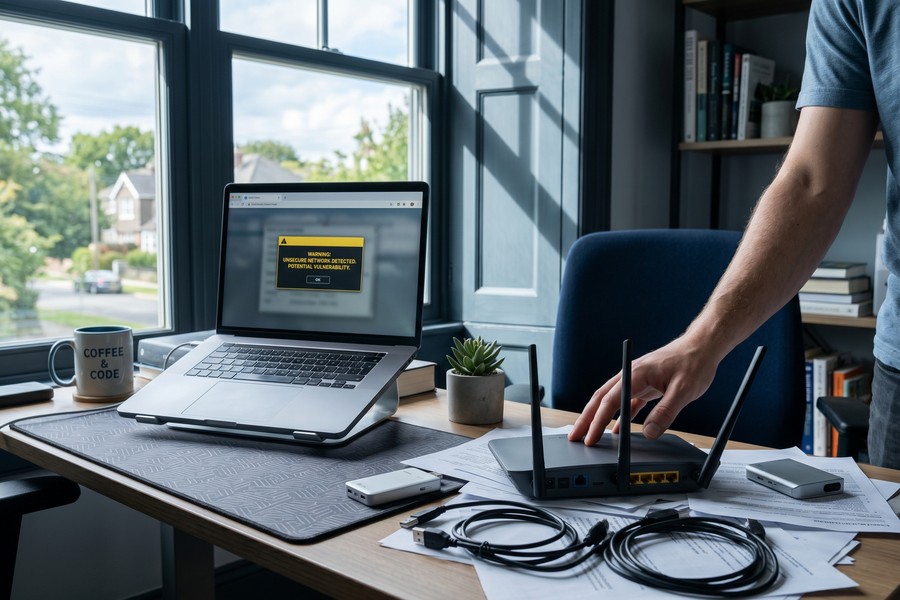
A home network faces an average of 10 cyberattack attempts every 24 hours, according to Bitdefender telemetry cited by Cobalt’s 2025 cybersecurity statistics roundup. That is roughly one probe every two and a half hours, around the clock.
Step 3: What Should I Do in the First 48 Hours After Suspecting a Breach?
The first 48 hours after suspecting a breach are the highest-leverage window. Acting quickly and in the right order limits damage and gives you back a sense of agency, which matters both for security outcomes and for your own stress levels.
How to Do This
Work through this sequence in order. Do not skip ahead:
- Disconnect the suspected device from the network immediately. Do not wait to confirm. Isolation prevents lateral spread.
- Change your router’s admin credentials from a different, unaffected device. Log into the router interface (typically at 192.168.1.1 or 192.168.0.1), then change both the admin username and admin password.
- Revoke active sessions on email, cloud storage, and work accounts. Most services let you do this from the account security settings page.
- Notify your employer’s IT or security team immediately. This is not optional, many organizations have breach response protocols that require notification within hours. Delaying costs them response time and can expose you to policy consequences.
- Run a malware scan on the affected device using a reputable tool such as Malwarebytes, Windows Defender, or the security software your employer provides. Do this before reconnecting the device.
- Check Have I Been Pwned at haveibeenpwned.com to see which accounts are associated with compromised credentials.
- Change passwords on any account that shares credentials with the suspected breach, starting with email, banking, and work accounts.
If the breach may have exposed financial credentials, contact your bank directly. Institutions like Chase, Wells Fargo, and Bank of America each have dedicated fraud lines and can freeze affected accounts within minutes. For breaches that may have exposed your Social Security number, placing a credit freeze with Experian, Equifax, and TransUnion is free under federal law and prevents new credit from being opened in your name. The CFPB’s website walks through the exact steps for each bureau. A credit freeze does not affect your existing FICO Score or any current credit lines; it simply blocks new inquiries until you lift the freeze.
The Cybersecurity and Infrastructure Security Agency (CISA) advises monitoring your router interface for unknown connected devices during this phase. If you see hardware addresses you do not recognize, remove them and change your Wi-Fi password immediately.
What to Watch Out For
Do not announce the breach on social media while it is still active. Attackers sometimes monitor their targets and will use any disclosed detail to adjust their approach. Also avoid using the compromised device to manage the response, use a phone on cellular data or a second device on a separate network until the affected machine has been scanned and cleared.
Phishing attacks often follow a known breach. Attackers know you are on edge and will send convincing emails impersonating your bank, employer, or a security service. Before clicking any link in a breach-related email, verify the sender domain carefully. This is a common pattern described in our guide to how hackers use social engineering to exploit people.
Step 4: How Do I Actually Lock Down My Router?
The router is the most important device on your home network and the one most consistently left in its factory-default state. Hardening it takes under an hour and closes the most commonly exploited entry points.
How to Do This
Access your router’s admin interface through a browser (check the label on the router itself for the default IP address). Then make these changes:
- Change the admin credentials. The default username and password for many router models, often “admin/admin” or printed on the router label, are published in public databases that attackers query automatically. Set a unique admin username and a long, random password. Store it in a password manager.
- Upgrade encryption to WPA3. If your router supports it, switch from WPA2 to WPA3. WPA3 provides 192-bit encryption in enterprise mode and protects against offline dictionary attacks on captured handshakes, a concrete security improvement, not a cosmetic one. The Federal Trade Commission’s home Wi-Fi security guidance specifically recommends WPA3 or WPA2 as the minimum standard.
- Disable WPS (Wi-Fi Protected Setup). WPS is designed for convenience but its PIN-based handshake can be brute-forced in hours. CISA’s Securing Your Home Wi-Fi module explicitly directs users to disable it.
- Disable UPnP and remote management. Universal Plug and Play (UPnP) allows devices to open network ports automatically, a convenience feature that attackers have abused to redirect traffic. Remote management lets you access the router admin panel from outside your home. Unless you have a specific need for it, both should be off.
- Enable the router’s built-in firewall if it is not already active. The FTC notes this as a basic but frequently skipped step.
The Firmware Problem
Router firmware updates patch known security vulnerabilities. According to Broadband Genie’s 2024 survey, 89% of broadband users have never updated their router’s firmware. That means the majority of home networks are running software with known, unpatched vulnerabilities, which attackers actively catalog and target.
Check for firmware updates in the router’s admin interface under “Advanced” or “Administration.” Some newer routers from manufacturers like Eero, Google Nest, and Asus can apply updates automatically. Enable that option if it exists. Netgear and TP-Link also offer auto-update features on recent models, though the option is buried in different menu locations depending on firmware version.
There is a harder issue worth naming directly. Routers older than four to five years often stop receiving firmware updates entirely when the manufacturer ends support for that model. No configuration change you make can patch a vulnerability if the patch does not exist. If your router is approaching or past that age, replacement is a legitimate security investment, not an upsell. A current mid-range router from a reputable brand costs between $80 and $200 and brings measurable improvements in both security and wireless performance.
What to Watch Out For
After making changes, verify that the new settings saved correctly. Some routers appear to accept changes but revert on reboot if the firmware is unstable. Log out, let the router reboot, log back in, and confirm each setting is still in place.
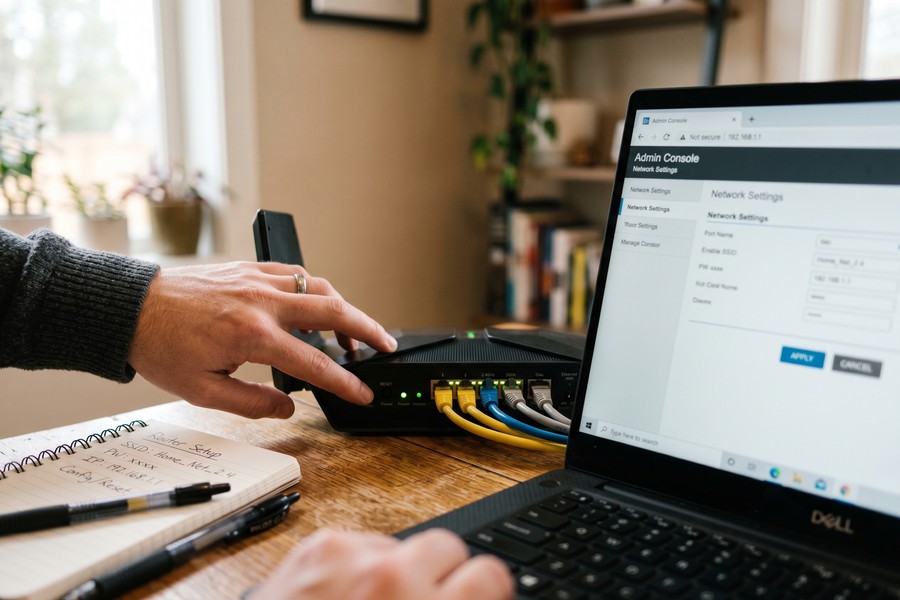
Set a recurring calendar reminder twice a year labeled “Router check”: firmware update, connected device audit, credential review. Treat it exactly like a health check-up. The NIST Telework Security Basics guidance recommends that remote workers report unusual network activity immediately and keep their home equipment current; a biannual reminder makes that easier to sustain.
| Security Setting | Default State on Most Routers | Recommended State | Risk If Left Unchanged |
|---|---|---|---|
| Admin Password | “admin/admin” or printed on label | Unique, 16+ character password in a password manager | Full router access for anyone who queries the model’s default online |
| Wi-Fi Encryption | WPA2 (or older WPA/WEP) | WPA3; WPA2-AES if WPA3 unavailable | Captured handshakes can be cracked offline via dictionary attack |
| WPS | Enabled | Disabled | PIN can be brute-forced in hours, granting full network access |
| UPnP | Enabled | Disabled | Malware can use UPnP to open ports and exfiltrate data |
| Remote Management | Enabled on some models | Disabled unless actively needed | Admin panel exposed to the open internet |
| Firmware | Factory version (often 2–4 years out of date) | Latest available; auto-update enabled if supported | Known CVEs remain exploitable indefinitely |
Step 5: How Does Network Segmentation Stop a Breach from Spreading?
Network segmentation means dividing your home network into separate, isolated zones so that a compromised device in one zone cannot reach devices in another. Think of it as separate rooms with separate locks: a burglar who gets into the guest room does not automatically have access to the home office.
Most home routers support multiple SSIDs (network names). Use this to create three networks: one for work devices (laptop, work phone), one for personal devices (personal phone, tablet), and one guest network for all IoT devices, smart TVs, cameras, speakers, thermostats, baby monitors. The IoT network is the critical one. These devices are frequently unpatched, have minimal built-in security, and sit permanently online. Putting a smart TV on the same subnet as your work laptop means a vulnerability in that TV’s firmware is one hop from your employer’s data. CISA specifically recommends a separate guest network for IoT devices to prevent them from accessing router settings or other network segments.
The scale of this problem is larger than most consumer guides acknowledge. Palo Alto Networks’ 2025 Device Security Threat Report found that 77.74% of networks have poor segmentation. For home networks where the default setup is a single flat network, the segmentation gap is effectively 100%. This single change, creating three SSIDs, closes the most common lateral movement path that attackers use once they are inside a home network.
Remote workers whose employers use cloud platforms like Microsoft Azure or Amazon Web Services should be aware that lateral movement on the home network can potentially expose cached credentials for those services. Segmenting your work device onto its own SSID means a compromised Ring doorbell or Amazon Echo cannot sniff traffic from the same subnet your work laptop uses to authenticate with corporate cloud resources. Google Workspace and Microsoft 365 both support conditional access policies that require compliant network environments; check with your IT team whether those policies are active for your account.
Step 6: Which Password and MFA Habits Actually Make a Difference?
Strong passwords and multi-factor authentication (MFA) are the last line of defense if your network is breached. They are also the habits most likely to be undermined by the very stress a breach creates.
How to Do This
A password manager, such as Bitwarden, 1Password, or Dashlane, removes the cognitive burden of remembering dozens of unique credentials. It generates long, random passwords for every account and fills them automatically. The psychological benefit is real: when you are not mentally carrying a list of passwords, you are less tempted to reuse one across accounts. Password reuse is the primary reason a single breach cascades into multiple compromised accounts.
MFA works by requiring a second proof of identity even when a password is correct. If an attacker steals your password through a phishing email, one of the most common initial access methods, as spyware and credential theft attacks often begin with a convincing fake login page, MFA means that stolen password alone cannot open the account. Use an authenticator app (Google Authenticator, Authy, or Microsoft Authenticator) rather than SMS codes where possible. SMS-based MFA can be defeated by SIM-swapping attacks, while app-based codes cannot. For your most sensitive accounts, a hardware security key offers the strongest available protection.
Financial accounts deserve particular attention here. Banks including Chase, Wells Fargo, and Capital One all support app-based MFA. Services like Robinhood, Fidelity, and Charles Schwab have each published guidance encouraging customers to move away from SMS authentication following high-profile SIM-swapping incidents. If you hold investment or brokerage accounts, check each platform’s security settings and enable the strongest available MFA option. Your FICO Score can be indirectly affected by fraudulent credit inquiries that follow credential theft, so hardening access to financial accounts has downstream credit health implications as well.
The Stress-Vigilance Connection
There is a documented relationship between stress and reduced security vigilance. Remote workers under home-environment pressure, deadlines, domestic noise, the absence of IT oversight nearby, are measurably less likely to scrutinize a suspicious email carefully. This is exactly why automated safeguards like a password manager and MFA matter more than good intentions. They work even when your attention is elsewhere.
CyberSmart’s research on remote workforce security found that employees working from home are disproportionately targeted by spear-phishing campaigns that reference real details scraped from LinkedIn. As Adam Seamons, Head of Information Security at GRC International Group, noted in SC Magazine UK’s 2025 remote working security report: “Attackers are increasingly weaponising social media, using LinkedIn to profile employees and craft hyper-personalised attacks.” A password manager and app-based MFA are the two controls most likely to blunt that kind of targeted attempt.
What to Watch Out For
Passkeys are beginning to replace passwords on major platforms including Google, Apple, and Microsoft. If a service you use offers passkey enrollment, accepting it is worth doing. For a clear explanation of how this technology works and why it is more resistant to phishing than traditional passwords, the guide to what a passkey is and why apps are switching covers the mechanics in plain language.
When setting up MFA, save your backup recovery codes in your password manager, not in a notes app on the same device you use for MFA. Losing access to your authenticator app without backup codes is a recovery nightmare that can take days to resolve with each service’s support team.
Step 7: How Do I Keep My Home Network Secure Long-Term Without Burning Out?
Ongoing network security is most sustainable when you treat it the way you treat preventive physical health care: scheduled, bounded, and specific. Not a permanent state of vigilance, but a recurring habit with a clear endpoint.
The 20-Minute Quarterly Check
Every three months, run through four items: check for router firmware updates, review your password manager for reused or weak credentials, audit the list of devices connected to each network segment, and confirm that MFA is active on your most sensitive accounts. That is it. The whole process should take under 20 minutes if your setup is already in order from the earlier steps. The psychological payoff, feeling in active control of your digital environment rather than passively hoping nothing goes wrong, has a documented connection to reduced anxiety and better sleep quality among remote workers, according to the EU-funded research on remote work stress and disconnection.
The Honest Ceiling
Home network security has real limits. A determined, well-resourced attacker will eventually find a way into any consumer setup. The goal of every step in this guide is not to achieve invincibility. It is to raise the cost and effort of an attack high enough that opportunistic attackers move on to easier targets, which describes the vast majority of automated threats a home network faces.
The VPN myth also deserves a direct correction. A VPN encrypts your traffic in transit, which is genuinely useful on public Wi-Fi. On your own home network, a VPN does nothing to protect against a compromised device, malware already present on the network, or credentials stolen before the VPN connection was established. If you rely on a VPN as your primary home security measure, you have a significant gap in your defenses. It is one tool, not a complete solution.
Know when to ask for professional help. Repeated suspicious activity you cannot trace, a confirmed breach involving healthcare or financial data, or an employer requiring a verified security posture assessment all warrant engaging a certified professional. If your organization operates under HIPAA, PCI-DSS, or SOC 2 compliance requirements, consumer-level hardening alone will not satisfy an audit. The steps in this guide represent a solid consumer-level foundation, not a replacement for compliance-driven security assessments when the stakes are genuinely high.

Fake QR codes placed in phishing emails or shared via messaging apps can bypass your router protections entirely by directing you to a credential-harvesting page before your network security ever sees the traffic. Reviewing how cybercriminals use fake QR codes to steal information is a useful complement to the network-level hardening in this guide.
Frequently Asked Questions
How do I know if my home network has already been compromised?
Check your router’s connected device list for any hardware you do not recognize, unfamiliar MAC addresses or device names are the clearest indicator of unauthorized access. Other signs include unexpected slowdowns, devices behaving erratically, or accounts sending emails or messages you did not write. CISA advises regularly monitoring the router interface for unknown connections as a baseline habit.
Is WPA3 actually worth upgrading to, or is WPA2 still fine?
WPA3 is a meaningful upgrade, not just a marketing label. It protects against offline dictionary attacks on captured handshakes, a well-documented weakness in WPA2, and provides 192-bit encryption in enterprise mode compared to WPA2’s 128-bit. If your router supports WPA3, switch to it. If it does not, WPA2 with AES (not TKIP) is the acceptable fallback, but it is worth checking whether your router model is still receiving security updates.
Can a VPN fully protect my home network?
No. A VPN encrypts traffic between your device and the VPN server, which is useful on untrusted public networks. On your home network, it does nothing to protect against malware already installed on a device, credentials stolen through phishing, or a compromised IoT device operating inside your network. VPN protection ends at the tunnel. Threat actors who have already gained access to a device are not affected by the encrypted tunnel that device uses for outbound traffic.
How often should I update my router’s firmware?
Check for firmware updates at least twice a year, and immediately whenever you hear about a major router vulnerability in the news. According to Broadband Genie’s 2024 survey, 89% of broadband users have never done this once. If your router supports automatic updates, enable that option and verify it is working at each biannual check.
Should I set up a separate network for my smart home devices?
Yes, and this is the single most impactful change most people have not made. Smart TVs, cameras, thermostats, and voice speakers are frequently unpatched and have minimal built-in security. Placing them on a separate SSID (most routers support a guest network) means that a compromised IoT device cannot reach your work laptop or personal accounts on the primary network. Palo Alto Networks found that 77.74% of networks have poor segmentation, for a home running a single flat network, the gap is effectively total.
What is the fastest way to tell if my router’s default admin password is still active?
Open a browser, enter your router’s IP address (usually 192.168.1.1 or 192.168.0.1), and try logging in with “admin” as both the username and password. If that works, your router is using factory defaults, and those credentials are publicly listed for most router models. Change them immediately and store the new credentials in a password manager.
Do I need a new router, or can I secure my existing one?
If your router is less than four to five years old and still receiving firmware updates from the manufacturer, the hardening steps in this guide are sufficient. If your router is older and the manufacturer has ended support, no configuration change can protect you from vulnerabilities that will never be patched. In that case, replacement is a genuine security measure, not an optional upgrade. A current mid-range router from a reputable brand costs $80 to $200 and brings both security improvements and better wireless performance.
I work with sensitive client data from home. Is consumer-grade security enough?
For most remote knowledge workers, a properly hardened home network, WPA3 encryption, segmented SSIDs, updated firmware, strong credentials, and MFA, substantially reduces risk. For roles involving healthcare records, financial data, legal documents, or government-classified information, you should consult your employer’s IT security team and potentially bring in a certified professional. Consumer setups have a ceiling that enterprise-grade monitoring and endpoint management can exceed by a significant margin. The steps in this guide are a strong floor, but they are not a replacement for compliance-driven security assessments.
Can someone be spying on my network without me knowing it?
Yes, and it is more common than most people assume. An attacker with access to your Wi-Fi password can position themselves on the network passively, intercepting unencrypted traffic without generating any noticeable activity. Changing your Wi-Fi password, switching to WPA3, and auditing connected devices removes any unauthorized presence. For a broader picture of what surveillance software can do once a device is compromised, the detailed guide on how to detect and remove spyware from your phone covers the mechanics clearly.
How do I build a security habit that I’ll actually stick to?
Attach the habit to something you already do. A biannual router audit takes less than 20 minutes and can be scheduled alongside any existing recurring task, an annual physical, a tax deadline, or a work review cycle. The goal is a bounded, specific checklist rather than a vague intention to “stay on top of security.” For a broader framework that covers passwords, MFA, app permissions, and device reviews, the guide to building a personal digital security routine that actually sticks provides a practical starting structure.
Sources
- GlobalSecurityMag, Broadband Genie 2024 Router Security Survey: Gap in Awareness Leaving Routers at Risk
- ISPreview UK, Survey Claims UK Internet Users Leave Broadband Routers Open to Hackers (2024)
- Varonis, Data Breach Statistics 2025: IBM Cost of a Data Breach Report Findings
- Cobalt.io, Top Cybersecurity Statistics for 2025 (includes Bitdefender home network telemetry)
- National Institute of Standards and Technology (NIST), Telework Security Basics
- NIST Special Publication 800-46 Rev. 2, Guide to Enterprise Telework, Remote Access, and BYOD Security
- CISA, Home Network Security Guidance
- CISA Project Upskill, Module 5: Securing Your Home Wi-Fi
- Federal Trade Commission (FTC), Securing Your Home Wi-Fi Network (Consumer Advice)
- SC Magazine UK, Remote Working Security 2025 Predictions (CyberSmart and GRC International Group)
- Have I Been Pwned, Credential Breach Search Tool
- EU StressOut Project, Remote Work Stress, Disconnection, and Burnout Research






