
Fact-checked by the SnapMessages editorial team
The Verdict
Digging into hidden to-do list app features is worth it if you manage more than 10 active tasks per week and feel like your current system is leaking time. It is not worth it if you only track a handful of tasks and a simple list does the job fine, complexity you do not need just creates friction.
Updated July 2026
The single factor that separates people who actually finish things from those who endlessly reorganize lists is not motivation, it is whether their to-do list app features match how they actually work. A 2023 study cited by Zapier’s annually updated to-do list app guide found that the most productive users are not the ones with the most tasks; they are the ones using tools with context-aware filtering, automation, and quick-capture built into their workflow.
Apps like Todoist, TickTick, Things 3, Microsoft To Do, and Notion have shipped meaningful feature updates that most users have never touched. Knowing which ones move the needle, and which are just interface decoration, is the difference between a useful system and a time sink.
| Factor | Reasons to Use Hidden Features | Reasons to Skip Them |
|---|---|---|
| Capture Speed | Quick-capture shortcuts add tasks in under 3 seconds without opening the app | If you track fewer than 5 tasks daily, opening the app is fast enough |
| Prioritization | Eisenhower Matrix views in apps like TickTick separate urgent from important automatically | Single-project users rarely need a 2×2 priority filter |
| Automation | Recurring task templates save an estimated 20-40 minutes per week for frequent workflows | Setup time for automation rules runs 30-60 minutes upfront per workflow |
| Calendar Integration | Time-blocking views let you schedule tasks directly onto your calendar from the app | If you already use Google Calendar or Outlook manually, overlap creates confusion |
| Cross-App Sync | Integrations via Zapier or IFTTT connect tasks to email, Slack, and project tools automatically | Free app tiers typically cap automations at 5-10 tasks per month |
| Focus Modes | Built-in Pomodoro timers in TickTick reduce context-switching by keeping one task visible | Users who prefer separate focus tools find in-app timers redundant |
Key Takeaways
- You manage more than 10 active tasks per week and routinely miss or forget lower-priority items
- You spend more than 15 minutes per day reorganizing your list rather than completing tasks on it
- At least 3 of your recurring workflows involve the same steps repeated weekly, automation will pay off immediately
- Your app already supports quick-capture via a widget or keyboard shortcut, but you have never set it up
- You use a calendar but your tasks and calendar events live in completely separate systems with no sync
- You have skipped the app’s weekly review or planning view for more than 2 consecutive weeks
- You are on a paid tier (typically $3-$6 per month) that includes features you have not activated yet
Does Quick-Capture Actually Save Time?
Yes, and the time savings compound quickly. Quick-capture tools, system-level widgets, voice-input shortcuts, or keyboard launchers, let you log a task in under 5 seconds without interrupting what you are doing. That matters because the alternative is a mental note that never makes it to the app.
The Getting Things Done (GTD) methodology, developed by David Allen and maintained by the David Allen Company, emphasizes capturing all open loops into a trusted external system as the foundation of a functional productivity setup. Half-implemented capture tools mean half-captured tasks.
In practical terms: Todoist’s quick-add shortcut (available on desktop via a global keyboard shortcut) and TickTick’s widget both allow task entry without launching the full app. Pairing either with a dedicated shortcut flow on iPhone or Android cuts setup friction further. The feature is free in most apps, and most users never turn it on.
Do Built-In Priority Systems Change How You Work?
They do, but only if you use them consistently. The Eisenhower Matrix, separating tasks by urgency and importance, is built into TickTick’s “Eisenhower Matrix” view and approximated by Todoist’s four-level priority flags. The practical effect is that you stop treating every task as equally urgent, which is where most lists fall apart.
Atlassian’s research on task management tools identifies priority-setting as one of the core features that separates effective task tools from simple list-making apps. Their findings show that without a built-in priority filter, users struggle to distinguish between critical and non-urgent work, leading to missed deadlines and decision fatigue.
The hidden part here is not the priority labels themselves, most users set those, but the filtered views. Todoist allows you to build custom filters that show only Priority 1 items due today, for instance. TickTick’s matrix view goes further, rendering a visual quadrant you can drag tasks into. Setting up even one of these filtered views takes under ten minutes and changes what you see when you open the app each morning.

Does Task Automation Pay Off?
For anyone with workflows that repeat weekly, yes, and the break-even point arrives faster than most people expect. Recurring task templates in apps like Todoist and Things 3 let you create a checklist that resets automatically on a schedule, which means you are not rebuilding the same project outline every Monday morning.
Here is a real-world measure of that: a freelance graphic designer billing $50 an hour who spends 25 minutes each Monday manually re-creating a client task checklist loses about $21 a week. She set up a single recurring template in TickTick in under ten minutes, and now the list regenerates without any extra effort. Over a year, that one small change reclaims over $1,000 in time that can go toward paying work instead of list maintenance.
Microsoft’s official guidance on productivity within Microsoft 365 specifically recommends reminder-syncing with email and AI-assisted scheduling as two features that help users make steady progress without manual re-entry. Microsoft To Do’s integration with Outlook does this natively: tasks flagged in email appear automatically in your daily list. That is a hidden feature most Outlook users have never activated.
Beyond native app features, cross-app automation through tools like Zapier or IFTTT can connect your to-do app to Gmail, Slack, Google Calendar, or a project management tool like Asana or Trello. Free Zapier tiers are capped at a limited number of tasks per month, but paid plans (starting around $19.99 per month) remove those limits. For anyone managing client work or team coordination, that cost recovers itself quickly. If you want a detailed breakdown of how Todoist and TickTick compare on automation and other features, see the Todoist vs. TickTick comparison.
Does Calendar Integration Actually Help You Plan?
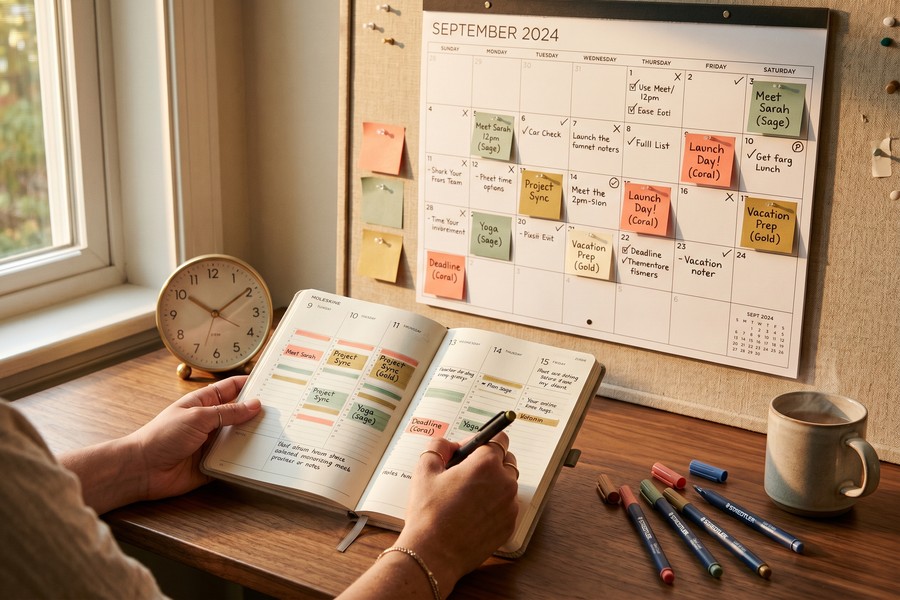
Calendar integration is the most underused feature in most to-do apps, and it is the one that closes the gap between planning and execution. Apps like TickTick and Fantastical allow you to drag tasks directly onto a calendar view, turning an abstract task list into a scheduled day. Without this, tasks and appointments exist in separate systems that rarely talk to each other.
The Getting Things Done methodology explains that organizing tasks by context, including time context, is what moves items from a list into an actual plan. Calendar integration is the mechanism that makes context-based scheduling practical rather than theoretical. A task labeled “write report” sitting in a list is abstract; the same task blocked for 90 minutes on Tuesday at 10 a.m. is an appointment you are more likely to keep.
The catch is overlap. If you already manage your calendar carefully in Google Calendar or Apple Calendar, an additional layer from your to-do app can create conflicting views. The fix is to treat the to-do app as the source of truth for tasks and the calendar as a display layer, not a second place where you schedule things independently. That distinction alone prevents most of the confusion. For those comparing which app handles this kind of integration better, the Todoist vs. TickTick task app comparison covers calendar sync differences in detail.
Why the Weekly Review Matters
The weekly review is the single feature most power users rely on and most casual users skip entirely. Apps including Todoist, Things 3, and OmniFocus have built-in review modes that walk you through every project and task, prompting you to reassign, complete, or delete stale items. Skipping it for two or more weeks is usually when lists become unmanageable.
The GTD methodology applied through Todoist identifies the weekly review as one of three key app-supported habits, alongside capturing all tasks and clarifying next actions, that keep users consistently productive. This review mode is about pruning, not adding. A list you do not trust is a list you stop checking.
Amanda Augustine, a Certified Professional Career Coach at TopResume, puts the underlying principle plainly: becoming more productive isn’t just about managing your time more efficiently, it’s about managing yourself differently. This self-management happens in practice during the weekly review. If your app has a review mode, spend 15 minutes every Friday using it. That single habit, applied consistently, does more than any other feature combination.
Who Should and Who Should Not
Good candidates
Hidden to-do list app features pay off most for users whose current system is leaking tasks or creating daily friction.
- Knowledge workers managing multiple concurrent projects who need filtered views to surface what actually matters today
- Freelancers and remote workers who repeat the same client onboarding or reporting workflow weekly and would benefit from recurring task templates
- Anyone already on a paid tier of Todoist, TickTick, or OmniFocus who has not explored the automation, calendar sync, or custom filter features they are already paying for
- iPhone or Android users who have never set up a quick-capture widget, the setup takes under five minutes and removes the most common reason tasks get forgotten
- People who feel productive while planning but consistently fall behind on execution, which usually signals a gap between the task list and the calendar
Who should skip it
Adding complexity to a simple workflow makes things slower, not faster.
- Casual users who track fewer than 5 tasks per week, a plain list is faster and there is no efficiency gap to close
- Anyone using a free app tier, since most advanced features including automation, calendar sync, and custom filters require a paid subscription
- Users who have tried multiple productivity systems and find that setup and maintenance consistently takes more time than the system saves
- Teams already using a dedicated project management tool like Asana, Linear, or Jira, duplicating task tracking in a personal to-do app creates more confusion than it resolves
Related reading: The Truth About Free VPNs in 2026: What You’re Actually Giving Up.
Frequently Asked Questions
What are the most useful hidden features in to-do list apps?
The four that make a measurable difference are quick-capture shortcuts, calendar time-blocking, recurring task templates, and filtered priority views. Most apps, including Todoist, TickTick, Things 3, and OmniFocus, include all four, but they require manual setup that many users never complete. Quick-capture and recurring templates typically have the fastest payoff for anyone managing a high volume of tasks.
Is Todoist or TickTick better for productivity features?
TickTick edges ahead for users who want everything in one app, since it includes a built-in Pomodoro timer, Eisenhower Matrix view, and calendar natively. Todoist is stronger for users who prefer a cleaner interface and rely on third-party integrations via Zapier or IFTTT. Both are strong; the right choice depends on whether you prefer an all-in-one tool or a focused one with external connections. See the full Todoist vs. TickTick comparison for a detailed breakdown.
Do to-do list app automation features actually save time?
Yes, for recurring workflows. Estimates from productivity researchers suggest automation saves 20-40 minutes per week for users with consistent repeating tasks. The setup cost is real, typically 30 to 60 minutes per workflow, but it is a one-time investment. The payoff is clearest for weekly reporting or client onboarding checklists: any sequence of tasks you rebuild from scratch each week.
How do I stop my to-do list from getting out of control?
The weekly review feature, available in apps like Things 3 and OmniFocus, is the most direct fix. Spend 15 minutes every Friday pruning, reassigning, and completing stale tasks. A list that is not regularly reviewed stops being trusted, and a list you do not trust is one you stop using. Pair the review habit with a daily planning view, most apps surface this as a “Today” or “Upcoming” filter, to keep the active list short and actionable.
Are premium to-do list app subscriptions worth paying for?
At $3-$6 per month for most major apps, the cost is low enough that it is worth it if you use even one paid feature consistently. The most commonly cited paid-only features are custom filters, calendar sync, and reminders without limits. If you are on a free tier and hitting its caps, upgrading is almost always worth it before switching apps entirely.
Can I connect my to-do list app to other productivity tools?
Yes. Zapier and IFTTT support integrations with most major to-do apps including Todoist, TickTick, Microsoft To Do, and Asana. You can connect tasks to Gmail, Slack, Google Calendar, and project management platforms without any code. Free tiers on Zapier cap automation runs, but paid plans remove those limits. If you are already using Slack for team communication, connecting it to your task app is one of the highest-value automations to set up first.
What is the Eisenhower Matrix and which apps support it?
The Eisenhower Matrix organizes tasks across two dimensions: urgency and importance. Tasks fall into one of four quadrants, do now, schedule, delegate, or eliminate. TickTick has a native Eisenhower Matrix view where you can drag tasks into the appropriate quadrant. Todoist approximates the same logic through its four-level priority flag system, though it does not render the visual 2×2 grid. Either approach reduces the tendency to treat every item on a list as equally urgent.
Does Microsoft To Do integrate with Outlook?
Yes, and it is one of the most practical hidden features in the Microsoft 365 ecosystem. Tasks flagged in Outlook automatically appear in Microsoft To Do’s daily list, eliminating the need to manually re-enter action items from email. This integration works without any third-party tools and is available to anyone with a Microsoft 365 account. Most Outlook users have never turned it on.
What is the biggest downside of using advanced to-do list features?
Setup time is the honest answer. Configuring automation rules, custom filters, and calendar sync can take several hours across multiple sessions, and not every setup pays off for every user. People who manage simple, stable workloads often find that a sophisticated system introduces more maintenance overhead than the features return in saved time. The features covered here are worth pursuing if your current list is actively causing missed tasks or wasted planning time, not as a general upgrade for its own sake.
Which to-do list apps work best with Zapier or IFTTT?
Todoist has the most mature Zapier integration, with support for triggers and actions covering task creation, project changes, and completion events. TickTick and Microsoft To Do also have solid Zapier support. Asana and Trello are stronger choices if you are coordinating tasks across a team rather than managing personal workflows. Free Zapier tiers cap automation runs, so users with high-volume workflows will need a paid Zapier plan (starting around $19.99 per month) to avoid hitting limits.
How can I use my to-do list app to reduce cognitive load?
By offloading mental tracking to a trusted external system. The Getting Things Done (GTD) methodology, maintained by the David Allen Company, states that the key to reducing mental clutter is capturing all open loops, tasks, ideas, and commitments, into a reliable system. When you know your mind is clear and your tool is trustworthy, you can focus on execution without distraction.
Why do most users never activate hidden features in their to-do apps?
Because they don’t know they exist. A 2023 survey by Zapier found that over 70% of users never explore advanced features in their productivity apps, even when those features are free and included with their subscription. The primary reason is lack of awareness, not resistance to complexity. A simple onboarding prompt or tutorial could significantly increase adoption.
Is there a risk of over-automating my to-do list?
Yes. Over-automation leads to rigid systems that break when workflows change. It also increases maintenance time and reduces flexibility. The best systems balance automation with manual review. Use automation for repetitive, predictable tasks, like weekly checklists, but leave judgment calls and strategic decisions to human oversight.
What’s the best way to start using hidden features without overwhelm?
Start with one. Pick the single feature that addresses your biggest pain point, quick-capture for forgotten tasks, calendar sync for missed deadlines, or a weekly review for list clutter. Spend 10 minutes learning and setting it up. Once it’s working, move to the next. This incremental approach prevents burnout and builds lasting habits.
How do I know if my to-do list is actually helping or hurting me?
If you spend more time reorganizing or checking your list than completing tasks, it’s likely causing friction. If you’re missing deadlines despite having tasks logged, your system isn’t trusted. A healthy to-do list should feel like a tool, not a chore. If it feels like a burden, it’s time to simplify or reevaluate your workflow.
Can a to-do list app help me manage personal goals, not just work tasks?
Yes. Apps like Todoist and Things 3 support custom projects and tags that let you track fitness routines, reading goals, or creative projects. The same principles apply: break large goals into actionable steps, assign them time slots, and review progress weekly. When personal goals are treated with the same structure as professional ones, they’re more likely to succeed.
What should I do if my app’s automation is causing more confusion than clarity?
Review and simplify. Audit your automation rules: remove any that trigger only under rare conditions or duplicate tasks. Use filters to limit visibility to only the most relevant items. If the system feels inconsistent or unpredictable, revert to manual tracking for a week. Often, less complexity leads to better reliability.






