Fact-checked by the SnapMessages editorial team
Quick Answer
You can use your phone as a webcam in under 5 minutes using free apps like DroidCam, EpocCam, or Apple’s Continuity Camera, all of which support major platforms including Zoom, Google Meet, and Microsoft Teams., this setup costs $0 and delivers significantly better video quality than most built-in laptop cameras.
Your phone almost certainly has a better camera than your laptop, and turning it into a webcam takes less time than finding a parking spot. Most modern smartphones ship with cameras capable of 4K video at 30fps, a spec that demolishes the 720p sensors still crammed into the majority of budget and mid-range laptops sold today. According to Statista’s 2024 device shipment analysis, more than 60% of laptops shipped globally still include 720p webcams as standard, while the average flagship smartphone camera outperforms dedicated webcams costing $100 or more.
Demand for better video has sharpened considerably since hybrid work became standard. Pew Research Center data from 2023 found that roughly 35% of U.S. workers with remote-capable jobs work from home full-time. That’s a lot of grainy, poorly lit video calls happening every single day.
This guide walks you through every major setup method, USB, Wi-Fi, and Apple’s native Continuity Camera, across iOS and Android, Windows and macOS. You’ll find out which apps actually perform best, how to optimize your lighting and positioning, and how to fix the most common connection headaches before they derail your next important call.
Key Takeaways
- Apple’s Continuity Camera, introduced in macOS Ventura, lets iPhone users connect wirelessly as a webcam in seconds with zero app installation (Apple Developer Documentation, 2022), making it the fastest setup method available.
- DroidCam, the leading Android webcam app, has been downloaded more than 10 million times on the Google Play Store (Google Play, 2024), confirming it as the most widely adopted solution for Android users.
- Smartphone rear cameras typically record at 4K / 30fps, compared to the 720p / 30fps average found on laptop webcams sold under $500 (Consumer Technology Association, 2024), making the phone upgrade visually significant.
- A USB connection reduces video latency to under 50 milliseconds compared to up to 200ms over Wi-Fi for webcam streaming apps (DroidCam technical documentation, 2023), making wired the preferred method for professional calls.
- EpocCam by Elgato supports resolutions up to 1080p at 60fps on the free tier and up to 4K on the paid Pro tier priced at $7.99 (Elgato, 2024), offering the highest frame-rate option among mainstream apps.
- Proper lighting accounts for an estimated 70% of perceived video quality in video conferencing environments (Logitech Video Conferencing Research, 2022), meaning positioning matters as much as camera hardware.
In This Guide
- Why Should You Use Your Phone as a Webcam?
- What Apps Work Best for Using Your Phone as a Webcam?
- How Do You Set Up an iPhone as a Webcam?
- How Do You Set Up an Android Phone as a Webcam?
- Should You Use USB or Wi-Fi to Connect Your Phone as a Webcam?
- Which Video Call Platforms Support a Phone Webcam?
- How Do You Optimize Video Quality When Using Your Phone as a Webcam?
- How Do You Troubleshoot Common Phone Webcam Problems?
- What Are the Privacy and Security Considerations for Using Your Phone as a Webcam?
Why Should You Use Your Phone as a Webcam?
Your phone almost certainly has a better camera than your laptop. That one fact makes the entire case on its own. The average iPhone 15 rear camera shoots at 48 megapixels with optical image stabilization, while most laptop webcams use fixed-focus, fixed-aperture lenses that were designed for convenience, not for actually looking good on a call.
The Video Quality Gap Is Significant
According to Consumer Technology Association 2024 research, more than 65% of laptops priced under $800 still ship with 720p webcams. Even mid-range Android phones like the Google Pixel 8a record at 1080p or higher with better low-light performance than dedicated USB webcams in the same price range. You’re already sitting on a significant upgrade and probably don’t even know it.
The difference becomes obvious in difficult lighting: dimly lit home offices, windows blasting light from behind you, evening calls after sunset. Smartphone camera software processes each frame using computational photography algorithms that dedicated webcams simply don’t have. There’s no contest.
The Cost Advantage
A dedicated 1080p webcam from Logitech or Razer runs between $60 and $200. A 4K webcam? Expect to pay $150 to $300 or more. Using your existing phone with a free app from Google Play or the App Store brings that cost to exactly $0, or a one-time app purchase of under $10 for premium features. That math is hard to argue with.
Apple’s Continuity Camera feature, built natively into macOS Ventura and later, eliminates the need for any third-party app entirely for iPhone users, the connection is wireless, automatic, and recognized by every macOS-compatible video app.
For remote workers, content creators, or anyone grinding through frequent video calls on Zoom or Microsoft Teams, repurposing a device you already own is just practical. It also sidesteps the supply chain delays and compatibility headaches that come with buying external hardware, no waiting, no returns, no driver nightmares (well, usually).
One honest caveat worth naming: your phone’s battery drains quickly when running camera hardware continuously over a USB or Wi-Fi connection. For calls longer than 45 minutes, keep the phone plugged in. This is a real limitation that a dedicated Logitech webcam doesn’t share.
What Apps Work Best for Using Your Phone as a Webcam?
The right app depends entirely on what phone you own and what computer you’re connecting to. In 2025, there are four dominant solutions worth knowing: Apple Continuity Camera (iOS + macOS only), DroidCam (Android + Windows/Linux), EpocCam by Elgato (iOS/Android + Windows/macOS), and NDI HX Camera (iOS/Android, built for professional networks).
App Comparison by Platform and Feature
| App | Phone OS | Computer OS | Max Resolution | Price | Connection |
|---|---|---|---|---|---|
| Continuity Camera | iOS 16+ | macOS Ventura+ | 4K | Free (built-in) | Wi-Fi / USB |
| DroidCam | Android 5+ | Windows / Linux | 1080p (OBS Client) | Free / $5 Pro | Wi-Fi / USB |
| EpocCam | iOS / Android | Windows / macOS | 4K (Pro) | Free / $7.99 Pro | Wi-Fi / USB |
| NDI HX Camera | iOS / Android | Windows / macOS | 1080p / 60fps | $14.99 | Local network |
| Camo | iOS | macOS / Windows | 4K | Free / $39.99/yr | USB / Wi-Fi |
For most people it really does come down to two things: which phone you own, and whether you need cross-platform support. Apple Continuity Camera wins hands-down for the iPhone-plus-Mac combination. DroidCam is the clear leader for Android-to-Windows workflows. Everything else falls somewhere in between.
Free vs. Paid Tiers
The free versions will get you started, but they have real limits. DroidCam free caps at a pretty rough 480p, while EpocCam free tops out at 1080p at 30fps. Upgrading to DroidCam Pro ($5 one-time) or EpocCam Pro ($7.99 one-time) removes those caps entirely and adds useful features like screen mirroring, zoom control, and manual exposure. For a professional setup, it’s worth the few dollars.
DroidCam has surpassed 10 million downloads on the Google Play Store, making it the most installed Android-to-webcam solution globally, more than double its nearest competitor.
How Do You Set Up an iPhone as a Webcam?
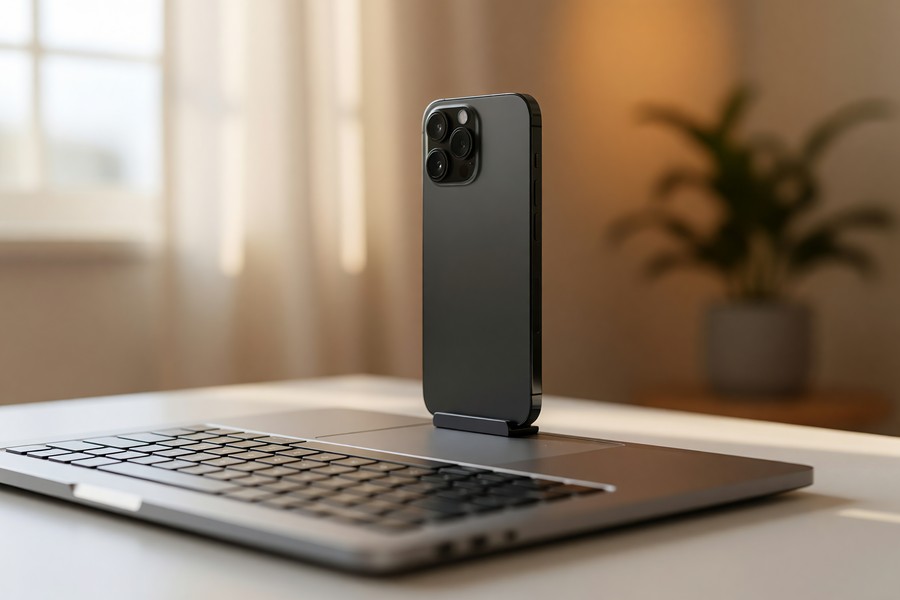
iPhone users get two distinct paths here. There’s Apple’s built-in Continuity Camera, zero setup, macOS only, and then third-party apps like EpocCam or Camo for anyone who needs Windows compatibility. Already deep in the Apple ecosystem? Continuity Camera is the obvious starting point.
Method 1: Apple Continuity Camera (macOS Ventura and Later)
Continuity Camera needs an iPhone running iOS 16 or later and a Mac on macOS Ventura 13.0 or later. Both devices must be signed into the same Apple ID, with Wi-Fi and Bluetooth switched on. No cable required, though USB works too if you prefer it.
- Ensure both your iPhone and Mac are signed into the same Apple ID.
- Enable Wi-Fi and Bluetooth on both devices.
- Mount your iPhone in landscape or portrait orientation near your monitor.
- Open any video app (Zoom, FaceTime, Google Meet, Teams) on your Mac.
- In the camera selector dropdown, choose “iPhone” as the camera source.
- Your iPhone screen will automatically display a “Connected” message and lock the screen to the camera view.
Continuity Camera also unlocks some exclusive software features: Center Stage (keeps you centered as you move around), Portrait Mode (background blur that actually looks good), Studio Light (brightens your face without a ring light), and Desk View, a top-down shot of your desk using the ultra-wide lens, which is genuinely useful for tutorials. You’ll find all of these in macOS Control Center once connected.
Method 2: EpocCam for iPhone on Windows
EpocCam by Elgato is the most polished third-party option for iPhone users who need Windows to work. First-time setup takes about 3–5 minutes, genuinely not bad.
- Download the EpocCam app from Elgato’s official site on your iPhone (App Store).
- Download and install the EpocCam drivers on your Windows PC from the same Elgato page.
- Connect both devices to the same Wi-Fi network, or connect via USB Lightning/USB-C cable.
- Open EpocCam on your iPhone, it begins broadcasting automatically.
- Open your video call app on Windows and select “EpocCam” in the camera source dropdown.
For the most stable EpocCam connection on Windows, install the driver package before connecting your phone. Driver-first installation prevents the “camera not recognized” error that accounts for the majority of first-time setup failures.
Method 3: Camo for iPhone (Premium Quality)
Camo, developed by Reincubate, is widely considered the highest-quality iPhone webcam app available. The free tier handles up to 720p; the Pro subscription at $39.99 per year unlocks 4K output with serious manual controls, exposure, ISO, white balance, zoom, the works. It supports both macOS and Windows through a companion desktop app, so it travels well across platforms.
How Do You Set Up an Android Phone as a Webcam?
Android users most commonly reach for DroidCam or EpocCam. DroidCam is the go-to for Windows thanks to its dedicated PC client, it’s been battle-tested by millions of users. EpocCam works across more platforms for anyone jumping between operating systems.
Setting Up DroidCam on Android and Windows
DroidCam comes from Dev47Apps and lives on the Google Play Store. The steps change slightly depending on whether you go Wi-Fi or USB, both are covered below.
- Install DroidCam on your Android phone from the Google Play Store.
- Download and install the DroidCam Windows client from the Dev47Apps website.
- For Wi-Fi: Open DroidCam on your phone and note the IP address displayed on screen. Enter that IP into the Windows client and click “Start.”
- For USB: Enable USB debugging on your Android phone (Settings > Developer Options > USB Debugging). Connect via cable, then select “USB” in the DroidCam Windows client.
- Open Zoom, Teams, or any video app and select “DroidCam Source” in the camera dropdown.
Smartphone cameras have closed the gap with professional webcams in dynamic range, low-light performance, and autofocus speed. According to DisplayMate Technologies’ Mobile Display Technology Shoot-Out (2023), a modern Android or iPhone rear camera will outperform a $150 dedicated webcam in the vast majority of video conference scenarios.
Enabling USB Debugging on Android
USB debugging is required for wired DroidCam connections. To turn it on, go to Settings > About Phone, tap “Build Number” seven times to unlock Developer Options (yes, really, seven times), then navigate to Settings > Developer Options and flip “USB Debugging” to on. It doesn’t affect normal phone use and you can turn it off after.
Using DroidCam with Linux
DroidCam also supports Linux through a terminal-based client, not many webcam apps can say that. The Linux version requires installing the v4l2loopback kernel module, which creates a virtual camera device. Full installation instructions live on the Dev47Apps Linux installation page. This makes DroidCam one of the only webcam apps with genuine Linux support.
Should You Use USB or Wi-Fi to Connect Your Phone as a Webcam?
USB. For anything professional, that’s the short answer. It’s faster, more stable, and completely immune to whatever chaos is happening on your home network. Wi-Fi works fine for casual calls, but if your job depends on a clean, reliable video feed, plug in the cable.
Latency and Stability Comparison
| Connection Type | Typical Latency | Max Stable Resolution | Setup Complexity | Risk of Dropout |
|---|---|---|---|---|
| USB (wired) | Under 50ms | 4K / 30fps | Low | Very Low |
| Wi-Fi 5 / 6 | 80–200ms | 1080p / 30fps reliable | Very Low | Moderate |
| Bluetooth | Not supported | N/A | N/A | N/A |
According to DroidCam’s technical documentation, USB connections reduce video latency to under 50 milliseconds, compared to an average of 80–200ms over Wi-Fi depending on router proximity and network load. On a call where audio-video sync actually matters, a client pitch, a job interview, that difference is genuinely noticeable.
When Wi-Fi Is the Right Choice
Wi-Fi has real practical advantages: freedom of movement and no cable snaking across your desk. A standing desk, a larger room, or a phone mounted somewhere a cable won’t reach, all of these make Wi-Fi the sensible option. For Zoom or Google Meet calls where most participants aren’t scrutinizing sync precision, Wi-Fi at 1080p delivers perfectly solid results.
Apple’s Continuity Camera uses a proprietary peer-to-peer Wi-Fi connection rather than your home network, which means it maintains low latency even on congested networks, a significant advantage over standard Wi-Fi streaming apps.
Which Video Call Platforms Support a Phone Webcam?
Every major video conferencing platform, Zoom, Microsoft Teams, Google Meet, Cisco Webex, FaceTime, recognizes a phone connected as a webcam without any fuss. The phone shows up as a standard virtual camera device at the operating system level, so no special platform configuration is needed. It just works.
Platform-Specific Selection Steps
Once your phone webcam app is running and connected, each platform has a slightly different path to selecting the camera source:
- Zoom: Settings > Video > Camera dropdown, select your phone’s camera app name (e.g., “DroidCam Source 3,” “EpocCam,” or “iPhone Camera”).
- Microsoft Teams: Settings > Devices > Camera dropdown, same selection process.
- Google Meet: Click the three-dot menu > Settings > Video > Camera dropdown.
- Cisco Webex: Settings > Video > Camera, select the virtual camera device.
- OBS Studio: Add a “Video Capture Device” source and select the phone app from the list, this is ideal for streaming and recording.
For users who also want to understand how messaging features integrate across platforms, our guide on SMS vs RCS messaging differences covers how modern communication standards are converging across devices.
Compatibility With Browser-Based Calls
Browser-based video calls, Google Meet in Chrome, Teams in Edge, Webex in Firefox, also support virtual camera sources. One catch: some browsers require you to explicitly grant permission. In Chrome, go to Settings > Privacy and Security > Site Settings > Camera and make sure the meeting site is allowed to access the virtual camera device. Takes thirty seconds, easy to forget.
How Do You Optimize Video Quality When Using Your Phone as a Webcam?
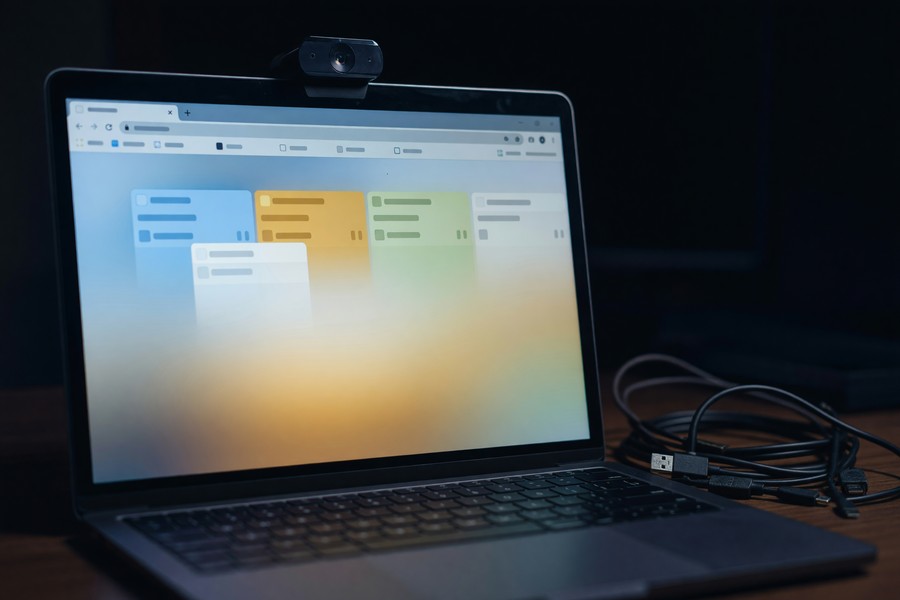
Most people obsess over resolution settings when the real problem is lighting. Research from Logitech’s video conferencing research found that lighting conditions account for approximately 70% of perceived video quality in professional video calls. Even a 4K camera looks terrible in bad light. Fix your lighting first. Everything else is secondary.
Lighting Best Practices
- Position your primary light source (window, ring light, or desk lamp) facing your face, not behind you.
- Facing a window directly gives far more even illumination than sitting with it to the side, which creates uneven shadows.
- A ring light positioned at eye level and approximately 2–3 feet away provides even, flattering illumination for under $30.
- Avoid overhead lighting alone, it creates harsh shadows under the eyes and chin.
Phone Positioning and Stability
Camera height matters more than most people realize. The phone lens should sit at or slightly above eye level, looking up at a camera is unflattering and tends to expose whatever mess is on your ceiling. It’s a small adjustment with a surprisingly visible payoff.
Monitor-clip phone mounts range from $10 to $30 on Amazon, with solid options from Lamicall, iKlip, and Joby. The Joby GorillaPod is a flexible tripod that attaches to desks, monitors, or bookshelves, genuinely versatile. A stable mount also matters because propping your phone against a coffee mug introduces micro-vibrations that trigger aggressive stabilization algorithms and make footage look oddly artificial.
Ring lights priced under $25 improve perceived video quality by a measurable margin in blind viewer studies, according to Wirecutter’s 2023 webcam accessory testing, making lighting the highest-ROI upgrade available at any budget.
In-App Quality Settings
Most webcam apps include manual camera controls buried in their settings menus. These are worth digging into:
- Resolution: Set to 1080p minimum; use 4K only if your bandwidth and computer hardware can handle it without dropped frames.
- Frame rate: 30fps is standard for video calls; 60fps earns its place for product demos or screen sharing where motion matters.
- Exposure lock: Manually locking exposure stops the camera from “breathing”, that distracting brightness fluctuation as you move.
- White balance: Set manually to match your lighting type (daylight, tungsten, fluorescent) for consistent, accurate color.
Video calls that frequently involve screen sharing or collaborative work benefit from broader workflow thinking too. Our guide on how group chats are changing team collaboration covers additional productivity strategies for remote teams.
How Do You Troubleshoot Common Phone Webcam Problems?
The most common phone webcam problems, camera not detected, black screen, choppy video, audio sync issues, all have specific, reliable fixes. Most of the time the culprit is driver installation order, network configuration, or a forgotten USB debugging toggle. Rarely the hardware itself.
Camera Not Detected by the Video App
When your phone’s camera doesn’t appear in the dropdown, work through these steps in order, don’t skip ahead:
- Confirm the webcam app on your phone (DroidCam, EpocCam) is open and actively connected before opening the video call app.
- Restart the video call app after the phone connection is established, many apps only scan for cameras at launch.
- Reinstall the PC/Mac driver for EpocCam or DroidCam from the official website, not a cached installer.
- Check that your security software (Windows Defender, third-party antivirus) is not blocking the virtual camera driver.
- On Windows, open Device Manager and confirm the virtual camera appears without a yellow warning icon.
Black Screen or Frozen Video Feed
A black screen almost always means the phone app is running but the camera feed isn’t actually being transmitted. Force-close and reopen the phone app, then reconnect. On Android, this sometimes happens when DroidCam quietly lost its camera permission, check Settings > Apps > DroidCam > Permissions > Camera and make sure it’s granted.
On Android 12 and later, the operating system includes a hardware-level camera privacy indicator. If another app is actively using the camera in the background (e.g., a social media app with camera access), DroidCam or EpocCam cannot access it simultaneously. Close all other apps with camera permissions before starting your webcam session.
Choppy or Low-Quality Video Over Wi-Fi
Choppy Wi-Fi video is almost always a network issue, not a hardware one. Switch to the 5GHz band on your router if you haven’t already, the 2.4GHz band gets congested fast. Move your phone and computer closer to the router during the call, or switch to USB for anything important.
Bandwidth genuinely limited? Dropping the resolution from 1080p to 720p inside the webcam app will stabilize the connection immediately. Most video call platforms, Zoom, Google Meet, Microsoft Teams, compress your video further anyway, so the difference between a 720p and 1080p source is reduced considerably by the time it reaches other participants.
What Are the Privacy and Security Considerations for Using Your Phone as a Webcam?
Using your phone as a webcam introduces a few privacy considerations worth thinking through, particularly around which apps are handling your camera feed and whether that feed is encrypted in transit. The risk is low when you stick to established apps like DroidCam, EpocCam, and Camo. Being informed still matters.
Data Transmission and Encryption
Apple Continuity Camera transmits data entirely on a local peer-to-peer connection, the video stream never touches Apple’s servers. DroidCam and EpocCam both transmit video locally over your home network (USB or LAN), not through the internet, in their standard modes. NDI HX Camera, designed for professional environments, also operates entirely on local network infrastructure. None of these are sending your video feed to remote servers.
Both iOS and Android have significantly tightened their camera permissions models since 2020. Apps cannot silently access the camera, the operating system enforces explicit user grants and displays active-use indicators. According to TechCrunch’s security reporting, the primary risk with webcam apps is not unauthorized access; it is making sure you download the legitimate version from official app stores like the App Store or Google Play, not third-party mirror sites.
Protecting Your Privacy During Video Calls
The same common sense that applies to any video call applies here. Think about what your background is revealing, home addresses on visible mail, personal documents on your desk, family members who haven’t consented to being on camera. Background blur in Zoom or Teams exists for exactly this reason. Use it.
For calls that involve sensitive professional or personal content, our guide on how to set up a secret chat on your phone covers broader communication privacy strategies. General device security matters too, understanding signs that your phone has been hacked is a useful baseline for anyone relying on their smartphone for professional communication.
App Permissions Review
After setting up a webcam app, take two minutes to check what permissions it’s actually holding. A camera app should need Camera and Microphone access, full stop. Nothing else. Any webcam app requesting Contacts, Location, or SMS access is a red flag worth taking seriously. On iOS, audit permissions at Settings > Privacy & Security. On Android, go to Settings > Apps > [App Name] > Permissions.
Given that your phone is also your primary messaging device, keeping it locked down matters. Our article on what two-factor authentication is and why you should use it explains how to add a critical security layer to the accounts tied to your phone.
Related reading: How to Use Focus Blocks in Microsoft To Do for 2026 Workflows.
Sources
- Google Play Store, DroidCam by Dev47Apps, 2024
- Elgato, EpocCam Product Page and Pricing, 2024
- Dev47Apps, DroidCam Linux Installation Guide
- DisplayMate Technologies, Mobile Display and Camera Technology Shoot-Out, 2023
- Reincubate, Camo App Features and Pricing
- Zoom Support, Camera and Video Settings Documentation