Fact-checked by the Snapmessages editorial team
Quick Answer
Two-factor authentication (2FA) for messaging apps adds a second verification step beyond your password, requiring a code or biometric confirmation to access your account. As of July 2025, over 80% of major messaging platforms support 2FA natively. Accounts protected by 2FA are 99.9% less likely to be compromised, according to Microsoft security research.
Two-factor authentication messaging is a security protocol that requires users to verify their identity through two distinct methods before accessing a messaging account — typically a password plus a one-time code or biometric scan. According to Microsoft’s security research, enabling 2FA blocks 99.9% of automated account attacks, making it one of the most effective defenses available.
With messaging apps now storing payment data, personal photos, and sensitive conversations, account takeover is a growing threat. This guide explains exactly what two-factor authentication messaging is, why each method differs in security, and how to enable it on the five most widely used platforms right now.
Key Takeaways
- 99.9% of automated account attacks are blocked by 2FA, according to Microsoft’s threat intelligence data.
- SMS-based 2FA is the weakest method — SIM-swap attacks increased by 400% between 2015 and 2023, per the FBI’s Internet Crime Complaint Center (IC3).
- Authenticator apps such as Google Authenticator and Authy generate codes that expire every 30 seconds, making them significantly harder to intercept than SMS codes (Google Account Help).
- WhatsApp, Telegram, Signal, iMessage, and Snapchat all support 2FA natively — WhatsApp alone had 2 billion active users as of 2024, per Statista’s messaging usage report.
- Hardware security keys (FIDO2/WebAuthn standard) provide the strongest 2FA protection — phishing attacks against hardware key users have a 0% success rate in Google’s own internal studies (Krebs on Security).
In This Guide
- What Is Two-Factor Authentication for Messaging Apps?
- What Are the Different Types of 2FA and Which Is Safest?
- How Does 2FA Compare Across Major Messaging Platforms?
- How Do You Enable Two-Factor Authentication Messaging on Each App?
- What Mistakes Weaken Your Two-Factor Authentication Messaging Setup?
- What Else Can You Do to Secure Your Messaging Accounts?
What Is Two-Factor Authentication for Messaging Apps?
Two-factor authentication (2FA) is a security layer that requires two separate forms of identity verification before granting access to an account. The first factor is typically something you know (a password or PIN), and the second is something you have (a phone, hardware key) or something you are (a fingerprint or face scan).
In the context of two-factor authentication messaging, this means that even if an attacker steals your password, they still cannot access your WhatsApp, Telegram, or Signal account without the second factor. This addresses the single biggest vulnerability in messaging security: password theft.
Why Passwords Alone Are Not Enough
Passwords are compromised far more often than most users realize. The Verizon Data Breach Investigations Report found that over 80% of hacking-related data breaches involve stolen or weak credentials. Messaging accounts are high-value targets because they often contain identity information, contacts, and linked payment methods.
A stolen messaging account can be used to scam your contacts, intercept verification codes sent via SMS, or access connected services. Adding 2FA removes the attacker’s ability to act on a stolen password alone.
According to the FBI’s 2023 Internet Crime Report, SIM-swapping attacks — used to bypass SMS-based 2FA — caused over $48 million in losses in a single year in the United States alone.
What Are the Different Types of 2FA and Which Is Safest?
Not all 2FA methods offer equal protection. The three primary methods used in messaging platforms are SMS codes, authenticator apps, and hardware security keys — each with distinct security trade-offs.
SMS-Based 2FA
SMS 2FA sends a one-time code to your registered phone number. It is the most common method and the easiest to set up. However, it is also the most vulnerable: SIM-swap fraud, SS7 protocol exploits, and phone number porting attacks can all intercept SMS codes without physical access to your device.
The National Institute of Standards and Technology (NIST) has previously flagged SMS as a deprecated authentication method for high-security applications, precisely because of these interception risks.
Authenticator Apps
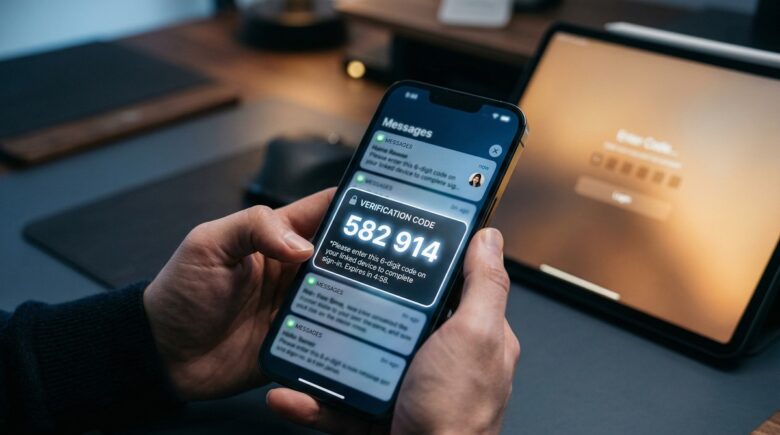
Time-based One-Time Password (TOTP) apps — such as Google Authenticator, Microsoft Authenticator, and Authy — generate a new 6-digit code every 30 seconds. These codes are generated locally on your device and never transmitted over the network, eliminating the SIM-swap vulnerability entirely.
Authenticator apps are the recommended 2FA method for most users. They work offline, are free to use, and are supported by all major messaging platforms that offer 2FA beyond basic SMS.
Hardware Security Keys
Hardware keys such as YubiKey (manufactured by Yubico) use the FIDO2 and WebAuthn open standards to authenticate via physical USB or NFC tap. They are immune to phishing because authentication is tied to the exact domain of the service — a fake login page simply cannot trigger the key.
For readers interested in broader messaging security beyond authentication, our guide on what end-to-end encryption is and why it matters covers complementary protections worth understanding alongside 2FA.
Google reported zero successful phishing attacks on its 85,000+ employees after mandating hardware security keys in 2017, according to Krebs on Security’s reporting on Google’s internal security data.
How Does 2FA Compare Across Major Messaging Platforms?
The five most widely used messaging apps — WhatsApp, Telegram, Signal, iMessage (Apple), and Snapchat — each implement two-factor authentication messaging differently. The table below summarizes the key differences.
| Platform | 2FA Method(s) Supported | Setup Location | Recovery Option |
|---|---|---|---|
| 6-digit PIN + optional email | Settings > Account > Two-Step Verification | Recovery email | |
| Telegram | Password + SMS or email | Settings > Privacy and Security > Two-Step Verification | Recovery email |
| Signal | Registration Lock PIN | Settings > Account > Registration Lock | PIN only (no email recovery) |
| iMessage / Apple ID | Trusted device, SMS, TOTP via authenticator | Apple ID settings > Sign-In & Security | Trusted phone number or recovery key |
| Snapchat | SMS or authenticator app (TOTP) | Profile > Settings > Two-Factor Authentication | SMS recovery code |
Apple’s implementation is notably robust: it ties authentication to trusted hardware devices registered to your Apple ID, rather than relying solely on SMS. Signal’s Registration Lock stands out for its privacy-first design — it stores no recovery email, meaning Signal itself cannot unlock your account.

“Two-factor authentication is one of the most effective controls an individual can apply. Even basic SMS-based 2FA stops the vast majority of credential-stuffing attacks, but users who handle sensitive communications should graduate to an authenticator app or hardware key without delay.”
How Do You Enable Two-Factor Authentication Messaging on Each App?
Enabling two-factor authentication messaging takes under three minutes on most platforms. The exact steps differ slightly by app — here is a precise walkthrough for each major service.
Open WhatsApp and tap the three-dot menu (Android) or Settings (iOS). Navigate to Account, then Two-Step Verification, and tap Enable. You will create a 6-digit PIN and optionally add a recovery email address. WhatsApp will periodically prompt you to enter this PIN to reinforce memory.
Telegram
In Telegram, go to Settings, then Privacy and Security. Tap Two-Step Verification and set a strong password. You can add a recovery email and a hint. This password is required whenever you log into Telegram on a new device, in addition to the SMS code Telegram sends by default.
Signal
Signal calls its feature Registration Lock. Go to Settings, tap Account, and toggle on Registration Lock. You will set a PIN that Signal will periodically ask you to confirm. Signal does not offer email recovery — if you forget your PIN, you must wait 7 days for the lock to expire before re-registering.
Apple iMessage (via Apple ID)
iMessage security is managed through your Apple ID. Visit appleid.apple.com, sign in, and go to Sign-In and Security. Select Two-Factor Authentication and follow the prompts to add a trusted phone number. Apple will send codes to all trusted devices automatically.
Snapchat
In Snapchat, tap your profile icon, then the gear icon for Settings. Scroll to Two-Factor Authentication under the “My Account” section. Choose between SMS or an authenticator app. Selecting the authenticator app option displays a QR code — scan it with Google Authenticator, Authy, or Microsoft Authenticator to complete setup.
For users managing multiple secure apps, our roundup of the best encrypted messaging apps for privacy highlights which platforms combine 2FA with strong encryption by default.
When setting up 2FA, always store your backup codes or recovery email in a separate, offline location such as a printed sheet or a dedicated password manager. Losing access to your second factor without a recovery option can permanently lock you out of your account.
What Mistakes Weaken Your Two-Factor Authentication Messaging Setup?
Enabling 2FA is a strong first step, but several common errors can significantly undermine its protection. Knowing these mistakes helps you maintain a genuinely secure setup.
Using SMS as Your Only 2FA Method
As noted above, SMS is vulnerable to SIM-swap attacks. Carriers in the United States have faced regulatory pressure from the Federal Communications Commission (FCC) to implement stronger porting authorization rules, but the risk has not been eliminated. Where an authenticator app is available, use it instead of SMS.
Reusing Passwords Alongside 2FA
Two-factor authentication messaging protects your login, but a reused password increases the chance of credential-stuffing attacks triggering many login attempts. Use a unique, long password for every messaging account, managed through a reputable password manager such as 1Password or Bitwarden.
Ignoring Recovery Options
Many users set up 2FA but never configure a recovery email or save backup codes. When a phone is lost or replaced, this creates a lockout scenario. Always complete the full setup — including recovery — before considering the process finished.

What Else Can You Do to Secure Your Messaging Accounts?
Two-factor authentication messaging is the most impactful single action, but a complete security posture involves several complementary measures.
Enable End-to-End Encryption Where Available
End-to-end encryption (E2EE) ensures only the sender and recipient can read messages — not the platform, not an attacker. Signal and WhatsApp enable E2EE by default. Telegram only enables it in “Secret Chats,” not regular cloud-based conversations. Understanding the difference matters. Our detailed explainer on end-to-end encryption and how it works covers this in full.
Review Active Sessions Regularly
Most platforms — including Telegram, WhatsApp Web, and Signal — display a list of active sessions. Reviewing and terminating unrecognized sessions periodically is a fast way to detect unauthorized access that slipped through. On Telegram, this is found under Settings > Privacy and Security > Active Sessions.
Use Disappearing Messages for Sensitive Conversations
Even a secured account can be compromised if an attacker gains physical access to a device. Enabling disappearing messages limits what is visible in your chat history. Our guide on how to send disappearing messages on any device walks through the feature across all major platforms.
For teams and businesses using messaging platforms for work, pairing 2FA with secure platform selection is critical. Our analysis of the best messaging apps for business teams covers which platforms offer enterprise-grade security controls including 2FA enforcement.
The Cybersecurity and Infrastructure Security Agency (CISA) lists enabling multi-factor authentication as the single most important cybersecurity action individuals and organizations can take — above patching, antivirus software, or any other control.
Frequently Asked Questions
Does two-factor authentication messaging stop all hacking attempts?
No, but it stops the overwhelming majority. According to Microsoft, 2FA blocks 99.9% of automated attacks. Advanced attacks like real-time phishing proxies can still intercept SMS codes, which is why authenticator apps or hardware keys offer stronger protection than SMS 2FA.
What happens if I lose access to my second factor?
Most platforms provide recovery options such as backup codes, a registered email, or a trusted device. Signal is the exception — it offers PIN-only recovery, and forgetting the PIN means waiting 7 days for the registration lock to expire. Always save backup codes when setting up 2FA.
Is 2FA the same as two-step verification?
Two-step verification and 2FA are often used interchangeably, but technically they differ. Two-step verification may use two instances of the same factor type (e.g., two passwords), while true 2FA requires two different factor categories. In practice, most messaging platforms use the terms interchangeably to mean a password plus a code.
Which 2FA method is recommended for messaging apps?
An authenticator app (TOTP) is the best balance of security and convenience for most users. It eliminates the SIM-swap vulnerability of SMS, works offline, and is free. Hardware security keys are the strongest option but are less convenient for everyday messaging use.
Can I use the same authenticator app for multiple messaging platforms?
Yes. Apps like Google Authenticator, Authy, and Microsoft Authenticator can store 2FA codes for unlimited accounts simultaneously. Authy additionally offers encrypted cloud backup of your 2FA codes, which simplifies recovery when switching devices.
Does enabling 2FA slow down the login process?
Minimally. Most messaging apps only request your 2FA code when you log in on a new device, not at every session. On your regular device, your login remains seamless. The added friction is almost entirely limited to initial device setup.
Is two-factor authentication messaging required by law for businesses?
In some regulated industries, yes. HIPAA and NIST SP 800-63B guidelines strongly recommend or require multi-factor authentication for systems handling protected health information or sensitive federal data. Many businesses are also required to implement MFA under FTC Safeguards Rule amendments effective since 2023.
Sources
- Microsoft Security Blog — One Simple Action to Prevent 99.9% of Account Attacks
- FBI Internet Crime Complaint Center (IC3) — 2023 Annual Internet Crime Report
- Verizon — Data Breach Investigations Report (DBIR)
- NIST — Special Publication 800-63B: Digital Identity Guidelines
- CISA — More Than a Password: Multi-Factor Authentication
- Federal Communications Commission (FCC) — Protecting Your Phone Number
- Krebs on Security — Google: Security Keys Neutralized Employee Phishing
- Statista — Number of Monthly Active WhatsApp Users Worldwide
- Google Account Help — Get Verification Codes with Google Authenticator
- Apple — Apple ID Sign-In and Security Settings