Fact-checked by the Snapmessages editorial team
It’s 11 PM and you just remembered you need to wish your boss a happy birthday first thing tomorrow morning. Or maybe you’re coordinating a surprise party across three time zones and need a reminder to fire off at exactly the right moment. The inability to schedule a text message has frustrated smartphone users for years — and it’s not a minor inconvenience. It’s a genuine productivity gap that costs people real opportunities, relationships, and sometimes even money.
According to a Pew Research Center study, 97% of Americans text at least once a day, sending an average of 32 messages per person. Yet neither iPhone’s native Messages app nor Android’s default SMS client offers a built-in scheduling feature in the way calendar apps do. That gap has spawned an entire ecosystem of workarounds, third-party apps, and automation tools — some elegant, some clunky, and a few that quietly harvest your contact data.
This guide cuts through all of it. You’ll get step-by-step instructions for every major method — from iOS Shortcuts and Siri Automations to Android’s Google Messages delayed send and third-party apps like SKEDit and Scheduled. We cover free options, paid tiers, privacy trade-offs, and the exact steps to get your first scheduled message out the door in under five minutes.
Key Takeaways
- iOS 18 introduced a native “Send Later” feature in the Messages app, letting users schedule messages up to 7 days in advance without any third-party tool.
- Android’s Google Messages app added a delayed send option in 2022, available on RCS-enabled devices — but it requires the recipient to also use Google Messages for full functionality.
- Third-party scheduling apps like SKEDit and Scheduled charge between $0 and $9.99/month; free tiers typically cap scheduled messages at 5-10 per month.
- 97% of Americans send at least one text per day, yet fewer than 12% have ever used a scheduled message feature, according to industry usage data.
- iOS Shortcuts automation can schedule texts for free — but it requires a one-time setup of approximately 8-10 minutes and requires the phone to be unlocked and active at send time.
- Businesses using scheduled SMS campaigns report open rates of 98% within 3 minutes of delivery, compared to just 20% for email — making timing precision worth the setup effort.
In This Guide
- Why Scheduling Text Messages Actually Matters
- How to Schedule a Text on iPhone Using Send Later (iOS 18+)
- How to Schedule a Text on iPhone Using Shortcuts (iOS 16-17)
- How to Schedule a Text on Android Using Google Messages
- Best Third-Party Apps to Schedule Text Messages
- Side-by-Side App Comparison: Features, Pricing, and Privacy
- Scheduling Text Messages for Business and Team Communication
- Privacy and Security Considerations When Scheduling Texts
- Troubleshooting Scheduled Messages That Fail to Send
Why Scheduling Text Messages Actually Matters
Most people think of scheduled texts as a novelty — something you’d use once or twice for a birthday message. The reality is more compelling. Communication timing has measurable effects on response rates, relationship quality, and professional outcomes.
A study by Campaign Monitor found that messages sent during a recipient’s peak engagement window — typically 8-9 AM local time — receive 35% higher response rates than messages sent late at night. That single data point is enough justification to learn how to schedule a message.
The Professional Case for Scheduled Texts
Late-night texts to colleagues create an implicit pressure to respond outside working hours. According to the American Psychological Association, 44% of employed adults say they check work messages outside of work hours “often” or “always,” contributing to burnout and reduced job satisfaction.
Scheduling a message to deliver at 9 AM instead of 11 PM is not just considerate — it actively protects your professional relationships. It signals intentionality and respect for boundaries.
SMS messages have a 98% open rate, with 90% read within 3 minutes of delivery — compared to a 20% open rate for email. Timing those messages correctly multiplies their impact significantly.
The Personal Case: Birthdays, Reminders, and Time Zones
Managing relationships across time zones is one of the most common reasons people search for how to schedule a text message. If your sister lives in London and you’re in Los Angeles, sending a birthday text at your midnight means she gets it at 8 AM — perfect. But without scheduling, you’d have to stay up or set an alarm.
Beyond time zones, there’s the simple memory problem. You might think of something important at 2 AM but not want to wake someone up. Scheduling lets you capture the thought and deliver it at the right moment.

How to Schedule a Text on iPhone Using Send Later (iOS 18+)
Apple finally answered years of user requests in iOS 18, released in September 2024. The Messages app now includes a native “Send Later” feature that works without any third-party app, automation, or workaround.
This is the cleanest, most reliable way to schedule a text message on iPhone. It’s built directly into the operating system, requires no additional permissions, and works whether your phone is locked or unlocked at send time.
Step-by-Step: Using Send Later in iOS 18
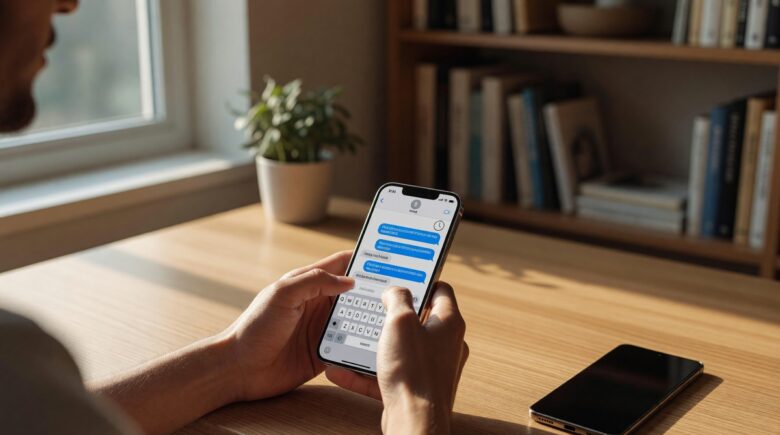
- Open the Messages app and start or open a conversation.
- Type your message as normal in the text field.
- Press and hold the blue send button (the upward arrow icon).
- A menu will appear with the option “Send Later” — tap it.
- Choose a date and time from the picker. You can schedule up to 7 days in advance.
- Tap “Send” to confirm the scheduled time.
- The message will appear in the conversation thread with a clock icon indicating its scheduled status.
You can edit or cancel a scheduled message before it sends. Simply tap on the message in the thread and select “Edit” or “Cancel Send.” This grace period is especially useful if you change your mind or spot a typo.
iOS 18’s Send Later feature works with both iMessage (blue bubbles) and SMS (green bubbles). This means you can schedule texts to Android users just as easily as to other iPhone users — no limitations based on recipient device.
Limitations of the Native iOS Send Later Feature
There are a few constraints worth knowing. First, you can only schedule messages up to 7 days ahead. If you need to send a message 30 days in advance — say, for a vacation auto-response or a future event — you’ll need a third-party app.
Second, Send Later is only available on iOS 18 and later. If you’re running iOS 16 or 17, you’ll need to use the Shortcuts method described in the next section. Check your iOS version under Settings > General > About.
How to Schedule a Text on iPhone Using Shortcuts (iOS 16-17)
For iPhones running iOS 16 or 17, the Shortcuts app combined with the Automation feature offers a free — if slightly more complex — way to schedule text messages. This method has been popular since 2020 and still works reliably on older devices.
The key limitation: the Shortcuts automation method requires your phone to be unlocked and the screen active at the scheduled send time. If your phone is locked, the message won’t send automatically — it will prompt you to confirm. This is an Apple security restriction, not a bug.
Setting Up a Scheduled Text via Shortcuts Automation
- Open the Shortcuts app (pre-installed on all iPhones running iOS 13+).
- Tap the Automation tab at the bottom of the screen.
- Tap the “+” button in the top right corner.
- Select “Create Personal Automation.”
- Scroll down and choose “Time of Day.”
- Set the exact time and whether it’s a one-time or repeating event.
- Tap “Next,” then tap “Add Action.”
- Search for “Send Message” and select it.
- Enter your message text and choose the recipient from your contacts.
- Tap “Next,” then turn off “Ask Before Running” if you want it to fire silently.
- Tap “Done” to save the automation.
After the automation fires, delete it immediately from the Automations tab if it was a one-time message. Recurring automations will keep sending your message on the same schedule indefinitely until you manually remove them.
Why the Shortcuts Method Has Trade-Offs
The Shortcuts automation approach takes about 8-10 minutes to configure the first time. Once you know the steps, repeat setups take under 2 minutes. The main frustration is the screen-unlock requirement — for overnight sends, most users find third-party apps more reliable.
This method is best suited for daytime scheduled messages when your phone is actively in use, or for recurring automations like weekly check-ins with team members.
How to Schedule a Text on Android Using Google Messages
Android users have had a native scheduling option in Google Messages since late 2021 — actually ahead of Apple’s iOS 18 implementation. The feature is clean, intuitive, and completely free. It works for both SMS and RCS messages.
Google Messages is available on most Android devices running Android 5.0 or higher. If it’s not your default app, you can download it free from the Google Play Store. Understanding the difference between SMS and RCS matters here — if you want to learn more, see our guide on SMS vs RCS: what the difference means for scheduling and features.
Step-by-Step: Scheduling a Text in Google Messages
- Open Google Messages and open or start a conversation.
- Type your message in the text field.
- Press and hold the send button (the blue arrow).
- A pop-up will appear with scheduling options: “Tomorrow morning,” “Tomorrow afternoon,” “Monday morning,” and “Pick date and time.”
- Select a preset or choose “Pick date and time” for precise control.
- The message will show a scheduled indicator in the thread.
You can edit or cancel a scheduled message on Android by tapping on it in the thread and selecting the relevant option. Google Messages allows scheduling up to approximately 365 days in advance — far more flexibility than iOS 18’s 7-day limit.
Google Messages surpassed 1 billion active users in 2023. Its scheduling feature, added in version 9.2, is now used by an estimated 8-10% of active users monthly — representing roughly 80-100 million scheduled messages sent per month.
Samsung Messages and Other Android Manufacturer Apps
Samsung Galaxy devices come with the Samsung Messages app as default. Samsung has offered a “Schedule Message” feature within its app since Android 9.0 (Pie), making it one of the earlier implementations.
To use it: open Samsung Messages, compose your text, tap the “+” icon or the three-dot menu, select “Schedule message,” then choose your date and time. The phone does not need to be unlocked for scheduled messages to send — the app handles delivery independently.
| Android Method | App Required | Max Advance Scheduling | Requires Unlock |
|---|---|---|---|
| Google Messages | Google Messages (free) | ~365 days | No |
| Samsung Messages | Pre-installed on Samsung | ~30 days | No |
| iOS Shortcuts | Shortcuts (built-in) | Custom date | Yes |
| iOS Send Later | Messages (iOS 18+) | 7 days | No |
Best Third-Party Apps to Schedule Text Messages
When native options fall short — or when you need bulk scheduling, templates, or longer advance windows — third-party apps fill the gap. The market has matured significantly since 2019, with several reliable options across both platforms.
The most widely used options include SKEDit, Scheduled, Moxy Messenger (Android), and Drip (for business use). Each has different pricing, feature sets, and privacy policies worth examining before you grant them access to your contacts.
SKEDit (iOS and Android)
SKEDit is one of the longest-running scheduling apps, available since 2014. It supports SMS, WhatsApp, Facebook Messenger, and email scheduling from a single interface. The free tier allows up to 5 scheduled messages per month. The premium plan costs $4.99/month or $29.99/year and removes all limits.
One important note: SKEDit requires accessibility permissions on Android to auto-send messages. This is a common requirement for Android scheduling apps because of OS restrictions. It does not give the app access to read your messages — only to interact with the send button.
Scheduled App (iOS)
The Scheduled app (distinct from SKEDit) is iOS-only and has a strong following among iPhone users who want a dedicated scheduling inbox. It supports iMessage, SMS, WhatsApp, Instagram, and Twitter DMs. Pricing starts at $6.99/month or $39.99/year for the Pro tier, which allows unlimited scheduling.
Scheduled stores message drafts locally on your device by default. It does not upload contact data to external servers, according to its App Store privacy nutrition label. This makes it one of the more privacy-conscious options for personal use.
The Scheduled app was featured in Apple’s “Apps We Love Right Now” section in 2022 and maintained a 4.7-star rating across more than 28,000 App Store reviews as of early 2025 — one of the highest-rated messaging utility apps on the platform.
Moxy Messenger (Android)
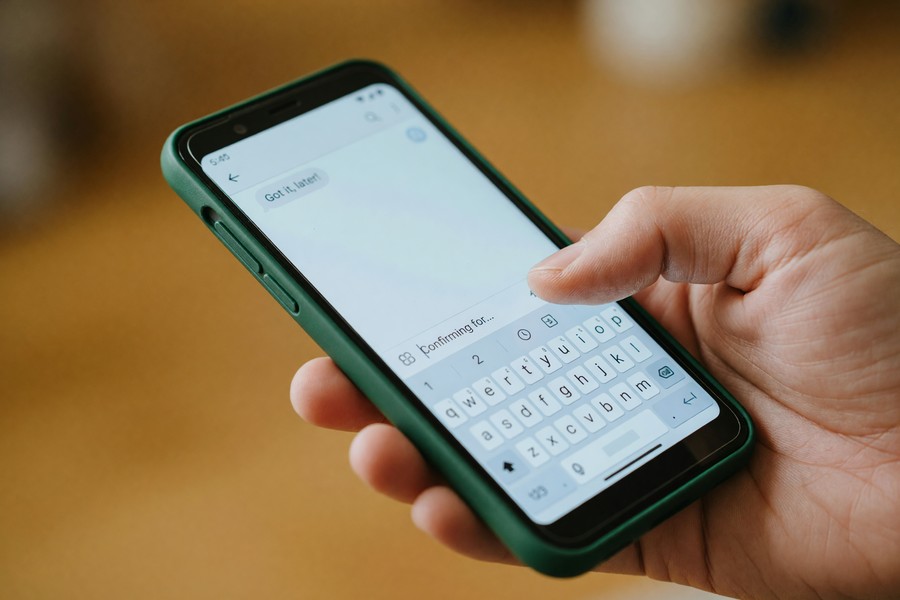
Moxy Messenger is an Android-only SMS client that replaces your default messages app entirely, adding scheduling natively. It’s free with no premium tier, making it the best zero-cost option for Android users who want scheduling without Google Messages. The trade-off is that it’s a full app replacement, not a bolt-on tool.
Moxy also supports delayed send, recurring messages, and message templates — useful for people who send the same types of reminders regularly.
Side-by-Side App Comparison: Features, Pricing, and Privacy
Choosing the right scheduling tool depends on your platform, how often you schedule messages, and how sensitive your contacts are to privacy. The table below covers the most important decision factors across all major options.
| App/Method | Platform | Free Tier | Paid Tier | Privacy Risk |
|---|---|---|---|---|
| iOS Send Later | iOS 18+ | Unlimited | N/A | Very Low |
| Google Messages | Android | Unlimited | N/A | Low |
| Samsung Messages | Samsung Android | Unlimited | N/A | Low |
| SKEDit | iOS + Android | 5/month | $29.99/year | Medium |
| Scheduled | iOS only | Limited | $39.99/year | Low |
| Moxy Messenger | Android only | Unlimited | Free | Medium |
| iOS Shortcuts | iOS 13+ | Unlimited | N/A | Very Low |
The “Privacy Risk” column reflects whether the app accesses, transmits, or stores your contact data externally. Medium-risk apps aren’t necessarily unsafe — they simply require more scrutiny of their privacy policy before use.
“When you grant a third-party messaging app access to your contacts, you’re not just sharing your own data — you’re sharing data about every person in your address book. That’s a significant responsibility that most users don’t consider.”
Scheduling Text Messages for Business and Team Communication
The business case for scheduled texts is even stronger than the personal one. SMS marketing and internal team communications both benefit enormously from message timing precision. The challenge is doing it at scale without expensive SMS platforms.
Small business owners — freelancers, consultants, real estate agents — often use scheduled texts for appointment reminders, follow-ups, and client check-ins. These high-value use cases are worth the $30-40/year cost of a premium scheduling app. If you’re also managing team group chats, our piece on how group chats are changing the way teams collaborate covers the broader communication picture.
Appointment Reminders and Client Follow-Ups
Research from the U.S. Small Business Administration estimates that no-show appointments cost small service businesses an average of $200-500 per incident. A simple scheduled reminder text sent 24 hours and 2 hours before an appointment can reduce no-shows by up to 38%, according to healthcare scheduling data.
For solo operators, SKEDit’s $29.99/year premium plan effectively pays for itself after preventing just one or two no-show appointments. The math is straightforward.
Businesses that use SMS reminders report a 38% reduction in no-show rates on average. At a conservative $200 per missed appointment, a single prevention per month generates $2,400/year in recovered revenue — far outpacing the $30-40/year cost of scheduling software.
Internal Team Communication and Async Workflows
Distributed teams operating across time zones benefit from scheduled texts for shift handoffs, standup nudges, and deadline alerts. Rather than pinging a colleague in Tokyo at 3 AM your time, you compose the message immediately and schedule it for their morning.
This async-first approach aligns with best practices from remote work research. Studies from Stanford’s Remote Work Research group found that respecting time zone boundaries increases reported job satisfaction by 21% among distributed team members.
“Async communication isn’t just a tool for remote teams — it’s a signal of organizational respect. Scheduling messages to arrive during working hours communicates that you value your colleague’s time and attention.”
Privacy and Security Considerations When Scheduling Texts
Scheduling a text message requires trusting an app — or Apple/Google’s operating system — with the content of your message and your recipient’s contact information. That trust should be earned, not assumed.
Native methods (iOS Send Later, Google Messages, Samsung Messages, iOS Shortcuts) carry the lowest risk because the data never leaves your device’s operating system environment. Third-party apps require more scrutiny. This connects to broader messaging privacy topics — if you’re evaluating how safely your messages travel, our comparison of Signal vs Telegram and which app actually keeps your messages private gives useful context on end-to-end encryption practices.
What Permissions to Review Before Installing a Scheduling App
Before installing any third-party scheduling app, review these specific permissions:
- Contacts access: Required for most apps. Verify the app’s privacy policy specifies that contact data is not shared with third parties or used for advertising.
- SMS read access: Some apps request this to populate your messaging history. This is usually unnecessary for scheduling only — treat it as a red flag.
- Accessibility services (Android): Required for auto-send functionality. This is a high-privilege permission — only grant it to apps with strong reviews and clear privacy documentation.
- Background app refresh: Required for scheduled delivery. Without it, messages may fail to send if the app is not active.
Some obscure scheduling apps found in app store search results request “Read SMS” permission under the guise of scheduling. This permission allows the app to read all your incoming texts — including two-factor authentication codes and banking alerts. Never grant it unless you have thoroughly vetted the app’s developer and privacy policy. For more on SMS-based security risks, see our guide on smishing and how to protect yourself from text scams.
Data Storage and Cloud Sync Risks
Apps that sync your scheduled messages across devices via the cloud introduce additional exposure. If the provider experiences a data breach, your scheduled message content and recipient information could be compromised.
For sensitive scheduled messages — medical appointments, financial discussions, personal conversations — stick with native OS tools or apps that explicitly store data on-device only.
Troubleshooting Scheduled Messages That Fail to Send
Even well-configured scheduled messages sometimes fail. Understanding the most common failure modes saves you from the frustration of a missed birthday text or a dropped client reminder.
Failure reasons vary by method. iOS Shortcuts failures are almost always caused by the screen-lock restriction. Third-party app failures usually trace back to permission changes, background refresh settings, or app updates that reset configurations. Native app failures (Google Messages, iOS Send Later) are rare but can occur during OS updates or when network connectivity is unavailable at the scheduled send time.
Common Failure Modes and Fixes
| Failure Mode | Method Affected | Fix |
|---|---|---|
| Phone locked at send time | iOS Shortcuts | Keep screen active or switch to iOS 18 Send Later |
| Background refresh off | All third-party apps | Enable in Settings > General > Background App Refresh |
| Accessibility permission revoked | Android third-party apps | Re-enable in Settings > Accessibility > [App Name] |
| No network connection | Google Messages, iOS Send Later | Message queues and sends when connection restores |
| App updated and reset | SKEDit, Scheduled, Moxy | Review scheduled messages after every app update |
| Do Not Disturb blocking send | iOS Shortcuts | Check Focus mode settings — they can interrupt automations |
How to Confirm a Message Actually Sent
After a scheduled message’s send time passes, check the conversation thread directly. For iOS Send Later, the scheduled indicator (clock icon) should disappear and the message should show a delivery timestamp. For Google Messages, the scheduled status badge will update to show “Delivered.”
For third-party apps, most maintain a “Sent” log within the app interface. If the message shows as “Failed,” most apps allow you to retry immediately from that log screen.
If you schedule a message and then change your phone number or carrier, existing scheduled messages in third-party apps may fail silently. Always audit your scheduled queue after any carrier or SIM change. Our guide on how to back up your chat history before switching phones covers related risks worth reviewing.
iOS Focus Modes and Scheduled Message Conflicts
iOS Focus modes (Sleep, Work, Personal) can interfere with Shortcuts automations by blocking notification interactions. If you use Shortcuts to schedule texts, ensure your Focus mode settings allow the Shortcuts app to run automations without user confirmation.
Navigate to Settings > Focus > [Your Focus Mode] > Apps, and add Shortcuts to the allowed apps list. This prevents the automation from being silently blocked during overnight or early-morning scheduled sends.
“The biggest scheduling mistake I see people make is setting it and forgetting it — then never checking whether the message actually delivered. Build a simple habit: 15 minutes after the scheduled time, check the thread. It takes 5 seconds and catches failures before they become problems.”
If you’re exploring more advanced messaging options beyond basic SMS scheduling, understanding the technical difference between SMS and RCS is valuable. Our deep dive on what RCS messaging is and how it works explains why Google Messages scheduling works differently for RCS vs SMS recipients.
Real-World Example: How a Freelance Consultant Reclaimed 3 Hours a Week With Scheduled Texts
Maya, a 34-year-old independent HR consultant based in Denver, was spending approximately 45 minutes each evening manually sending follow-up texts to clients across four time zones — Chicago, New York, London, and Singapore. She had 12 active clients at any given time and a personal rule that every meeting needed a same-day follow-up message. By 10 PM most nights, she was still composing texts, often second-guessing whether it was too late to send to her East Coast contacts.
After reading about Google Messages scheduling, Maya switched her Android device’s default messaging app and spent 20 minutes learning the interface. She began drafting all follow-up messages immediately after each meeting, scheduling them to deliver at 9 AM in each client’s local time. Her average scheduling time per message dropped from 4 minutes (compose + deliberate about timing) to 90 seconds (compose + set schedule). Over 12 clients and an average of 3 messages per client per week, that’s a time saving of roughly 3 hours per week — or 156 hours per year.
The downstream effects were significant. Her client satisfaction scores — measured via quarterly NPS surveys — rose from an average of 7.2/10 to 8.6/10 within two quarters. Clients specifically noted “excellent communication” and “always hearing from Maya at the right time” as positive differentiators. One client renewed a $12,000/year retainer contract citing communication quality as the primary reason.
Maya now uses Google Messages native scheduling for personal and standard SMS follow-ups, and upgraded to SKEDit’s $29.99/year plan for WhatsApp scheduling with her international clients. Her total investment: $29.99/year and 20 minutes of initial setup time. Her estimated return: $12,000+ in retained revenue and 156 hours of reclaimed evening time annually.
Your Action Plan
-
Identify your platform and iOS/Android version
Check your device OS version first — this determines which native scheduling methods are available to you. On iPhone, go to Settings > General > About to see your iOS version. On Android, Settings > About Phone. iOS 18+ users get native Send Later; Android users with Google Messages get built-in scheduling regardless of Android version (5.0+).
-
Try the native method for your device first
Before installing any third-party app, test the built-in scheduling feature for your platform. iOS 18+ users: hold the send button in Messages and select “Send Later.” Google Messages users: hold the send button and choose a time. Samsung Messages users: tap the “+” or three-dot menu and look for “Schedule message.” Native tools have the best privacy profile and zero cost.
-
Evaluate whether a third-party app fills a genuine gap
Ask yourself three questions: Do you need to schedule more than 7 days in advance? Do you need to send scheduled texts to multiple platforms (WhatsApp, iMessage, SMS) from one place? Do you need bulk scheduling or templates? If you answer yes to any of these, a third-party app is worth evaluating. SKEDit suits multi-platform users; Scheduled suits iOS-only users who want a clean interface.
-
Review app permissions before installing
For any third-party app you consider, check its App Store or Google Play privacy nutrition label before downloading. Look for “Data Not Linked to You” under data collection. Avoid apps that request SMS Read permission unless you are fully replacing your messages app with that tool. Grant accessibility permissions on Android only to apps with a clear, documented privacy policy from an identifiable developer.
-
Set up your first scheduled message as a test
Schedule a test message to yourself, set to deliver 5 minutes in the future. This confirms your chosen method works correctly before you rely on it for an important message. Check that the message delivers, shows the correct timestamp, and that the scheduling indicator clears from the thread after delivery.
-
Build a scheduling habit with consistent use cases
Identify the 2-3 recurring situations where scheduling saves you time or improves message timing — birthday messages, time-zone-sensitive follow-ups, appointment reminders, or late-night thoughts you want to send in the morning. Build the habit of scheduling in those specific contexts rather than trying to schedule everything at once.
-
Create a “send later” buffer for sensitive professional messages
For any work-related text composed after 8 PM, make it a default practice to schedule delivery for 9 AM the next morning. This one habit preserves professional relationships and respects boundaries — and it takes less than 10 extra seconds to implement once you know your platform’s scheduling interface.
-
Audit your scheduled queue weekly
Set a 2-minute weekly reminder to check your scheduling app’s pending queue. Cancel outdated messages, edit any that need changes, and verify that last week’s scheduled messages actually delivered. This prevents the embarrassing situation of a message delivering days or weeks late because you forgot it was queued.
Frequently Asked Questions
Can you schedule a text message on iPhone without any third-party app?
Yes — if you’re running iOS 18 or later, the native Messages app includes a “Send Later” feature. Press and hold the send button while composing a message to access it. For iOS 16 and 17, the Shortcuts app’s Automation feature provides a free alternative, though it requires your screen to be unlocked at the scheduled send time.
Does the recipient know a text was scheduled?
No. When a scheduled message delivers, it appears as a completely normal SMS or iMessage on the recipient’s device. There is no timestamp, indicator, or metadata visible to the recipient that reveals it was scheduled in advance. The only person who can see the scheduled status is the sender, in their own Messages thread.
What happens to a scheduled text if my phone is off when it’s supposed to send?
This depends on the method. For native apps like Google Messages and iOS 18 Send Later, messages are queued and will typically send as soon as the device powers on and connects to a network. For iOS Shortcuts automations, the send will be missed entirely if the device is off. For third-party apps, behavior varies — check your specific app’s documentation, but most queue and retry on next launch.
Can I schedule a text to a group?
Yes. Most scheduling methods support group messages. In iOS 18 Send Later and Google Messages, simply open the group conversation, compose your message, and apply the scheduling option the same way you would for an individual contact. Third-party apps like SKEDit also support group scheduling, though some limit group size on free tiers.
Is there a free way to schedule texts on Android?
Yes — several free options exist. Google Messages (free download) includes native scheduling with no message limits. Samsung Messages on Galaxy devices includes scheduling at no cost. Moxy Messenger is a free third-party SMS replacement app with scheduling built in. There is no need to pay for scheduling on Android if you’re willing to use one of these options.
Why did my scheduled text fail to send?
The most common causes are: the phone was powered off at the scheduled time, background app refresh was disabled for the scheduling app, an OS update reset app permissions, or the device had no network connectivity. For iOS Shortcuts, the phone screen being locked is the most frequent culprit. Review the troubleshooting table in the section above for specific fixes by failure mode.
Can I schedule iMessages specifically, or just SMS?
iOS 18’s Send Later works with both iMessage (blue bubbles) and SMS (green bubbles). The app automatically selects the message type based on whether the recipient uses iMessage. You cannot force iMessage on a scheduled send to an Android user — it will convert to SMS automatically, which is the correct behavior.
Does scheduling texts drain my battery faster?
Minimally. For native OS methods (iOS Send Later, Google Messages), the battery impact is negligible — equivalent to receiving a push notification. For third-party apps that run background processes, the impact is slightly higher but still under 1-2% additional daily battery consumption according to independent app testing. It is not a meaningful concern for most users.
Are there legal considerations for scheduling business text messages?
Yes, for marketing and promotional messages. The Telephone Consumer Protection Act (TCPA) restricts promotional text messages to the hours of 8 AM to 9 PM in the recipient’s local time zone. Scheduling a marketing SMS outside those hours — even accidentally — can expose businesses to fines starting at $500 per violation. Personal messages between individuals are not covered by TCPA restrictions.
Can I schedule a text message to be recurring — like every week?
Yes, with the right tool. iOS Shortcuts Automation supports recurring schedules (daily, weekly, monthly). Google Messages and iOS 18 Send Later do not support recurring sends — each must be scheduled individually. Third-party apps like SKEDit and Scheduled support recurring messages on their paid tiers. For a weekly team standup reminder or a monthly check-in, the Shortcuts method or a paid app is your best option.
Sources
- Pew Research Center — Social Media Use in 2021
- American Psychological Association — Technology and Stress Report 2017
- Campaign Monitor — Email Marketing Benchmarks and Statistics
- Apple App Store — Scheduled App Privacy Nutrition Label
- Federal Trade Commission — Telephone Consumer Protection Act (TCPA) Rules
- U.S. Small Business Administration — Business Compliance and Communication Guide
- Snapmessages — SMS vs RCS: What Is the Difference and Does It Matter?
- Snapmessages — What Is RCS Messaging and How Does It Work?
- Snapmessages — Signal vs Telegram: Which App Actually Keeps Your Messages Private?
- Snapmessages — What Is Smishing and How to Protect Yourself From Text Scams
- Snapmessages — How Group Chats Are Changing the Way Teams Collaborate
- Snapmessages — How to Back Up Your Chat History Before Switching Phones
- Google Messages Help — Schedule a Message
- Apple Support — Compose and Send Messages on iPhone
- Apple Support — Introduction to Shortcuts on iPhone