Fact-checked by the Snapmessages editorial team
Quick Answer
To back up chat history before switching phones, use your messaging app’s built-in cloud backup — WhatsApp backs up to Google Drive or iCloud, while iMessage syncs automatically via iCloud. As of July 2025, most major platforms support full conversation export in under 5 minutes. Always verify your backup completed before resetting your old device.
The fastest way to back up chat history is to use the native backup tool built into each messaging app before you factory-reset your current device. According to Statista’s 2024 messaging report, over 2 billion people use WhatsApp alone — making chat data one of the most commonly lost assets during a phone upgrade.
Losing years of conversations, shared photos, and important contact threads is entirely avoidable with the right preparation. This guide covers how to back up chat history on every major platform — WhatsApp, iMessage, Telegram, Signal, and more — so your messages survive the switch intact.
Key Takeaways
- WhatsApp backs up to Google Drive (Android) or iCloud (iPhone) automatically if enabled, with backups occurring daily, weekly, or monthly based on your settings (WhatsApp official FAQ).
- Apple’s iMessage syncs to iCloud in real time when “Messages in iCloud” is enabled, preserving up to 30 days of messages across all Apple devices (Apple Support documentation).
- Telegram stores all messages on its own servers by default, meaning your chat history transfers automatically to any new device when you log in — no manual backup needed (Telegram FAQ).
- Signal does not store messages in the cloud; users must manually transfer data using Signal’s built-in device-transfer feature, which supports transfers in under 10 minutes on a local Wi-Fi connection (Signal Support Center).
- Google’s Android Backup service backs up SMS and MMS messages to Google One, with storage plans starting at 15 GB free per Google account (Google Android Backup support page).
In This Guide
- Why Does Backing Up Chat History Matter Before Switching Phones?
- How Do You Back Up WhatsApp Chat History?
- How Do You Back Up iMessage and SMS Conversations?
- How Do You Back Up Telegram and Signal Messages?
- What Happens to Your Chat History When Switching Between Android and iPhone?
- Which Backup Method Is Right for Each App?
- What Are the Most Common Backup Mistakes to Avoid?
Why Does Backing Up Chat History Matter Before Switching Phones?
Chat history is permanent once deleted — most platforms do not offer recovery after a factory reset. Research from Backblaze’s data protection guidelines shows that 30% of users experience significant data loss during device migrations due to skipped or incomplete backups.
Beyond sentimental value, chat archives often contain critical information: business agreements, medical details, receipts, and shared documents. Losing these can have real practical consequences.
What Types of Data Are at Risk?
When you switch phones without backing up, you risk losing text messages, media files (photos, videos, voice notes), group chat histories, and in-app documents. Contacts, app logins, and payment records stored within messaging apps are also vulnerable.
Apps like Signal and WhatsApp also store end-to-end encrypted keys locally. If you want to understand how encryption affects your backup options, our guide on what end-to-end encryption means for your messages explains the technical trade-offs clearly.
According to Statista’s global mobile data, over 1.5 billion smartphones are sold annually worldwide — meaning hundreds of millions of users face potential chat data loss every year during device upgrades.
How Do You Back Up WhatsApp Chat History?
On Android, open WhatsApp, go to Settings > Chats > Chat Backup, and tap “Back Up Now” to save your data to Google Drive. On iPhone, the same path saves to iCloud. This process takes 30 seconds to 3 minutes depending on chat volume.
Android: WhatsApp to Google Drive
WhatsApp for Android uses Google Drive as its cloud storage partner. Backups can be set to automatic (daily, weekly, or monthly) or triggered manually. According to the WhatsApp Android backup guide, you must use the same Google account on your new phone to restore the backup successfully.
Media files (photos, videos) are backed up separately from message data. Make sure both “Include videos” and “Back up over Wi-Fi” options are enabled to avoid large mobile data charges.
iPhone: WhatsApp to iCloud
On iPhone, WhatsApp backs up to iCloud Drive. Navigate to Settings > Chats > Chat Backup and confirm your iCloud account has enough free storage. Apple provides 5 GB free with every Apple ID, which may not be enough for large chat archives with heavy media.
When restoring on a new iPhone, simply install WhatsApp, verify your phone number, and the app will prompt you to restore from iCloud automatically.
How Do You Back Up iMessage and SMS Conversations?
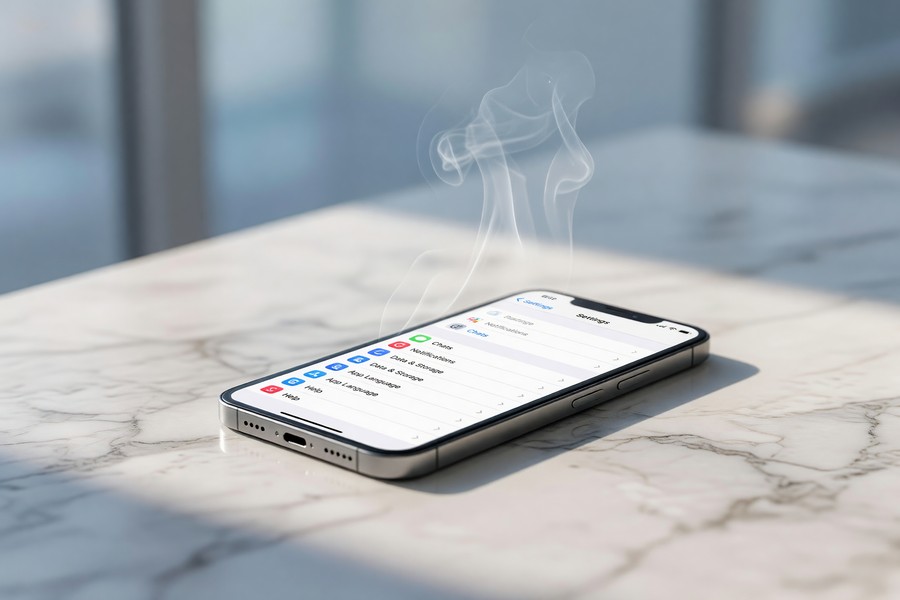
The simplest way to back up iMessage is to enable “Messages in iCloud” under Settings > Apple ID > iCloud on your iPhone. This syncs your entire message thread in real time and restores automatically on any new Apple device signed into the same Apple ID.
Using iTunes or Finder for a Full iPhone Backup
For a complete local backup that includes SMS and iMessage, connect your iPhone to a Mac or PC and use Finder (macOS Catalina and later) or iTunes (Windows). Select “Back Up Now” and choose “Encrypt local backup” to include message data. According to Apple’s iPhone backup documentation, encrypted local backups are the only type that include passwords and health data alongside messages.
This method is faster than cloud backup for large devices and does not require an internet connection. It is especially useful for users with limited iCloud storage.
What About Standard SMS on Android?
Android’s native SMS backup is handled through Google One. Ensure Google’s backup is active under Settings > System > Backup. Third-party apps like SMS Backup & Restore (available on Google Play) also allow you to export SMS threads as XML files to local storage or Google Drive.
Always trigger a manual backup the night before your phone switch — do not rely solely on the last scheduled automatic backup. Automatic backups can be delayed by low battery, poor Wi-Fi, or storage limits, leaving your most recent conversations unprotected.
How Do You Back Up Telegram and Signal Messages?
Telegram requires no manual backup — all messages are stored on Telegram’s own servers and sync instantly when you log in on a new device. Signal, by contrast, requires a deliberate device-transfer process because it does not use cloud storage at all.
Telegram: No Backup Needed (With One Exception)
Telegram’s cloud-based architecture means your chat history is always accessible from any device. The one exception is Secret Chats, which are stored only on the device where they were created and cannot be transferred. Per the Telegram FAQ on data storage, Secret Chat messages are deleted from Telegram’s servers the moment both devices receive them.
If you use Secret Chats regularly, screenshot important content before switching phones — there is no automated backup solution for this chat type.
Signal: Device-to-Device Transfer
Signal’s transfer tool is found under Settings > Chats > Transfer or Restore Account. Both your old and new phones must have Signal installed and be connected to the same Wi-Fi network. The process typically completes in under 10 minutes for most users, per Signal’s official transfer documentation.
For users who prioritize privacy, Signal is widely recognized as one of the most secure messaging apps available. Our review of the best encrypted messaging apps for privacy ranks Signal at the top for users who cannot compromise on message security.
Signal has over 40 million monthly active users as of 2024, according to Business of Apps’ Signal statistics page — all of whom must use the device-transfer method to move messages when upgrading phones.
What Happens to Your Chat History When Switching Between Android and iPhone?
Cross-platform transfers are the hardest scenario. WhatsApp is the only major app with an official Android-to-iPhone transfer tool; most other apps require third-party software or manual exports. Apple’s Move to iOS app handles SMS and contacts but does not migrate third-party app data.
WhatsApp: Android to iPhone (Official Method)
WhatsApp launched its official cross-platform transfer tool in 2021. To use it, install Move to iOS on your Android device, follow the setup prompts on your new iPhone, and select WhatsApp data when given the option. According to WhatsApp’s cross-platform transfer FAQ, this requires both phones to be on the same Wi-Fi network and your WhatsApp version to be fully updated.
The transfer moves messages, photos, videos, and voice messages — but not call logs or display name changes.
iPhone to Android: Samsung Smart Switch
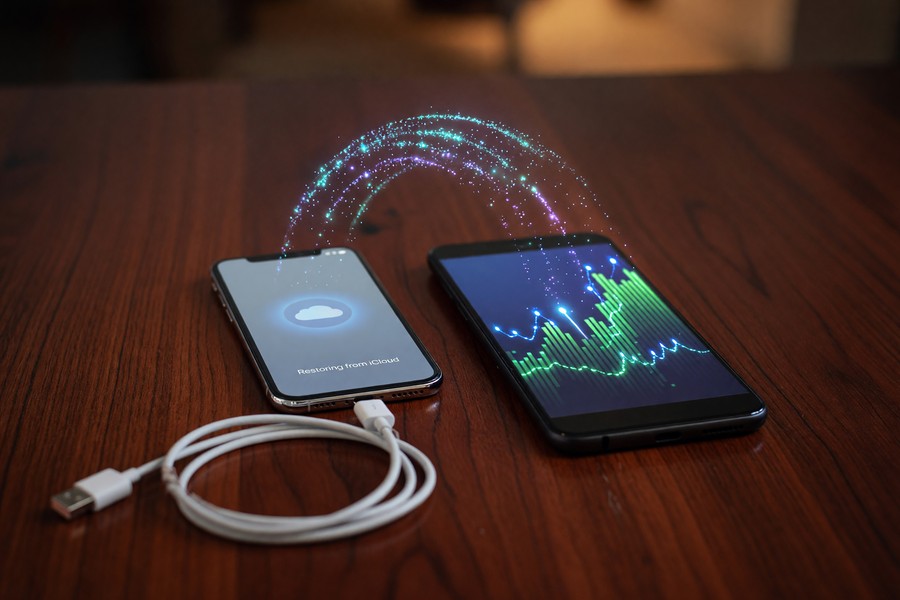
Samsung offers Smart Switch, which can migrate WhatsApp data from iPhone to Samsung Galaxy devices. For non-Samsung Android phones, WhatsApp provides a manual export option: Settings > Chats > Export Chat, which saves a thread as a .txt file with optional media attachments. This is useful for archiving specific conversations but does not restore live in-app functionality on the new device.
Which Backup Method Is Right for Each App?
The right backup method depends entirely on which app you use and which phones you are switching between. The table below summarizes the fastest and most reliable approach for each major platform.
| App | Backup Method | Cloud Storage Used | Cross-Platform Support | Time to Backup |
|---|---|---|---|---|
| WhatsApp (Android) | Google Drive | Google One (15 GB free) | Yes (via Move to iOS) | 1–5 minutes |
| WhatsApp (iPhone) | iCloud Drive | iCloud (5 GB free) | Yes (via Smart Switch) | 1–5 minutes |
| iMessage | iCloud / iTunes / Finder | iCloud (5 GB free) | No (Apple only) | 2–10 minutes |
| Telegram | Automatic (server-side) | Telegram servers (unlimited) | Yes (all platforms) | 0 minutes |
| Signal | Device-to-device transfer | None (local only) | Yes (same OS required) | Under 10 minutes |
| SMS (Android) | Google One backup | Google One (15 GB free) | Partial (Android only) | 2–8 minutes |
| SMS (iPhone) | iCloud / Encrypted local | iCloud (5 GB free) | No (Apple only) | 2–10 minutes |
What Are the Most Common Backup Mistakes to Avoid?
The most common mistake is assuming the last automatic backup is recent enough. Automatic backups can fail silently due to storage limits, expired sessions, or poor connectivity — leaving a gap of days or weeks in your chat archive.
Not Verifying the Backup Before Resetting
Always confirm your backup completed successfully before wiping your old phone. In WhatsApp, the backup screen shows the date and size of the last successful backup. If the timestamp is more than 24 hours old, run a fresh manual backup. For iPhone users relying on iCloud, check that iCloud backup shows “Today” as the last backup date under Settings > Apple ID > iCloud > iCloud Backup.
If you have ever needed to recover messages after the fact, our guide on how to recover deleted Snap messages covers retrieval strategies — but prevention through proper backup is always the better approach.
Ignoring Storage Limits
A backup that runs out of cloud storage mid-process is incomplete and often silent about the failure. Google provides 15 GB free across Gmail, Google Photos, and Drive. Apple provides only 5 GB free per Apple ID. Users with large media libraries should upgrade their storage plan or use a local (computer-based) backup before their phone switch.
WhatsApp backups stored on Google Drive do not count against your Google Drive storage quota as of Google’s current policy — making it one of the most cost-effective backup options for heavy messaging users, according to WhatsApp’s Google Drive backup FAQ.
Forgetting Third-Party Messaging Apps
Users focused on WhatsApp often forget other active messaging threads. Apps like Facebook Messenger, Viber, and Discord each have separate backup or export procedures. Messenger stores messages on Meta’s servers and syncs automatically, but local cache (including some media) may not transfer. Check each app’s settings individually before your switch.
For users managing messaging across a team or business context, our breakdown of the best messaging apps for business teams includes storage and backup considerations for each platform.
“The single biggest data loss mistake users make during a phone upgrade is trusting scheduled backups without verifying them. A backup that failed three days ago gives you no protection today. Always trigger a manual backup and confirm the timestamp before you wipe the device.”
Frequently Asked Questions
Can I back up chat history without using cloud storage?
Yes. Both iPhone and Android support local backups via a computer. iPhone users can use Finder or iTunes to create an encrypted local backup that includes iMessage and SMS data. Android users can use third-party apps like SMS Backup & Restore to save chat archives directly to their device or a USB drive.
Will my WhatsApp chats transfer automatically when I get a new phone?
Only if you have cloud backup enabled before switching. WhatsApp does not transfer automatically — you must manually back up to Google Drive or iCloud first, then restore during setup on your new device. Without a prior backup, chats are not recoverable.
How do I back up chat history from iMessage on iPhone?
Enable “Messages in iCloud” under Settings > Apple ID > iCloud, or perform a full iPhone backup using Finder or iTunes with “Encrypt local backup” checked. The encrypted option is required to include message data in a computer backup. On your new iPhone, sign in with the same Apple ID to restore all messages.
Can I transfer Signal messages to a new phone?
Yes, but only using Signal’s built-in device-transfer tool, which requires both phones on the same Wi-Fi network. Signal does not support cloud backup by design. Open Settings > Chats > Transfer or Restore Account and follow the prompts. The full transfer typically completes in under 10 minutes for average users.
What happens to Telegram messages when I get a new phone?
Standard Telegram chats restore automatically when you log in on a new device — no backup step is needed. The exception is Secret Chats, which are stored only on the originating device and cannot be recovered. Always check whether you use Secret Chats before switching phones.
Does Google back up SMS messages on Android?
Yes. Google’s built-in backup service (enabled under Settings > System > Backup) saves SMS and MMS messages to Google One. The free tier includes 15 GB of combined storage. When you sign in to a new Android device with the same Google account, SMS history can be restored during setup.
How long does it take to back up chat history?
Most backups complete in 1 to 10 minutes depending on the app, the size of your chat archive, and your internet speed. WhatsApp typically backs up in under 5 minutes for average users. Signal’s device-to-device transfer takes under 10 minutes over local Wi-Fi. A full encrypted iPhone backup via iTunes or Finder may take 10 to 30 minutes for devices with large storage.
Sources
- WhatsApp — How to Back Up Chats to Google Drive (Android)
- Apple Support — Use Messages in iCloud
- Apple Support — Back Up iPhone Using iTunes or Finder
- Signal Support Center — Transfer or Restore Account
- Telegram — FAQ: Where Does My Data Live?
- Google — Back Up or Restore Data on Android
- Statista — Most Popular Global Mobile Messenger Apps (2024)
- Business of Apps — Signal Statistics and User Data (2024)
- WhatsApp — Move Chats from Android to iPhone
- Backblaze — The 3-2-1 Backup Strategy Explained