
Fact-checked by the SnapMessages editorial team
Quick Answer
You can schedule text messages on Android natively using Google Messages, which has offered built-in scheduling since 2019. Open a conversation, compose your message, long-press the send button, and select a date and time. As of July 2025, this feature works on any Android device with Google Messages installed — no third-party app required.
Learning how to schedule text messages Android style has become dramatically easier since Google built scheduling directly into Google Messages, which is now the default SMS app on Android devices running more than 72% of the global mobile market. The feature requires no extra permissions, no subscriptions, and no side-loaded APKs — just the app most Android phones already use by default.
This matters right now because many users still believe scheduling texts requires a third-party tool, leaving them exposed to unnecessary app permissions and potential privacy risks. In this guide, you will learn exactly how to schedule texts using Google Messages, what limitations exist, and which alternative native options work when Google Messages is not your default app.
Key Takeaways
- Google Messages has supported scheduled SMS and RCS messages since 2019, requiring no third-party app (9to5Google, 2019).
- Android holds a 71.8% share of the global smartphone OS market as of early 2025, making native Android features relevant to the majority of mobile users (StatCounter, 2025).
- Scheduled messages in Google Messages can be set up to 1 year in advance and can be edited or cancelled at any time before the send time (Google Messages Help, 2024).
- Samsung’s native Messages app also includes a built-in schedule feature on Galaxy devices running One UI 3.0 and later, covering hundreds of millions of Samsung handsets (Samsung Support).
- Third-party SMS scheduling apps request an average of 6–8 sensitive permissions, including contacts and call logs, according to Android app permission audits — a risk the native method entirely avoids (Android Authority).
In This Guide
- Does Android Have a Native Text Scheduling Feature?
- How Do You Schedule a Text in Google Messages Step by Step?
- How Do You Edit or Cancel a Scheduled Message on Android?
- Does Samsung Messages Have a Built-In Schedule Feature?
- How Does Google Messages Scheduling Compare to Samsung Messages?
- What Are the Limitations of Scheduling Texts Without a Third-Party App?
- Are There Privacy Benefits to Using the Native Method?
Does Android Have a Native Text Scheduling Feature?
Yes — Android supports native text message scheduling through Google Messages, the platform’s default messaging app, without requiring any additional software. Google introduced this capability quietly in mid-2019, and it has been refined through multiple updates since.
The feature is embedded in the compose interface and works for both standard SMS and RCS (Rich Communication Services) messages. If you are unfamiliar with the difference between these two formats, our breakdown of SMS vs RCS explains exactly how each protocol functions and why it matters for scheduling.
Which Android Devices Support This Feature?
Google Messages scheduling is available on any Android device where the app is installed and set as the default SMS handler. This includes Pixel phones, most non-Samsung Android devices, and Samsung Galaxy handsets that use Google Messages instead of Samsung’s own app.
You can download or update Google Messages from the Google Play Store at no cost. The scheduling feature appears automatically — there is no toggle to enable in settings.
Google Messages has been installed on Android devices more than 1 billion times via the Google Play Store, making it one of the most widely distributed messaging clients in the world. Its built-in scheduling feature is therefore available to an enormous portion of Android users at no extra cost.
How Do You Schedule a Text in Google Messages Step by Step?
Scheduling a message in Google Messages takes fewer than 30 seconds once you know where to look. The trigger is a long-press on the send button — not a menu item — which is why many users miss it entirely.
Step-by-Step Instructions
- Open Google Messages on your Android device.
- Open an existing conversation or start a new one by tapping the compose icon.
- Type your message in the text field as you normally would.
- Long-press the blue send button (do not tap it — press and hold for about one second).
- A pop-up will appear with suggested times such as “Later today,” “Tomorrow morning,” and “Tomorrow afternoon.”
- Tap “Pick date and time” to set a custom date and time up to one year in advance.
- Confirm by tapping “Schedule send.”
The message is now queued. You will see it displayed in the conversation thread with a clock icon and the scheduled timestamp, clearly distinguishing it from sent messages.
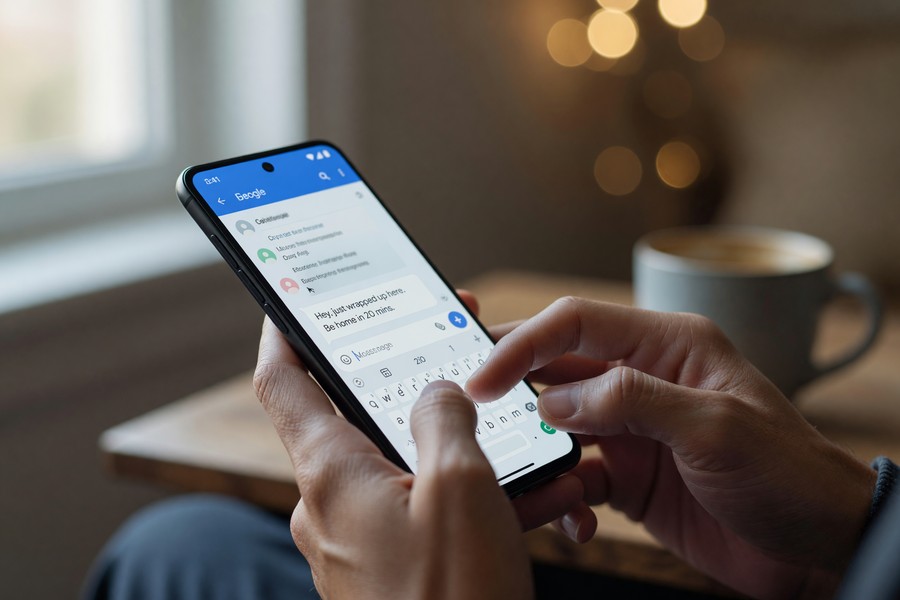
If the long-press on the send button does not trigger the scheduling pop-up, make sure your Google Messages app is updated to the latest version. Open the Google Play Store, search for “Messages by Google,” and tap “Update” if available. The scheduling feature requires a version released after June 2019.
How Do You Edit or Cancel a Scheduled Message on Android?
You can edit or cancel any scheduled message in Google Messages at any point before its send time. The message remains fully editable until the moment it is dispatched — a key advantage over some third-party tools that lock messages after scheduling.
How to Modify a Scheduled Message
- Open the conversation containing the scheduled message.
- Tap the scheduled message bubble — it will display a clock icon and the scheduled time.
- A menu will appear with two options: “Edit” or “Cancel send.”
- Select “Edit” to change the message content or reschedule the time.
- Select “Cancel send” to remove the scheduled message entirely.
Cancelled messages are not deleted from the thread — they revert to draft status, allowing you to revise and reschedule or discard them entirely. This workflow is described in detail in Google’s official Messages support documentation.
Does Samsung Messages Have a Built-In Schedule Feature?
Yes — Samsung Messages, the native messaging app on Galaxy devices, includes its own built-in scheduling feature that operates independently of Google Messages. This option is available on Samsung Galaxy handsets running One UI 3.0 or later, which covers devices launched from 2020 onward.
How to Schedule in Samsung Messages
- Open Samsung Messages (the default on Galaxy phones).
- Open or create a conversation and compose your message.
- Tap the “+” or attachment icon to expand the toolbar.
- Look for the calendar or clock icon — this is the schedule button.
- Set your desired date and time, then tap “Send.”
Samsung’s implementation is slightly more visible than Google’s, as the schedule option is surfaced in the toolbar rather than hidden behind a long-press gesture. Per Samsung’s official support page, this feature is available across the Galaxy S, A, and Note series running One UI 3.0 and above.
How Does Google Messages Scheduling Compare to Samsung Messages?
Both apps offer native scheduling with no third-party requirements, but they differ in discoverability, maximum scheduling window, and platform availability. The table below compares the two options directly.
| Feature | Google Messages | Samsung Messages |
|---|---|---|
| Schedule trigger | Long-press send button | Toolbar icon (calendar/clock) |
| Maximum advance scheduling | Up to 1 year | Up to 1 year |
| Preset time options | 3 presets + custom | Custom only |
| RCS support | Yes (SMS and RCS) | Yes (SMS and RCS on supported carriers) |
| Device compatibility | All Android devices | Samsung Galaxy only (One UI 3.0+) |
| Edit after scheduling | Yes — full edit and cancel | Yes — cancel only in most versions |
| Cost | Free | Free (pre-installed) |
“Scheduled messaging is one of those features that sounds niche but becomes genuinely essential once users discover it — especially for international time zones, business communications, and sensitive personal conversations that need careful timing. The fact that Google baked this into its default Android messaging client normalizes a behavior that previously required workarounds.”
What Are the Limitations of Scheduling Texts Without a Third-Party App?
Native scheduling on Android is reliable for most use cases, but it has specific constraints that users should understand before relying on it for time-sensitive communications. The most important limitation is device dependency: the message sends from your phone, which must be powered on and connected to a mobile network or Wi-Fi at the scheduled time.
Key Constraints to Know
- Phone must be on: If your Android device is powered off or in airplane mode when the scheduled time arrives, the message will not send until the device reconnects.
- No multi-recipient scheduling: Google Messages does not currently support scheduling a single message to multiple contacts simultaneously in one action.
- No recurring messages: Neither Google Messages nor Samsung Messages supports repeating or recurring scheduled texts natively — for example, a weekly reminder.
- Single message per schedule: Each scheduled message must be set up individually; there is no batch scheduling interface.
- App must remain default: If you change your default SMS app after scheduling, queued messages may not send as expected.
For users who need recurring messages or multi-recipient blasts, exploring the RCS protocol may open additional options. Our guide to what RCS messaging is and how it works covers the protocol’s evolving feature set in detail.
According to Android Authority’s app permission analysis, third-party SMS scheduling apps request an average of 6 to 8 sensitive Android permissions — including access to contacts, call logs, and device storage — compared to zero additional permissions required by the native Google Messages scheduling feature.
Are There Privacy Benefits to Using the Native Method?
Yes — using the built-in scheduling feature in Google Messages or Samsung Messages carries significantly fewer privacy risks than installing a third-party app. Third-party SMS tools often require broad permissions and, in some cases, route message data through external servers.
Why App Permissions Matter for SMS
When you grant a third-party app access to your SMS messages, that app can theoretically read all your texts — including one-time passwords (OTPs) used for two-factor authentication. This is not a hypothetical concern: the Federal Trade Commission has documented cases where poorly secured mobile apps exposed user data to unauthorized parties.
Native apps from Google and Samsung operate under the device manufacturer’s privacy policy and do not introduce new data-access vectors. Your messages stay on your device and are processed locally. If you are concerned about broader messaging privacy, our overview of how to tell if your messages are being monitored provides additional context on what to watch for.
What About Google’s Data Practices?
Google Messages does collect some usage metadata — such as message frequency and feature usage — as disclosed in Google’s Privacy Policy. However, message content is not read by Google for advertising purposes in Messages. For users who want to understand what metadata exists beyond message content, our explainer on what message metadata is and who can see it is worth reading alongside this guide.

Text message scams — known as smishing — are one of the fastest-growing forms of mobile fraud. Granting unknown apps access to your SMS inbox increases your exposure significantly. If you want to understand the risks involved, our guide to what smishing is and how to protect yourself covers the tactics attackers use and how to stay safe.
Related reading: Pro Android Hacks for Speeding Up Old Devices Without Root in 2026.
Frequently Asked Questions
Can you schedule text messages on Android without installing anything?
Yes. If your device already has Google Messages or Samsung Messages installed as the default SMS app, you can schedule texts natively with no additional downloads. Google Messages is pre-installed on most non-Samsung Android phones, while Samsung Messages is pre-installed on Galaxy devices.
What happens if my phone is off when a scheduled message is supposed to send?
The message will not send while the phone is powered off or disconnected. Google Messages will attempt to send the message as soon as your device comes back online. For time-critical messages, ensure your phone is powered on and connected before the scheduled time.
Can I schedule a group text message on Android?
Not directly with a single action in Google Messages. You can open a group conversation and schedule a message within that thread using the same long-press method, but you cannot schedule one message to multiple separate contacts simultaneously. Each individual thread requires its own scheduled message.
Does scheduling a text use SMS or RCS?
Google Messages will use RCS if the conversation is already an active RCS chat and both parties support it. If RCS is unavailable, it defaults to SMS. The scheduling feature works identically for both protocols. For a deeper comparison of the two, see our guide on SMS vs RCS differences.
Can I schedule text messages to send while I am asleep?
Yes — this is one of the most common use cases. As long as your phone is powered on and connected, a scheduled message will send at the designated time regardless of whether you are awake or actively using the device. Many users schedule birthday messages or international texts this way to account for time zone differences.
Does Google Messages scheduling work with all carriers?
Scheduling works with all carriers for SMS messages. For RCS, both the sender and recipient must be on carriers that support RCS, and the feature must be enabled. As of 2025, GSMA reports that RCS is supported by over 400 carriers globally, covering the vast majority of Android users.
Can I schedule a message to unsend or recall on Android?
No. Once a scheduled message sends at its designated time, it cannot be recalled natively in Google Messages or Samsung Messages. If you want to cancel it, you must do so before the send time. For information on message recall on other platforms, see our guide on how to unsend a message on iPhone and Android.
Sources
- Google — Schedule a message in Google Messages (Official Support)
- 9to5Google — Google Messages Gains Scheduled Send Feature (2019)
- Samsung Support — How to Schedule a Message in Samsung Messages
- StatCounter — Mobile Operating System Market Share Worldwide (2025)
- GSMA — RCS Messaging Country and Operator List
- Android Authority — Android App Permissions: What They Mean and How They Work
- Google — Privacy Policy (Messages and Google Products)
- Federal Trade Commission — Mobile Security Updates: Understanding the Issues






