
Fact-checked by the Snapmessages editorial team
You open your camera app, ready to snap a photo, and your phone throws that dreaded message at you: “Storage Almost Full.” Most people assume the only fix is to scroll through thousands of memories and start deleting. There are smarter ways to free up phone storage without sacrificing a single photo or video you care about.
According to Statista research on app sizes, the average smartphone user installs dozens of apps, many of which quietly accumulate gigabytes of cached data, offline files, and logs in the background. That invisible clutter is often the real culprit behind a full storage warning.
This guide gives you a practical, step-by-step breakdown of exactly how to reclaim space on your phone, covering cached data, messaging app bloat, duplicate files, cloud offloading, and more, all without touching your photo library.
Key Takeaways
- The average messaging app can store 1–5 GB of cached media and data without you realizing it.
- Clearing app cache on Android can recover hundreds of megabytes to several gigabytes in minutes.
- Enabling iCloud or Google Photos backup lets you remove local copies of photos while keeping them accessible.
- Streaming apps like Netflix and Spotify can hold 2–10 GB of offline content that is easy to delete and re-download.
- Duplicate photo cleaners can identify 10–30% of a photo library as redundant files on a typical device.
- Offloading unused apps on iPhone frees storage while preserving the app icon and data so you can restore instantly.
In This Guide
- Why Phones Fill Up So Fast
- Clear App Cache and Temporary Files
- Tackle Messaging App Bloat
- Use Cloud Storage to Offload Photos
- Remove Offline Downloads From Streaming Apps
- Offload or Remove Unused Apps
- Find and Delete Large Hidden Files
- Clean Up Duplicate and Redundant Files
- Build Ongoing Storage Habits
Why Phones Fill Up So Fast
Modern smartphones pack impressive cameras, but those cameras produce large files. A single iPhone 15 Pro photo in ProRAW format can be 50–75 MB. Even standard HEIC photos hover around 3–5 MB each, and 4K video eats through gigabytes in minutes.
Apps are the other major offender. Every app you install doesn’t just take up its base size, it grows over time as it stores cached content, user data, and downloaded assets. Many people never realize how large their apps have become until it’s too late.
The Hidden Culprits Most People Ignore
System files, app logs, and temporary files accumulate silently in the background. Your browser stores cached versions of every website you visit. Your email app may download every attachment locally by default.
Your Recently Deleted albums and folders also hold onto files for 30 days on both iPhone and Android. That bin is a ghost drawer full of storage you’ve “deleted” but haven’t actually recovered yet.
On iPhones, the “Other” or “System Data” category in storage settings can consume anywhere from 5 GB to over 20 GB. Much of it is reclaimable cache and temporary files, not permanent data.
Clear App Cache and Temporary Files
App cache is one of the easiest wins when you want to free up phone storage quickly. It’s temporary data your apps store to load faster, but it builds up and rarely clears itself.
On Android, you can clear cache app-by-app. Go to Settings > Apps > [App Name] > Storage > Clear Cache. Samsung, Pixel, and other Android devices also include a built-in storage cleaner to batch-clear cache across all apps at once.
Clearing Cache on iPhone
iOS doesn’t give you a global “clear all cache” button. You’ll need to clear cache within individual apps, Safari, for instance, sits under Settings > Safari > Clear History and Website Data, or delete and reinstall apps to wipe their stored data.
Google Chrome on iPhone has its own in-app cache-clearing option under Settings. Check your most-used apps individually; the savings add up fast.
After clearing cache, restart your phone before checking your storage stats. The operating system sometimes needs a reboot to fully register and display freed space.
Android also offers Settings > Storage > Free Up Space, a guided cleanup tool that highlights cached data, large files, and unused apps in one place.
Tackle Messaging App Bloat
This is one of the most underestimated storage drains on any phone. Messaging apps like WhatsApp, Telegram, iMessage, and Snapchat automatically download photos, videos, voice messages, and GIFs directly to your device.
Over time, especially in active group chats, this media accumulates into gigabytes of data you’ve probably forgotten about. A single busy WhatsApp group can generate hundreds of megabytes of downloaded content per month.
How to Clear Media From Messaging Apps
In WhatsApp, go to Settings > Storage and Data > Manage Storage. You’ll see exactly how much space each chat is consuming, and you can select and delete media in bulk. Turning off auto-download there stops future files from saving automatically.
In Telegram, go to Settings > Data and Storage > Storage Usage. Telegram lets you set a maximum local cache size, so it automatically deletes old files when it hits your limit. That’s a genuinely useful feature worth enabling.
WhatsApp reports that users send over 100 billion messages per day globally, many containing images and videos. Active users in just a few group chats can accumulate 2–4 GB of auto-downloaded media within a year.
If you regularly switch between messaging platforms or back up your chats before moving to a new phone, learning how to back up your chat history before switching phones can help you clean up old data confidently without fear of losing important conversations.
iMessage Attachments You Forgot About
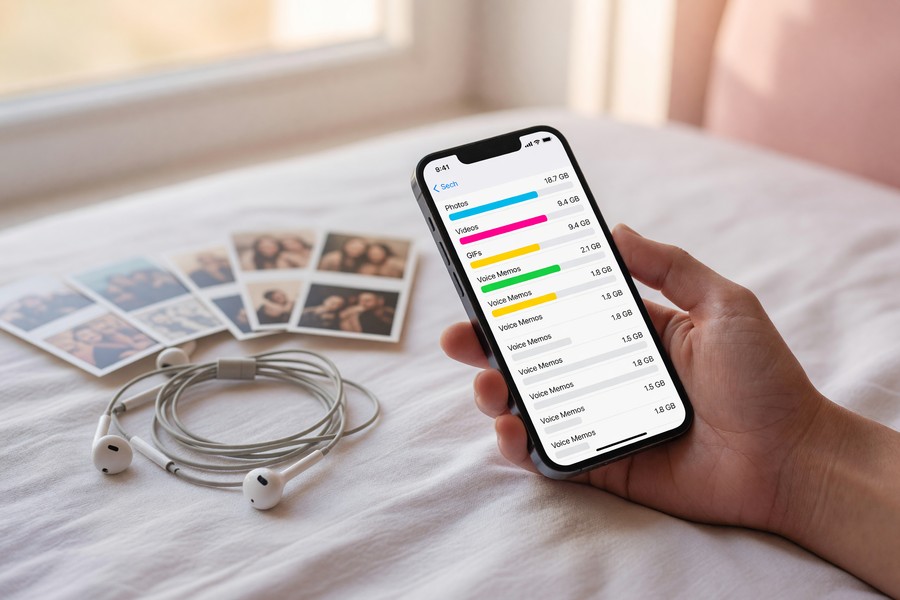
Go to Settings > General > iPhone Storage > Messages for a breakdown of attachments including photos, videos, GIFs, and voice messages stored in your iMessages. Tap “Review Large Attachments” to delete the biggest files first.
You can also set Messages to auto-delete older conversations after 30 days or 1 year instead of keeping them forever. That one setting alone can prevent significant accumulation going forward.
Use Cloud Storage to Offload Photos
Your photos don’t have to live on your device to stay accessible. Cloud services let you store your full library online while keeping only compressed thumbnails on your phone, giving you the best of both worlds.
Google Photos offers free high-quality backup (with some compression) and an “Optimize Storage” option that removes full-resolution copies from your device once they’re safely backed up. For Android users, this is one of the fastest ways to free up phone storage without deleting anything permanently.
iCloud Photos on iPhone
Enabling iCloud Photos with “Optimize iPhone Storage” does the same thing. Your full-res photos live in iCloud while your phone stores lightweight previews. When you open a photo, it streams the full version from the cloud.
Just make sure you have enough iCloud storage for your library. Apple’s free tier is only 5 GB, but 50 GB costs just $0.99/month, often well worth it for the space you reclaim on your device.
There is a real caveat here worth naming: cloud photo backup only works as well as your internet connection. If you’re in an area with limited data or you’re often offline, accessing those “optimized” photos can be frustratingly slow. Users who travel frequently to low-connectivity areas may want to keep full-resolution copies of a core set of photos stored locally rather than offloading everything.
Google One’s free tier includes 15 GB of storage shared across Gmail, Drive, and Google Photos. Upgrading to 100 GB costs around $1.99/month and covers most users’ full photo and video libraries.
| Cloud Service | Free Storage | Cost for 100 GB | Best For |
|---|---|---|---|
| Google Photos | 15 GB (shared) | ~$1.99/month | Android users, cross-platform |
| iCloud | 5 GB | $0.99/month (50 GB tier) | iPhone and Apple ecosystem users |
| Amazon Photos | Unlimited photos (Prime members) | Free with Prime | Amazon Prime subscribers |
| OneDrive | 5 GB | ~$1.99/month | Microsoft 365 users |
Remove Offline Downloads From Streaming Apps
Streaming apps like Netflix, Spotify, Apple Music, YouTube Premium, and Audible let you download content for offline listening or watching. That’s a great feature, until you forget those downloads are sitting on your phone taking up space.
A single Netflix TV season downloaded in HD can take up 3–7 GB. A handful of Spotify playlists in high-quality download mode can easily consume 1–2 GB. These files accumulate without any obvious warning.
How to Remove Downloaded Content
In Netflix, go to Downloads > See All Downloads and delete titles you’ve already watched. In Spotify, toggle off “Download” for any playlist or album and the files delete automatically. Most streaming apps have a similar toggle in their library or downloads section.
The key advantage of this approach: you lose nothing permanently. If you want to watch or listen again, just re-download on Wi-Fi. Streaming downloads are one of the safest categories to clear when you need space fast.
Offload or Remove Unused Apps
Most people have a graveyard of apps they installed once and never opened again. Those apps aren’t just wasting space, some run background processes and contribute to cached data growth.
The iPhone’s Offload Unused Apps feature (Settings > App Store > Offload Unused Apps) automatically removes apps you haven’t used in a while, while keeping their data and icons intact. Tap the icon and it reinstalls in seconds.
Manually Auditing Your App Library
Go to your storage settings on either platform and sort apps by size. You’ll almost always find a few surprises, apps you rarely open that have ballooned to 500 MB or more due to accumulated data.
The Google Play Store has a built-in feature that flags apps you haven’t opened in over three months. These are the easiest candidates for deletion.
Deleting an app and its data is permanent on most platforms. Before removing a banking, health, or productivity app, make sure your data is synced to the cloud or exported. Some apps don’t automatically restore user data when reinstalled.
While you’re managing your apps, it’s also a good moment to review which ones have unnecessary permissions. Our guide on how to secure your personal data covers how to audit app permissions and reduce your digital footprint at the same time.
Find and Delete Large Hidden Files
Most phones have a built-in file manager or storage analyzer that lets you sort files by size. This is one of the fastest ways to spot big items that are quietly consuming your storage without serving any current purpose.
Check Settings > General > iPhone Storage and scroll through the app list. Tap any app to see how much space its “Documents and Data” consumes. Android users can turn to Files by Google, a free app from Google, for a sorted view of their largest files.
Common Large File Offenders
Old podcast episodes downloaded in your podcast app. PDF files emailed to you months ago. ZIP files or installer packages you downloaded and already used.
Files by Google is particularly useful because it not only shows large files but actively suggests deletions, blurry photos, old screenshots, duplicate downloads, with one tap to remove them.
Screenshots are one of the top storage consumers on most phones. The average smartphone user takes hundreds of screenshots per year, and most are never revisited. A dedicated screenshot cleanup every few weeks can recover 200–500 MB for active users.
Clean Up Duplicate and Redundant Files
Every time you edit a photo, many apps save both the original and the edited version. Every burst shot creates dozens of nearly identical images. These duplicates are silent storage thieves.
Duplicate photo cleaners like Gemini Photos (iOS) or Google Photos’ built-in suggestion tool scan your library for near-identical images and let you keep only the best version. Some users recover 5–10 GB just from this step alone.
Burst Photos and Live Photos
iPhone’s burst mode captures up to 10 frames per second. A few seconds of burst shooting can create 30–50 photos. The Photos app lets you select a “favorite” from a burst and delete the rest, go to Albums > Bursts to manage them.
Live Photos are worth reviewing too. Each one stores a 3-second video clip alongside the still image, roughly doubling its file size. If you have thousands of Live Photos, converting the ones you don’t care about to still images can meaningfully reduce your library size.
Build Ongoing Storage Habits
One-time cleanups are great, but a few simple habits prevent you from reaching the “storage full” panic again. Think of it as light maintenance, like emptying a trash can before it overflows.
Set a calendar reminder to do a storage audit once a month. It takes 10–15 minutes and typically frees up several hundred megabytes to a few gigabytes, depending on how actively you use your phone.
Automatic Tools That Do the Work for You
Both iPhone and Android have automation tools that help. Auto-Delete Old Conversations in Messages, Offload Unused Apps in the App Store settings, and iCloud’s Optimize Storage all work quietly in the background once you turn them on.
Google Photos’ Free Up Space feature removes photos from your device that are already safely backed up to the cloud. Running it monthly takes one tap and consistently keeps your gallery from overflowing. For more context on how messaging apps specifically handle your data and storage footprint, understanding the difference between SMS and RCS messaging can help you make smarter choices about which apps to rely on.
Before any major trip or event, do a quick storage sweep so you’re never mid-photo-shoot when the “full” warning hits. Clear your streaming downloads, run Google Photos’ free-up-space tool, and clear your browser cache. It takes five minutes.
If you’re also thinking about how your apps handle your personal data behind the scenes, it’s worth reading about what message metadata is and who can see it, because cleaning up storage isn’t just about space, it’s about knowing what data your phone is holding onto.

Your Action Plan
-
Empty your Recently Deleted albums
Open your Photos app and go to Albums > Recently Deleted. Tap “Delete All” to permanently remove files you’ve already decided to let go. Check your gallery’s trash or bin folder on Android and do the same. This is the fastest single action to free up phone storage right now.
-
Clear app cache on Android (or Safari on iPhone)
On Android, go to Settings > Storage > Free Up Space and clear cached data. For iPhone, go to Settings > Safari > Clear History and Website Data. Then check your largest apps individually for in-app cache-clearing options.
-
Enable cloud photo backup and optimize local storage
Turn on Google Photos backup on Android or iCloud Photos on iPhone, then enable “Free Up Space” or “Optimize iPhone Storage.” This removes full-resolution local copies of photos that are already safely backed up in the cloud.
-
Clear media from your messaging apps
Open WhatsApp, Telegram, iMessage, or whatever messaging apps you use and review their storage or data settings. Delete auto-downloaded media from group chats in bulk. Turn off auto-download for future media to prevent the problem from recurring.
-
Delete offline downloads from streaming apps
Open Netflix, Spotify, Apple Music, and any other streaming apps and remove all downloaded content you’ve already consumed. These files are safe to delete, you can always re-download on Wi-Fi when needed.
-
Offload or delete unused apps
Go to your storage settings and sort apps by size. Delete or offload any app you haven’t opened in the past 30 days. Enable Offload Unused Apps on iPhone to automate this process going forward.
-
Run a duplicate photo cleanup
Use Google Photos’ suggestions, the built-in Bursts album on iPhone, or a third-party app like Gemini Photos to find and remove duplicate and near-duplicate images. Review burst shots especially, they tend to hold dozens of redundant frames per burst.
-
Schedule a monthly storage check
Set a recurring monthly reminder to spend 10 minutes reviewing your storage. Consistent small cleanups prevent the “storage full” crisis from ever happening again. Add it to your calendar now so it actually happens.
Frequently Asked Questions
Does clearing cache delete my personal data or app settings?
No. Cache is only the temporary data apps generate to speed up loading. Your login information, settings, and personal data stored in the app are not affected. If you clear an app’s “data” (a separate option on Android), that will reset the app, but cache-only clearing is safe.
How do I free up phone storage without losing my photos?
Back up photos to the cloud first, then remove the local copies. Enable Google Photos on Android or iCloud Photos on iPhone with the “Optimize Storage” option turned on. Your photos remain fully accessible in the cloud, your phone just stores lightweight versions instead of full-resolution files.
Why does my phone say storage is full when I have apps showing available space?
The operating system requires a minimum amount of free space to function properly, even if technically some space remains. System files and caches also occupy space that isn’t clearly attributed to any single app. A reboot after cleaning often helps the OS recalculate its storage figures accurately.
Is it safe to use third-party storage cleaner apps?
Some are reputable, but many “cleaner” apps on the Play Store are low-quality or ad-heavy and don’t actually do more than your phone’s built-in tools. On Android, Google’s own Files by Google app is free, trustworthy, and more effective than most third-party alternatives. The built-in storage management tools in iPhone’s Settings are sufficient for most users.
How much storage should I keep free on my phone?
Keep at least 10–15% of your total storage free at all times. For a 128 GB phone, that means keeping 13–19 GB available. Below this threshold, phones can slow down noticeably because the OS needs working space to process tasks and updates.
Can I store photos on an SD card instead of phone storage?
On many Android phones, yes, if your device has a microSD card slot. You can move photos, videos, and some app data to the card via your file manager or camera settings. iPhones do not support external SD card storage, so cloud backup is the primary option for iPhone users.
Why does WhatsApp use so much storage?
WhatsApp automatically downloads photos, videos, audio messages, and documents sent to you in all chats and groups by default. In active group chats, this can accumulate gigabytes of media very quickly. Go to Settings > Storage and Data > Manage Storage to review and bulk-delete old media, and turn off auto-download under the same settings menu.
Does deleting text messages free up storage?
Yes, especially if those messages contain photos, videos, or voice notes. Plain text messages are small, but multimedia attachments in iMessage, WhatsApp, or SMS can consume significant space over time. Deleting long conversation threads with heavy media attachments is a worthwhile step in any storage cleanup.
How do I find what’s using the most storage on my phone?
Go to Settings > General > iPhone Storage for a visual breakdown by category and a ranked list of apps by size. On Android, go to Settings > Storage, then tap “Free up space” or use Files by Google for a detailed sorted view of large files and unused apps.
Will my phone slow down if storage is nearly full?
Yes, significantly. When storage falls below roughly 10% of total capacity, the operating system struggles to create temporary files needed for everyday tasks like taking photos, processing updates, and running apps. Lag, slow camera response, and app crashes are common symptoms of critically low storage.
Does cloud photo backup work if I’m often offline or have limited data?
Not reliably. The “Optimize Storage” approach, where your phone keeps only small previews and streams full photos on demand, requires a decent connection to view your own images. If you travel frequently to low-connectivity areas, or if your mobile data plan is limited, offloading your entire library to the cloud can leave you unable to access photos when you need them most. In that case, consider keeping your most important photos stored locally and only offloading older or less critical content.
What happens to my WhatsApp or Telegram data if I delete and reinstall the app?
On WhatsApp, your chat history and media are backed up to Google Drive (Android) or iCloud (iPhone) if you’ve enabled backups. Reinstalling and restoring from that backup brings most of your data back. Telegram stores your messages on its own servers, so reinstalling simply re-syncs your account. The key risk is media: locally saved photos and videos that were never backed up elsewhere will be lost permanently if you delete the app without exporting them first.