Fact-checked by the Snapmessages editorial team
Quick Answer
The best smart home hubs in 2025 include the Amazon Echo (4th Gen), Google Nest Hub Max, Samsung SmartThings Hub, Apple HomePod mini, and Home Assistant Yellow. To get started, identify your existing devices, choose a compatible hub, install the app, and pair your gadgets, most setups take under 30 minutes and can control 100+ devices from a single app.
Finding the best smart home hub really comes down to one question: does this device actually talk to the gear you already own?, there are over 600 million connected devices in U.S. homes alone, according to Statista’s smart home device forecast. Without something acting as the brain of that operation, you end up juggling a dozen apps and hoping nothing breaks on a Friday night.
The timing matters more than it used to. The Matter 1.3 standard dropped in 2024 and reshuffled compatibility across every major platform. Hubs that felt solid a year ago may have new blind spots, or in some cases, surprising new capabilities. Pick the wrong platform today and you could find yourself trapped in a walled garden with limited upgrade paths and a growing pile of devices that refuse to cooperate.
This guide covers anyone setting up their first smart home, or anyone staring at four separate apps wondering how it got this complicated. By the end, you’ll know which hub fits your situation, how to get it running, and which mistakes are worth avoiding before you spend a dollar.
Key Takeaways
- The global smart home hub market was valued at $7.9 billion in 2023 and is projected to reach $19.4 billion by 2030, according to Grand View Research.
- The Matter protocol, now at version 1.3, allows a single hub to control devices across Apple, Google, Amazon, and Samsung ecosystems, eliminating the need for multiple apps.
- Amazon Alexa supports over 140,000 smart home devices, making the Echo lineup the broadest compatibility option available, per Amazon’s developer documentation.
- Home Assistant, the open-source platform, integrates with over 3,000 services and device brands, more than any commercial hub, according to the Home Assistant integrations directory.
- Samsung SmartThings supports Zigbee, Z-Wave, Wi-Fi, and Matter simultaneously, making it the most protocol-versatile commercial hub in 2025.
- Security risks are real: 57% of IoT devices are vulnerable to medium- or high-severity attacks, according to Palo Alto Networks’ IoT Threat Report, making hub firmware updates a non-negotiable step.
In This Guide
- Step 1: What Is a Smart Home Hub and Do I Actually Need One?
- Step 2: Which Smart Home Hub Works With My Existing Devices?
- Step 3: What Are the Best Smart Home Hubs Available in 2025?
- Step 4: How Do I Set Up a Smart Home Hub From Scratch?
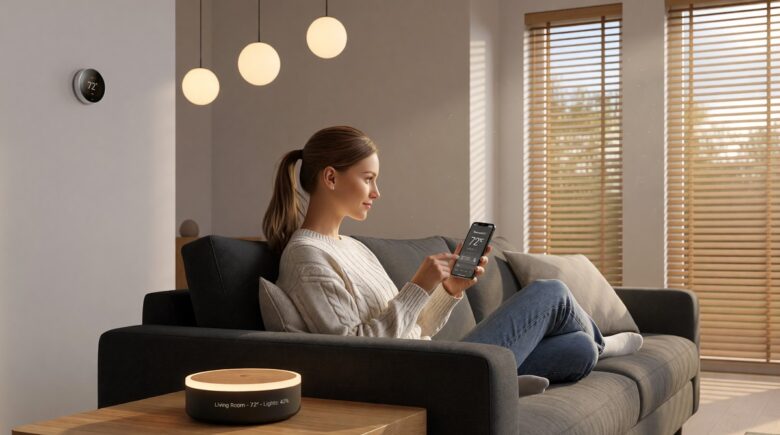
- Step 5: How Do I Control All My Smart Home Devices From One App?
- Step 6: How Do I Keep My Smart Home Hub and Devices Secure?
- Frequently Asked Questions
Step 1: What Is a Smart Home Hub and Do I Actually Need One?
A smart home hub is a central device or software platform that connects, coordinates, and controls smart home devices, often across multiple wireless protocols, from a single interface. Without one, every device brand demands its own app, and your “smart” home starts feeling anything but.
What a Hub Actually Does
Think of it as a universal translator for your house. Your smart bulbs might speak Zigbee. Your thermostat might be running Z-Wave. A good hub speaks both languages and funnels everything into one command structure: one app, one voice assistant, one place to look when something stops working at midnight.
There’s another piece that doesn’t get talked about enough: local processing. A hub that runs automations directly on your home network doesn’t need to phone home to a cloud server every time you ask it to dim the lights. Your automations keep firing during internet outages. Cloud-only devices can’t say the same, cut the internet and they go dark.
Do You Need a Dedicated Hub?
If you’ve got fewer than five smart devices, all from the same brand, probably not. The manufacturer’s app will do just fine. But once you start mixing brands, or your device count creeps past ten, a hub stops being a luxury and starts being the thing that keeps you sane. The complexity compounds fast, and a hub is what flattens it back out.
The average U.S. smart home owner uses 8 different apps to manage their connected devices, according to research by Parks Associates. A single hub can consolidate all of these into one interface.
Step 2: Which Smart Home Hub Works With My Existing Devices?
The best smart home hub for your setup is the one that natively supports the wireless protocols your devices already use. Buying a hub first and checking compatibility later is the single biggest mistake new smart home owners make.
The Major Wireless Protocols Explained
Four protocols are worth understanding before you spend anything on a hub:
- Zigbee: Low-power mesh network used by Philips Hue, IKEA Tradfri, and many Aqara sensors.
- Z-Wave: Long-range mesh protocol favored by Schlage locks, Honeywell thermostats, and GE switches.
- Wi-Fi: Direct home network connection used by Nest, Ring, TP-Link Kasa, and Wyze devices.
- Matter: The universal standard backed by Apple, Google, Amazon, and Samsung, designed to make devices work across all platforms simultaneously.
Thread is also worth a mention. It’s the underlying mesh network that many Matter devices run on. Hubs with a Thread Border Router built in, like the Apple HomePod mini or Google Nest Hub Max, tend to deliver noticeably faster, more reliable Matter connectivity. It’s a small hardware detail that makes a real difference in day-to-day use.
How to Check Compatibility Before You Buy
Write down every smart device you own, then find its protocol, it’s usually printed on the box or buried in the device’s app settings. Cross-reference that list against the hub’s official compatibility page. The Connectivity Standards Alliance’s certified product database is particularly useful, it lists every Matter-certified device and is fully searchable.
Not all devices labeled “Works with Alexa” or “Works with Google Home” support local automations. Many still require an active internet connection for every command. Always check whether a hub supports local processing if reliability during outages matters to you.
Step 3: What Are the Best Smart Home Hubs Available in 2025?
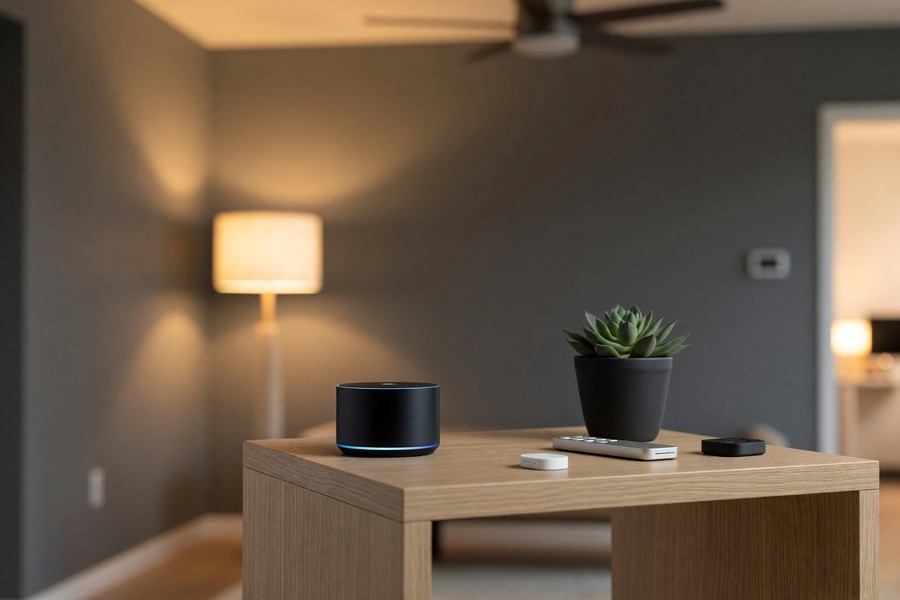
The best smart home hubs in 2025 span a wide range, different prices, different ecosystems, different amounts of setup patience required. Five platforms rose to the top, each built for a different kind of user.
The Top Five Hubs Reviewed
1. Amazon Echo (4th Gen), Best for Broad Compatibility
The Echo 4th Gen packs a built-in Zigbee hub and full Matter support into one tidy cylinder. It’s the most plug-and-play option for anyone just getting started. Alexa works with over 140,000 devices from more than 10,000 brands, the deepest compatibility catalog in the category. At roughly $99, it’s hard to argue with on price. The downside worth naming: Alexa’s automations still rely heavily on Amazon’s cloud, so a prolonged outage on Amazon Web Services can leave your routines unresponsive in ways that purely local hubs simply avoid.
2. Samsung SmartThings Hub (v3), Best for Multi-Protocol Homes
SmartThings is the only major commercial hub that handles Zigbee, Z-Wave, Wi-Fi, and Matter all at once, natively. No bridges, no workarounds. If you’ve got older legacy devices sitting alongside new Matter hardware, this is the hub built for exactly that mix. The SmartThings app manages up to 200 devices per location, which covers the vast majority of households comfortably.
3. Google Nest Hub Max, Best for Visual Control
The Nest Hub Max brings a 10-inch touchscreen to the smart home hub conversation, which sounds like a gimmick until you’ve actually used it to check camera feeds or see who’s at the door without reaching for your phone. It also serves as a Thread Border Router for Matter devices. If your life already runs on Google Calendar, YouTube, and Google Cameras, the integration feels genuinely tight.
4. Apple HomePod mini, Best for iPhone Users
At $99, the HomePod mini quietly does two jobs: HomeKit hub and Thread Border Router. No extra hardware needed. Remote access and automations for all HomeKit and Matter devices work out of the box. Privacy-conscious users tend to appreciate that Apple handles Siri requests on-device wherever it can, your commands aren’t making a detour through a distant server farm.
5. Home Assistant Yellow, Best for Advanced Users
Home Assistant Yellow is open-source, fully local, and integrates with over 3,000 platforms, more than any commercial hub on the market. No subscription fees, no cloud dependency, no corporate roadmap dictating what you can or can’t automate. The trade-off is setup time. Zigbee support is baked in via an onboard radio chip, but plan on a few hours before everything is running the way you want it. For the technically inclined, though, it’s genuinely unmatched.
| Hub | Price (2025) | Protocols Supported | Max Devices | Local Processing | Best For |
|---|---|---|---|---|---|
| Amazon Echo (4th Gen) | $99 | Zigbee, Matter, Wi-Fi, Bluetooth | 140,000+ compatible | Partial (Alexa Routines) | Beginners, broad device range |
| Samsung SmartThings v3 | $69 | Zigbee, Z-Wave, Matter, Wi-Fi | 200 per location | Yes (local automations) | Multi-protocol mixed homes |
| Google Nest Hub Max | $229 | Thread/Matter, Wi-Fi, Bluetooth | Unlimited (Google account) | Partial | Google ecosystem, visual control |
| Apple HomePod mini | $99 | Thread/Matter, Wi-Fi, Bluetooth | Unlimited (HomeKit) | Yes (HomeKit local) | iPhone/iPad households |
| Home Assistant Yellow | $149 | Zigbee, Matter, Z-Wave (add-on), Wi-Fi | 3,000+ integrations | Yes (fully local) | Tech-savvy, privacy-focused users |
As of early 2025, more than 4,000 products have received official Matter certification from the Connectivity Standards Alliance, up from just 190 at the standard’s launch in October 2022.
Step 4: How Do I Set Up a Smart Home Hub From Scratch?
For most people, getting a smart home hub up and running takes under 30 minutes. The core process is the same no matter which platform you choose: power the hub, download the app, connect to Wi-Fi, and pair your devices one at a time.
How to Do This
Follow these steps to get up and running quickly:
- Plug in the hub and wait for the indicator light to signal it is in pairing mode, usually a pulsing or rotating LED ring.
- Download the official app, Alexa, Google Home, SmartThings, Home app (Apple), or Home Assistant Companion, and create or log into your account.
- Follow the in-app setup wizard to connect the hub to your home Wi-Fi network. Use a 2.4 GHz band for Zigbee-based hubs, as 5 GHz can interfere with Zigbee radio signals.
- Add devices using the app’s “Add Device” or “+” function. For Matter devices, scan the QR code on the device’s packaging for near-instant pairing.
- Organize devices into rooms within the app. This enables room-based voice commands like “Turn off the bedroom lights.”
Home Assistant Yellow follows a different path. Setup involves flashing the Home Assistant OS onto the hub through the web installer at the official Home Assistant installation page, then accessing the dashboard via your local IP address. It takes more effort, but nothing that’ll stump anyone comfortable working through a setup guide.
What to Watch Out For
The most common setup failure is straightforward: the hub is too far from the router. Intermittent disconnections, phantom device failures, automations that don’t fire, half the time it’s a signal issue. Keep the hub within 30 feet of your router for a stable connection. Zigbee hubs should also stay away from 2.4 GHz Wi-Fi routers, microwaves, and cordless phones, since they all share the same radio frequency band.
Before adding all your devices at once, test the hub with a single smart bulb or plug. This confirms your hub is working correctly and that your Wi-Fi signal is strong at the installation location, saving you troubleshooting time later.
Step 5: How Do I Control All My Smart Home Devices From One App?
You can control all your smart home devices from one app by choosing a hub that either natively supports all your device protocols or uses Matter bridges to pull non-compatible devices into the same ecosystem. The goal is a single dashboard, no app-switching, no hunting around mid-routine while dinner burns on the stove.
How to Consolidate Multiple Apps Into One
The most practical move is to use your hub’s native app as the master controller. From there, you build unified automations, “Routines” in Alexa and Google Home, “Automations” in Apple Home, “Scripts” in Home Assistant, that fire across multiple brands at once. One trigger, everything responds.
For devices that don’t work with your hub out of the box, check whether a Matter bridge exists. Philips Hue updated its Bridge to act as a Matter controller back in 2022. That means every Hue light can now be added directly to Apple Home, Google Home, or SmartThings without a separate Hue app. Other brands have followed similar paths since then.
Managing devices remotely requires your hub to support remote access. Amazon, Google, and Apple handle this through their own cloud infrastructure, so it works without any extra configuration. Home Assistant users can get secure remote access through the Nabu Casa subscription, which runs $6.50 per month and directly funds the open-source project.
What to Watch Out For
Multi-hub automations, say, an Alexa routine that also triggers a HomeKit scene, aren’t natively supported. The workaround is using Home Assistant as an overarching controller that bridges both ecosystems simultaneously. Without that layer, you end up duplicating automations across apps, which defeats the whole purpose of consolidating in the first place.
Use the Google Home app’s “Favorites” panel or Apple Home’s “Favorites” section to pin your most-used devices to the top of your dashboard. This eliminates the need to scroll through dozens of devices for everyday controls like turning off the living room lights.
Step 6: How Do I Keep My Smart Home Hub and Devices Secure?
Securing your smart home hub means enabling automatic firmware updates, isolating your devices on a separate IoT network, and using strong unique passwords for every hub account. Skip these steps and your smart devices become a side door into everything else on your home network. Not a theoretical risk, a documented one.
How to Do This
These four actions cover the most critical security bases:
- Enable automatic firmware updates on both the hub and each connected device. Manufacturers patch vulnerabilities regularly, delayed updates are the most common entry point for attackers.
- Create a dedicated IoT VLAN or guest Wi-Fi network on your router and connect all smart home devices to it. This isolates them from your computers and phones, limiting damage if any device is compromised.
- Use a strong, unique password for your hub’s cloud account. A compromised Amazon or Google account gives an attacker full remote control of every connected device. Our guide on setting a strong password you can actually remember walks through this in plain language.
- Enable two-factor authentication (2FA) on your hub’s account. Amazon, Google, Samsung, and Apple all support 2FA, activating it takes under two minutes. For a full breakdown of how 2FA works, see our guide on what two-factor authentication is and whether you should use it.
What to Watch Out For
Many smart home devices ship with default usernames and passwords that are publicly posted online. Attackers know this. Change default credentials the moment you finish pairing a new device, before you do anything else. Keep that statistic in mind: 57% of IoT devices are vulnerable to medium- or high-severity attacks, according to Palo Alto Networks’ IoT Threat Report. Proactive security isn’t optional here.
It’s also worth thinking about what data your hub is quietly collecting. Voice-activated hubs like Amazon Echo and Google Nest Hub route audio through cloud servers for processing. Reviewing your privacy settings and clearing stored voice recordings periodically is a small habit that meaningfully reduces your exposure. Our article on what message metadata is and who can see it offers useful context on how communication data gets handled more broadly.
Phishing attacks targeting smart home accounts are rising. If you receive an email claiming your hub needs re-authentication, go directly to the official app rather than clicking any link. For a broader look at this threat, our explainer on smishing and text-based scams covers how attackers use fake messages to steal account credentials.
Frequently Asked Questions
What is the difference between a smart home hub and a smart speaker?
A smart speaker like the Amazon Echo Dot is primarily an audio device with a voice assistant. A smart home hub is a protocol bridge whose actual job is connecting and coordinating devices. Many modern products combine both, including the Amazon Echo 4th Gen and Google Nest Hub Max. A standalone smart speaker without a built-in Zigbee or Z-Wave radio cannot directly control devices running those protocols, it simply lacks the hardware.
Can I use more than one smart home hub at the same time?
Yes, and plenty of advanced users do exactly that. A Home Assistant Yellow can function as the master controller while also talking to an Amazon Echo for voice commands and a Samsung SmartThings hub for Z-Wave devices. The Matter standard has made multi-hub setups significantly less painful, a single device can now be registered to multiple ecosystems simultaneously, which would have been a real headache to pull off just a few years ago.
Do smart home hubs work without internet?
Hubs with full local processing, Samsung SmartThings, Apple HomeKit, and Home Assistant among them, keep running automations even when your internet goes down. What stops working is anything cloud-dependent: Alexa voice commands, remote app access from outside your home. If you live somewhere with unreliable internet, or you want your lights to behave predictably no matter what, local processing is the feature to prioritize.
Which smart home hub is best for renters who cannot install wiring?
The Amazon Echo 4th Gen or Apple HomePod mini. Both plug into a standard outlet, control wireless devices over Wi-Fi, Zigbee, Thread, and Matter, and come with you when you move. Pair either one with smart plugs, wireless switches, and battery-powered sensors and you have a fully functional smart home system with zero holes in the wall.
Is Google Home or Amazon Alexa better for smart home control in 2025?
Alexa still edges ahead on raw device compatibility, 140,000+ devices versus Google’s catalog, but Google Home pulls ahead specifically on Matter and Thread performance, thanks to Nest’s Thread Border Router integration. For households already living in the Google ecosystem, Calendar, YouTube, Google Cameras, the native integration is genuinely tighter. For the widest device support and the lowest barrier to entry, Alexa wins the head-to-head.
What smart home hub works best with Apple devices and iPhones?
The Apple HomePod mini, without much debate. It connects directly to the Home app on iOS, enables secure remote access without a subscription fee, and acts as a Thread Border Router for Matter devices. Multiple HomePod minis automatically form a redundant hub cluster, so if one loses power, another picks up without interruption. HomeKit also enforces stricter privacy controls than most competitors, processing automation logic on-device wherever Apple can manage it.
Do I need a subscription to use a smart home hub?
For core functions, no. Amazon Alexa, Google Home, Apple HomeKit, and Samsung SmartThings are all free to use. Some advanced features cost extra: Ring camera video history runs through the Protect Plan starting at $4.99/month, Google Nest Aware’s AI features run $8/month, and Home Assistant’s optional Nabu Casa cloud subscription is $6.50/month. Home Assistant itself remains free and open-source; Nabu Casa is entirely optional.
How do I get Zigbee devices to work with Google Home or Apple HomeKit?
Neither Google Home nor Apple HomeKit includes a Zigbee radio, so you’ll need a bridge. The most common solution is a Philips Hue Bridge for Hue lights, or a SONOFF Zigbee Bridge Pro for broader Zigbee device support, both now support Matter, which means they expose connected Zigbee devices to any Matter-compatible hub, including Google Home and Apple HomeKit. If you’d rather skip the extra hardware, Samsung SmartThings has built-in Zigbee support and is the simplest commercial path forward.
How many devices can a smart home hub realistically control?
Amazon Echo and Google Home support hundreds of devices per account with no practical ceiling for typical households. Samsung SmartThings caps at 200 devices per location. Home Assistant has no device ceiling, it handles thousands of entities on capable hardware. For the average home running 20–50 smart devices, any of the top five hubs will perform reliably without slowdown.
Should I use Home Assistant instead of Amazon Alexa or Google Home?
It depends on what you value. Home Assistant is the stronger long-term choice if you want full local control, zero cloud dependency, and the freedom to connect unusual or legacy devices that no commercial hub will ever officially support. The setup investment is real, typically 2–4 hours for a basic configuration, compared to under 30 minutes for Alexa or Google Home. If simplicity and ecosystem convenience matter more to you than maximum control, Alexa or Google Home will serve you well. But if privacy, deep customization, and genuine independence from corporate platform decisions are the priority, Home Assistant is in a category of its own.
What happens to my smart home devices if a hub manufacturer shuts down?
This is an underappreciated risk. When a cloud-dependent hub platform shuts down or discontinues support, devices that relied on its servers can stop working entirely, even locally. SmartThings has already discontinued older hub hardware in the past. Choosing a hub with strong local processing (Samsung SmartThings v3, Apple HomeKit, or Home Assistant) reduces this exposure considerably, since automations don’t depend on a company’s servers staying online. Home Assistant, being open-source, carries the least platform-discontinuation risk of any option here.
Is the Matter protocol actually solving cross-brand compatibility problems?
Partially, and the caveats matter. The Connectivity Standards Alliance’s Matter standard has made it genuinely easier to add a new device to multiple ecosystems at once, and the 4,000+ certified products as of early 2025 show real industry adoption. The friction point is that Matter focuses on a defined device category list, lights, locks, thermostats, sensors, and many specialty devices fall outside that scope. Older Zigbee and Z-Wave hardware requires bridges to participate at all. Matter is a meaningful improvement, but it hasn’t yet eliminated the need to check compatibility before you buy.