Fact-checked by the Snapmessages editorial team
You know that feeling when you want to text someone “Happy Birthday!” at midnight, but you’re dead asleep by 10 PM? Or maybe you need to send a work reminder on Monday morning, but you wrote it on Sunday and don’t want to forget. The ability to schedule text message delivery is one of those features that sounds niche — until you realize how often you actually need it. Yet most people have no idea their phone can already do this, or they assume it requires some complicated workaround.
Messaging is now the dominant form of communication for most adults. According to Pew Research Center, more than 85% of Americans use text messaging regularly, sending billions of messages every day. With that volume, timing matters more than ever — especially for professional follow-ups, appointment reminders, and personal milestones.
This guide walks you through every method available for scheduling texts on iPhone, Android, and third-party apps. Whether you’re a casual user who wants to remember a friend’s birthday or a small business owner managing customer communications, you’ll leave here with a clear, step-by-step plan that actually works.
Key Takeaways
- iPhone does not have a native schedule feature in the default Messages app as of iOS 17, but the Shortcuts app (free, built-in) provides a reliable workaround in under 5 minutes.
- Android users on Google Messages can schedule texts natively — the feature has been available since 2019 and requires no extra apps.
- Third-party apps like Scheduled, SKEDit, and Textra support scheduling on both platforms, with free tiers covering basic needs.
- Business texting platforms (e.g., SimpleTexting, EZTexting) allow scheduling to thousands of recipients at once, starting at roughly $20/month.
- Scheduled texts sent through most third-party apps require your phone to be on and connected at send time — they are not cloud-queued like email.
- Timing a text to the recipient’s local time zone can increase response rates by up to 40%, according to SMS marketing benchmarks.
In This Guide
- Why Scheduling Texts Actually Matters
- How to Schedule a Text on Android
- How to Schedule a Text on iPhone
- Best Third-Party Apps for Scheduling Texts
- Scheduling Texts for Business Use
- Tips for Writing Scheduled Messages That Land Well
- Privacy, Permissions, and Security Concerns
- Common Mistakes When Scheduling Texts
Why Scheduling Texts Actually Matters
Scheduling a message isn’t just a convenience trick. It’s a communication strategy. When you send a text at the right moment, it’s far more likely to be read and acted on quickly.
Think about the difference between a 7 AM “wake up” buzz and a well-timed 9 AM message landing when someone’s settled into their day. The content might be identical, but the timing changes everything about how it’s received.
Personal Use Cases
On a personal level, scheduled texts are great for birthdays, anniversaries, travel reminders, and check-ins. You can write a thoughtful message when the inspiration hits, then set it to arrive at the perfect time without needing a calendar reminder to do it manually.
They’re also useful for people in different time zones. Instead of waking someone up at 3 AM your time, you can write the message now and schedule it for a reasonable hour in their city.
The average person checks their phone within 3 minutes of receiving a text message, according to SMS marketing research from Gartner. Timing your message correctly dramatically improves the chance of an immediate response.
Professional Use Cases
For professionals, scheduled texts are a powerful tool for client follow-ups, meeting reminders, and project nudges. You can batch-write messages on Friday afternoon and let them go out Monday morning — keeping your workflow focused without interrupting your weekend.
If you run a side business or do freelance work, this feature is especially valuable. It keeps you looking responsive and organized without being glued to your phone around the clock. If you’re building a small operation, check out our overview of the best messaging apps for business teams for a broader look at your options.
How to Schedule a Text on Android
Android has a significant advantage here: Google Messages, the default SMS app on most Android phones, supports native text scheduling without any downloads or workarounds. It’s built right in.
This feature rolled out broadly in 2019 and has been quietly improving ever since. If you’re using a Samsung, Pixel, or most other Android devices, you likely already have it.
Using Google Messages to Schedule
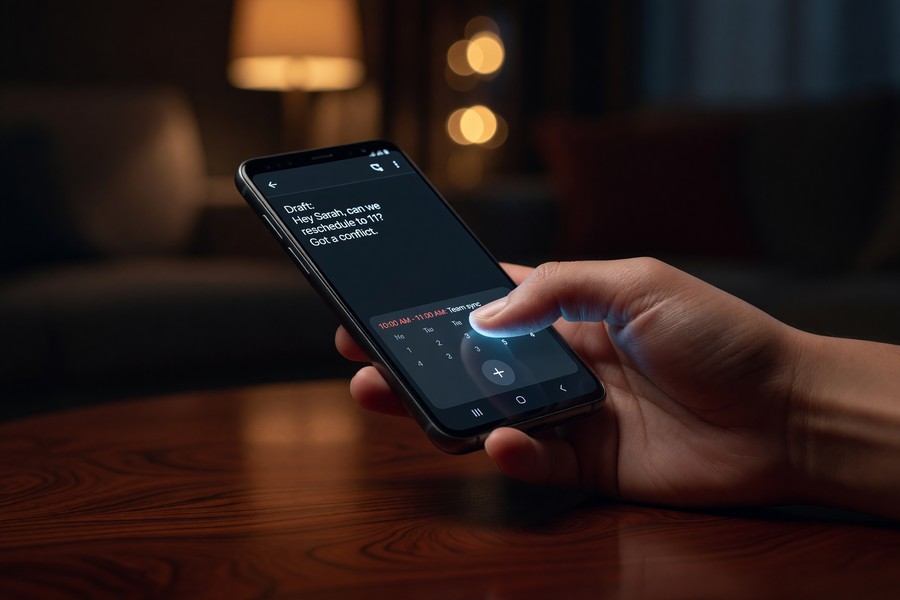
Here’s how to schedule a text in Google Messages. Open the app and start composing your message as normal. Type out your text, then long-press the send button (the blue arrow). A menu will appear with “Schedule send” as an option.
You’ll see a few preset times (like “Tomorrow morning” or “Tomorrow afternoon”), or you can tap “Pick a date and time” to set a custom moment. Confirm, and the message is queued. You’ll see a small clock icon on the message indicating it’s scheduled.
To edit or cancel a scheduled message in Google Messages, tap the message draft before it sends. You’ll see options to delete or reschedule it — handy if plans change last minute.
Samsung Messages and Other Manufacturer Apps
Samsung’s own Messages app also supports scheduling natively. After composing your message, tap the “+” icon to reveal additional options. Look for the calendar or clock icon labeled “Schedule message.”
Not all manufacturer messaging apps support this. If yours doesn’t have the option, switching to Google Messages (free on the Play Store) is the easiest fix. It works on virtually every Android device running Android 5.0 or newer.
How to Schedule a Text on iPhone
Here’s the honest truth: Apple’s default iMessage and Messages app does not have a built-in schedule feature as of iOS 17. It’s a long-standing frustration for iPhone users, and Apple has been slow to address it.
That said, there are two solid workarounds that don’t require downloading a third-party messaging app. Both are free and use tools already on your iPhone.
Using the Shortcuts App (Recommended)
The Shortcuts app is pre-installed on every iPhone running iOS 13 or later. It lets you automate tasks — including sending a pre-written text at a scheduled time. Here’s how to set it up.
Open Shortcuts, tap “Automation” at the bottom, then tap the “+” button to create a new personal automation. Choose “Time of Day,” set your desired time and date, then tap “Next.” Add the action “Send Message,” type your text and choose your recipient, then disable “Ask Before Running” so it fires silently. Tap “Done” and you’re set.
Apple’s Shortcuts app can automate over 300 different actions on iPhone — from sending texts to controlling smart home devices. Most users never explore beyond the surface of what it can do.
Using Siri Reminders as a Nudge
If the Shortcuts setup feels too involved, a simpler (though manual) option is using Siri Reminders. Set a reminder that says “Send birthday text to Mom.” When the reminder fires, you get a push notification that takes one tap to open Messages.
This isn’t true scheduling — you still hit send yourself — but it eliminates the risk of forgetting. For time-sensitive messages where you want full control, this is a reasonable middle ground. For fully automated solutions, the Shortcuts method or a third-party app is better.
Best Third-Party Apps for Scheduling Texts
Third-party apps fill the gap on both platforms, and several are genuinely excellent. They offer more flexibility than native options, including recurring messages, templates, and multi-recipient sends.
The tradeoff is that most of these apps require your phone to be powered on and connected to the internet when the message is due to send. They don’t operate from the cloud the way email schedulers do.
Top Apps Worth Knowing
| App | Platform | Free Tier | Standout Feature |
|---|---|---|---|
| Scheduled | iOS and Android | Yes (limited) | Clean UI, reminder fallback |
| SKEDit | Android | Yes | WhatsApp and SMS scheduling |
| Textra SMS | Android | Yes | Built-in delay send feature |
| Moxy Messenger | iOS | Yes | Business-focused scheduling |
| Google Messages | Android | Fully free | Native, no extra setup needed |
Scheduled is particularly popular among iPhone users because it bridges the gap Apple left. The free version lets you queue a handful of messages per month, which is plenty for personal use. Upgrading unlocks unlimited scheduling and template storage.
Apps in the “productivity and utilities” category that focus on messaging automation have seen a 67% increase in downloads since 2021, reflecting growing demand for smarter communication tools.
For Android users who want to schedule across multiple platforms (not just SMS), SKEDit stands out. It supports WhatsApp, Telegram, and SMS from a single interface — useful if your contacts are spread across apps.
What to Look for in a Scheduling App
Before downloading, check three things: does it send automatically without requiring you to unlock your phone? Does it work if your phone is on Wi-Fi only? And does it have a cancellation/edit feature in case plans change?
Read recent reviews carefully. Some apps work perfectly on one Android version and break on the next OS update. An app with thousands of positive reviews from the last 6 months is a safer bet than one with older, outdated praise.
Scheduling Texts for Business Use
If you’re managing customer communications at scale, personal apps won’t cut it. Business SMS platforms are designed for volume, compliance, and analytics — and most support advanced scheduling as a core feature.
These platforms also handle opt-in compliance, which is legally required under FTC guidelines on text message marketing. Sending unsolicited bulk texts without proper consent can result in serious fines.
Popular Business Texting Platforms
Platforms like SimpleTexting, EZTexting, and Twilio all offer robust scheduling features. You can write a campaign message, select your recipient list, and schedule delivery for any future date and time — including by time zone.
Most plans start around $20–$30 per month for small lists. Twilio is more developer-focused and pricing is usage-based, but it offers the most flexibility for custom integrations. For a growing business, investing in one of these tools pays off quickly in time saved and consistent follow-through.
“Timing is everything in SMS marketing. A message sent at the right moment can see open rates above 90%, while the same message at the wrong time gets ignored or, worse, triggers an opt-out.”
Compliance and Best Practices for Business Texts
Always get explicit opt-in consent before texting customers. Include a clear opt-out option in every message (e.g., “Reply STOP to unsubscribe”). The CTIA Messaging Principles and Best Practices document is the industry standard guide for staying compliant.
Schedule business texts during business hours — typically 9 AM to 8 PM in the recipient’s local time zone. Sending at 6 AM or 11 PM is not just annoying; it can violate the Telephone Consumer Protection Act (TCPA).
Tips for Writing Scheduled Messages That Land Well
Knowing how to schedule text message delivery is only half the battle. The other half is writing messages that actually get a response. A poorly written message sent at the perfect time still falls flat.
The good news is that SMS has its own communication rhythm. Shorter is almost always better. People scan texts in seconds — front-load your key information.
Keep It Short and Human
The sweet spot for a scheduled text is 1–3 sentences. State the point clearly in the first sentence. If there’s an action you want them to take, make it explicit and easy. Avoid walls of text — they don’t translate well to a phone screen.
Also, consider tone carefully when scheduling ahead. A message that feels warm and spontaneous when you write it Saturday night might read oddly formal by the time it arrives Tuesday morning. Reread it from the recipient’s perspective before you schedule it. For more on how communication habits affect relationships and daily life, our piece on how to send disappearing messages on any device offers some useful context on modern messaging expectations.
Add a personal detail to scheduled birthday or holiday texts — like referencing a specific memory or inside joke. It signals the message was written thoughtfully, not auto-generated, even if it was written days in advance.
Avoid Over-Scheduling
It’s easy to get carried away once you discover scheduling. But if someone receives a text from you that feels robotic or impersonal, it can actually damage the relationship rather than strengthen it. Use scheduling as a support system, not a replacement for genuine engagement.
Reserve scheduled texts for moments where timing truly matters: reminders, time-sensitive info, and milestone messages. Casual conversations are better left spontaneous.
Privacy, Permissions, and Security Concerns
When you give a third-party app permission to access your contacts and send texts, you’re granting significant access to your phone. It’s worth understanding what that means before you install anything.
Most reputable apps are transparent about what data they collect. But “most” isn’t all. Before installing any scheduling app, check the privacy policy and look for red flags like data selling or excessive permission requests.
What Permissions to Watch For
A legitimate SMS scheduling app needs access to your contacts, SMS, and possibly notifications. It should not need access to your camera, microphone, or location data. If an app requests those, decline or find an alternative.
For users who care deeply about privacy in their communications, our guide on what end-to-end encryption means and why it matters is worth reading alongside this one. Not all messaging apps treat your data the same way.
Some free scheduling apps monetize by harvesting your contact list. Always read the app’s privacy policy before granting contact access. If a free app has no clear business model, your data is likely the product.
Keeping Scheduled Messages Secure
If you’re scheduling sensitive messages (medical appointments, financial details, personal disclosures), use an app that stores message drafts locally rather than in the cloud. Cloud-stored drafts are theoretically accessible if the provider’s servers are compromised.
For professional communications, consider using a business SMS platform that offers SOC 2 compliance or similar data security certifications. These platforms are built with enterprise security in mind, not just consumer convenience.
Common Mistakes When Scheduling Texts
Even with the right tools, scheduling texts can go sideways. Most problems are preventable with a bit of foresight. Here are the mistakes people make most often — and how to avoid them.
The biggest issue is forgetting that the message is scheduled and then sending a manual version too. The recipient gets the same text twice — once spontaneously, once from the queue. Always check your scheduled queue before sending manually.
Time Zone Mix-Ups
If you’re in New York and scheduling a text for a contact in Los Angeles, a 9 AM send time in your zone fires at 6 AM their time. Always double-check the recipient’s time zone before scheduling, especially for professional messages.
Most business texting platforms let you schedule by recipient time zone automatically. Personal apps usually do not — you’ll need to do the math manually or use a time zone converter to get it right.
The United States spans 6 standard time zones, including Alaska and Hawaii. For businesses texting nationwide, failing to account for time zone differences is one of the top reasons for poor campaign engagement.
Phone Being Off at Send Time
This catches people off guard: most phone-based scheduling apps require your device to be on and active when the scheduled time arrives. If your phone is off, in airplane mode, or has a dead battery, the message simply won’t go out.
To avoid this, use a cloud-based business SMS platform for truly critical messages, or set a secondary reminder for yourself to ensure your phone is on. Some apps send a local push notification shortly before the scheduled send time — enable those notifications if available.
Your Action Plan
-
Identify your use case first
Decide whether you’re scheduling for personal use (birthdays, reminders), professional use (follow-ups, meeting nudges), or business use (marketing, customer service). Your use case determines which tool is right for you — don’t over-engineer a personal solution or under-build a business one.
-
Check your default messaging app
If you’re on Android, open Google Messages and long-press the send button to see if scheduling is already available. If you’re on Samsung, check your Messages app for a “Schedule message” option in the attachment tray. You may already have what you need.
-
Set up the iPhone Shortcuts workaround if needed
Open the Shortcuts app, go to Automation, create a Time of Day trigger, and add the “Send Message” action. Write your message, set the recipient, disable the confirmation prompt, and save. Test it once with a low-stakes message to yourself before using it for something important.
-
Download a third-party app if native options fall short
For more flexibility — recurring messages, multiple recipients, cross-app scheduling — download Scheduled (iOS/Android) or SKEDit (Android). Review the permissions requested carefully before granting contact access. Start with the free tier to test before committing to a paid plan.
-
Check time zones before confirming
Before finalizing any scheduled message, verify that the send time makes sense in the recipient’s local time zone. Use a time zone converter if needed. For business texts, aim for 9 AM–8 PM in the recipient’s zone to stay compliant and avoid annoyance.
-
Write the message with the arrival moment in mind
Reread your draft and imagine receiving it at the scheduled time. Does it sound natural? Is it clear what you want the recipient to do? Is it the right length? Edit for the moment of delivery, not the moment of writing.
-
Keep your phone charged and online at send time
If you’re using a phone-based app (not a cloud platform), make sure your device is powered on and connected when the message is due. Set a secondary reminder for yourself if the message is critical. For fully hands-off delivery, use a cloud-based SMS service instead.
-
Review your scheduled queue regularly
Make it a weekly habit to check what messages are sitting in your queue. Plans change, situations evolve, and a message that was appropriate when you wrote it might need editing or canceling by the time it’s due to send. Most apps make this easy through a dedicated “Scheduled” inbox view.
Frequently Asked Questions
Can I schedule a text message on a standard iPhone without any extra apps?
Not through the Messages app itself — Apple hasn’t added that feature yet. However, the Shortcuts app comes pre-installed on all iPhones running iOS 13 or later and can automate text sending at a specific time. It takes about 5 minutes to set up and doesn’t require any downloads.
Does Google Messages schedule texts even when my phone is off?
No. Google Messages schedules texts locally on your device, not through Google’s servers. If your phone is powered off or in airplane mode when the scheduled time arrives, the message will be held and sent as soon as your phone reconnects. It’s a good idea to keep your phone on and connected if timing is critical.
Are there free apps to schedule text messages on iPhone?
Yes. The Scheduled app offers a free tier that lets you queue a limited number of messages per month — enough for personal use. The Shortcuts method is completely free. For heavier use, paid tiers on apps like Scheduled or Moxy Messenger start at a few dollars per month.
Can I schedule a group text message?
It depends on the tool. Google Messages’ native scheduler works for individual contacts only. Third-party apps like Scheduled and most business SMS platforms support group sends. Check the app’s documentation before assuming group scheduling is supported.
Will the recipient know the message was scheduled?
No. Scheduled texts arrive exactly like any other SMS or iMessage. There’s no indicator on the recipient’s end that shows the message was pre-written or queued. From their perspective, it looks completely spontaneous.
How far in advance can I schedule a text message?
Most apps support scheduling weeks or even months in advance. Google Messages allows scheduling up to about a year out. Some third-party apps don’t have a stated limit. If you’re planning for a recurring event (like an annual birthday message), some apps support repeating schedules so you only set it up once.
Is it legal to schedule marketing texts to customers?
Yes, but with strict conditions. You must have explicit written consent from each recipient before sending marketing texts, and every message must include a clear opt-out option. The FTC’s guidelines on text message marketing and the TCPA regulate this in the United States. Violations can result in fines of $500–$1,500 per unsolicited message.
Can I edit a scheduled text before it sends?
In most cases, yes. Google Messages lets you tap on a scheduled message to edit or delete it before it fires. Third-party apps typically show all queued messages in a “Scheduled” tab where you can modify them. The Shortcuts app automation can be edited anytime in the Automation tab before the trigger time.
What happens if my phone loses signal when a text is supposed to send?
SMS messages that fail to send due to no signal are typically queued by the device and sent automatically once signal is restored. Most carriers hold unsent messages in the queue for up to 48 hours. However, this behavior can vary by carrier and device. For time-sensitive messages, ensure you have reliable signal coverage at the expected send time.
Are scheduled texts different from automated texts in a business context?
Scheduled texts are pre-written messages set to go out at a specific time — written by a human for a specific occasion. Automated texts are triggered by actions (like a customer making a purchase or completing a form) and are generated dynamically by software. Both are valuable for businesses, and many SMS platforms support both within the same dashboard. If you want to explore how messaging fits into broader team workflows, our guide to best messaging apps for business teams covers the distinction in detail.
Sources
- Pew Research Center — Social Media Use in 2021
- Federal Trade Commission — Text Message Spam and Marketing Rules
- CTIA — Messaging Principles and Best Practices
- TimeandDate.com — World Clock Time Zone Converter
- Google Support — Schedule a Message in Google Messages
- Apple Support — Shortcuts User Guide for iPhone
- Gartner — SMS and Mobile Messaging Research
- Statista — Mobile Messaging and Communication Usage Statistics
- Federal Communications Commission — Stop Unwanted Robocalls and Texts
- Neil Patel — SMS Marketing: What You Need to Know
- Snapmessages — What Is End-to-End Encryption and Why It Matters
- Snapmessages — Best Messaging Apps for Business Teams in 2026