Quick Answer
To run a 72-hour app-free challenge on iOS, first create a new Focus called ‘App-Free 72-Hour’. Customize it to allow only essential contacts and apps. Schedule its start at a fixed time, and ensure it syncs across your devices for real-time tracking via Screen Time and Health app data.
Updated August 2026
Ask around about digital detox, mental clarity, and emotional balance and one method keeps coming up: locking iOS Focus Modes into a single continuous 72-hour app-free stretch. It turns a vague mental health goal into something scheduled and concrete, something you can actually point to on a calendar.
Why 72 hours, specifically? Three days is long enough to break the muscle memory behind reflexive scrolling, but short enough that people actually finish it. Daily screen limits demand constant willpower resets. Weekly detoxes tend to die by Thursday. A single 72-hour block sidesteps both traps. Apple’s Focus system does the enforcing through time-based scheduling, so you’re not counting on raw self-discipline to keep Instagram closed at 11 PM on a Saturday night.
Key Takeaways
- A 72-hour Focus Mode in iOS blocks non-essential apps for exactly three days via time-based automation.
- Nearly half, 50.4%, of U.S. teens (ages 12–17) spend four or more hours daily on screens outside school. According to Pew Research Center (2025), this usage is linked to rising anxiety and sleep disruption.
- Focus Modes sync across Apple devices for consistent challenge rules across all your gadgets.
- The Health app’s sleep and mindfulness tools operate during the challenge, offering real-time wellness tracking.
Why a 72-Hour App-Free Window Boosts Real Wellness Gains
Daily screen-time caps rarely hold up. A 72-hour block works differently. It breaks the pattern outright instead of just trimming its edges.
The American Psychological Association has pointed out that periodic unplugging cuts technology-related stress. Seventy-two hours gives the brain room to actually disengage from the notification reward cycle, rather than suppressing it for one quiet afternoon before it snaps back harder after dinner.
Look at the numbers for a second. Only 38% of U.S. teens say they spend too much time on their phones. Yet the CDC’s 2025 data shows 50.4% of teens ages 12 to 17 log four or more hours of non-school screen time every single day. That gap says something. Most teens don’t register their own usage as excessive at all. A hard 72-hour stop forces that recognition in a way a daily one-hour limit simply can’t.
For context, a 2024 survey of 1,001 Americans found average daily phone screen time sitting at 5 hours and 16 minutes. That’s how embedded these habits have become. Stretch that across three days and you’re near 160 hours of screen time, more than six full days of non-stop phone use. The 72-hour challenge doesn’t just pause that number. It carves a measurable gap into the cycle.
Pre-Challenge Prep: What to Arrange Before Starting
Good prep is the difference between finishing and caving by hour four.
Start with your Screen Time report. Check the last seven days and find which apps ate the most of your time. For a lot of iPhone users that’s TikTok, Instagram, or YouTube sitting at the top, often by a wide margin over everything else. Once you know the real culprits, whitelist only what’s genuinely non-negotiable: a calendar, Apple Maps, one emergency contact thread. That’s the whole list. Everything else gets blocked before the clock starts running.
Tell two or three people what you’re doing. Accountability matters more than most productivity advice gives it credit for. One in five consumers in the U.S. and UK have taken a full digital detox at some point, whether while traveling or during any extended stretch, according to GWI (2025).
Here’s a real-world way to picture the scale. Say you’re a 24-year-old graphic designer earning $52,000 a year, roughly $4,333 a month, and you spend the average 5 hours and 16 minutes daily on your phone. That’s about 10% of your waking hours gone to screens. Over a year, it adds up to nearly 1,830 hours, more than 76 full days. A 72-hour break isn’t just a habit reset at that point. It’s a real interruption of a pattern that eats more time annually than a part-time job.
Creating a Dedicated ‘App-Free’ Focus Mode in iOS
Setting up the Focus takes about four minutes. Do it the day before you start, not the morning of.
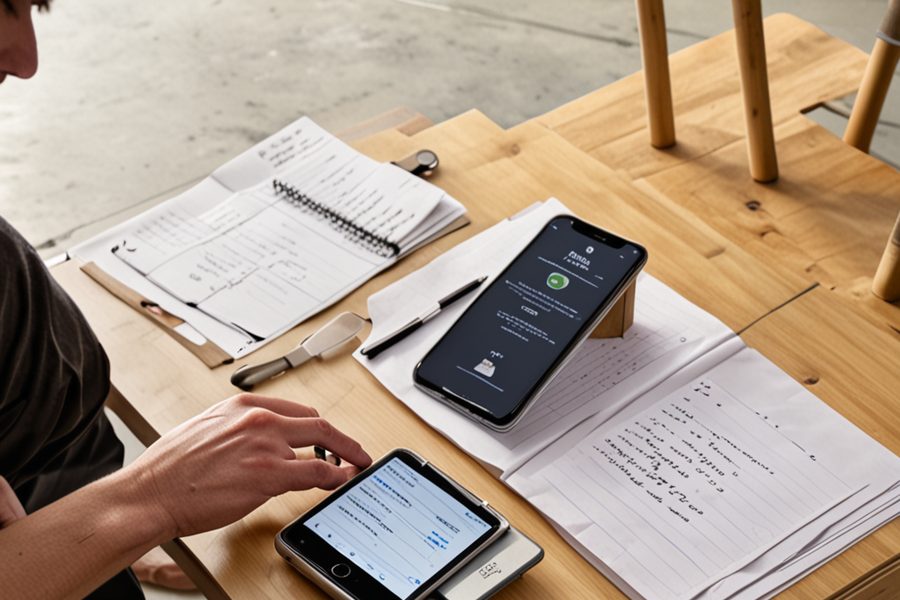
Open Settings, tap ‘Focus’, then ‘Add Focus’. Name it ‘App-Free 72-Hour’. Under ‘Allow Notifications’, add only the contacts you’ve already decided are essential, and block every other notification source without exception. Pick a minimal icon, a plain circle or the “no” symbol works fine, so this Focus reads as visually distinct from your everyday profiles at a glance.
Under ‘Home Screen’, build a page with only wellness widgets on it: weather, clock, maybe a water-reminder if you use one. That stripped screen is all you’ll see while the Focus is running. No app icons to tap on reflex, no folder of social apps sitting one swipe away waiting for a weak moment.
Turn on ‘Share Across Devices’. Your iPad and Mac inherit the same rules automatically, no separate setup needed.
Scheduling the Focus Mode for a Continuous 72-Hour Window
Set it once and walk away.
Go to Settings, tap ‘Focus’, then select your ‘App-Free 72-Hour’ mode. Enable ‘Schedule’. A Friday 8:00 PM start ending Monday 8:00 PM fits most work weeks cleanly and covers the two days when social media use tends to spike hardest. iOS ends the Focus automatically once the window closes. No manual intervention on your part.
One thing worth flagging: if you’re crossing time zones that weekend, add a ‘Location’ trigger as backup. The time-based schedule stays anchored to your original local time, and that can leave small gaps while you’re traveling. A location trigger closes those. Set a calendar reminder for Monday evening too, so you review your Screen Time report while the comparison is still fresh instead of two weeks stale and half-forgotten.
For context, a 2024 survey of 1,001 Americans found that the average daily phone screen time is 5 hours and 16 minutes, another sign of how deeply these habits are wired in.
A concrete example: a college student who spends 5 hours and 16 minutes a day on their phone, trying to sharpen focus for exam prep, gets 160 hours of uninterrupted mental space from this block, not counting whatever time would’ve gone to low-value scrolling anyway. That’s roughly four full days of study time most people don’t realize they’re sitting on.
Staying Engaged During the Challenge Without Phone Reliance
Boredom shows up fast. Have replacements lined up before it does.
The Health app’s mindfulness and sleep tracking run in the background without registering as screen-time spikes in your report, so use them freely. Beyond that, log your mood on paper every hour or two and watch the trend lines shift over the three days. Take at least one walk a day without earbuds. Read something physical instead of Kindle. Cook a meal that takes ninety minutes from start to finish. None of this is filler. These activities occupy the same psychological space your phone used to fill, minus the dopamine loop that made putting it down so hard in the first place.
For more on shaping your environment around this, see how remote workers reduce notification anxiety, which gets into workspace adjustments beyond just blocking apps.
One honest caveat: this approach works best for people who can actually afford to step away from constant digital checks. If your phone is your line to work-critical communication, an emergency, or a high-stress caregiving situation, a full 72-hour block might not be realistic, and forcing it could create more stress than it relieves. The window is built for people who can temporarily isolate their digital inputs without putting real obligations at risk, not a substitute for setting boundaries in genuinely high-demand jobs or households.
| Behavior or Habit | Share of U.S. Teens (2024) | Share of U.S./UK Consumers (2025) |
|---|---|---|
| Have cut back on social media use | 39% Pew Research Center (2024) | |
| Have cut back on smartphone use | 36% Pew Research Center (2024) | |
| Have taken a full digital detox (any time) | 1 in 5 GWI (2025) | |
| Have deleted an app to moderate digital consumption | 37% GWI (2025) |
Frequently Asked Questions
Can I still use my phone for emergencies during the 72-hour challenge?
Yes. In Settings > Focus > App-Free 72-Hour, add specific people under ‘Allow Notifications’. Calls and messages from anyone outside that list are blocked for the full three days. This lines up with CDC guidance on keeping access to critical support systems open during any behavioral change.
What happens if I forget to turn off the Focus after 72 hours?
Nothing bad happens. iOS schedules it for exactly three days and ends it on its own. No manual override needed. If you’re traveling across time zones, the location trigger you set as a backup handles any timing gaps that pop up.
Can I include my work email in the allowed list?
You can, but think it through first. If work email genuinely needs monitoring over the weekend, add it. If it’s more habit than necessity, leave it off the list. GWI (2025) data shows most digital detoxes happen for personal well-being, not professional obligation.
How do I track if the challenge improved my focus?
Compare your Screen Time report from the week before against the post-challenge numbers. Watch total pickups and per-app minutes both, they tell different parts of the story. Use the Health app across the weekend to log mood and focus levels so Monday morning gives you actual data instead of a vague impression.
Can I use the Health app’s sleep tracking during the challenge?
Yes, no conflict there. The Health app runs entirely in the background. Sleep quality data and mindfulness session logs keep accumulating, and none of it counts against your app-free intent.
What if I need to use a messaging app like WhatsApp during the challenge?
Whitelist it only if it’s genuinely unavoidable. 39% of U.S. teens have already cut back on social media on purpose, which suggests the urge to keep every app on standby is more habit than real need. If WhatsApp does make your allowed list, consider turning on WhatsApp’s disappearing messages to cut down on lingering digital residue once the challenge wraps up.
Is a 72-hour challenge effective for reducing digital dependency?
Yes. A 72-hour window disrupts habitual behavior without becoming unsustainable. GWI (2025) reports that one in five consumers in the U.S. and UK have taken a full digital detox, which suggests structured, time-bound breaks actually work and are widely recognized as such.
Why is this different from a daily screen limit?
Because daily limits depend on constant willpower and tend to fail by midweek. A 72-hour block removes the need for repeated decisions entirely. It creates one clean break from the feedback loops that keep usage going. The average American spends 5 hours and 16 minutes a day on their phone, which is exactly why small incremental limits tend to underperform a full reset.
Can I use a physical journal instead of the Health app?
Yes, the Health app is optional here. A lot of people find journaling mood, focus, and physical sensations by hand gives deeper insight than automated tracking ever could. The CDC recommends reflective practices for mental health resilience, particularly when cutting back on device use.
What should I do if I feel anxious during the challenge?
Anxiety in the first 24 hours is common, so don’t read it as failure. Lean on grounding techniques: deep breathing, a walk, or something small like organizing a drawer. The American Psychological Association notes that temporary discomfort during digital detoxes is normal and often the thing that precedes lasting relief.
Does the challenge work for adults, or just teens?
It works for adults too. Teen data gets cited more often, but the underlying behavior, habitual checking, reward-loop dependency, isn’t age-specific. GWI (2025) data confirms adults in both the U.S. and UK are actively chasing digital balance through structured breaks of their own.
Sources
- Apple Inc.: Set Up a Focus
- Apple Inc.: Turn a Focus On or Off
- American Psychological Association: Healthy Technology Use
- Pew Research Center (2024): Teens and Screen Time
- Pew Research Center (2025): Teens and Mental Health
- GWI (2025): Digital Detox Trends
- Harmony Healthcare IT (2025): Phone Screen Time Statistics






